How to Set Up Voice Isolation in Voice Access on Windows 11

Voice Isolation in Voice Access on Windows 11 filters out room noise so your computer hears your spoken commands clearly. This built-in tool blocks out background sounds and distractions that usually ruin hands-free computer navigation.
Calibration takes roughly 1 minute. Reading a short phrase out loud teaches the software your exact speaking style and boosts command accuracy by up to 15 percent. Before you start, find a quiet spot and check that your microphone is plugged in or connected. The recording is only as good as the room you make it in.
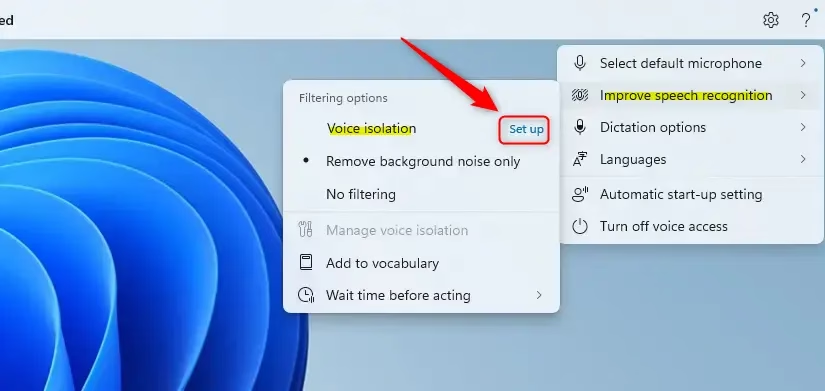
Open Settings Accessibility Speech and turn on Voice Access. Click the Settings gear icon on the Voice Access toolbar, select Improve speech recognition, then click Set up next to Voice isolation. Choose your microphone, click Start recording, read the sample text aloud in your normal voice, then click Stop recording to complete setup.
Here’s How to Set It Up:
Voice Isolation is a newer addition, so if you can’t find it in the steps below, run Windows Update and try again. It works on both Home and Pro editions.
- Turn on Voice Access. The quickest route is Settings Accessibility Speech, then switch on Voice access. The Voice Access toolbar should now appear at the top of your screen.
- Click the Settings (gear) icon on the right side of the Voice Access toolbar. A menu opens.
- Click Improve speech recognition in that menu.
- Look for Voice isolation and click Set up next to it. If you see “Set up,” Voice Isolation is ready to be configured.
- If you don’t see “Set up,” it has already been done. Click Manage voice isolation if you want to run the setup again, for example after you switch to a different microphone or move to a different room.
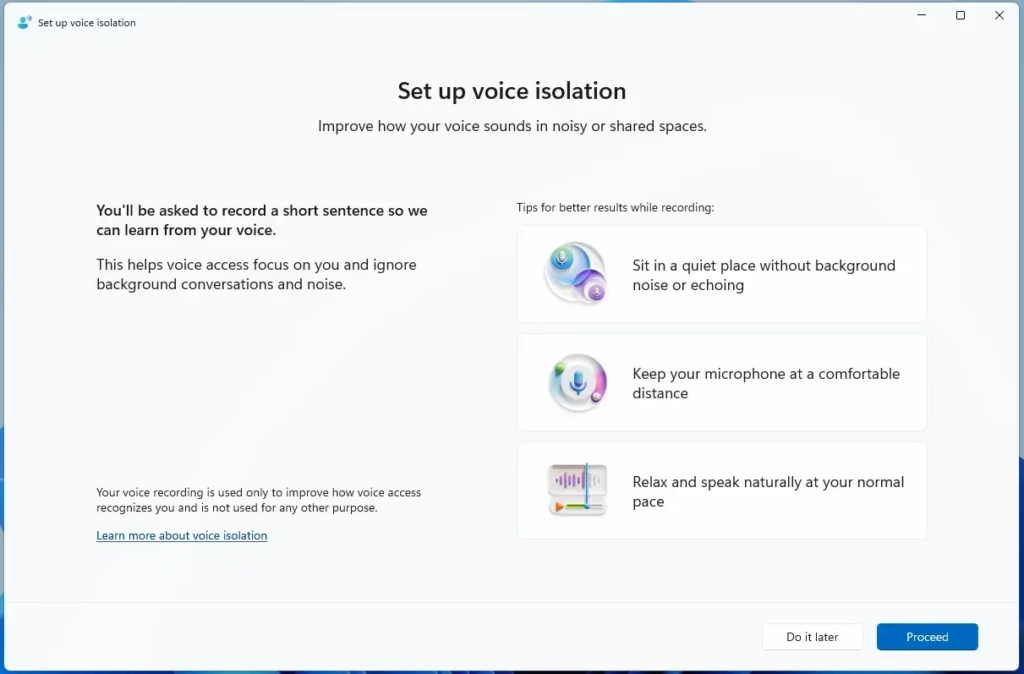
- Click Proceed. The recording screen appears.
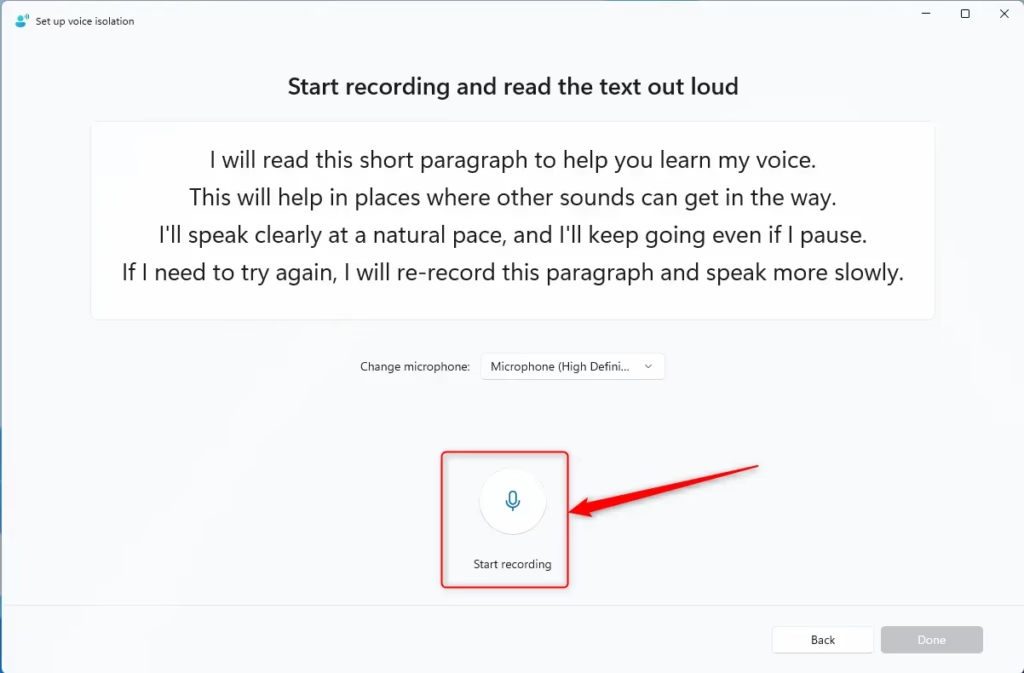
- Select your microphone if the right one isn’t already chosen. Check this carefully if you have a laptop mic, a headset and a webcam all connected.
- Click Start recording. Make sure you are in a quiet place when you do this, because any noise during the recording can reduce the benefit.
- Read the text on screen out loud in your normal voice and at your normal speed. Don’t whisper, and don’t speak more slowly or loudly than usual.
- Click Stop recording when you are finished. Voice Access then processes your sample, which takes a short while.
Setting up Voice Isolation on Windows 11 helps your computer hear your commands clearly by blocking background noise. In short: open the Voice Access toolbar at the top of your screen, click the Settings gear icon, select Improve speech recognition, and then choose the Voice isolation Set up option. Pick the right microphone, then record yourself reading the sample text.
Why Set Up Voice Isolation?
This feature allows the computer to ignore surrounding sounds and voices, making voice navigation more reliable. It helps most in shared rooms, offices and homes with a TV or other people talking nearby.
What Happens When Done?
If accuracy drops later, repeat the setup in a quieter spot using Manage voice isolation.
Reference:
https://learn.microsoft.com/en-us/windows-insider/release-notes/beta/preview-build-26220-8491
Summary
Have a question about this guide?
Answered by AI from this guide. Good questions may be added to this page — please don't include personal details.
Did this guide fix your problem?

About the Author
Richard
Tech Writer, IT Professional
Richard is a writer at Geek Rewind who turns complex IT tasks into clear, step-by-step guides. He draws on years of hands-on experience in system administration and enterprise IT operations, focusing on Windows, Linux and WordPress: the problems people actually run into, and the fixes that work. His server and WordPress guides come from systems he runs himself. Richard builds and maintains the platform behind Geek Rewind, from its Ubuntu servers and Nginx configuration to its custom WordPress plugins. Many new tutorials start with readers' questions, and he's always glad to answer them in the comments.
No comments yet — be the first to share your thoughts!