How to Install Additional Languages in Voice Access for Windows 11

Voice Access in Windows 11 lets you control your PC with spoken commands instead of a mouse or keyboard. You can open apps, click buttons, dictate text and scroll, all by voice. Microsoft includes speech packs for regional dialects such as UK, India, New Zealand, Canada and Australia. These make recognition more accurate for people who don’t speak US English.
If your PC picks the wrong speech pack, or you want to switch regions, you can add another language from the Voice Access toolbar in a few clicks. This guide covers Windows 11 version 22H2 and later, where Voice Access is built in. It works the same on Home and Pro. The language list can differ slightly between builds, so install the latest updates if you don’t see what you expect. Language packs are a download, so you need an internet connection.
Open the Voice Access toolbar at the top of the screen, click the gear icon, then open Language and choose Available for Download. Pick the regional version that matches how you speak, such as English (UK) or English (India), and click Download. The pack installs without a restart, but you need an internet connection, and if the language isn’t listed, run Windows Update first.
How to Install a New Language for Voice Access
To install additional languages in Voice Access on Windows 11, follow these steps from turning Voice Access on to testing the new language.
- Turn on Voice Access. If you haven’t used it before, follow this guide to switch it on: Turn on Voice Access in Windows 11. The first time you start it, Windows may ask to download a speech model for your current language. Make sure you’re online and let that download finish before you carry on.
- Find the Voice Access toolbar. Once Voice Access is running, a small toolbar appears at the top of your screen, centered on the display. If you don’t see it, Voice Access isn’t running yet. Go back to step 1 and check that it’s turned on.
- Click the Settings icon. It looks like a gear on the toolbar. A menu opens with Voice Access options. Even if your microphone is muted or Voice Access is listening, you can still click the gear with the mouse.
- Open the Language section. Click it to see the language options. You should see the language Voice Access is using now, along with any other packs you’ve already installed.
- Look for “Available for Download”. This shows the list of languages you can add. If the dialect you want isn’t listed, your Windows 11 build may not offer it yet. Run Windows Update , restart if it asks, and check the list again.
- Choose your language. Click the language you want to install. Pick the regional version that matches how you speak, such as English (UK) or English (India), because that is what improves accuracy.
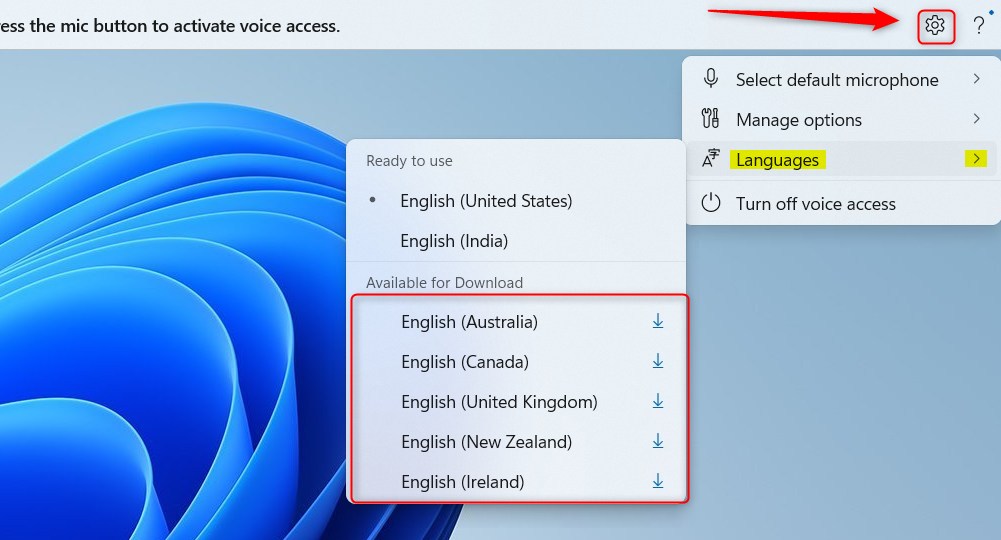
- Click Download. A pop-up appears at the top of your screen with a Download button. Click it and wait a few minutes for the language pack to install. The time depends on your connection speed. Keep the PC online and awake until it finishes.

- Start using the new language. Once it has downloaded, the language is ready to use with Voice Access right away. You don’t need to restart Windows. Say a simple command, or try dictating a sentence, to confirm it recognizes you properly.
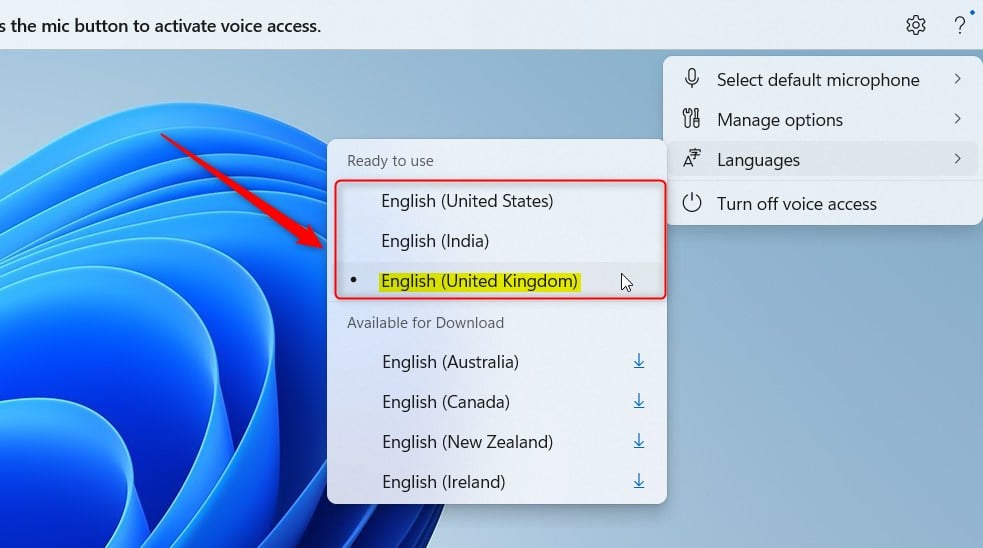
- Switch languages anytime. Go back to Voice Access Settings Language whenever you want to change. Pick the language you want from the list. To undo the change, select your previous language the same way. Packs you’ve already downloaded stay installed, so switching back is quick.
To add Voice Access languages in Windows 11, open the Voice Access toolbar at the top of your screen, click the gear icon for settings, and open the language menu. From there you can see all the speech packs available for download. Pick one and install it , and you can control your computer in another language or dialect. If a pack is missing from the list, update Windows and check again.
Need More Help?
For official information from Microsoft, check their guide here: Microsoft Voice Access Setup
Summary
Adding the speech pack that matches your accent or region is usually the quickest way to get better recognition. If the result isn’t what you hoped for, you can switch back to your earlier language at any time.
Have a question about this guide?
Answered by AI from this guide. Good questions may be added to this page — please don't include personal details.
Did this guide fix your problem?

About the Author
Richard
Tech Writer, IT Professional
Richard is a writer at Geek Rewind who turns complex IT tasks into clear, step-by-step guides. He draws on years of hands-on experience in system administration and enterprise IT operations, focusing on Windows, Linux and WordPress: the problems people actually run into, and the fixes that work. His server and WordPress guides come from systems he runs himself. Richard builds and maintains the platform behind Geek Rewind, from its Ubuntu servers and Nginx configuration to its custom WordPress plugins. Many new tutorials start with readers' questions, and he's always glad to answer them in the comments.
No comments yet — be the first to share your thoughts!