How to Add Custom Words to Voice Access in Windows 11

Voice Access in Windows 11 lets you control your PC and dictate text by speaking instead of using a keyboard and mouse. The built-in speech recognition often struggles with uncommon names, slang and technical terms.
You can add up to 2,000 custom words to your personal dictionary. The speech engine then learns your vocabulary and stops mishearing you. Voice Access is available in Windows 11 version 22H2 and later, in both Home and Pro. If you don’t see it, run Windows Update first. The first time you turn it on, Windows may download a speech model, so you need an internet connection for that step.
Open Settings Accessibility Speech, turn on Voice Access, click the gear icon on the Voice Access bar, select Vocabulary, then click Add and type each custom word or phrase you want recognized. Voice Access now learns your terms and stops mishearing them during dictation.
How to Add Your Own Words to Voice Access
The Vocabulary Builder is where you teach the speech engine terms it misses during dictation. Think of product names, people’s names, acronyms and industry jargon. You reach it through the Voice Access settings.
- Open Settings, then go to Accessibility and select Speech.
- Turn on the Voice access toggle. The Voice Access bar appears at the top of your screen, and you may see a short setup prompt the first time.
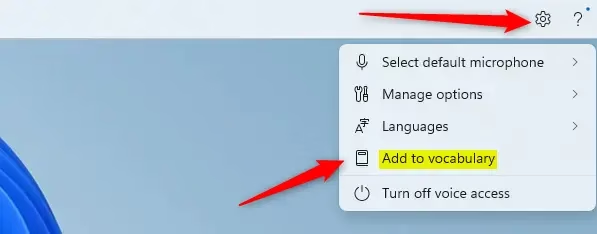
- On the Voice Access bar, open its Settings menu, the gear icon.
- Choose the vocabulary option in that menu. You should now see the list of custom words you have added, which will be empty on a first visit.
If you can’t find the vocabulary option, check that Windows is fully updated. Voice Access is still being updated regularly.
Now add the words you want the engine to recognize.
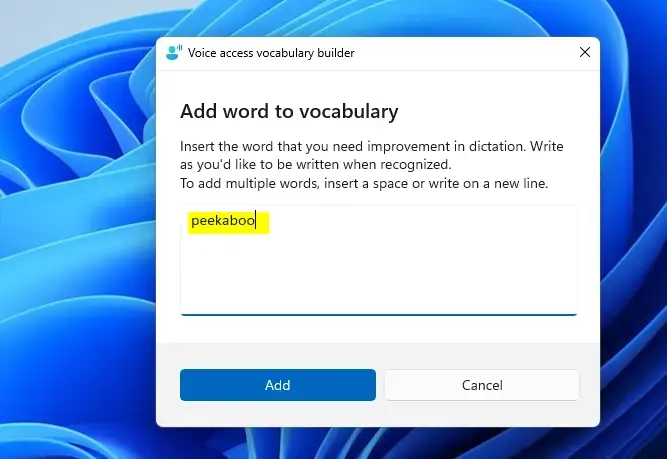
- Click the Add button in the vocabulary list.
- Type the word or short phrase exactly as you want it to appear in your text. Check capitalization and spelling, because that is what Voice Access will insert.
- Save the entry. It should now show up in your vocabulary list.
- Repeat for each term you want to add, up to the 2,000-word limit.
Removing it returns that word to the default speech engine behavior. No restart is needed for changes to take effect. Test a new word by dictating it in a text field such as Notepad.
Why Add Custom Words?
Custom dictionary entries make daily dictation noticeably more accurate. When the tool already knows your unique names or phrases, it gets them right the first time, so you spend less time correcting text. You can add new words by typing them into the settings, as shown above, or by using your voice.
If a word still comes out wrong, make sure the entry's spelling matches what you want, and try speaking it more slowly and clearly. A good habit is to add terms in small batches and test each one as you go.
Summary
Custom dictionary entries make working with your PC by voice smoother and more accurate. Turn on Voice Access, open the vocabulary list, add your specialized terms, and enjoy more responsive voice control.
Have a question about this guide?
Answered by AI from this guide. Good questions may be added to this page — please don't include personal details.
Did this guide fix your problem?

About the Author
Richard
Tech Writer, IT Professional
Richard is a writer at Geek Rewind who turns complex IT tasks into clear, step-by-step guides. He draws on years of hands-on experience in system administration and enterprise IT operations, focusing on Windows, Linux and WordPress: the problems people actually run into, and the fixes that work. His server and WordPress guides come from systems he runs himself. Richard builds and maintains the platform behind Geek Rewind, from its Ubuntu servers and Nginx configuration to its custom WordPress plugins. Many new tutorials start with readers' questions, and he's always glad to answer them in the comments.
No comments yet — be the first to share your thoughts!