How Do You Configure Windows 11 Accessibility?

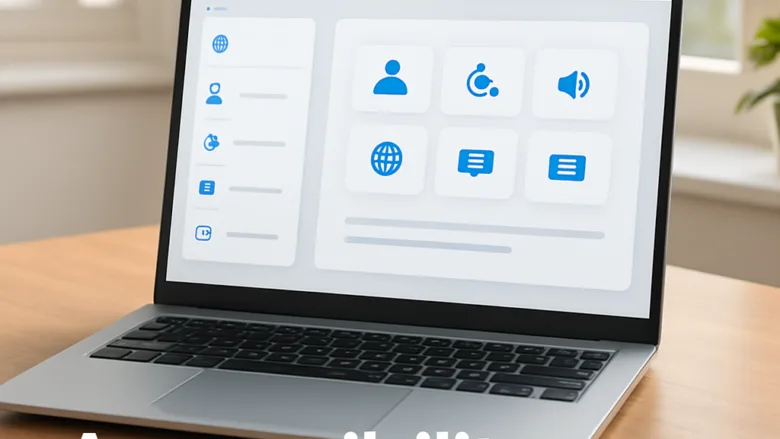
Accessibility settings in Windows 11 help you control your PC with your voice, read text aloud, and change display options so your screen is easier to see and read. You find all vision, hearing, and interaction tools grouped inside the Windows 11 Settings app .
To get there, open Settings Accessibility The page is split into vision, hearing, and interaction groups, so you can go straight to the tool you need. Narrator, Live Captions, and Voice Access can each be turned on in a few clicks. None of them needs a separate download from Microsoft Store, though some voices and language packs are downloaded the first time you use them.
The steps below are written for current Windows 11. Voice Access and natural Narrator voices first arrived in the 22H2 release, so on an older build you may not see them. Run Windows Update first if an option is missing.
Windows 11 accessibility and language guides help you control your computer with your voice, read text aloud, and understand spoken audio. You can find these tools in the Windows Settings app to add new languages, set up screen readers, and customize captions to match your personal needs.
Control Your PC With Your Voice
These guides walk through setting up Voice Access to navigate Windows and type entirely hands-free. Additional steps cover adding support for different languages and regional accents.
The basic setup looks like this:
- Open Settings Accessibility Speech
- Turn on the Voice access switch. Windows may download a speech model the first time, so stay online for this step.
- Pick your microphone if Windows asks. You should now see a Voice Access bar at the top of the screen showing that it is listening.
- Say a command, such as “open Notepad,” to confirm it works. Then say “start dictating” to type with your voice.
To turn it off, use the same switch or say “turn off voice access.” If the bar does not respond, check that the right microphone is selected and that the microphone is not muted.

Set Up Screen Readers and Text Reading
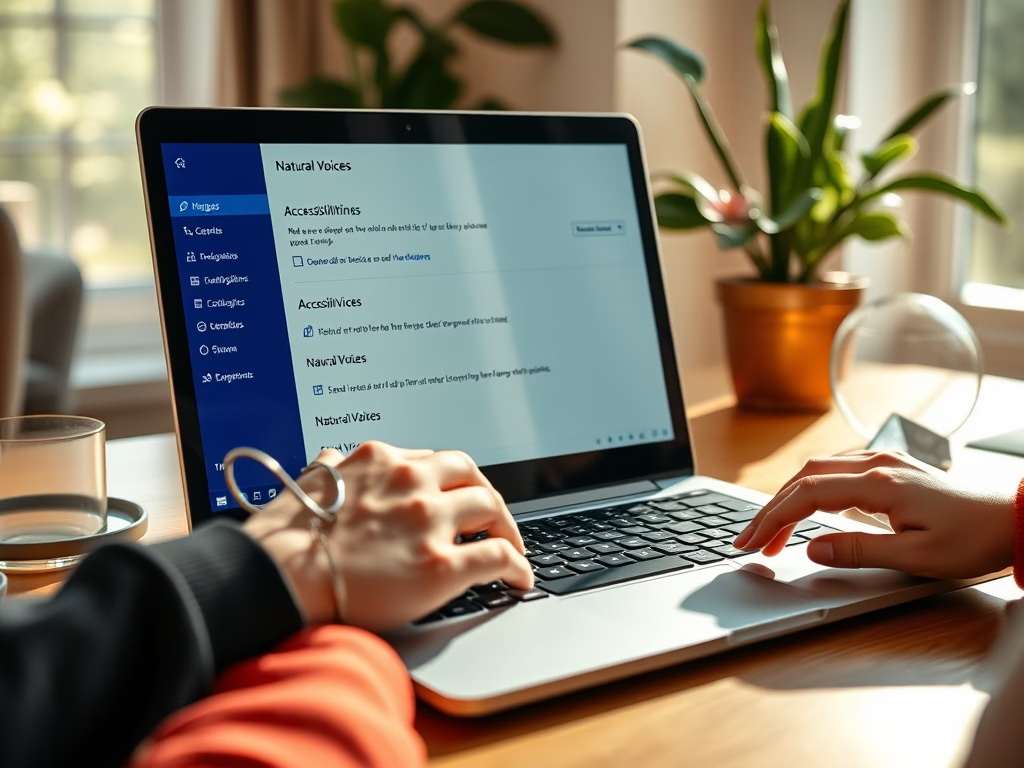
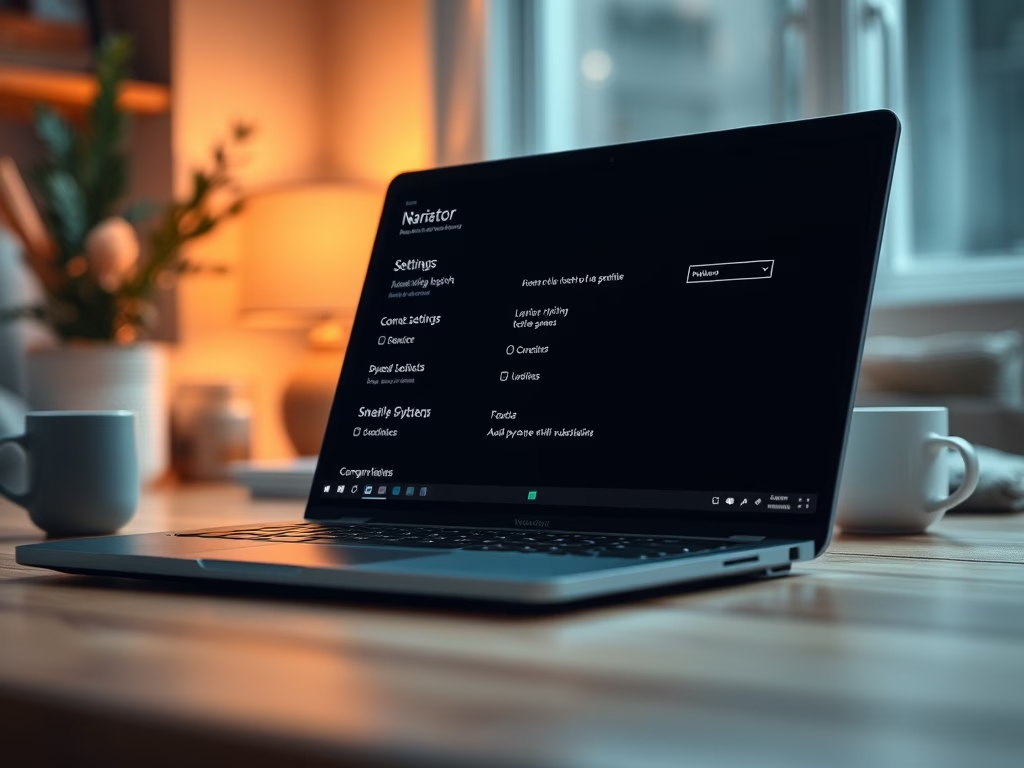
These steps help you customize the built-in Narrator tool so it reads text on your screen in a way that works best for you. You can install natural-sounding voices and change how the speaker sounds.
To reach the options, open Settings Accessibility Narrator Then follow these steps:
- Turn on the Narrator switch. You will hear Narrator start and may see a welcome window.
- Find the voice section and choose the voice you want from the list.
- Adjust the voice speed, pitch, and volume to suit you. Narrator speaks again after each change, so you can hear the result.
Narrator also starts and stops with the Windows key + Ctrl + Enter shortcut. That is handy if you only need it now and then.
Manage Captions and Language Packs
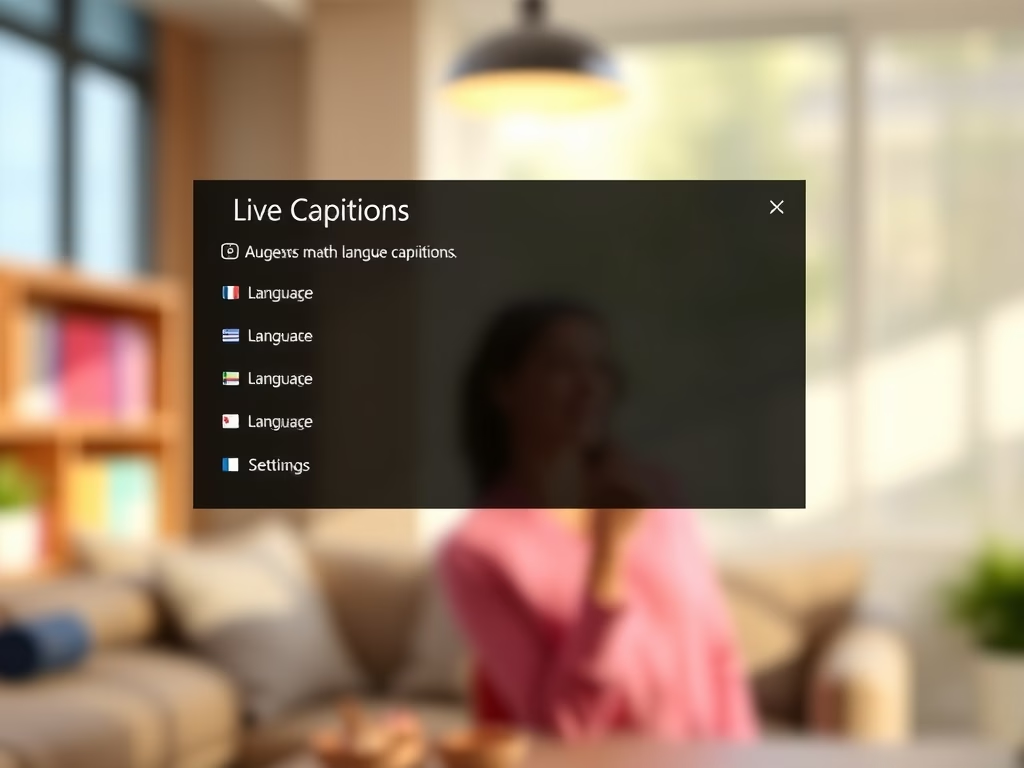
Turn on live captions for videos and calls, and add new languages to translate audio on your screen. Regularly updating language packs ensures accurate transcriptions and translations.
Here is how to switch captions on:
- Open Settings Accessibility Captions
- Choose Live captions and turn it on. You can also press the Windows key + Ctrl + L.
- Wait for Windows to download the speech files if it asks. A caption bar then appears at the top of the screen and shows text for any speech playing.
To add a language, open the settings gear on the caption bar and look for the caption language option. Choose the language you want and let Windows download it. Captions are generated on your PC, so they work offline once the language is installed. Check for updates now and then so the language packs stay current.


Write and Draw by Hand
These guides help you use a stylus or your finger to write words directly onto your screen. You can turn this feature on or off depending on whether you prefer typing or handwriting.
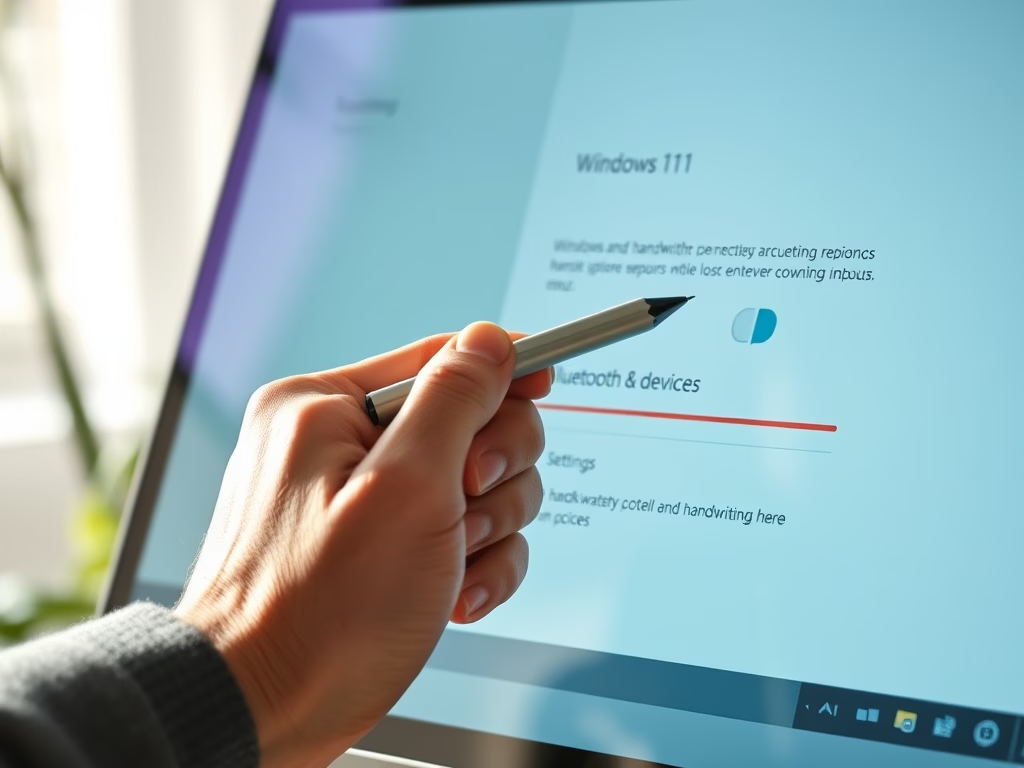
This feature only makes sense on a device with a touchscreen or a pen. On a regular desktop monitor, you will not see much use for it. Pen options live in Settings Bluetooth & devices > Pen & Windows Ink. Once handwriting is on, tapping a text box with your pen or finger brings up the handwriting panel. To go back to typing only, turn the same option off.
Common questions
How do I make Narrator sound more natural in 🪟 Windows 11?
Natural voices are available by opening the Narrator settings and choosing to download new voice packs. These voices sound more like real people and less like a computer.
Open Settings Accessibility Narrator and look for the option to add natural voices. Pick a voice from the list and start the download. Each voice is a sizeable file, so give it a few minutes. After it installs, choose it in the Narrator voice list. Natural voices run on your PC, so they keep working without an internet connection. If you do not see the option, update Windows first.
Can I use Voice Access in languages other than English?
Yes, Windows 11 lets you install additional languages for Voice Access in the settings menu. This allows speaking and controlling the computer in a preferred language.
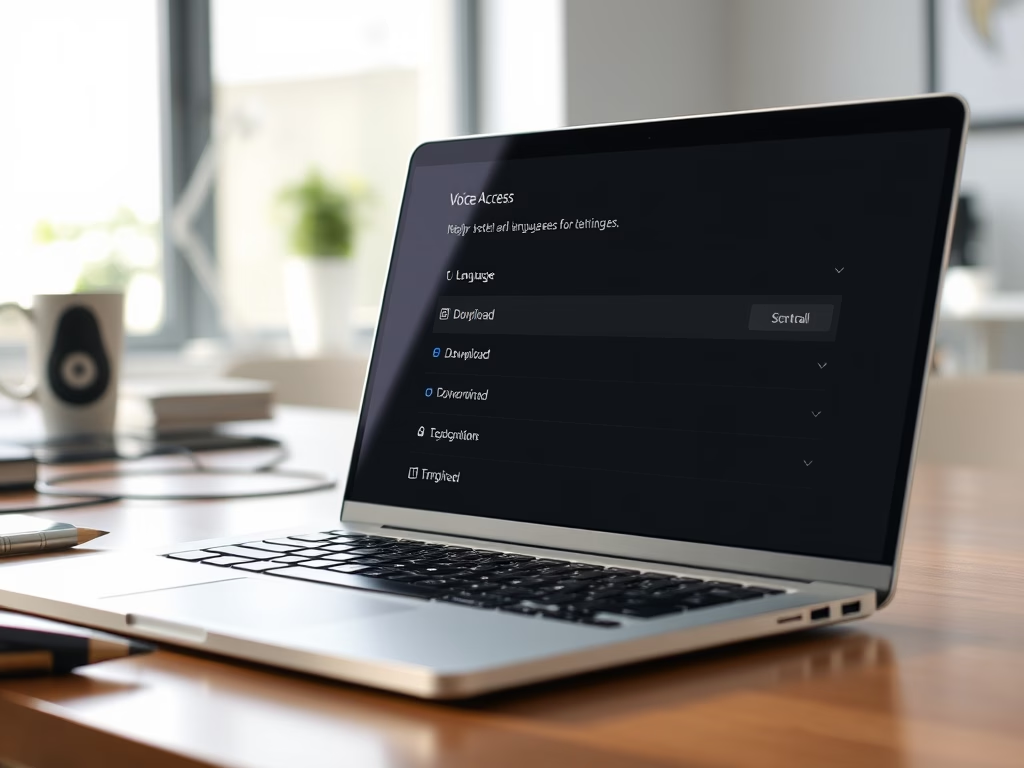
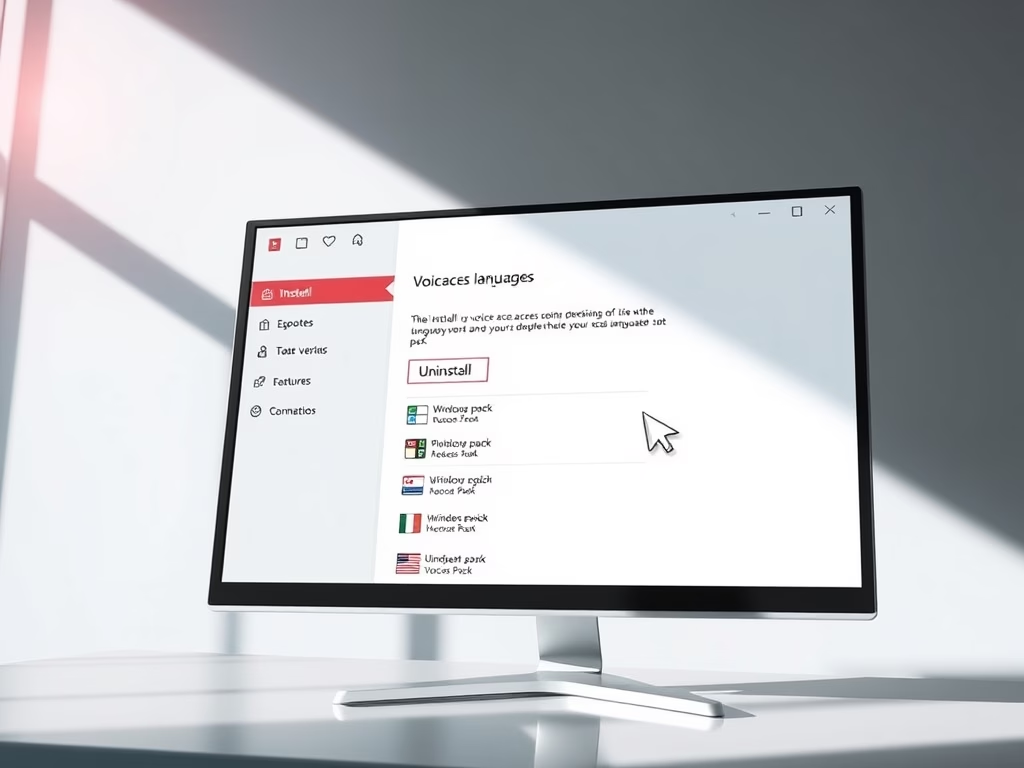
Open Settings Accessibility Speech and find the language option for Voice Access. Choose your language from the list and let Windows download it. The list of supported languages has grown over time, so what you see depends on your Windows version. If your language is missing, run Windows Update and check again.
How do I turn on live captions for videos on my PC?
Live captions turn on from the Windows 11 quick settings menu or accessibility settings. This feature automatically generates text for any speech playing on the screen.
The quickest way is to open quick settings by clicking the network, speaker, and battery icons at the right end of the taskbar. Then select Accessibility and switch on Live captions. If you do not see it there, open Settings Accessibility Captions instead. The caption bar shows text for videos, calls, and other audio.
How do I sign into 🪟 Windows 11 using my voice?
Voice Access enables on the sign-in screen through accessibility settings. This lets users say a PIN or password out loud to unlock the computer.
To set this up, open Settings Accessibility Speech. Turn on Voice Access first, then look for the option that starts it before you sign in. Tick it. At the next sign-in, Voice Access should be listening. Keep in mind that anyone nearby can hear a PIN or password spoken out loud. Use this where privacy is not a concern.
How do I write on my screen instead of typing?
The handwriting panel turns on in settings to write with a stylus or a finger. Windows automatically converts handwritten notes into typed text.
After you turn it on, tap into any text field with your pen or finger. The panel opens, and you can write your words in it. Windows turns the writing into typed text in the field. If the result looks wrong, write more slowly and keep letters clearly separate. If the panel never appears, check Settings Bluetooth & devices > Pen & Windows Ink and confirm your device has a touchscreen or pen.
Have a question about this guide?
Answered by AI from this guide. Good questions may be added to this page — please don't include personal details.
Did this guide fix your problem?

About the Author
Richard
Tech Writer, IT Professional
Richard is a writer at Geek Rewind who turns complex IT tasks into clear, step-by-step guides. He draws on years of hands-on experience in system administration and enterprise IT operations, focusing on Windows, Linux and WordPress: the problems people actually run into, and the fixes that work. His server and WordPress guides come from systems he runs himself. Richard builds and maintains the platform behind Geek Rewind, from its Ubuntu servers and Nginx configuration to its custom WordPress plugins. Many new tutorials start with readers' questions, and he's always glad to answer them in the comments.
No comments yet — be the first to share your thoughts!