How to Change Live Captions Language in Windows 11

Live Captions in Windows 11 turn spoken audio from videos, podcasts, and calls into text on your screen in real time. This built-in accessibility tool lets you read along as people talk, even if the sound is off or you are not listening out loud. The captions come from any audio your PC plays, and from your microphone if you turn that option on.
Windows 11 supports Live Captions in more than 20 languages, including Spanish, French, German, and Japanese. You can switch the caption language at any time from the settings menu on the Live Captions bar. No restart is needed, and it works the same on Home and Pro.
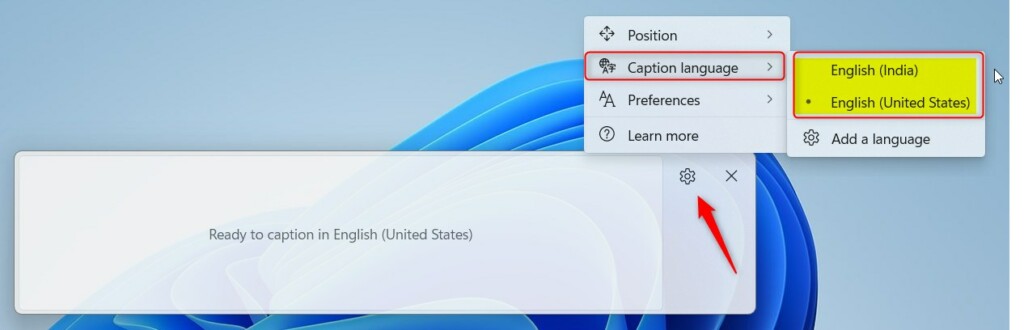
Press Win+Ctrl+L to open Live Captions, click the gear icon on the bar, select Caption language, and choose your language from the list. The captions switch immediately to that language.
How to Switch Live Captions Language
To change the Live Captions language in Windows 11, open the Live Captions tool and pick a new language from its settings menu. Press Win+Ctrl+L to start captions, click the gear icon on the bar, and choose your language from the list.
If the shortcut does nothing and you cannot find the feature in Settings, run Windows Update first and check again.
- Turn on Live Captions by pressing
Windows + Ctrl + L. A bar appears, usually at the top of the screen. The first time you use it, Windows may ask to download speech files. Accept, and wait for the download to finish. You can also turn it on from Settings Accessibility Captions - Look for the Settings icon (gear symbol) in the Live Captions bar on your screen and click it. A small menu opens with the caption options.
- Click on Caption language. On some builds this entry may be labeled simply Language. A list of the available caption languages opens.
- Choose the language you want from the list. If Windows needs extra speech files for that language, it downloads them first. This can take a minute, so wait until it finishes before you play any audio.
To go back, repeat the same steps and pick your original language. Nothing is permanently changed.
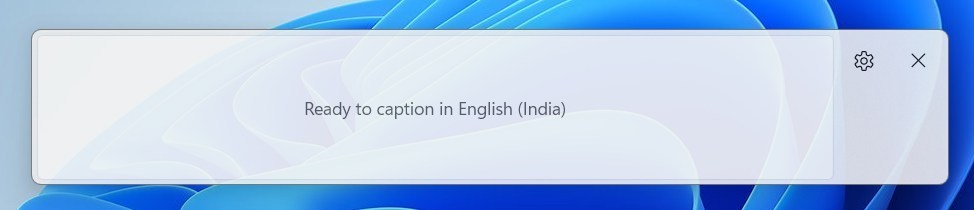
After you choose a language, the captions bar shows a confirmation message. It tells you Live Captions is ready to show text in the language you selected. If you see no message, play some audio in that language. Captions should start to appear within a second or two. Live Captions has been part of Windows 11 since version 22H2.
Why Change Live Captions Language?
- If you speak more than one language, you can pick the captions language that's easiest for you, and switch whenever your task changes.
- If you watch videos or listen to audio in another language, switching captions helps you understand better, especially with fast speech or unfamiliar accents.
- It makes the captions more accurate because they match the spoken language. Captions set to the wrong language usually come out as garbled text, so match the setting to what you are hearing.
Need More Help?
Windows 11 requires you to download a separate language pack through the main system settings before Live Captions can recognize and caption that speech. You will find the language options under Settings Time & language Language & region
After the language pack finishes installing, close the Live Captions bar and open it again with Windows + Ctrl + L. Then check the language list once more. If the language is still missing, restart the PC and try again. Not every Windows display language is supported for captions.
If you need a language that is not listed, follow our guide on adding other languages for Live Captions to download the necessary packs.
Summary
Windows 11 Live Captions show spoken words from computer audio as text. You change the Live Captions language in Windows 11 through the settings on the Live Captions bar: open it with Windows + Ctrl + L, click the gear icon, and choose a language. If the language you want is missing, install its language pack in Windows Settings first, then try again.
Have a question about this guide?
Answered by AI from this guide. Good questions may be added to this page — please don't include personal details.
Did this guide fix your problem?

About the Author
Richard
Tech Writer, IT Professional
Richard is a writer at Geek Rewind who turns complex IT tasks into clear, step-by-step guides. He draws on years of hands-on experience in system administration and enterprise IT operations, focusing on Windows, Linux and WordPress: the problems people actually run into, and the fixes that work. His server and WordPress guides come from systems he runs himself. Richard builds and maintains the platform behind Geek Rewind, from its Ubuntu servers and Nginx configuration to its custom WordPress plugins. Many new tutorials start with readers' questions, and he's always glad to answer them in the comments.
No comments yet — be the first to share your thoughts!