How to Add Languages to Live Captions in Windows 11


Live Captions in Windows 11 version 22H2 and newer turns spoken words from videos, podcasts, and calls into on-screen text in real time. The built-in accessibility tool normally only understands English by default. You can download extra language packs to read captions in French, German, Spanish, Chinese, Japanese, and other supported languages.
You add new languages through Settings, and it takes only a few minutes. Once a language is installed, you can read captions in the language you actually listen to and not miss a word. Live Captions is included in both Windows 11 Home and Pro, so the steps are the same on either edition.
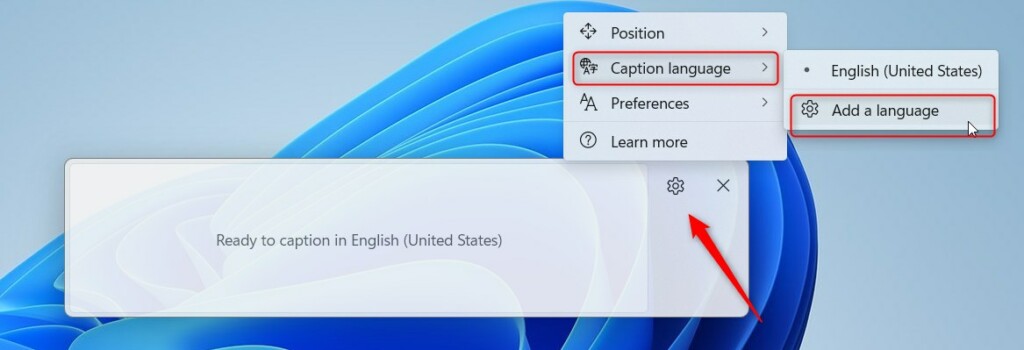
To add a language to Live Captions in Windows 11 22H2 or newer, open the Live Captions window with Win+Ctrl+L, click the gear icon, then choose Caption language and Add a language. Windows opens Settings Time & language Language & region, where you add a language that supports speech recognition. Up to five languages can be installed.
Why add languages to Live Captions?
Adding more languages makes your PC better equipped for international content. It also improves transcription accuracy for foreign speech, because Live Captions uses the matching speech model for that language and not an English one. If you watch a French film or join a call in Spanish, installing the right language pack is what makes the captions usable.
What happens when you are done?
The system relies on the downloaded language pack to process audio locally, so after the pack is installed you do not need an internet connection for captions to work.
Download time depends on your connection and the size of the pack. You can keep using the PC while it installs. A restart is usually not needed. If the new language does not show up right away, close the Live Captions window and open it again.
Hardware and Software Prerequisites
Update your system through Windows Update to ensure you can download the latest language packs. Support for languages beyond English arrived in later updates, so an older 22H2 build may not offer all of them. To check and update:
- Open Settings System About and look at the Version line under Windows specifications. You should see 22H2 or newer.
- Open Settings Windows Update and click Check for updates .
- Install anything that is offered, then restart if Windows asks you to.
If Live Captions is missing entirely, the PC is almost certainly on Windows 10 or on an older Windows 11 release.
How to add a language
You can add languages Live Captions uses by opening the settings menu inside the caption window and downloading the language pack you need. Windows lets you install up to five different languages. That way you can read translations or transcriptions for several kinds of foreign media and conversations without changing your computer display settings.
The steps below start from the caption window. If you prefer to work from the Settings app , the sections after this one cover that route.
- Turn on Live Captions. The quickest way is to press the Win+Ctrl+L. You can also turn it on from Quick Settings under Accessibility. A caption bar appears, by default at the top of the screen. The first time you run it, Windows may ask to download speech files for English. Let it finish.
- Click the Settings button (the gear icon) inside the Live Captions window. A menu opens with the caption options.
- Select Caption language and then click Add a language. This sends you to the language settings in Windows, which the next steps walk through. If you do not see Add a language, update Windows first, as described earlier.
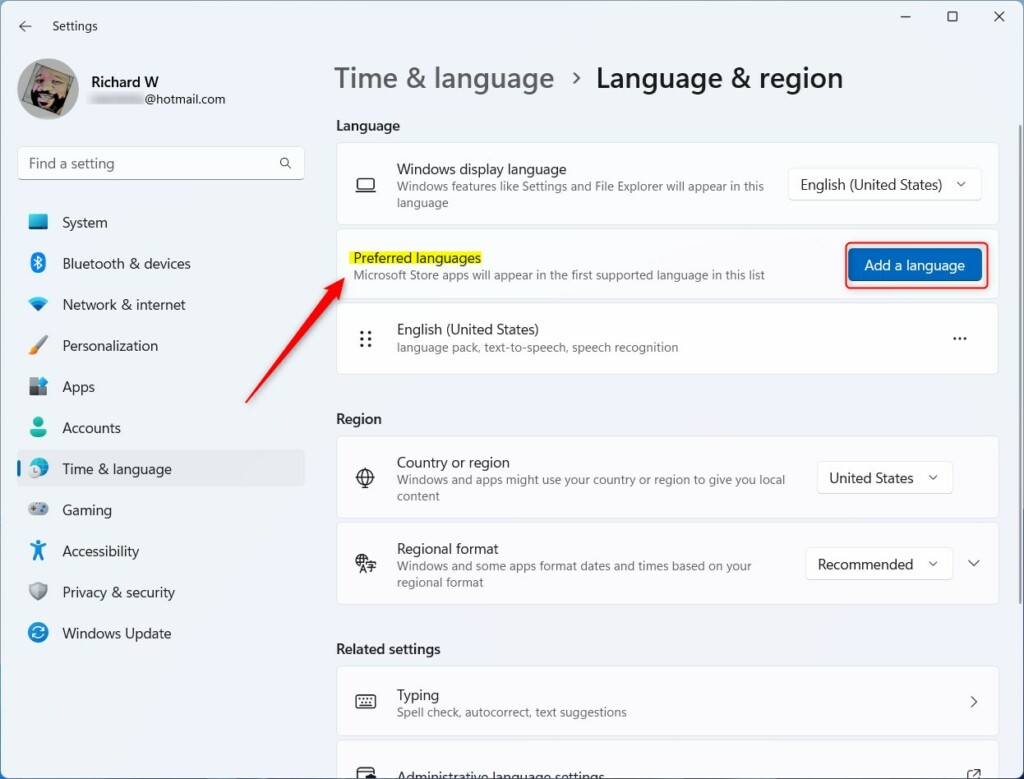
The Language & region settings window opens. You can also reach it yourself at Settings Time & language Language & region
- Find the Preferred languages section.
- Select Add a language. A window opens with a searchable list of languages.
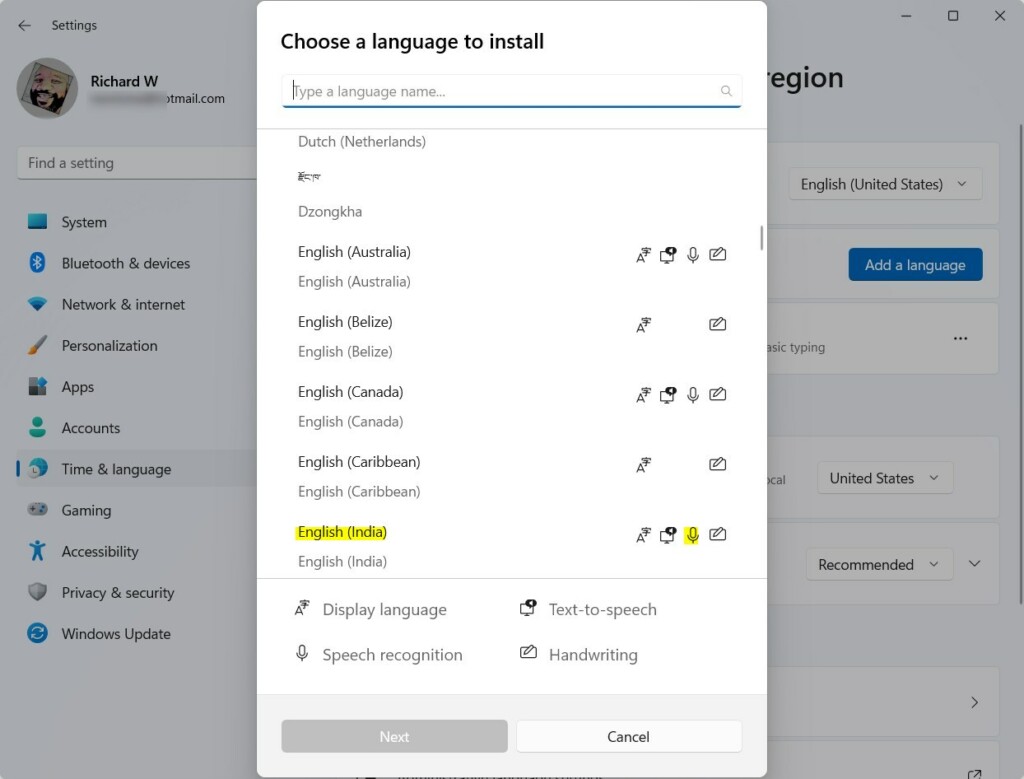
Search for the desired language within the settings menu to add it to Windows Live Captions. Confirm the chosen language supports speech recognition, a requirement for Live Captions functionality. Not every language in the list has speech recognition, and those without it will not work for captions.
- Type the language name in the search box and click the result to select it.
- Check that the language shows speech recognition among its features.
- Click Next to proceed. The Install language features window appears.
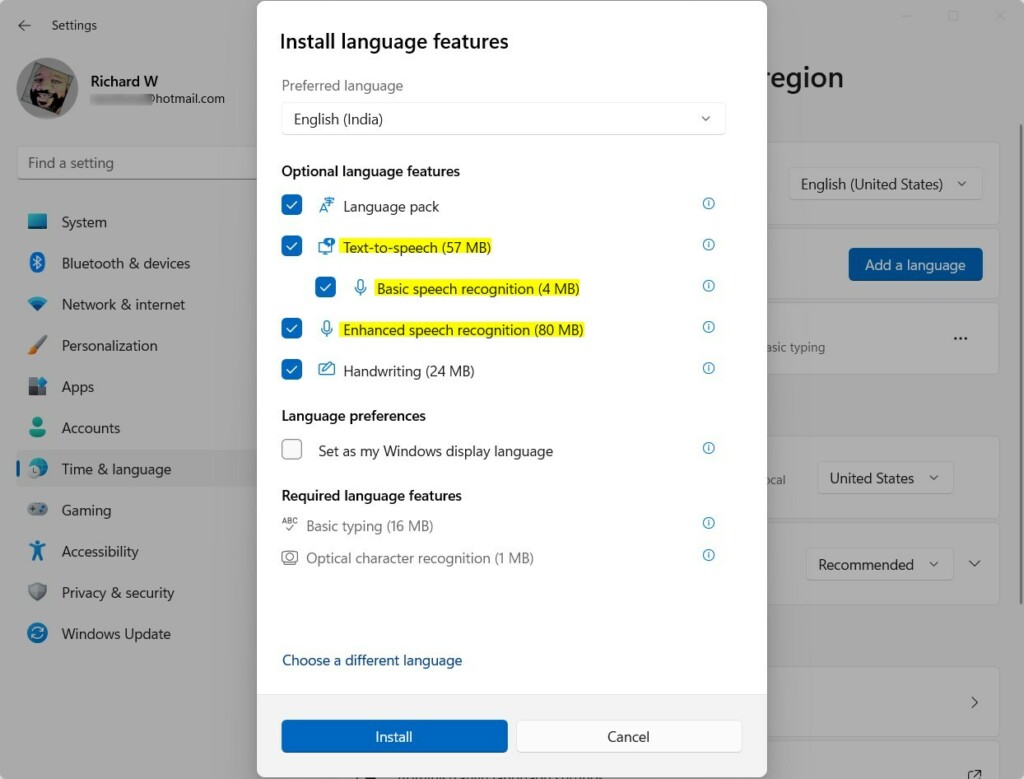
In the Install language features window, ensure Enhanced speech recognition is checked. This is the part Live Captions depends on.
- Make sure Enhanced speech recognition is checked.
- If you see a Set as my Windows display language option and you only want captions, clear that checkbox. Otherwise Windows will switch your menus and apps to that language.
- Click Install. The download starts and a progress bar appears under the language in your list.
Wait for the download to finish. Once complete, the new language appears inside the Live Captions menu.
- Open Live Captions again (Win+Ctrl+L).
- Click the Settings button, then select Caption language.
- Choose the language you just installed. Captions now follow that language when audio is playing.
If you ever want to undo this, go back to Settings Time & language Language & region, click the three dots next to the language, and choose Remove.
Data Privacy and Processing
Windows 11 processes Live Captions locally on your device, meaning your audio data stays private without leaving your PC. The internet is only needed to download the language pack. After that, captions are generated on the PC itself, which is also why speed depends on how powerful your hardware is.
Troubleshooting and Common Issues
Missing languages in Live Captions usually point toward internet connectivity issues during downloads. Verify that the Windows version supports the required feature set. If a language still does not show up, work through these checks:
- Open Settings Time & language Language & region and look at the language’s entry. If the download is stuck, remove the language and add it again.
- Make sure the language you picked supports speech recognition. Without it, it will not appear in the caption language list.
- Check your connection. A metered connection or a VPN can stall or block the download.
- Run Windows Update and install any pending updates, then restart the PC.
- Close and reopen Live Captions after the install completes.
Summary
Adding languages to Live Captions makes your PC more versatile, helping you understand diverse audio and improving transcription accuracy by using Language & region settings to install speech recognition. The process is the same each time: add the language, keep Enhanced speech recognition checked, wait for the download, then pick the language in the Live Captions settings.
Reference: Microsoft
Have a question about this guide?
Answered by AI from this guide. Good questions may be added to this page — please don't include personal details.
Did this guide fix your problem?

About the Author
Richard
Tech Writer, IT Professional
Richard is a writer at Geek Rewind who turns complex IT tasks into clear, step-by-step guides. He draws on years of hands-on experience in system administration and enterprise IT operations, focusing on Windows, Linux and WordPress: the problems people actually run into, and the fixes that work. His server and WordPress guides come from systems he runs himself. Richard builds and maintains the platform behind Geek Rewind, from its Ubuntu servers and Nginx configuration to its custom WordPress plugins. Many new tutorials start with readers' questions, and he's always glad to answer them in the comments.
[…] settings one can configure with Live Captions are changing its on-screen positions and installing other languages to transcribe […]
[…] Want to add more languages to use with Live Captions? Check this guide: Add Other Languages for Live Captions. […]