How to Change Live Captions Language in Windows 11


Live Captions in Windows 11 turns spoken audio from videos, calls, and apps into real-time text on your screen. You can change the caption language at any time, for example to follow a foreign film or a conference call in another language.
Windows 11 supports more than 30 languages for offline transcription. Your computer processes the speech locally and does not send the audio to the internet. When you pick a new language, Windows downloads the files it needs in the background. You need an internet connection for that download, but not for the captions afterward.
Live Captions is built into Windows 11 version 22H2 and later, and it works the same on Home and Pro. If you can’t find it, run Windows Update first. You can turn it on or off with Win+Ctrl+L, or from Settings Accessibility Captions
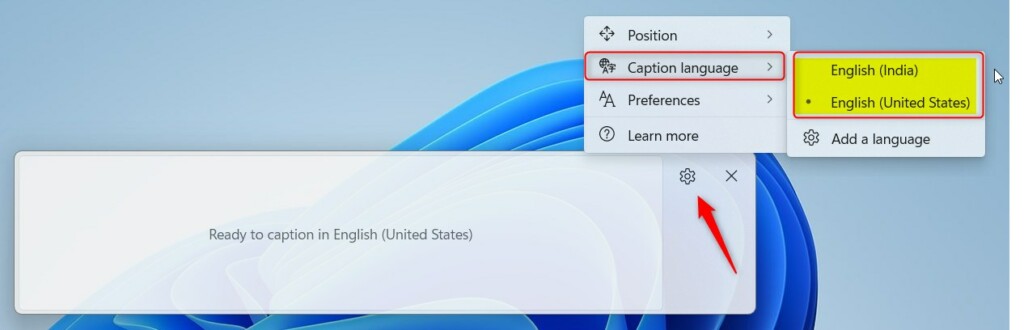
Open Live Captions with Win+Ctrl+L, click the Settings gear in the caption window, and choose Caption language, then pick a language from the list. The change takes effect straight away if the speech pack is installed. If it isn’t listed, add it first under Settings Time & language Language & region with Speech recognition ticked.
How to Download and Install New Language Packs
Open Settings , go to the language options, and add the language pack you need. During the install, make sure the speech recognition option is ticked. Without it, Windows can display the language but cannot understand or transcribe it.
The download is usually small, but it can take a minute or two on a slow connection. Follow the numbered steps below in order. When the install finishes, the language is ready to use in Live Captions.
- Open Settings by pressing Win+I.
- Go to Time & language and select Language & region.
- Click the Add a language button.
- Search for your desired language and click Next.
- Check the box for Speech recognition to ensure it works with Live Captions.
- Click Install.
If the language doesn’t show up in Live Captions afterward, go back to the language settings and confirm that the speech recognition component finished installing . Close and reopen Live Captions if it was running while you installed the pack.
How to Switch Your Language in Live Captions
You can change the language while Live Captions is running by using the settings menu inside the caption window itself. Open that settings dropdown and select a language from the list of installed speech packs. The transcription switches to that language straight away.
Only languages whose speech packs are already installed appear in this list. If the language you want isn’t there, use the first method to add it.
- Turn on Live Captions by pressing Win+Ctrl+L.
- Click the Settings gear icon inside the Live Captions window.
- Select Caption language from the menu.
- Choose your preferred language from the list.
To go back to your previous language, open the same dropdown and select it again. Nothing is uninstalled when you switch, so you can move between installed languages as often as you like.
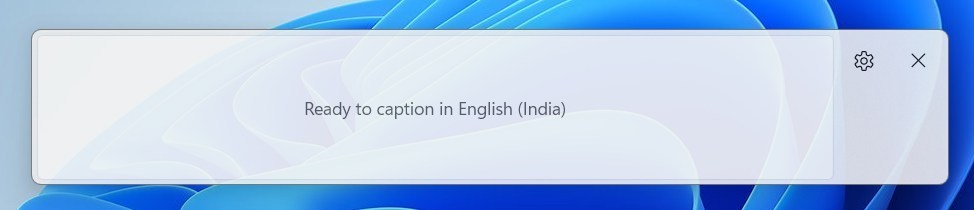
When you select a language that still needs files, a small notification appears on the caption bar. Once the computer is ready to process audio in that language, the notification confirms it and captions start appearing. If you see a download message, wait for it to finish before you play your audio.
Language Support and Technical Limitations
Your hardware processes all the audio locally, which protects your privacy and keeps captions fast. Because of that, the language data files for each language must be stored on your drive. They take up some disk space, so remove packs you no longer use if storage is tight.
Summary
Match your caption language to the language being spoken. If they differ, the captions will be inaccurate or garbled. A correct match makes the content much easier to follow, especially with fast speech or several speakers.
What languages does live captions support for transcription?
Major global languages are fully supported, including English, Spanish, French, German, Italian, Japanese, and Chinese. Microsoft updates this selection periodically. To see the latest additions on your system, check the Language & region settings menu.
Why is my preferred language not appearing in the settings menu?
If a language is missing from the caption preferences, the usual cause is that its speech recognition components are not installed. Go back to the language settings, open the options for that language, and install the speech pack. Then reopen Live Captions and check the list again.
Have a question about this guide?
Answered by AI from this guide. Good questions may be added to this page — please don't include personal details.
Did this guide fix your problem?

About the Author
Richard
Tech Writer, IT Professional
Richard is a writer at Geek Rewind who turns complex IT tasks into clear, step-by-step guides. He draws on years of hands-on experience in system administration and enterprise IT operations, focusing on Windows, Linux and WordPress: the problems people actually run into, and the fixes that work. His server and WordPress guides come from systems he runs himself. Richard builds and maintains the platform behind Geek Rewind, from its Ubuntu servers and Nginx configuration to its custom WordPress plugins. Many new tutorials start with readers' questions, and he's always glad to answer them in the comments.
No comments yet — be the first to share your thoughts!