How to Add or Remove Language to Live Captions in Windows 11

Live Captions in Windows 11 turns spoken audio from your PC into text on your screen. Starting with version 22H2, you can add or remove languages for this feature. The built-in tool lets you read captions for audio in different languages, and you can delete language packs you no longer need to save disk space.
If you don’t see Live Captions at all, check your version first. Open Settings System About and look at the Version line under Windows specifications. If it says 21H2 or older, update Windows before you follow this guide.
Open Live Captions, click the Settings gear icon, select Caption language, and choose Add a language. Search for your language in the Settings app, ensure it supports Speech recognition, and confirm Enhanced speech recognition is selected before Windows downloads the files.
What is Live Captions?
Windows 11 Live Captions is a built-in accessibility tool that transcribes spoken audio into text on your screen in real time. It works with any audio playing on your computer, including videos, podcasts and calls. It does not matter which app plays the sound. You can turn Live Captions on instantly by pressing the Win+Ctrl+L keys on your keyboard.
The captions appear in a bar, docked at the top of the screen by default. You can move it or resize it if it covers something you need.
WINDOWS + CTRL + L on your keyboard.Press the same keys again to turn it off. You can also use the Accessibility tile in Quick Settings. Quick Settings is the panel you open by clicking the speaker, Wi-Fi or battery icons at the bottom right of your screen. If you don’t see the Accessibility tile, click the pencil icon in Quick Settings to edit the layout and add it. Learn more about turning it on and off here.
Let it finish, because Live Captions won’t show text until that download is done.
Why Add More Languages to Live Captions?
Here is why you might want more than one language in Live Captions:
- It helps people who don’t speak the language in the audio understand what is being said.
- It supports people who are deaf or hard of hearing and who speak different languages.
- It can make captions more accurate. Windows has more language options to recognize what is being said, so you can pick the one that matches the audio, including accented speech.
How to Add Other Languages to Live Captions
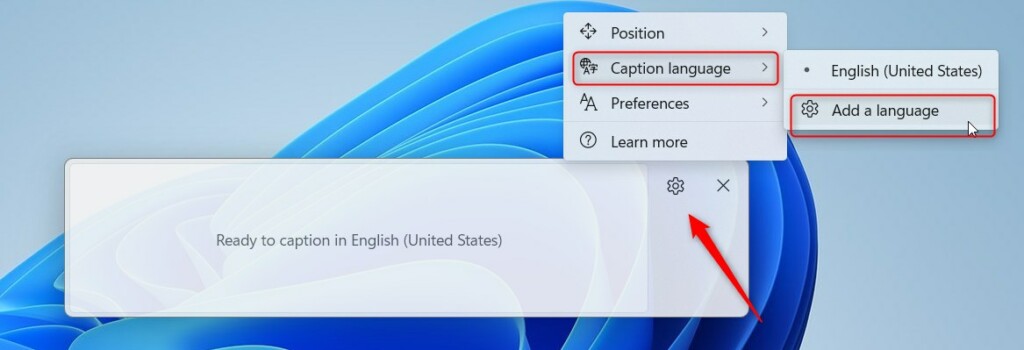
You can add new Windows 11 Live Captions languages from the Live Captions bar. Open the bar, click the settings gear icon, select Caption language, and choose Add a language. Windows downloads the speech files it needs. Once they are installed, your computer can transcribe that language on your screen without an active internet connection. You do need to be online while the download runs.
The steps below start in the Live Captions bar and continue in the Windows language settings. You’ll do about ten clicks in total.
- Turn on Live Captions by pressing
WINDOWS + CTRL + Lor through Quick Settings. The captions bar should appear on your screen. - In the Live Captions bar, click the Settings button. It usually looks like a gear icon. A menu opens with the caption options.
- Click Caption language. Then choose Add a language. If the language you want is already listed, it is installed and you can just select it.
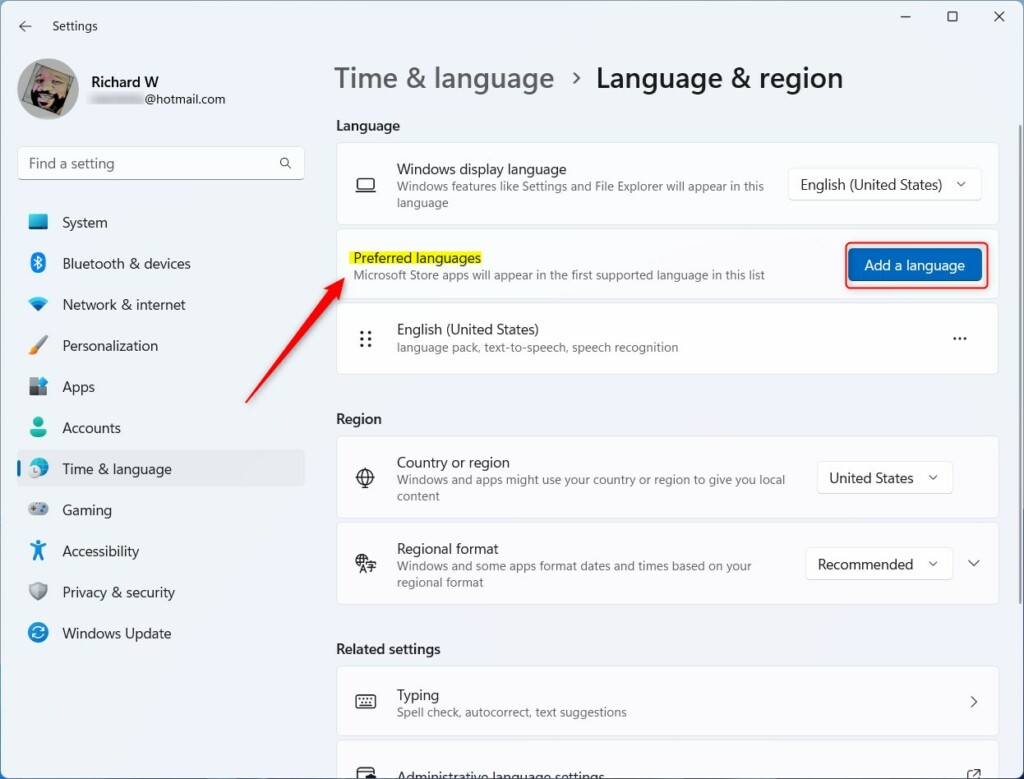
- Wait for the Settings app to open on the Language & region page. This is the same page you’d reach from Settings Time & language Language & region
- Under Preferred languages, click Add a language. A window opens with a list of languages and a search box .
- Type the language you want into the search box and select it in the results. Make sure the language supports Speech recognition. Languages without that feature can’t be used for Live Captions. If it is missing, pick a different variant of the language, for example another region.
- Click Next to continue. The window now shows the optional language features.
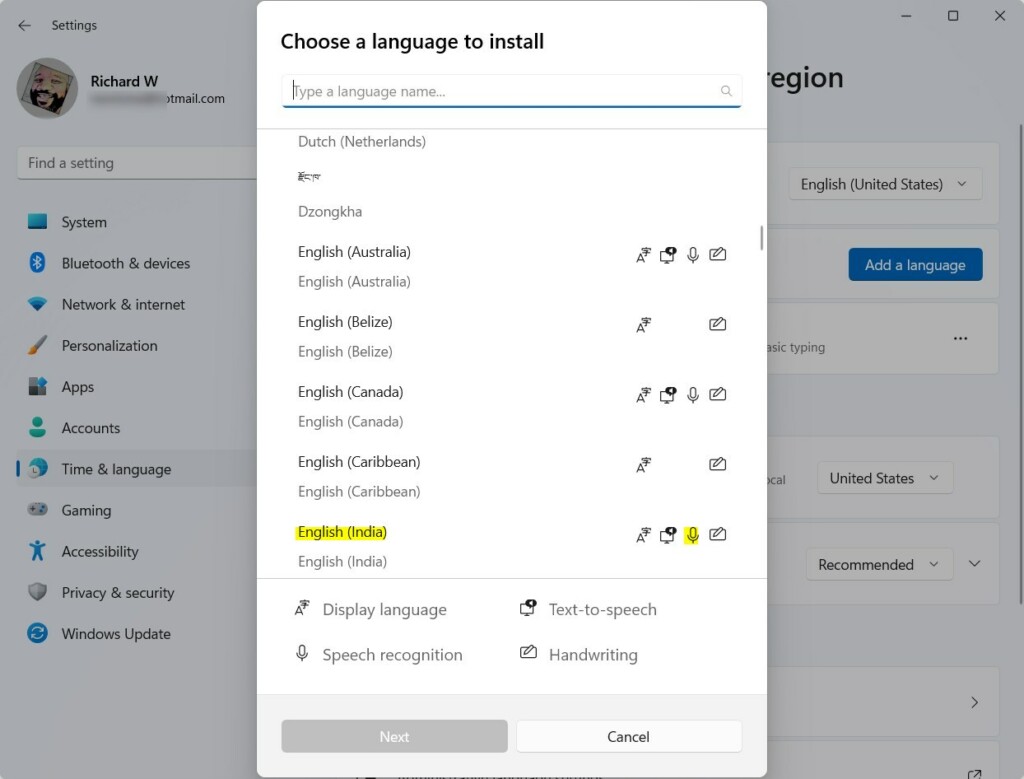
- In the next window, check that Enhanced speech recognition is selected. You can also choose other language features if you want. Each extra feature adds to the download size, so only tick what you will use. If you don’t want this language to become your Windows display language, leave any display language option unchecked.
- [Requires admin privileges] Click Install to add the language. A progress indicator appears next to the language in the list while Windows downloads it. Keep the PC online until it finishes.
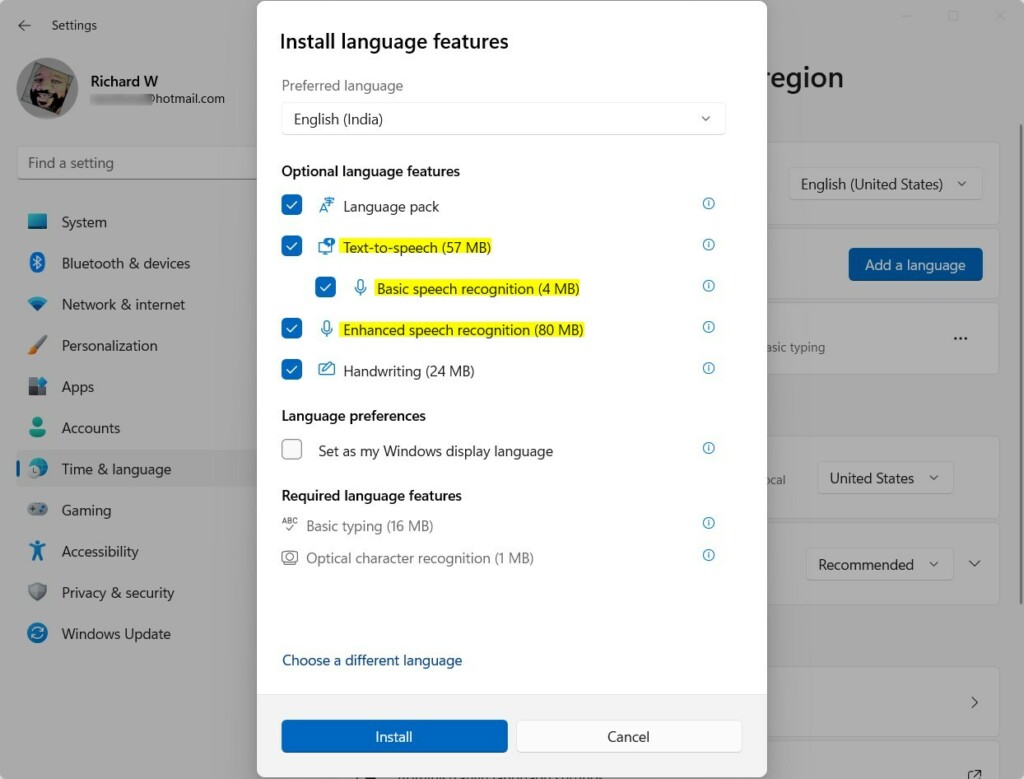
- Wait for the installation to finish. Your new language then shows up in the Live Captions Caption language menu. Select it any time you want captions in that language. A restart is normally not needed, but if the language doesn't appear, close and reopen Live Captions, or restart the PC.
To remove a language you no longer need, go back to the Language & region page, click the three dots next to that language and choose Remove. This frees the disk space. You can add the language again later with the same steps.
Summary
- Adding languages makes Live Captions more useful for people who speak different languages or have hearing difficulties.
- It helps you understand audio content better if it is in a language you don't know well.
- It improves caption accuracy by giving Windows more language options.
- The process involves adding the language through the Windows language settings and making sure speech recognition is installed. Without speech recognition, the language won't work for captions.
Using multiple Windows 11 Live Captions languages helps you follow foreign audio content, improves transcription accuracy for accented speech and makes media on your computer more accessible. Setting up extra language packs means Live Captions can show correct text whatever language the video or voice call uses. When you stop using a language, remove it to get the disk space back.
Have a question about this guide?
Answered by AI from this guide. Good questions may be added to this page — please don't include personal details.
Did this guide fix your problem?

About the Author
Richard
Tech Writer, IT Professional
Richard is a writer at Geek Rewind who turns complex IT tasks into clear, step-by-step guides. He draws on years of hands-on experience in system administration and enterprise IT operations, focusing on Windows, Linux and WordPress: the problems people actually run into, and the fixes that work. His server and WordPress guides come from systems he runs himself. Richard builds and maintains the platform behind Geek Rewind, from its Ubuntu servers and Nginx configuration to its custom WordPress plugins. Many new tutorials start with readers' questions, and he's always glad to answer them in the comments.
No comments yet — be the first to share your thoughts!