How to Add a Language in Windows 11

Windows 11 lets you switch system menus to a different language, use voice dictation and read-aloud tools, and load regional keyboard layouts. You add all of this from one screen in Settings.
Open Settings with Win+I, go to Time & language Language & region, click Add a language, search for and select your language, choose optional features like keyboard layout or text-to-speech, then click Install. The language appears in your Preferred languages list.
Why Add a Language?
Adding a language does not have to mean changing how Windows looks. You can install a language only for typing or speech and keep your current display language. When you add one, you choose what it does for you:
- Change Windows menus and settings to another language.
- Use speech features like talking to your computer or hearing it read text aloud.
- Type with the right keyboard layout for that language.
- Write by hand if your device supports it.
Not every language offers every feature. If an option is missing for your language, Microsoft has not released it for that language.
Steps to Add a Language
Open Settings
- Press
Win + Ion your keyboard.
The Settings app opens. If the shortcut does nothing, right-click the Start button and choose Settings instead.
Go to Language Settings
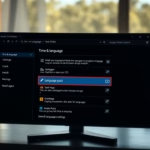
- In the left-hand menu, click Time & language.
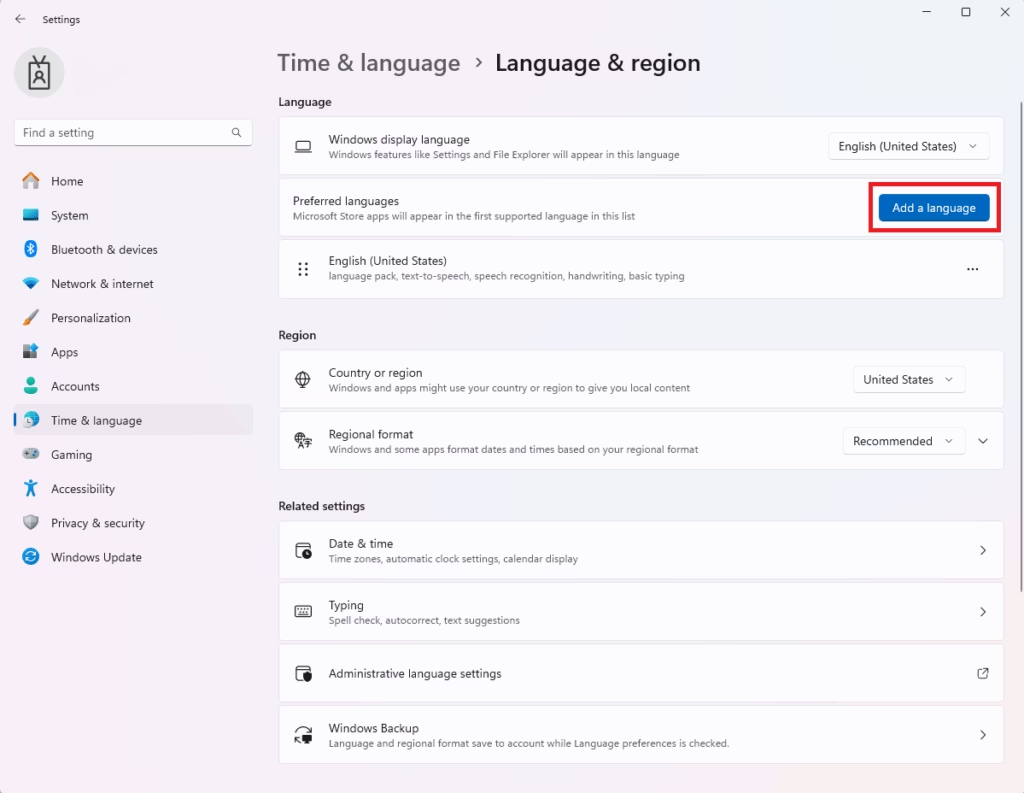
- Click Language & region.
You should now see your current Windows display language and a Preferred languages list. This screen manages every language installed on the PC.
Add a Language
- Under Preferred languages, click the Add a language button.
A window opens with a list of languages and a search box at the top.
If the window does not appear, check that Settings is not minimised behind another window.
Pick Your Language
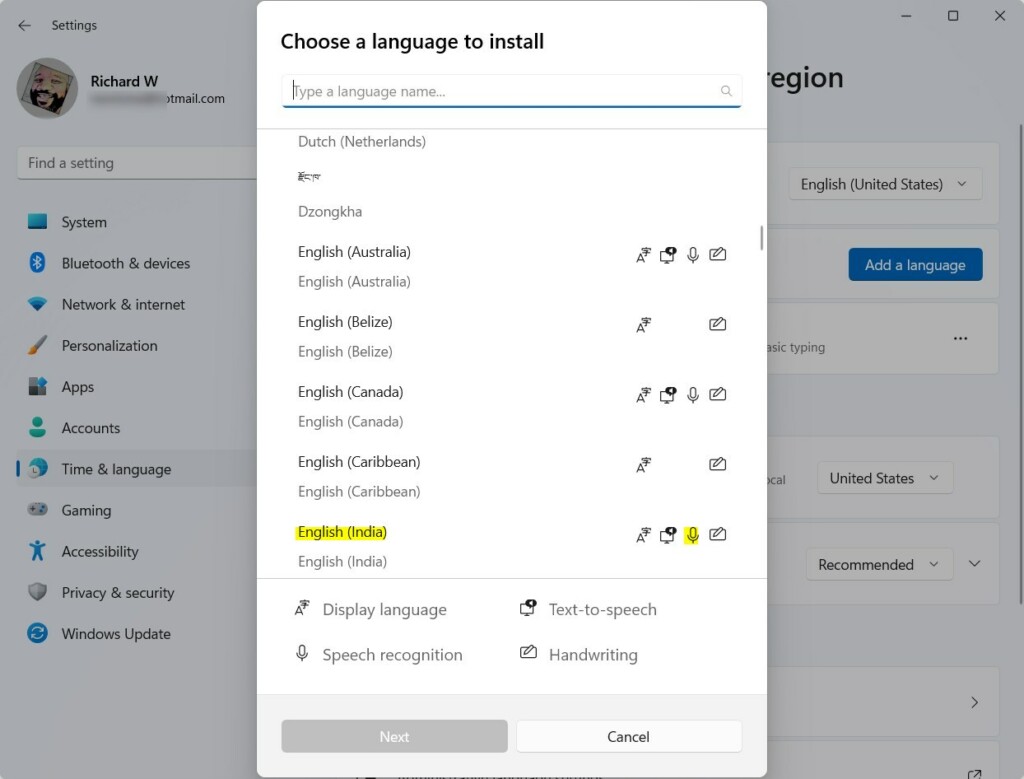
The list is long, so use the search box instead of scrolling.
- Type the language name into the search box, for example "English (United Kingdom)".
- Click the language in the results to select it.
- Click Next to go to the installation options.
Many languages have regional versions, such as UK and US English. Pick the one that matches the spelling and keyboard you want.
Choose Optional Features
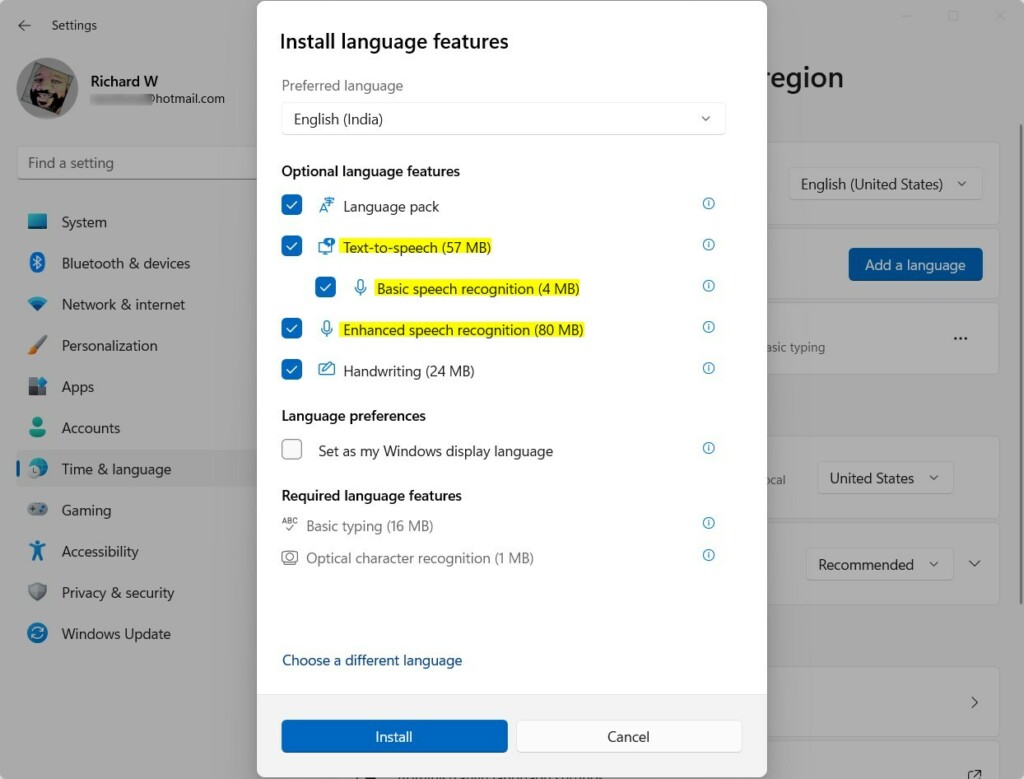
The next screen lists the extra features Windows can install with the language. Each one is optional, and you can add or remove them later.
- Language pack: Changes Windows menus to this language.
- Text-to-speech: Lets Windows read text out loud (synthesised voice).
- Speech recognition: Talk to your PC instead of typing, and use voice commands.
- Handwriting: Write on your device and Windows will understand. This is only useful on touch or pen devices.
- Keyboard layout: Changes the keyboard to match the language.
Tick the features you want, then click Install. Features you leave unticked do not download, which saves disk space and time.
The language now appears in your Preferred languages list, with a progress bar while it installs.
Wait for Installation
Windows downloads and sets up the language and the features you chose. You need an internet connection for this, and larger packs can take a few minutes. You can keep working while it runs. When it finishes, the progress bar disappears and the language shows in the list.
Set as Display Language (Optional)
This box only appears if you selected the Language pack option. You must sign out and sign back in for the change to apply.
If you skipped the box, you can change it later. Go to Settings Time & language Language & region and pick the language from the Windows display language drop-down. To undo it, choose your old language there and sign out and in again.
Important Notes
Windows 11 Single Language editions restrict display language changes unless you upgrade your edition of Windows. Home and Pro do not have this limit. On a Single Language edition the display language option may be missing or greyed out. Adding other languages is still useful there, because you can use them for voice typing, reading text aloud and keyboard layouts.
Installing the language together with its speech features also makes sure regional voice commands and text-to-speech work correctly alongside your preferred display language.
You cannot remove the language that is currently your display language until you switch to another one.
Summary
- Open Settings with
Win + I. - Go to Time & language Language & region
- Click Add a language and pick your language.
- Choose extra features if you want (text-to-speech, keyboard, etc.).
- Click Install and wait for it to finish.
- Sign out and back in if you set the new language as your display language.
In short: open Settings by pressing Win + I, go to Time & language Language & region, and click Add a language. Pick the language and any extra features such as text-to-speech. Once installation completes, sign out and back in if you set it as the display language.
Learn More
Official Microsoft Guide: Install a Language in Windows 11
Was this guide helpful?

About the Author
Richard
Tech Writer, IT Professional
Richard is a writer at Geek Rewind who turns complex IT tasks into clear, step-by-step guides. He draws on years of hands-on experience in system administration and enterprise IT operations, focusing on Windows, Linux and WordPress: the problems people actually run into, and the fixes that work. His server and WordPress guides come from systems he runs himself. Richard builds and maintains the platform behind Geek Rewind, from its Ubuntu servers and Nginx configuration to its custom WordPress plugins. Many new tutorials start with readers' questions, and he's always glad to answer them in the comments.



No comments yet — be the first to share your thoughts!