How to Change Display Language in Outlook for Windows 11


Changing the display language in Outlook for Windows 11 updates the text on all menus, buttons, and settings without changing the language for the rest of your computer. This quick adjustment takes less than two minutes to finish and lets you switch your email program to Spanish, French, or any other language while keeping Windows 11 in its original language.
Open Outlook, click the Settings gear, and go to General, then Language and time. Select your preferred display language from the dropdown and check the box to rename default folders. Restart Outlook for the changes to take effect.
Why Change Your Outlook Display Language?
Switching the display language in Outlook for Windows 11 improves comfort when sending and receiving emails.
What Happens When You Change Language?
Updated language settings switch the Outlook interface, menus, and buttons immediately. Selecting the folder rename option updates default locations like Inbox, Sent Items, and Trash to match regional naming conventions.
How to Change the Language in New Outlook
Follow these steps to update interface settings:
Step 1Open Outlook on 🪟 Windows 11
Open the new Outlook app on the computer. Click Start, type Outlook, and press Enter.

Step 2Open Settings
Click the Settings gear icon in the top right corner.

Step 3Go to Language Settings
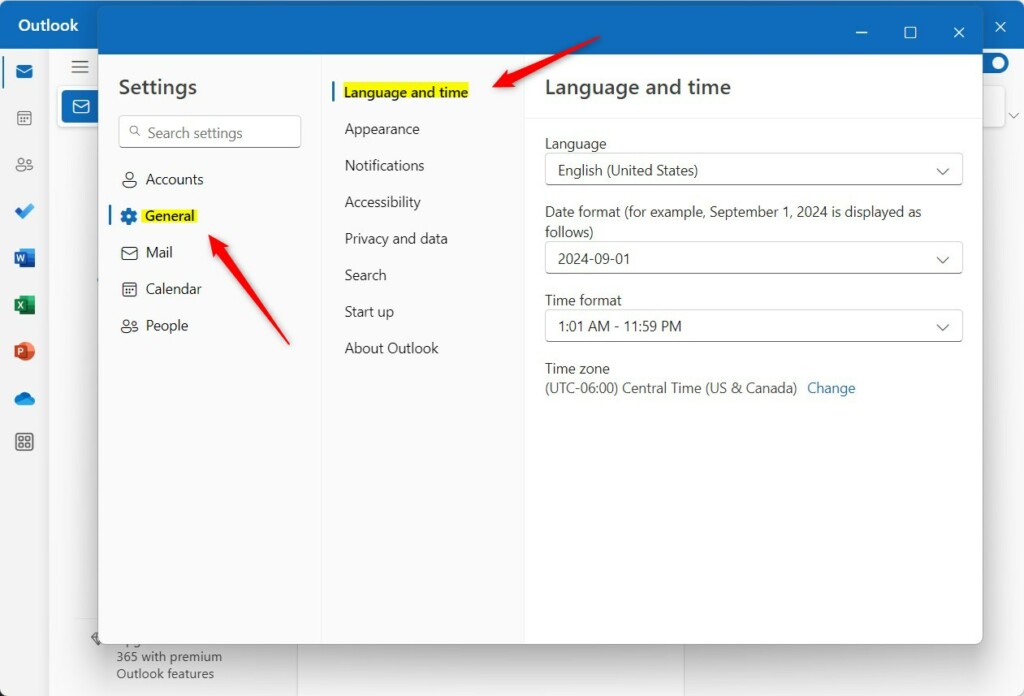
Select General on the left, then click Language and time.
Step 4Select Your New Language
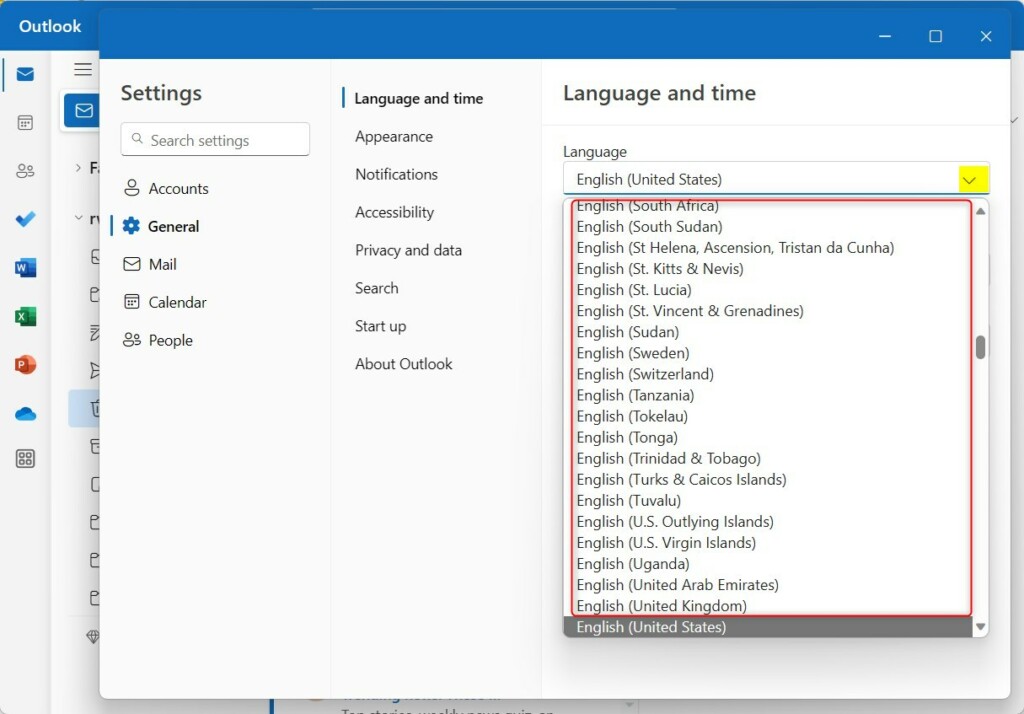
Use the Language dropdown menu to pick the preferred display language.
Step 5Rename Default Folders
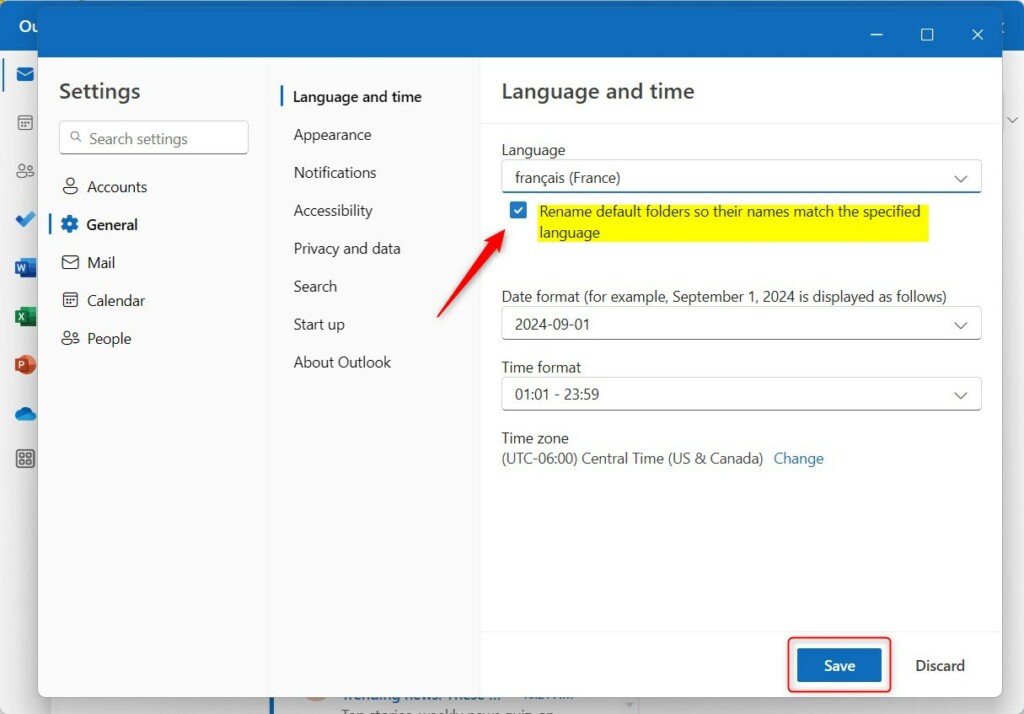
Check the box "Rename default folders so their names match the specified language". This ensures the folder structure localizes properly.
Classic Outlook vs. New Outlook
Outlook language settings behave differently depending on whether the Classic or New version runs on Windows 11.
Troubleshooting Language Display Issues
Review Windows 11 System Region Settings if the language fails to change. System-level configurations occasionally override app-specific preferences. Office Proofing Tools (software add-ons that check spelling and grammar) require installation to align spell check with the display language.
Summary
Adjusting the display language in Outlook streamlines daily workflows and improves accessibility. Both new and classic versions support display and folder name modifications through the settings menu. Restarting the application finalizes these adjustments.
Was this guide helpful?

About the Author
Richard
Tech Writer, IT Professional
Richard is a writer at Geek Rewind who turns complex IT tasks into clear, step-by-step guides. He draws on years of hands-on experience in system administration and enterprise IT operations, focusing on Windows, Linux and WordPress: the problems people actually run into, and the fixes that work. His server and WordPress guides come from systems he runs himself. Richard builds and maintains the platform behind Geek Rewind, from its Ubuntu servers and Nginx configuration to its custom WordPress plugins. Many new tutorials start with readers' questions, and he's always glad to answer them in the comments.



No comments yet — be the first to share your thoughts!