How to Turn Phone Link Instant Hotspot on or off in Windows 11

Instant Hotspot in Windows 11 lets your PC use your phone’s mobile data without you setting up Wi-Fi by hand. It works through the Phone Link app, which links your computer and your Android phone. Once the two are paired, you can get online from the PC’s network list in a few clicks.
You need a Windows 11 PC running version 22H2 or later and a compatible Android phone. You can turn Instant Hotspot on or off at any time. The setup below covers turning it on, and the steps for switching it off again are in the Link to Windows section.
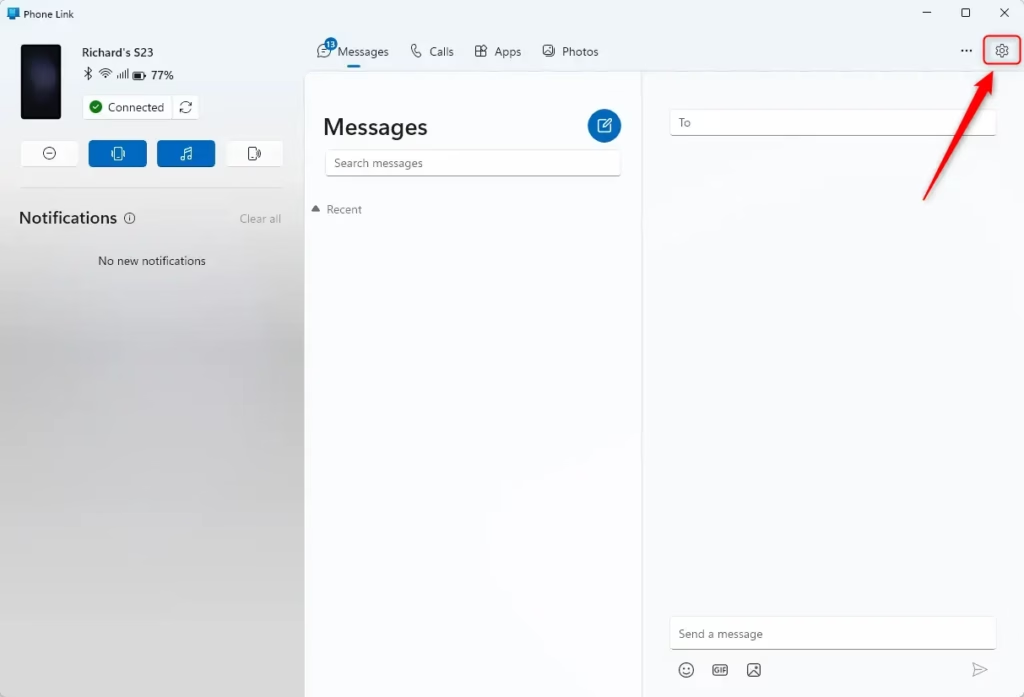
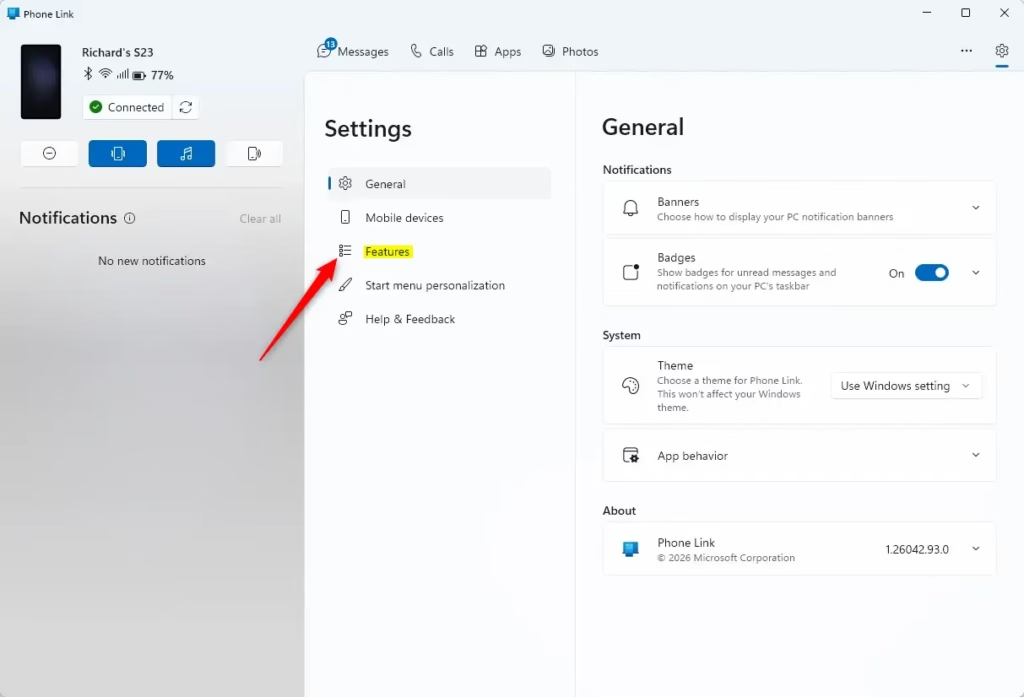
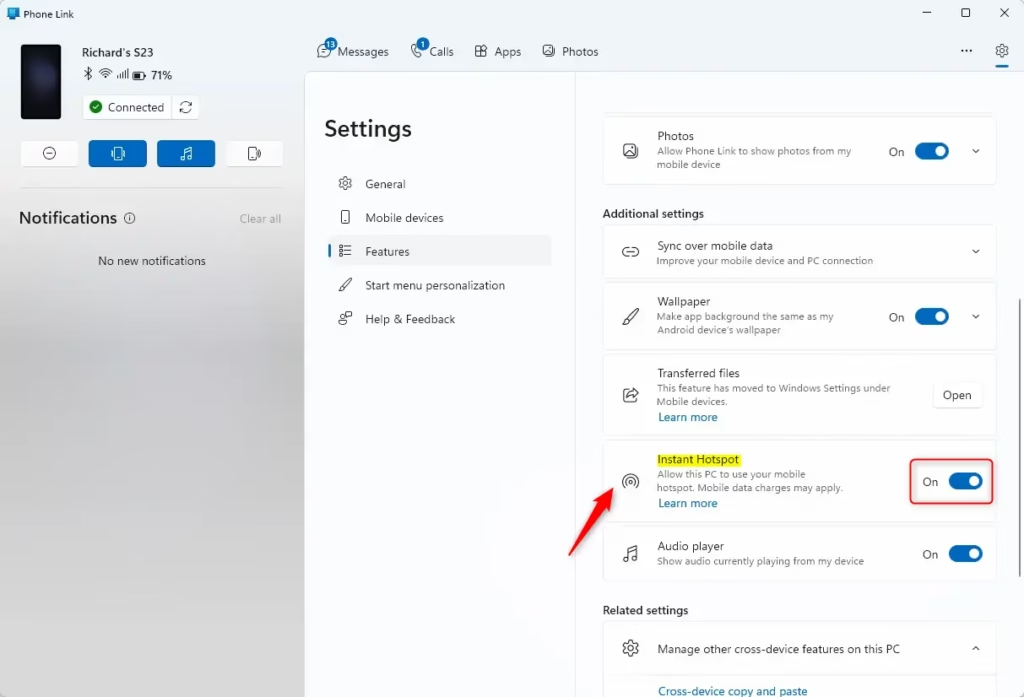
Open Phone Link on your PC, click the gear icon, choose the Features tab, then click Instant Hotspot and Setup Instant Hotspot. You need Windows 11 version 22H2 (build 22621) or later, Bluetooth, a Wi-Fi adapter, and a supported Android phone paired with Phone Link. Once set up, your PC can use your phone’s mobile data from the Wi-Fi network list.
Your Computer’s Needs
To check your version, press the Windows key, type winver, and press Enter. A small About Windows window opens and shows the version and build number. If the build is lower than 22621, run Windows Update before you go any further.
- Windows 11, version 22H2 build 22621 or newer. You can also type
winverinto the Windows search bar and press Enter to check this. - Bluetooth on the PC. The PC and phone use it to find each other and pair. If your PC has no Bluetooth, a USB Bluetooth adapter will do.
- A Wi-Fi adapter. This is how the PC receives the internet connection from your phone. A PC connected only by Ethernet with no Wi-Fi adapter cannot use this feature.
- The Phone Link app, updated to version 1.22092.211.0 or newer. Phone Link updates through the Microsoft Store, so open the Store, go to your library, and check for updates if you are unsure.
Your Phone’s Needs
The phone has its own requirements, and they depend on the brand. Instant Hotspot only works on supported Android phones running a recent enough version of the manufacturer’s software. Check the list below against your phone, and look in the phone’s Settings under About phone to see which software version it runs.
- A Samsung phone running One UI 4.1.1 or newer.
- An HONOR phone running HONOR Magic OS 8.1 or newer.
- An OPPO, OnePlus, or Realme phone running ColorOS 14.1 or newer.
- A vivo phone running Funtouch 15.0 or newer.
- A SIM card with a plan that lets you use your phone as a hotspot. Some carriers block or charge extra for tethering, so check with yours if the connection fails later.
- The Link to Windows app, updated to version 1.22093.2.0 or newer. This is the phone-side partner of Phone Link on your PC. On Samsung phones it is usually preinstalled.
If your phone is not on this list or runs older software, the Instant Hotspot option will probably not appear on the PC.
Setting Up Instant Hotspot: Step-by-Step
Now set up the connection. You will work on the PC first, then on the phone, then back on the PC. Keep both devices close together, with Bluetooth turned on for each, and make sure the phone is already paired with Phone Link.
Step 1Start Setup on Your Computer
Phone Link is the app that connects your phone to your PC. You start the Instant Hotspot setup from its settings.
- Open the Phone Link app. Click its icon on the taskbar, or search for it in the Windows search bar. You should see your phone’s name and recent content in the app.
- Click the gear icon in the bottom-left corner of the window to open Settings.
- In the Settings menu, click the Features tab.
- Under Features, find and click Instant Hotspot.
- Click Setup Instant Hotspot. A pop-up window opens and walks you through the next stage.
If you cannot find Instant Hotspot under Features, your phone or one of the apps is probably too old. Go back to the requirement lists and check each version. Also check that Phone Link shows your phone as connected.
Step 2Follow the Instructions on the Screen
Choosing the setup option on the PC starts a request to your phone. Follow the prompts in the pop-up window.
- In the pop-up window, click Send Notification. This sends a connection prompt to your phone.
- Keep the PC awake and the pop-up open until the phone responds. If the screen locks or the window closes, the request may not reach the phone, and you will need to start again from Setup Instant Hotspot.
Step 3Approve on Your Android Device
Now pick up your phone. The notification should arrive within a few seconds. If you do not see it, pull down the notification panel, and check that the phone has a data connection and Bluetooth turned on.
- Find the notification on your Android phone. It may appear at the top of the screen or sit in the notification panel.
- Tap the notification to open it.
- Tap Allow to confirm the connection. This links your phone and PC for Instant Hotspot.
Step 4Turn On Instant Hotspot on Your Phone
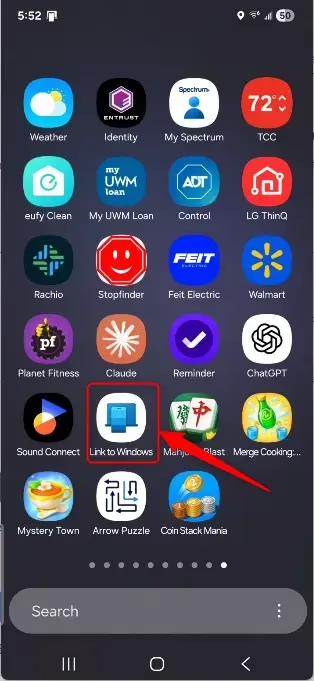
Next, turn the feature on from the phone’s Link to Windows app. You do this in the app on the phone, not in Phone Link on the PC.
- Open the Link to Windows app on your Android phone.
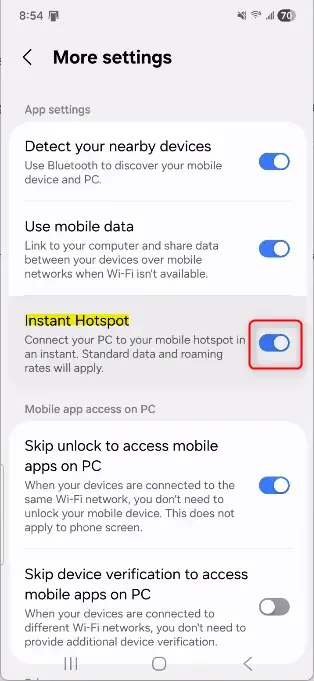
- Find the Instant Hotspot setting in the app.
- Slide the switch to ON. The switch should now show as enabled.
To turn Instant Hotspot off later, open the same setting and slide the switch to OFF. You do not need to restart either device. You can also go back to the Features tab in Phone Link settings on the PC and look at the Instant Hotspot entry there. Turning it off does not unpair the phone, so the rest of Phone Link keeps working.
Step 5Connect Using Your Computer’s Wi-Fi Menu
The last step is to join the phone’s network from the PC. Your phone’s hotspot now shows up in the PC’s list of Wi-Fi networks.
- On the PC, click the Wi-Fi icon in the taskbar, usually near the clock. A list of available networks opens.
- Look for your phone’s hotspot in the list. It may use your phone’s name or a general hotspot name.
- Click the hotspot name, then click Connect. After a few seconds, the network should show as connected.
Reference:
https://support.microsoft.com/en-us/windows/instant-hotspot-9c448dff-509c-4bc5-9c18-a8595511deea
Summary
Instant Hotspot shares your Android phone’s cellular data with your PC through the Phone Link app. Once it is set up, the phone works as a portable wireless router, so you can get online away from your usual networks. You can switch it off from the phone whenever you want to stop sharing data.
Have a question about this guide?
Answered by AI from this guide. Good questions may be added to this page — please don't include personal details.
Did this guide fix your problem?

About the Author
Richard
Tech Writer, IT Professional
Richard is a writer at Geek Rewind who turns complex IT tasks into clear, step-by-step guides. He draws on years of hands-on experience in system administration and enterprise IT operations, focusing on Windows, Linux and WordPress: the problems people actually run into, and the fixes that work. His server and WordPress guides come from systems he runs himself. Richard builds and maintains the platform behind Geek Rewind, from its Ubuntu servers and Nginx configuration to its custom WordPress plugins. Many new tutorials start with readers' questions, and he's always glad to answer them in the comments.
No comments yet — be the first to share your thoughts!