How to Find Your Computer Model in Windows 11

System Information is a built-in Windows 11 tool that shows your exact computer model, serial number, and hardware specifications in under a minute. Your computer model is the specific name or number your PC maker gives your machine, such as a Dell XPS 15 9500 or an HP Spectre x360.
You need the exact model name to find the right hardware drivers, get help from customer support, or buy the correct replacement parts when something breaks. This guide covers four ways to find it: Settings, System Information, Windows Terminal, and the Registry Editor. If Windows shows nothing useful, the physical label on the hardware is a reliable fallback. On laptops it is usually on the underside. On desktops it is usually on the back or side of the case.
Open Settings , click Home, and look under your computer name for the System Product Name or model listed directly beneath it. Alternatively, go to Settings System About to see your model name at the top of the page.
What Is a Computer Model?
Your computer model is the identifier the manufacturer assigns to your PC, such as an HP Pavilion, Dell XPS, or Lenovo ThinkPad. It is not the same as the Windows version, the processor name, or the device name you chose during setup. People often mix these up. The device name is something you can rename. The model is set by the manufacturer.
Once you know the exact model, you can find the correct drivers, check warranty status, and download compatible BIOS and software updates. Search the manufacturer’s support site with the full model name, because many product lines have several versions that need different drivers.
Windows often shows a generic placeholder in that case, such as “System Product Name” or the motherboard maker’s name. If you have a brand-name computer like HP, Dell, or Lenovo, the model name usually stays the same and cannot be changed.
Why Find Your Computer Model?
Here are the main reasons to look up your model:
- To download the correct drivers for your PC. Drivers from the manufacturer’s site are matched to the model and often work better than generic ones.
- To get help from tech support. Support staff will ask for the exact model, and often the serial number too.
- Some programs need to know your PC model to work correctly, and some installers check it before they run.
How to Find Your PC Model in 🪟 Windows 11 Settings
Settings is the quickest method. It takes a few clicks and needs no special permissions. On current builds of Windows 11, the Home page of Settings shows your computer name with the model shown directly beneath it.
- Open Settings by clicking Start and then Settings. You can also press Win+I. The Settings window opens.
- Click Home on the left side. The Home page opens, with a card at the top left showing your PC.
- Look under your computer name. You should see the System Product Name or model name listed there.
If you don’t see a Home page, you are probably on an older build of Windows 11. Use the second method below instead. It works on every version.
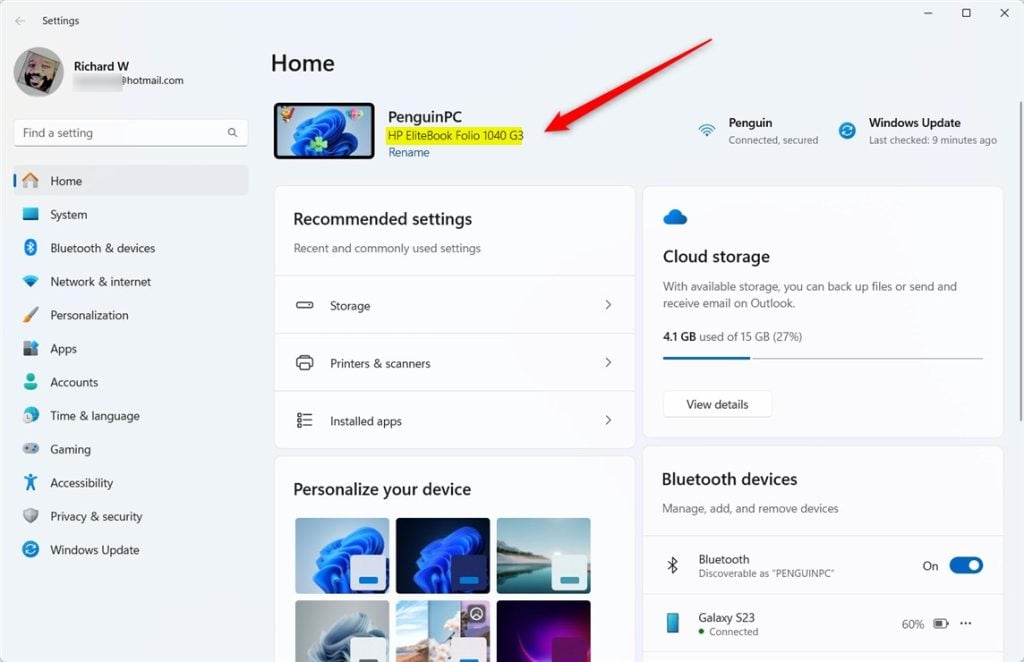
The screenshot above shows the Home page with the PC name and model at the top left.
Another way:
- Click System on the left side of Settings. The System page opens.
- Scroll to the bottom and click About. Here you will see your PC’s model name and number near the top, along with the device specifications below. The same path in one line is Settings System About
The Copy button in the device specifications section copies the details to the clipboard. This is handy when you need to paste them into a support request.
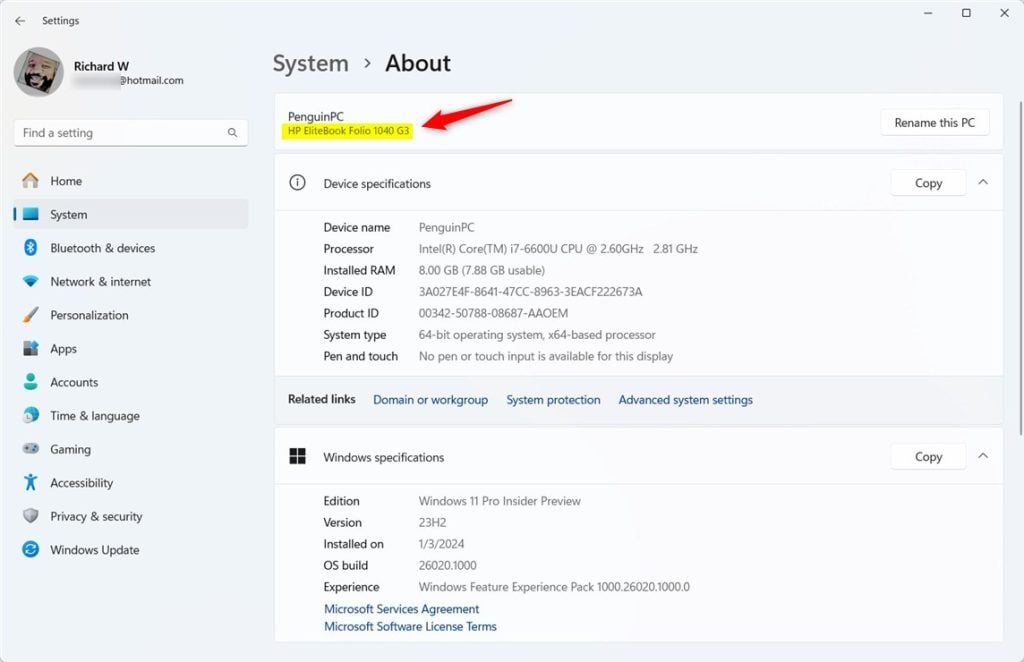
The screenshot above shows the About page with the model name at the top.
Find Your Model Using Windows System Information
- Press the Win, type System Information, and open the app. Or type
msinfo32in Start and press Enter. The System Information window opens. - Click System Summary on the left, if it isn’t already selected. A list of items appears on the right.
- Look for System Model on the right. This shows your PC’s model. Next to it, System Manufacturer shows the brand.
This view also lists your BIOS version, processor, and installed memory, which support teams often ask for too.
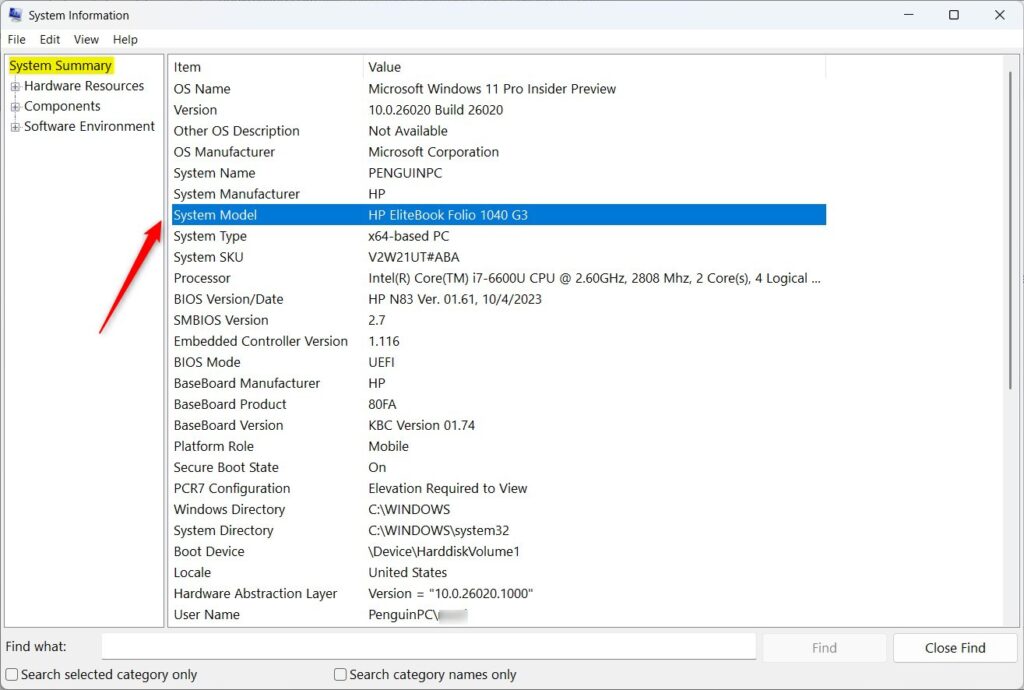
The screenshot above shows the System Summary page with the System Model line.
Find Your Model Using Command Line (Windows Terminal)
You can also find your model by typing a command. This is useful over remote sessions, or when you want to copy the output as text.
- Open Windows Terminal and select the PowerShell tab. A prompt appears, ready for input.
- Type this command and press Enter. The model information prints in the window:
Get-CimInstance -ClassName Win32_ComputerSystem | Select-Object ModelIf you prefer Command Prompt in Windows Terminal, open a Command Prompt tab and type:
powershell "Get-CimInstance -ClassName Win32_ComputerSystem | Select-Object Model"Find Your Model Using the Windows Registry (Advanced)
Use this method only when the standard menus don’t show it. You only need to read the value, so don’t change or delete anything while you are in there. Opening the editor may prompt you for administrator approval.
- [ADMIN] Press Win+R, type
regeditand press Enter to open the Registry Editor. Click Yes if User Account Control asks for permission. - Navigate to one of these keys. Use the folder tree on the left, or paste the path into the address bar at the top of the window:
Computer\HKEY_LOCAL_MACHINE\SYSTEM\CurrentControlSet\Control\SystemInformationor
Computer\HKEY_LOCAL_MACHINE\HARDWARE\DESCRIPTION\System\BIOSClick the key, then look in the right pane for entries named SystemProductName or similar. The Data column shows your PC model. Close the Registry Editor when you are done.
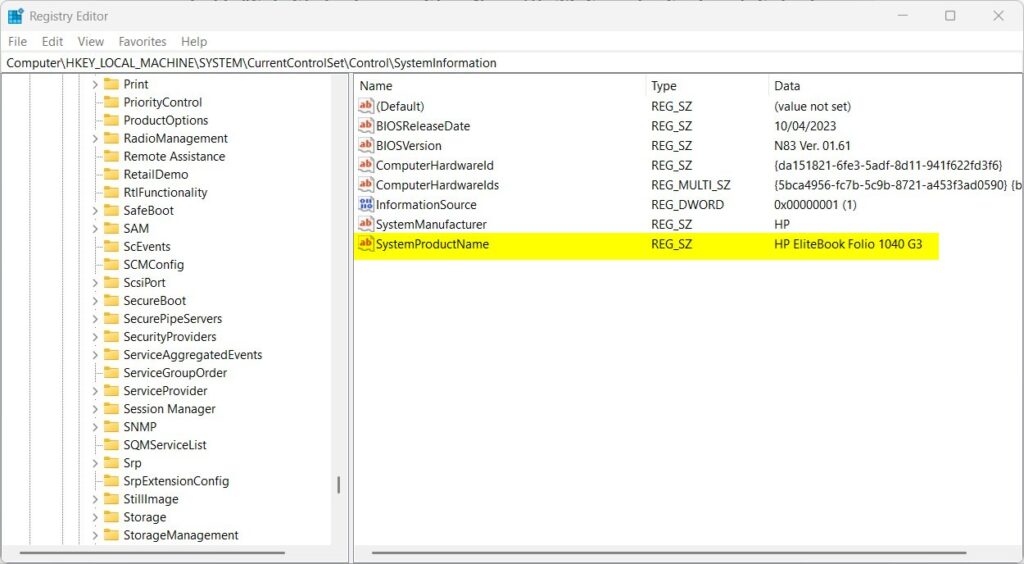
The screenshot above shows the registry entry with the model in the data column.
Summary
- Knowing your PC model helps you get the right updates, drivers, and support.
- You can find your model name in Settings, System Information, Windows Terminal, or the Registry. Settings is the fastest, and the physical label is a good backup.
- If you built your PC, you might be able to change the model name. Brand-name PCs usually cannot be changed.
- Having this information makes it easier to keep your PC running smoothly.
Knowing your computer model lets you track down the correct hardware updates, manufacturer support, and compatible replacement parts. Start with Settings. If that doesn't show what you need, try System Information or Windows Terminal, and use the Registry Editor as a last resort. Write the model and serial number down somewhere safe, so you have them if the PC won't start.
Have a question about this guide?
Answered by AI from this guide. Good questions may be added to this page — please don't include personal details.
Did this guide fix your problem?

About the Author
Richard
Tech Writer, IT Professional
Richard is a writer at Geek Rewind who turns complex IT tasks into clear, step-by-step guides. He draws on years of hands-on experience in system administration and enterprise IT operations, focusing on Windows, Linux and WordPress: the problems people actually run into, and the fixes that work. His server and WordPress guides come from systems he runs himself. Richard builds and maintains the platform behind Geek Rewind, from its Ubuntu servers and Nginx configuration to its custom WordPress plugins. Many new tutorials start with readers' questions, and he's always glad to answer them in the comments.
No comments yet — be the first to share your thoughts!