How to Install or Update Audio Drivers in Windows 11

Audio drivers are the system software that lets Windows 11 communicate with your speakers, headphones, and microphones. Installing or updating them can fix common audio problems such as crackling, low volume, or sound that has stopped working altogether.
You can check and update your audio hardware in Windows 11 with Windows Update or the built-in Device Manager. For the best results, get the newest driver from your PC maker or sound card brand. Laptop and desktop makers often ship tuned audio drivers that are newer than the generic ones Windows supplies.
Open Settings Windows Update Advanced options Optional updates, find your audio driver under Driver updates, tick its box, and click Download & install. Windows downloads and installs it; restart your PC if prompted. If no audio driver appears, use Device Manager instead by right-clicking your audio device and selecting Update driver.
1Update Audio Drivers Using Windows Optional Updates
Windows can offer audio driver updates through its optional updates page. Windows does not install these automatically, so they can sit there unnoticed. This is the easiest method because you do not need to visit a manufacturer website.
Here’s how:
- Click the Start menu (the Windows icon on the taskbar ).
- Select Settings (the gear icon).
- In Settings, click Windows Update on the left side.
- Click Advanced options. You will see a list of extra update settings.
- Click Optional updates. If this entry is missing, Windows has no optional updates for your PC right now.
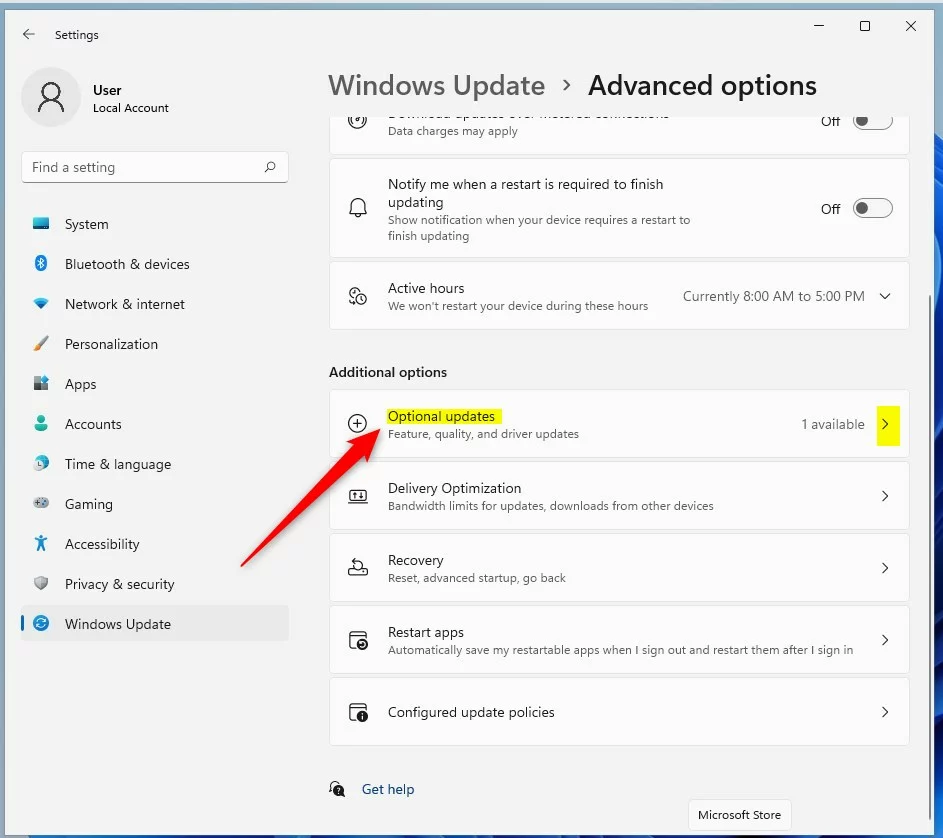
Any available driver updates are listed under Driver updates. Click that heading to expand it if the list is collapsed. If an audio driver is listed (look for names such as Realtek, Intel, or your sound card brand), follow these steps:
- Tick the box next to the audio driver.
- Click Download & install. Windows downloads the package and installs it, and you will see its progress on the page.
- Restart your PC if Windows asks you to. Click Restart now when it appears, or restart later from the Start menu .
If no audio driver is listed, Windows has nothing newer for your hardware. In that case, try Device Manager or the manufacturer’s download page.
2Update Audio Drivers Using Device Manager
Use it to ask Windows to search for a newer audio driver, or to install a driver file you downloaded yourself. You need an administrator account to change drivers.
Follow these steps:
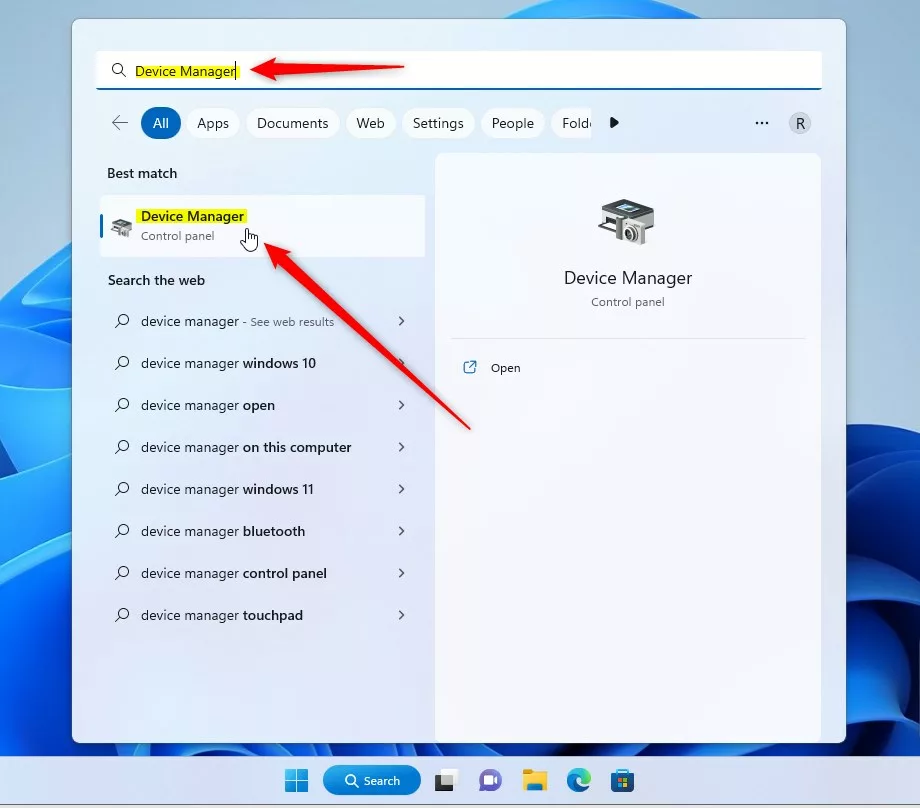
- Click the Start menu and type Device Manager in the search box.
- Click the Device Manager app in the search results. The window opens with a list of hardware categories.
Now find your audio device:
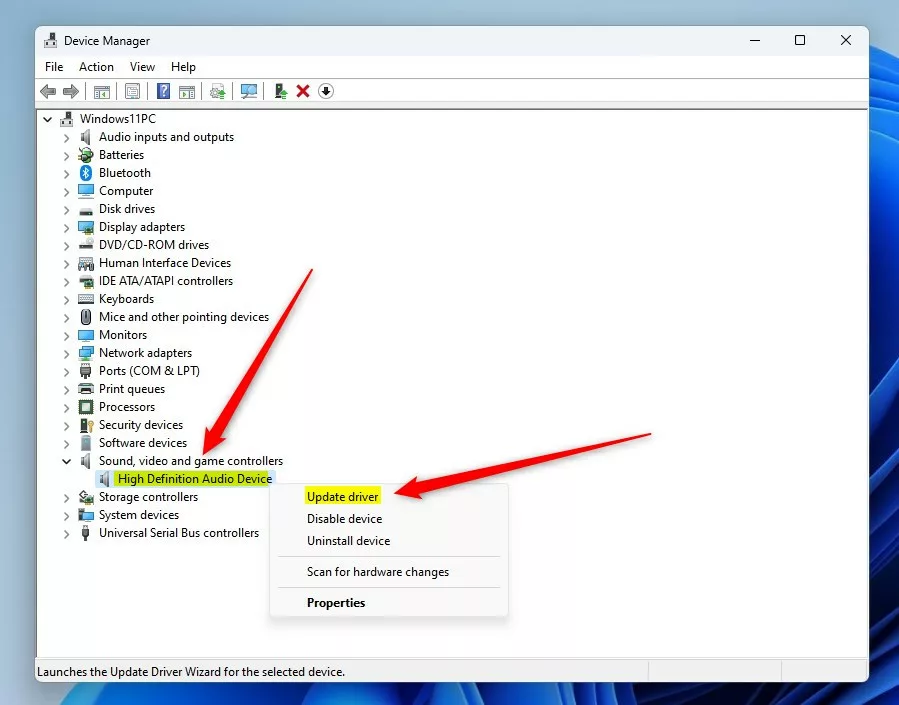
- Find Sound, video, and game controllers and click the arrow next to it to expand it.
- Right-click your audio device. It might be called High Definition Audio Device, or it may carry a brand name such as Realtek. If you are unsure which one it is, your speakers and headphones normally appear here, so pick the main sound device rather than a graphics or webcam entry.
- Select Update driver from the menu. A window opens asking how you want to find the driver.
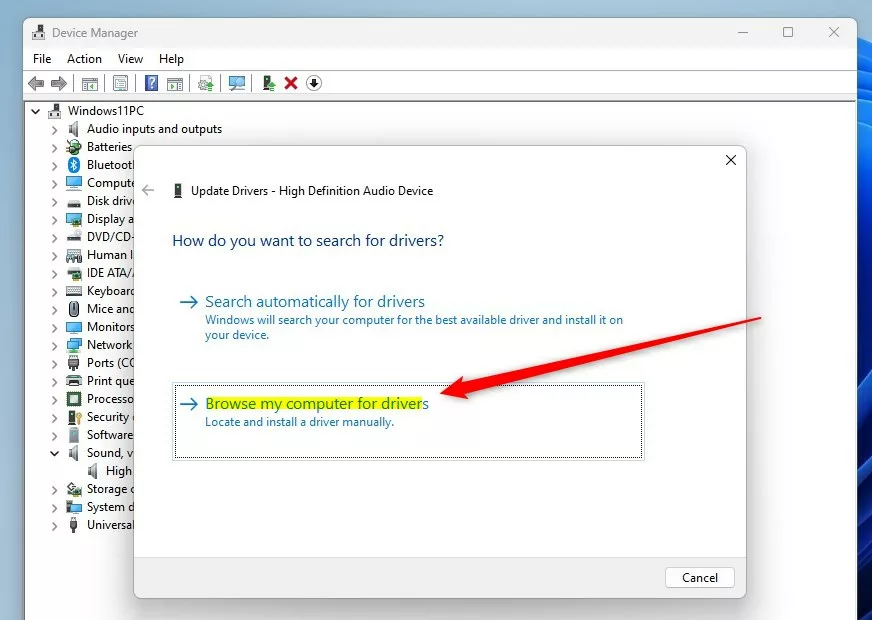
Two choices appear:
- Search automatically for drivers: Windows looks for the best driver on your PC and in Windows Update . If it says the best drivers are already installed, that only means Windows has nothing newer. The manufacturer’s site may still have a newer version.
- Browse my computer for drivers: Use this if you have already downloaded a driver file.
Many downloads come as a compressed .zip file or a self-extracting installer. Extract a .zip into a folder first, because Device Manager cannot read inside it.
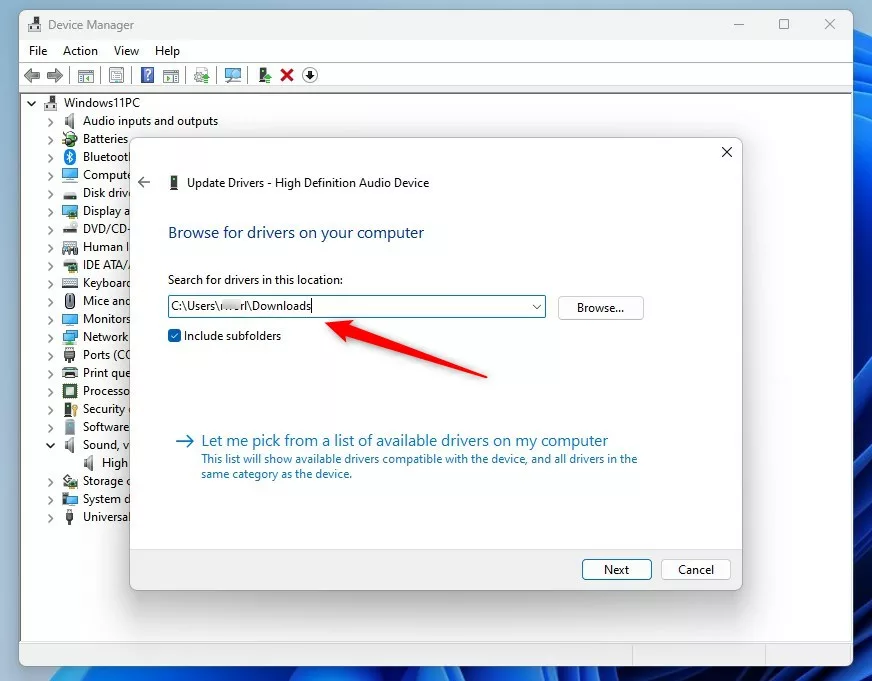
- Click Browse and select the folder that contains the extracted driver files.
- Make sure Include subfolders is ticked, since driver files are often nested inside the package.
- Click Next. Windows installs the driver and shows a message when it finishes.
If you would rather use a driver that is already on your PC, click Let me pick from a list of available drivers on my computer instead. Windows then shows the compatible drivers it already has. Select one and click Next.
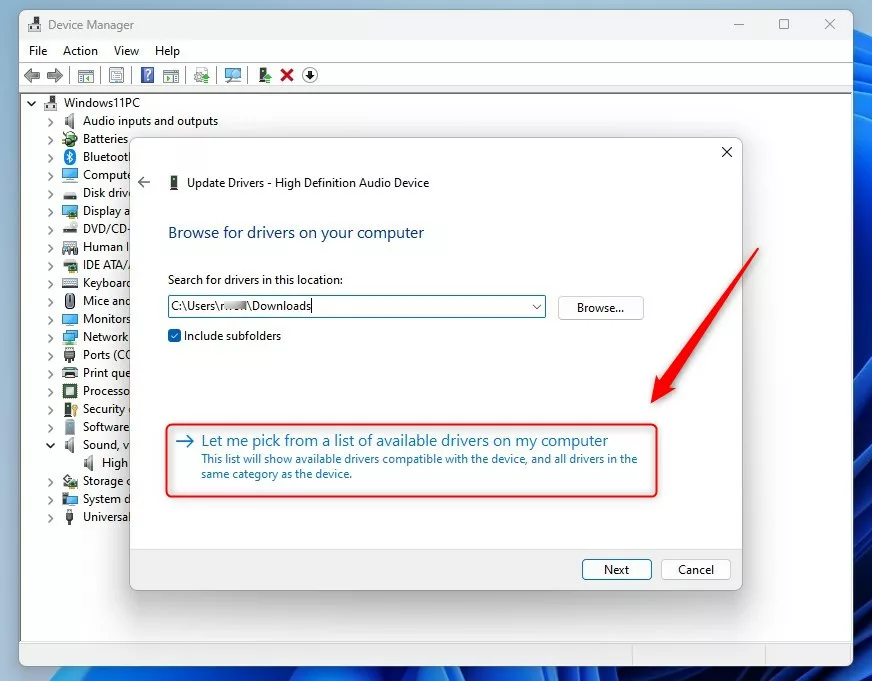
The alternative packages in this list are a useful fallback if the current driver misbehaves. For example, switching from a vendor driver to High Definition Audio Device often restores basic sound while you sort out the problem.
If a new driver makes things worse, you can undo it. Right-click the device in Device Manager, choose Properties, open the Driver tab, and click Roll Back Driver. This button is greyed out if Windows has no earlier version saved.
Restart the computer after installing a driver. This makes sure Windows loads the new driver and registers all the changes properly.
Summary
- Updating audio drivers can fix sound problems and improve audio quality.
- You can update drivers using Windows Optional Updates or Device Manager.
- Optional Updates are found in Settings Windows Update Advanced options Optional updates.
- Device Manager lets you manually update or install drivers you have downloaded.
- Restart your PC after updating drivers for best results.
Updating audio drivers replaces old software and fixes common sound problems such as crackling speakers or missing audio devices. You can do it quickly with either Windows Optional Updates or Device Manager. If the update causes trouble, use Roll Back Driver to return to the previous version. Always restart your computer after installing new audio software so the changes take effect.
Have a question about this guide?
Answered by AI from this guide. Good questions may be added to this page — please don't include personal details.
Did this guide fix your problem?

About the Author
Richard
Tech Writer, IT Professional
Richard is a writer at Geek Rewind who turns complex IT tasks into clear, step-by-step guides. He draws on years of hands-on experience in system administration and enterprise IT operations, focusing on Windows, Linux and WordPress: the problems people actually run into, and the fixes that work. His server and WordPress guides come from systems he runs himself. Richard builds and maintains the platform behind Geek Rewind, from its Ubuntu servers and Nginx configuration to its custom WordPress plugins. Many new tutorials start with readers' questions, and he's always glad to answer them in the comments.
No comments yet — be the first to share your thoughts!