How to Back Up and Restore Device Drivers in Windows 11

Backing up device drivers in Windows 11 saves exact copies of the software your hardware needs to talk to the operating system. Do it before a fresh install or a system reset. Every part of the computer, from the graphics card to the keyboard, relies on these files to run properly.
A local backup saves you from hunting down manufacturer downloads after a wipe. This matters most when the network adapter driver is one of the missing pieces, because then you can’t get online to download anything. You can restore the whole collection in minutes with built-in command-line tools or Device Manager.
Back up your drivers by opening Windows Terminal as administrator, then run `dism /online /export-driver /destination:”📁C:\
Why Back Up Your Drivers?
A clean Windows installation removes the device drivers you added yourself. Windows will fall back on its built-in generic drivers and whatever it can fetch from Windows Update , which is often not enough. Backing up first lets you put the right drivers back quickly without searching for downloads.
The backup only covers third-party drivers, meaning the ones installed on top of Windows by you or your hardware maker. The drivers that ship with Windows are not included, and you don’t need to save them because a fresh install brings them back.
What You Need to Do First
Start by creating the folder that will hold the backup. Follow these steps:
- Open File Explorer and go to the drive where you want to keep the backup.
- Create a new folder and give it a short name with no spaces, which makes the commands easier to type. For example:
C:\Users\YourName\Desktop\MyDrivers
A clean install or reset can wipe it. Save the backup to an external drive or a second partition, or copy the finished folder to a USB stick or cloud storage afterwards.
Method 1Using the DISM Command
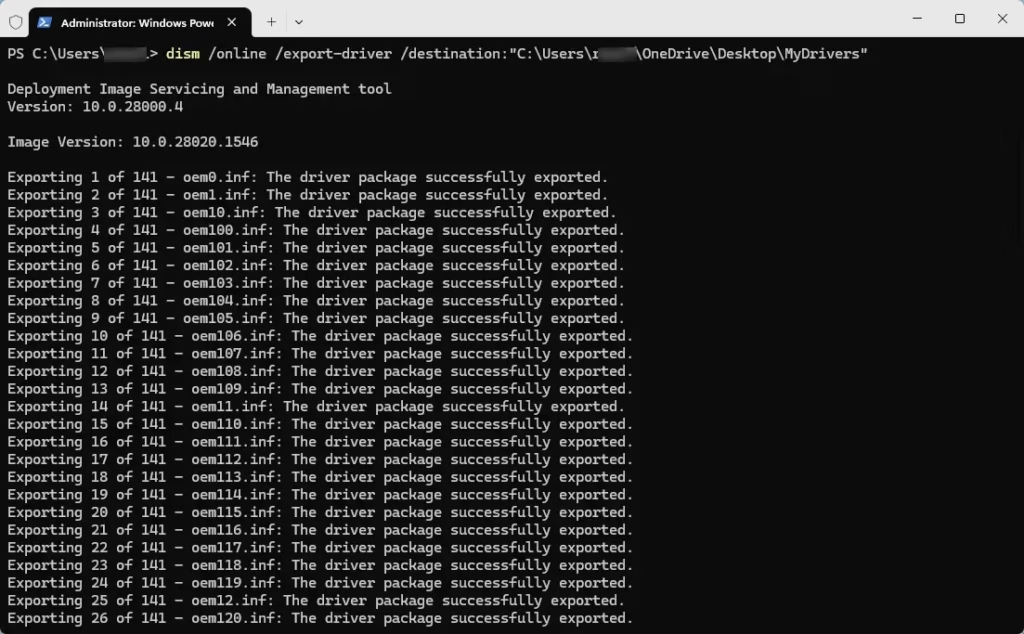
DISM (Deployment Image Servicing and Management) is a built-in Windows tool. Its export option copies every installed third-party driver into a folder you choose. You need an administrator window for this to work.
- Right-click the Start button and choose Terminal (Admin), or search for Command Prompt, right-click it and choose Run as administrator.
- Click Yes if User Account Control asks for permission. You should now see a console window with a prompt ending in System32. If it opens in your user folder instead, the window is not elevated.
- Type the export command below, replacing the placeholder with the actual path to the folder you created:
dism /online /export-driver /destination:"C:\Users\YourName\Desktop\MyDrivers"- Press Enter. DISM copies all your third-party drivers to that folder and prints its progress as it goes. It finishes with a message that the operation completed successfully.
- Open the backup folder in File Explorer . You should see one subfolder per driver package. If the folder is empty, check that the path is correct and that the window was opened as administrator.
Method 2Using the PnPUtil Command
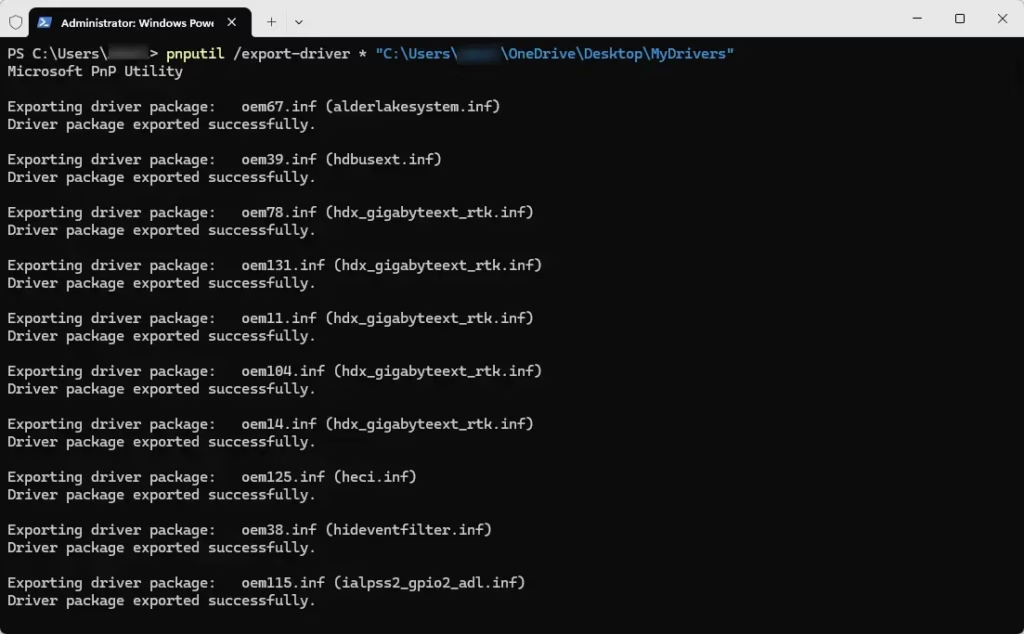
You can run the same export from Windows Terminal. This is useful if Terminal is already your usual way into the command line.
- Open Windows Terminal as an administrator, repeating the steps from the first method.
- Type the command below, replacing the folder path with your own:
pnputil /export-driver * "C:\Users\YourName\Desktop\MyDrivers"- Press Enter to save the drivers. Wait for the prompt to return before closing the window, because large driver sets can take a minute or two.
Method 3Using PowerShell’s Export-WindowsDriver
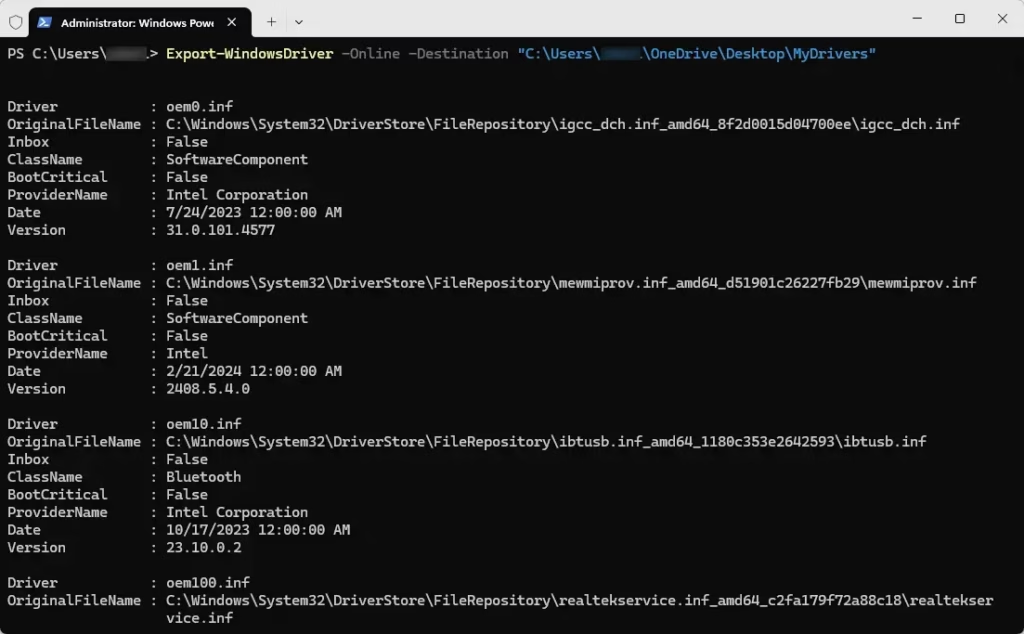
PowerShell is the default shell in Windows Terminal on Windows 11, and it can do the same export. Use it if you prefer PowerShell commands.
- Open Windows Terminal (Admin) from the Start button ’s right-click menu .
- Confirm the tab reads PowerShell. If it shows Command Prompt instead, click the down arrow in the tab bar and choose Windows PowerShell.
- Type the command below, changing the folder path as needed:
Export-WindowsDriver -Online -Destination "C:\Users\YourName\Desktop\MyDrivers"- Press Enter. This saves your drivers to the folder. When the prompt returns, check the folder to confirm the files are there.
How to Restore Device Drivers
You have two ways to put the drivers back. Device Manager works through a graphical window, and PnPUtil does it from the command line. After a clean install, connect the drive that holds your backup folder before you begin.
Restore One Driver Using Device Manager
Use this method when only one device needs a driver, such as a printer, webcam or network adapter. It is also the safest choice if you want to check each device as you go.
- Right-click the Start button and choose Device Manager.
- Expand the category that holds the hardware, such as Printers, Cameras or Network adapters. Devices that are missing a driver often appear under Other devices with a yellow warning icon.
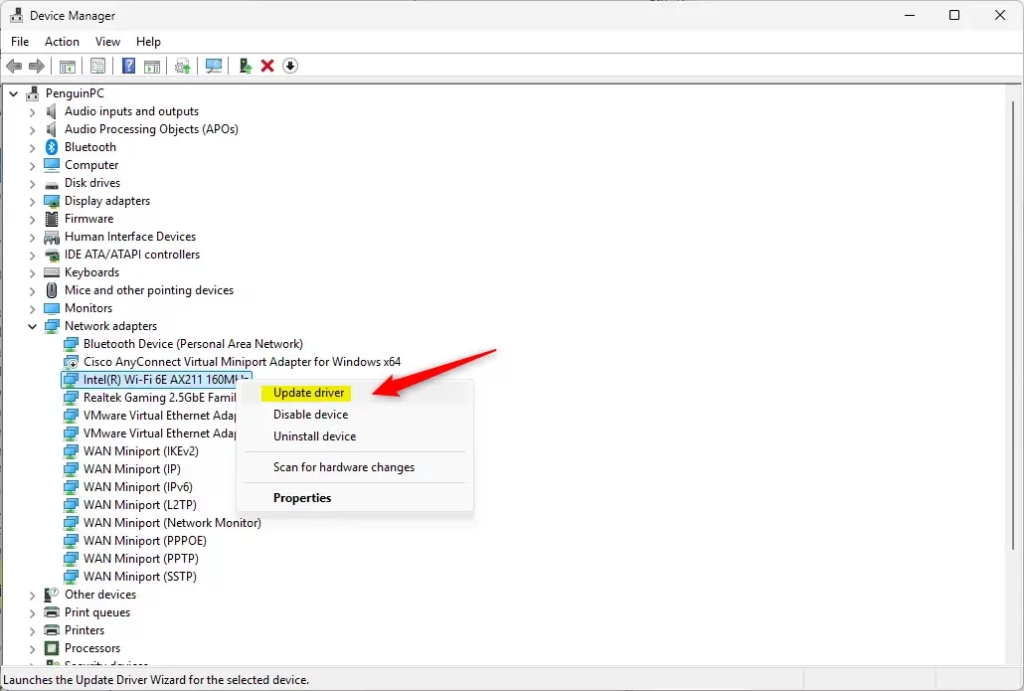
- Right-click the device name and choose Update driver. A window opens asking how you want to search for drivers.
- Choose Browse my computer for drivers.
- Click Browse and navigate to your saved drivers folder (for example,
C:\Users\YourName\Desktop\MyDrivers). - Check Include subfolders and click Next.
Windows searches the folder for the best driver for that hardware and installs it if it finds a match. When it finishes, you should see a message that the driver was successfully updated. If it says the best driver is already installed, the device is already using a matching or newer driver, and nothing more is needed.
Restore All Drivers Using Device Manager
Use this method to reinstall every saved driver in one pass. It saves time after a clean install, when many devices need drivers at once.
- Open Device Manager.
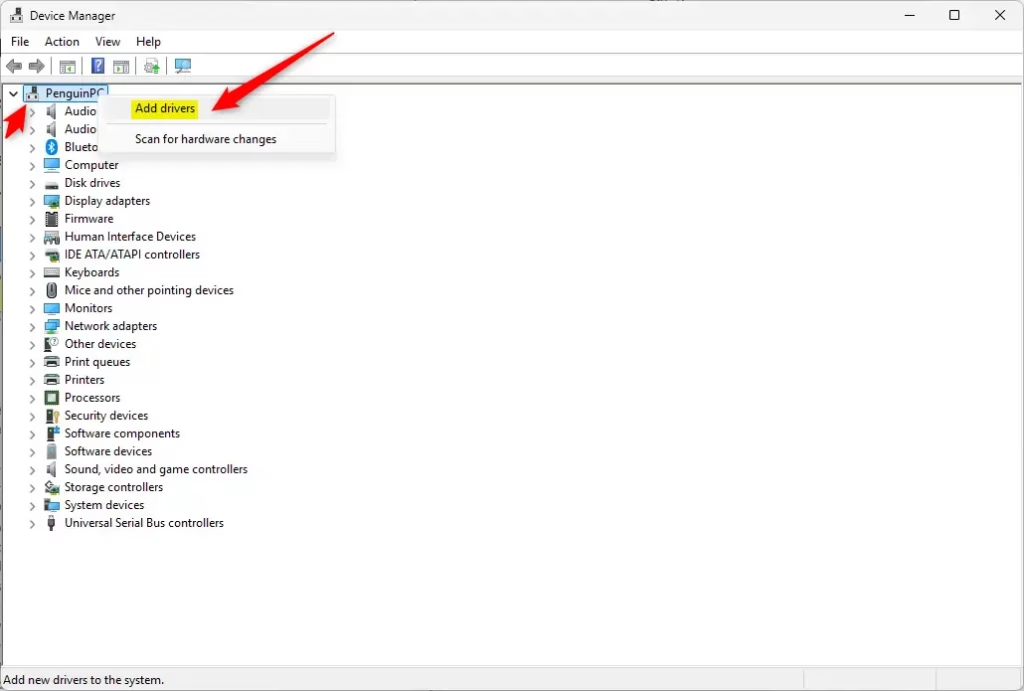
- Right-click the computer name at the very top of the list, or click Action in the menu bar. Then choose Add drivers. A window opens with the title Add drivers.
- Click Browse and choose your drivers folder.
- Check Include subfolders. Then click Next.
Windows installs all the drivers it finds in the folder. If the Add drivers option is missing, your Windows 11 version may not include it yet. Update Windows, or use the per-device method above or the PnPUtil method below instead.
Restore All Drivers Using PnPUtil Command
PnPUtil is a built-in command-line tool for managing drivers. It can install every driver in your backup folder with one command, with no clicking through windows. That makes it the fastest option, and a good one if you have to restore several machines.
- Open Command Prompt or Windows Terminal as an administrator, as in the backup steps.
- Type the command below, replacing the folder path with your own:
The ` pnputil /add-driver * .inf /subdirs ` command installs all Windows device drivers found within the folder you specify and any subfolders. Following the driver installation, the computer restarts automatically if the operating system determines a restart is necessary for the new drivers to function correctly, ensuring proper hardware operation.
- Press Enter. PnPUtil lists each driver package as it adds it, then shows a summary of how many it processed and installed.
The computer may restart automatically after the command runs, and some drivers only finish installing after a reboot. If a driver is reported as failed, restore that one from Device Manager so you can see the error for that device.
Summary
- Always back up your device drivers before reinstalling Windows or making big changes.
- Use one of the simple commands (DISM, PnPUtil, or PowerShell) to save your drivers to a safe folder, ideally on a drive other than your Windows drive.
- You can restore drivers one by one using Device Manager. Or restore all at once using Device Manager or the PnPUtil command.
- Keeping drivers backed up saves time and avoids driver hunting later.
- Make sure your drivers are up to date after restoring for best computer performance. Run Windows Update, and check the manufacturer's site for newer graphics and chipset drivers.
Backing up and restoring device drivers in Windows 11 protects your system and saves time before you reinstall Windows or make major changes. You can use built-in tools like DISM and PnPUtil to save your drivers, and use Device Manager or the command line to put them back whenever you need them.
Have a question about this guide?
Answered by AI from this guide. Good questions may be added to this page — please don't include personal details.
Did this guide fix your problem?

About the Author
Richard
Tech Writer, IT Professional
Richard is a writer at Geek Rewind who turns complex IT tasks into clear, step-by-step guides. He draws on years of hands-on experience in system administration and enterprise IT operations, focusing on Windows, Linux and WordPress: the problems people actually run into, and the fixes that work. His server and WordPress guides come from systems he runs himself. Richard builds and maintains the platform behind Geek Rewind, from its Ubuntu servers and Nginx configuration to its custom WordPress plugins. Many new tutorials start with readers' questions, and he's always glad to answer them in the comments.
No comments yet — be the first to share your thoughts!