How to Update the Bluetooth Driver Using Device Manager in Windows 11

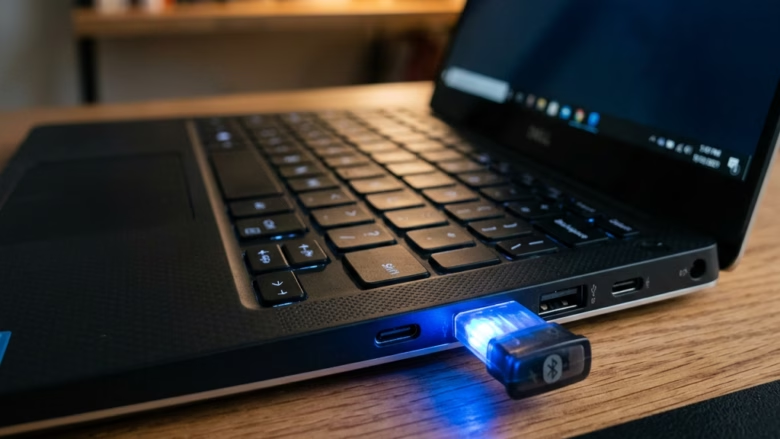
Updating your Bluetooth driver in Windows 11 can fix audio drops, broken mouse connections, and pairing failures. It replaces old hardware software with a newer version. Device Manager is the built-in Windows tool for managing hardware, and it can do this update directly without any extra downloads.
When wireless gear stops working right, a fresh driver often clears up the stuttering and gets your devices back online. Before you start, check two things:
- You have an active internet connection, because Windows has to search online for the driver.
- You are signed in with an administrator account, or you know an administrator’s password. Windows may show a User Account Control prompt during the update.
The steps are the same on Windows 11 Home and Pro.
Open Device Manager by pressing Win and typing devmgmt.msc, then expand Bluetooth , right-click your adapter, select Update driver, and click Search automatically for drivers. Windows finds and installs the newest version, then restart your PC.
Update Your Bluetooth Driver Using Device Manager
First, open Device Manager. The update is done from there, so the rest of this tutorial follows these actions in order:
- Open Device Manager.
- Expand the Bluetooth category.
- Right-click your Bluetooth adapter and choose Update driver.
- Let Windows search for a driver and install it .
- Restart the PC.
1Open Device Manager
- Press the Windows key, type ‘devmgmt.msc’, and press Enter. The Device Manager window opens with a list of hardware categories.
- Or right-click the Start button and select “Device Manager” from the quick link menu. Pressing Windows + X opens the same menu.
2Find Your Bluetooth Adapter
Device Manager lists your computer’s hardware by category. You only need the Bluetooth section.
- Scroll through the list and find Bluetooth.
- Click the small arrow next to it. The category expands to show your Bluetooth adapter and any paired devices.
Changing drivers for unrelated hardware can cause system instability.
If you cannot find a Bluetooth category, the adapter may be switched off, disabled, or missing its driver. In that case it can show up under Other devices with a yellow warning icon. On a desktop PC without built-in Bluetooth, there may be no adapter at all until you plug in a USB Bluetooth dongle.
3Start the Driver Update
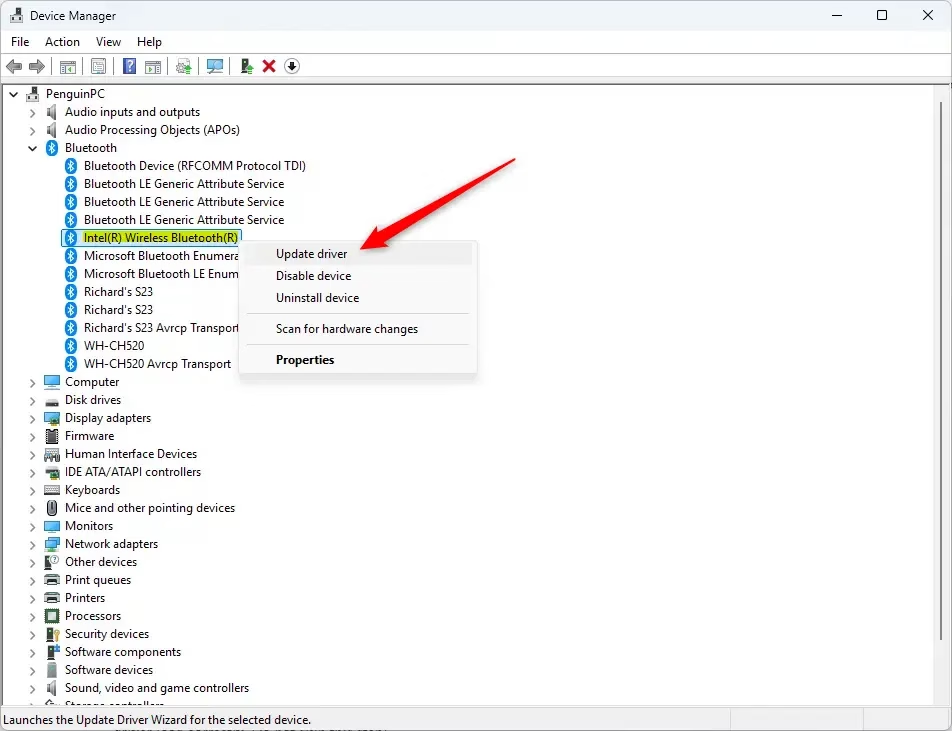
- Look through the expanded list for the Bluetooth adapter. Names vary by manufacturer, and a common one is "Intel(R) Wireless Bluetooth(R)". Entries for individual paired devices, such as headphones, are not the adapter.
- Right-click the adapter entry. A context menu opens.
- Select "Update driver". The Update Drivers window opens and asks how you want to search for drivers.
4Let Windows Search for Drivers
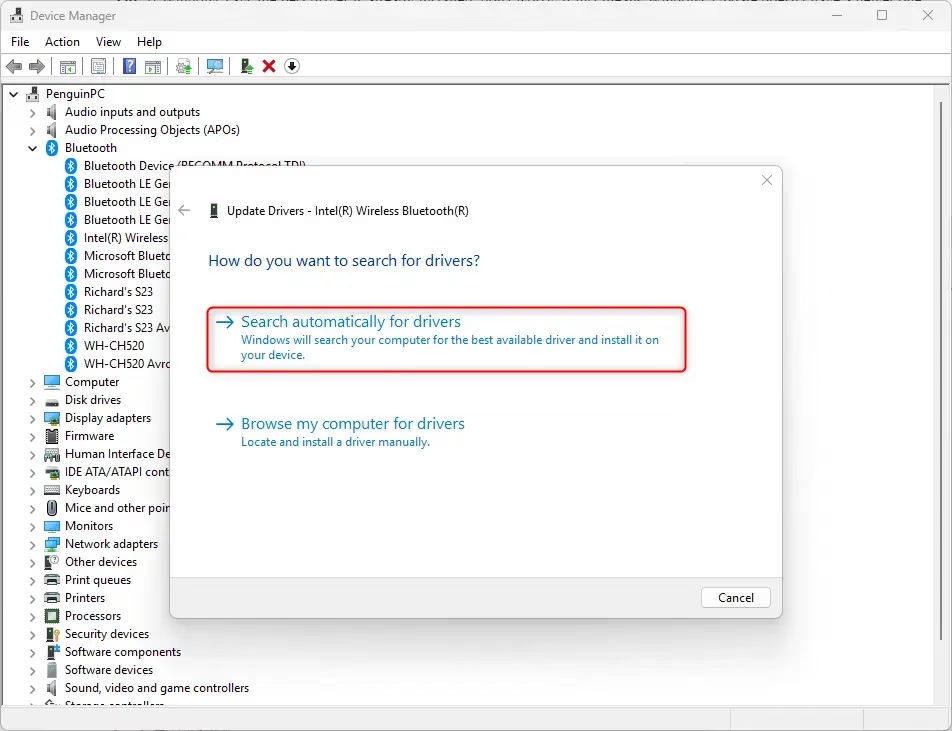
Now tell Windows to look for the driver itself.
- In the Update Drivers window, click Search automatically for drivers. Windows starts searching and shows a progress message.
Explanation: Windows Update supplies recent driver packages, though newer versions sometimes exist only on the manufacturer's support site. This step starts the automatic search through what Windows can reach.
5Follow the On-Screen Prompts
- If Windows finds a newer version, follow the on-screen prompts to complete the installation. Bluetooth may drop for a few seconds while the driver installs. This is normal.
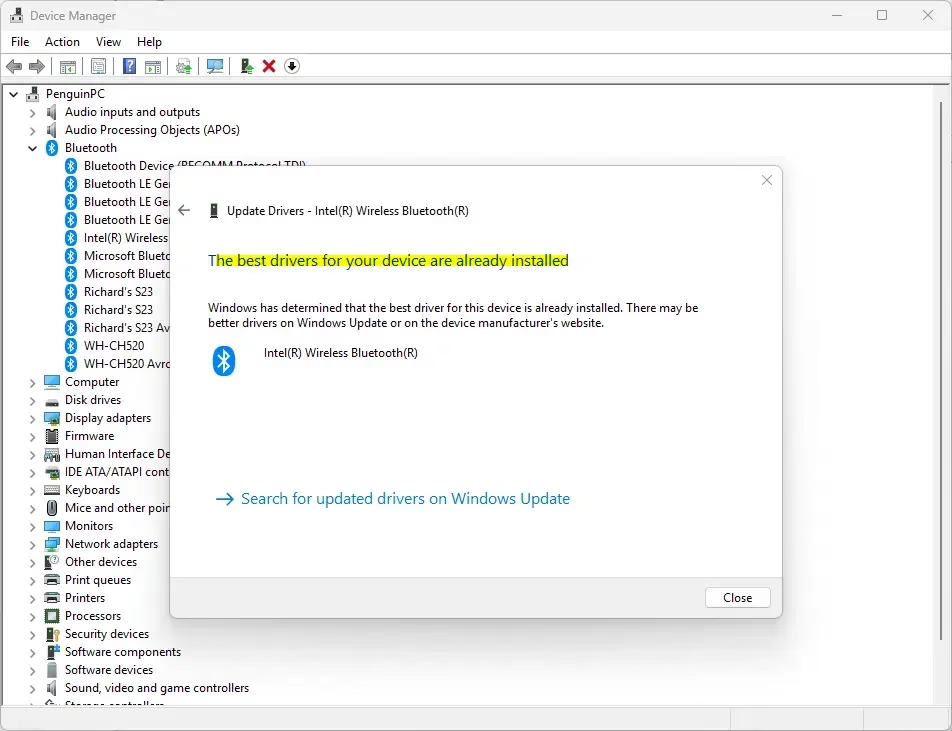
- When the install finishes, read the final message. It tells you whether the driver was updated successfully.
Tip: If Windows says the best drivers for your device are already installed, it means its catalog has no newer package. It does not always mean you have the latest version that exists. You can check Settings Windows Update Advanced options Optional updates for driver updates, or download the driver from your PC or adapter manufacturer's support site.
6Restart Your PC
Restart your PC so the new driver loads fully.
- Click "Restart now" if Windows offers it. Otherwise, open the Start menu, click the Power button, and choose Restart.
- After the PC starts again, test your Bluetooth devices. Check that the mouse, headphones, or other gear connects and works.
If something works worse after the update, you can undo it. Go back to Device Manager, right-click the Bluetooth adapter, and choose Properties. Open the Driver tab and click Roll Back Driver. The button is greyed out when there is no earlier driver to go back to.
Reference:
Summary
Updating the Bluetooth driver through Device Manager in Windows 11 can resolve connection errors and make your wireless hardware more reliable. If the problem stays after the update and a restart, check the manufacturer's site for a newer driver.
Have a question about this guide?
Answered by AI from this guide. Good questions may be added to this page — please don't include personal details.
Did this guide fix your problem?

About the Author
Richard
Tech Writer, IT Professional
Richard is a writer at Geek Rewind who turns complex IT tasks into clear, step-by-step guides. He draws on years of hands-on experience in system administration and enterprise IT operations, focusing on Windows, Linux and WordPress: the problems people actually run into, and the fixes that work. His server and WordPress guides come from systems he runs himself. Richard builds and maintains the platform behind Geek Rewind, from its Ubuntu servers and Nginx configuration to its custom WordPress plugins. Many new tutorials start with readers' questions, and he's always glad to answer them in the comments.
No comments yet — be the first to share your thoughts!