How to Make Your Bluetooth Device Discoverable in Windows 11

To find the Bluetooth and devices settings in Windows 11, open Settings Bluetooth & devices. Making a Bluetooth device discoverable puts it into pairing mode so your PC can find and connect to it, and that is the first step whenever you pair a new headset, speaker, mouse, or keyboard.
The quickest way is to turn on Bluetooth on both the device and the PC, open Settings Bluetooth & devices, and let Windows scan. Most phones and some accessories become discoverable on their own when you switch them on. Many accessories need a dedicated button or a menu option first, so check the manual if yours doesn’t show up after a few seconds.
Sometimes the job runs the other way. If a phone needs to find your PC, for example to send you a file over Bluetooth , you have to make the PC itself discoverable. That is a separate step, covered further down.
To make a Bluetooth device discoverable on Windows 11, turn it on in its own pairing mode, then open Settings Bluetooth & devices on your PC and click Add device Bluetooth so Windows scans for it. Your PC stays visible while that window is open. To find Bluetooth and devices settings, open Settings and select Bluetooth & devices from the left sidebar.
Turn On Bluetooth on Your 🪟 Windows 11 PC
People skip this step often, and it is the usual reason a device won’t show up.
- Open Settings by pressing Win+I, or click the Start button and select Settings. You’ll see the Settings home page with a list of categories on the left.
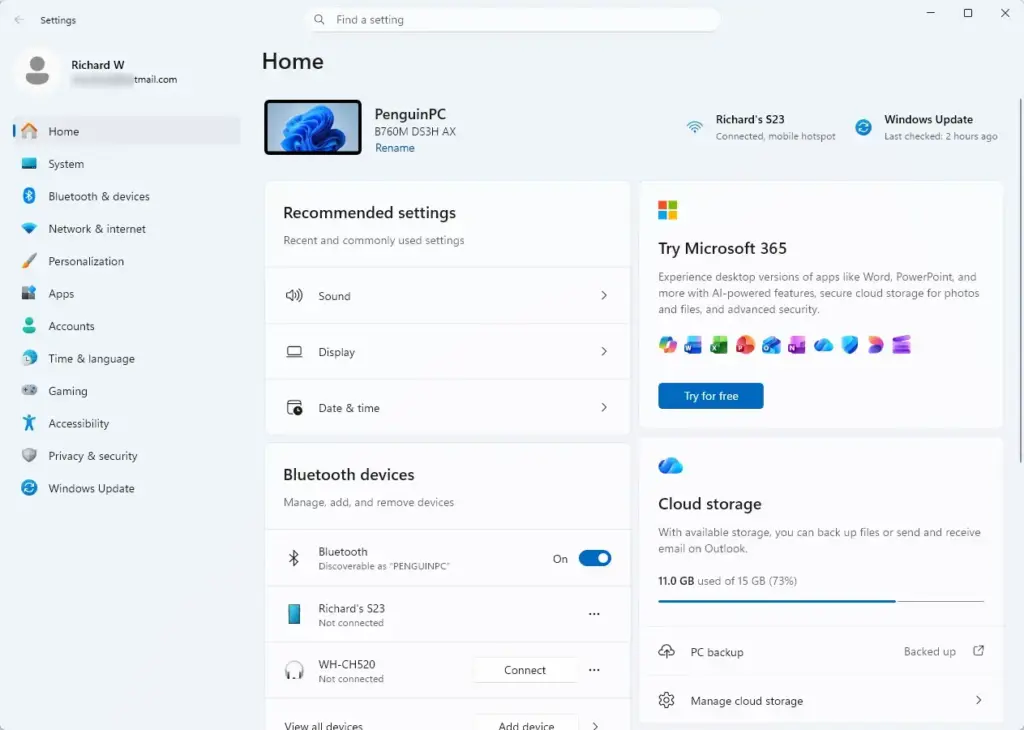
Settings › Home - Click Bluetooth & devices in the left sidebar. This page holds every Bluetooth and device option in Windows 11.

Windows Settings menu highlighting the Bluetooth and devices option for printers - Turn on the toggle next to Bluetooth at the top of the page. The switch turns blue, and the page below fills in with a Devices list and an Add device button.
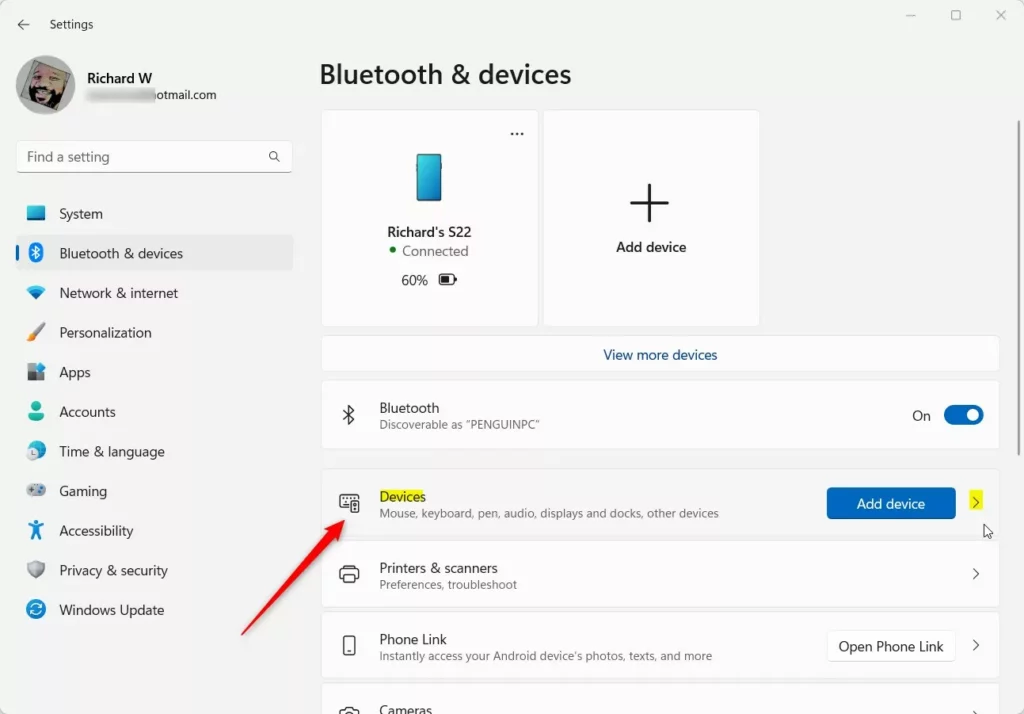
Windows 11 Bluetooth and devices settings with add device option.
Click the network, volume and battery icons near the clock to open Quick Settings, then click the Bluetooth tile. It is the same switch as the one in Settings, so it just saves a trip into the full app. If you don’t see the tile, click the pencil (edit) button in Quick Settings and add it from the list.
To skip a few clicks, right-click the Bluetooth tile in Quick Settings and choose Go to Settings . This opens the Bluetooth & devices page directly, where you can start pairing.
If the Bluetooth toggle or tile is missing or greyed out, see the troubleshooting sections at the end of this guide.
Make Your PC Discoverable So Other Devices Can Find It
If you’re pairing a phone, tablet, or another PC with your computer, your Windows 11 PC needs to be visible to it. Pairing a mouse or headphones works the other way round: the PC finds them, not the other way. Which method you use depends on what you’re doing.
Temporary discoverability (the most common case): Windows 11 makes your PC discoverable while the Add device window is open and scanning. You don’t need to flip a separate switch.
- Go to Settings Bluetooth & devices
- Click Add device. A window opens asking what kind of device you’re adding.
Windows 11 Bluetooth and devices settings with add device option. - Select Bluetooth . Windows starts scanning. While this window stays open, your PC is also visible to other devices searching for it.
When you close that window, your PC stops advertising itself. You don’t need to turn anything off by hand in this case.
See more nearby devices while scanning: Windows 11 has a setting that controls how many devices show up in the scan list. If your device is nearby and in pairing mode but isn’t listed, change it like this.
- Go to Settings Bluetooth & devices Devices
- Find Bluetooth devices discovery. It is set to Default unless someone changed it.
- Choose Advanced from the drop-down. Windows will now show all nearby Bluetooth devices when it scans, not just the common types.
The Advanced list can get long in a crowded place, so switch it back to Default if the clutter bothers you. This setting only exists on recent builds of Windows 11. If you don’t see it, run Windows Update and check again.
Make this device discoverable: On the same Devices page, look in the device settings section for Make this device discoverable. It is not on every build or every PC, so if it isn’t there, use the Add device method above or the persistent method below.
Persistent discoverability (for repeated file transfers or older accessories): Some PCs still have the older, classic Bluetooth settings dialog. It lets you leave discoverability on so other devices can find your PC at any time, not just while a window is open.
- Press Win+R to open the Run box.

Run dialog - Type
bthprops.cpland press Enter. On PCs that still support it, a classic Bluetooth Settings dialog opens with several tabs, including Options. - Click the Options tab.
- Check the box for Allow Bluetooth devices to find this PC.
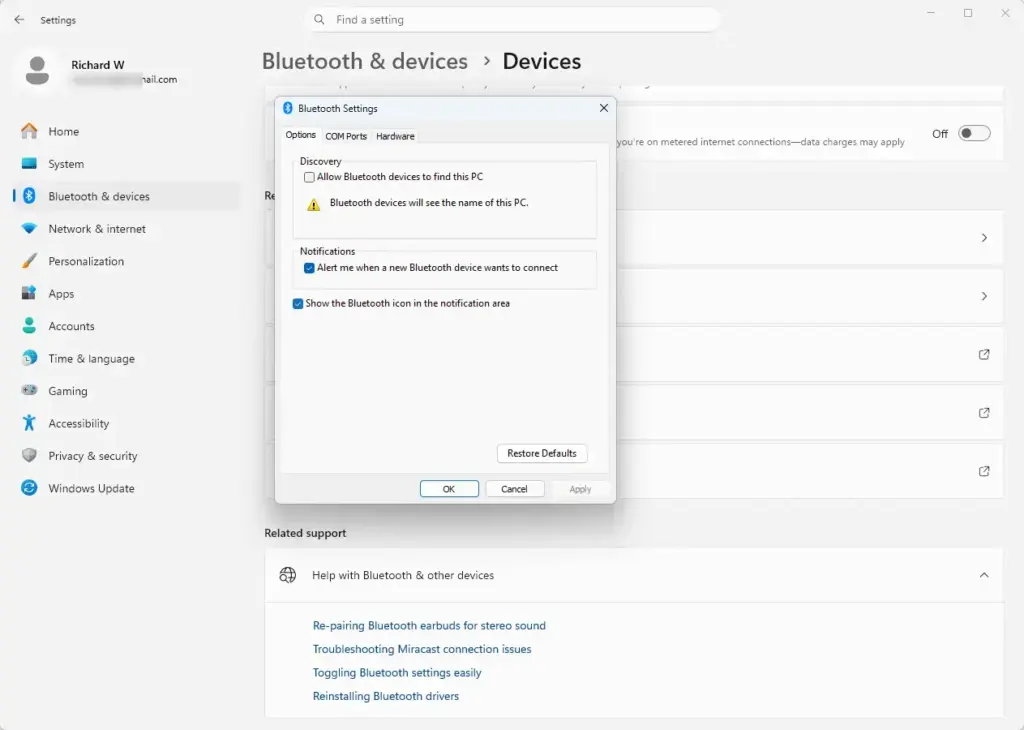
- Click OK to save and close the dialog.
If nothing opens when you run that command, your PC’s Bluetooth driver no longer provides the classic dialog. This is common on newer laptops. You can still reach the same options through Settings Bluetooth & devices Devices More Bluetooth settings, or simply use the Add device method.
Put Your Bluetooth Accessory Into Pairing Mode
Headphones, speakers, keyboards, and mice don’t become discoverable just because they’re powered on. They have to be told to start broadcasting, usually with a button press.
- Turn on the accessory. Most have a status light that changes behavior once it is powered on.
- Press and hold the pairing button, often marked with a Bluetooth logo, until the light starts flashing rapidly or changes color. The button and timing vary by manufacturer, so check the manual if you’re unsure which one it is.
- Leave the accessory in this flashing state. It is now discoverable. It stays that way for a limited time, commonly a couple of minutes, then stops advertising and goes back to sleep.
If the light stops flashing before you finish pairing in Windows, repeat the pairing-mode step. Most devices let you trigger it again straight away.
Connect the Device Once Windows Finds It
With the device in pairing mode and Bluetooth on at the PC, you can pair it from Settings.
- Go to Settings Bluetooth & devices
- Click Add device.
- Select Bluetooth . Windows lists discoverable devices within range as it detects them. This can take several seconds.
- Click the name of your device once it appears in the list.
- Enter a PIN if Windows asks for one, or confirm that the code on your PC matches the one on the device. Then click Connect or Yes. Most modern Bluetooth audio devices and input accessories skip this step.
Once paired, the device moves into the main Devices list on the Bluetooth & devices page. This list is where you see the Bluetooth devices on this computer. Click a device any time to check its connection status or remove it.
Windows 11 also supports Swift Pair for nearby devices that offer it. When a supported device is in pairing mode close to your PC, Windows can show a notification so you can connect without opening the Add device window. The option is on the Devices page, under Show notifications to connect using Swift Pair. If your accessory doesn't support Swift Pair, use the steps above.
Turn Discoverability Back Off
If you used the temporary method, closing the Add device window already turned off your PC's discoverability, so there is nothing else to do.
If you turned on the persistent option in the classic dialog, reverse it the same way:
- Press Windows key + R, type
bthprops.cpl, and press Enter. - Click the Options tab.
- Uncheck Allow Bluetooth devices to find this PC.
- Click OK.
If you also set Bluetooth devices discovery to Advanced, you can return it to Default on the Devices page. That setting only changes how many devices your PC shows when it scans. It doesn't change whether other devices can see your PC.
Leaving a PC permanently discoverable isn't dangerous on its own. It does mean any nearby Bluetooth device can see your PC's name in a scan, so it is worth turning off once you're done transferring files or pairing.
Bluetooth Toggle Missing or Greyed Out
Three causes are common, and they're easy to confuse:
- Airplane mode is on. Open Settings Network & internet and turn off Airplane mode. It disables Bluetooth along with Wi-Fi.
- No Bluetooth adapter is detected. Open Device Manager (search for it from the Start menu; on managed PCs this needs administrator privileges) and look under Bluetooth. If the adapter is missing entirely or shows a yellow warning icon, the driver has failed to load. Right-click the adapter and choose Update driver, or check Windows Update for a pending driver update.
- This is a managed work or school PC. Some organizations disable Bluetooth through policy, which leaves the toggle greyed out whatever you try locally. If that's the case, there is no user-side fix. Contact your IT administrator.
🪟 Windows 11 Still Can't Find Your Device
If the accessory is in pairing mode and Bluetooth is on, but it never shows up in the Add device list, work through these in order:
- Move the device within about 10 feet of the PC. Bluetooth range drops off fast through walls and furniture.
- Set Bluetooth devices discovery to Advanced in Settings Bluetooth & devices Devices, then scan again. The Default setting can hide some devices.
- Check that the device isn't already connected to something else, like a phone. Most Bluetooth accessories pair with one host at a time, and some won't enter pairing mode again while connected elsewhere. Turn off Bluetooth on the other device, or forget the pairing on that device first.
- Charge the device. Low battery often stops a device from entering or staying in pairing mode, even though its light still appears to flash normally.
- Restart the Bluetooth adapter. Open Device Manager (administrator privileges required) and expand Bluetooth. Right-click your adapter and choose Disable device. Wait a few seconds, then right-click it again and choose Enable device.
- Restart your PC. This clears a stuck Bluetooth stack more reliably than toggling the switch in Settings.
What to Do Next
Once your device pairs, open Settings Bluetooth & devices any time you want to confirm it's connected, rename it, or remove it before pairing something new. If you're setting up several accessories at once, check first that your Bluetooth drivers are current through Windows Update. Outdated drivers are the most common reason pairing works for one device but not another.
Frequently asked questions
Why isn't my Bluetooth getting detected in 🪟 Windows 11?
Check that Bluetooth is turned on in Windows Settings under Bluetooth & devices. Make sure your device's Bluetooth is also on and in pairing mode — most devices enter it automatically when powered on, but some require holding a button. Restart both devices if they still don't connect.
How can I fix the "That Didn't Work Make Sure Your Bluetooth Device Is Discoverable" error?
Put your device into pairing mode by checking its manual — some require holding a specific button for several seconds. Turn Bluetooth off and back on in Windows Settings. Restart both your PC and the device. If it still fails, try forgetting the device in Settings and pairing from scratch.
Why is my PC not discoverable on Bluetooth?
Open Settings, go to Bluetooth & devices, then select Device name. Toggle on "Show this device when pairing." This makes your PC visible to other devices. If this option is missing or grayed out, your Bluetooth driver may need updating through Device Manager.
Why is my Bluetooth not visible?
Turn on Bluetooth in Windows Settings under Bluetooth & devices. Check that your device is powered on and in pairing mode — refer to its manual if unsure. Restart your PC. If Bluetooth remains missing, update your Bluetooth driver in Device Manager.
Still have a question?
Answered by AI from this guide. Good questions may be added to this page — please don't include personal details.
Did this guide fix your problem?

About the Author
Richard
Tech Writer, IT Professional
Richard is a writer at Geek Rewind who turns complex IT tasks into clear, step-by-step guides. He draws on years of hands-on experience in system administration and enterprise IT operations, focusing on Windows, Linux and WordPress: the problems people actually run into, and the fixes that work. His server and WordPress guides come from systems he runs himself. Richard builds and maintains the platform behind Geek Rewind, from its Ubuntu servers and Nginx configuration to its custom WordPress plugins. Many new tutorials start with readers' questions, and he's always glad to answer them in the comments.
No comments yet — be the first to share your thoughts!