How to Reinstall the Bluetooth Driver in Windows 11

- 49 steps
- Needs administrator rights
- Includes a restart or sign-out
Reinstalling the Bluetooth driver in Windows 11 replaces broken driver software with a clean copy. A driver is the small program that lets Windows talk to a piece of hardware, here your Bluetooth adapter. A fresh copy often fixes persistent connection drops and pairing errors that standard troubleshooting misses.
Device Manager, the built-in tool that lists and manages all connected hardware, does most of the work. It can remove and refresh the adapter in a few clicks. This guide also covers Windows Update, the manufacturer’s installer, driver rollback and some last-resort fixes. Do these preparation steps first:
- Plug in a wired USB mouse and keyboard. Your Bluetooth mouse and keyboard stop working once the driver is removed, and you need to stay in control of the PC. Laptop users can rely on the trackpad and built-in keyboard.
- Open Settings, the app that controls system configuration in Windows 11, and select Windows Update in the left-hand menu.
- Click Check for updates and install anything that is pending. Restart if Windows asks you to. A fully patched system gives Windows a better chance of picking a compatible driver during the reinstall.
Open Device Manager, right-click your Bluetooth adapter under the Bluetooth category and select Uninstall device, ticking Attempt to remove the driver for this device if it appears. Then select Action Scan for hardware changes, and Windows reinstalls a clean driver automatically. Restart if the adapter does not reappear.
Uninstall the Bluetooth adapter in Device Manager
Device Manager lets you remove your Bluetooth adapter completely, which clears out corrupted driver software. Sign in with an account that has administrator privileges, because these changes affect the whole system.
- Right-click the Start button on your taskbar and select Device Manager from the menu. The Device Manager window opens with a list of hardware categories.
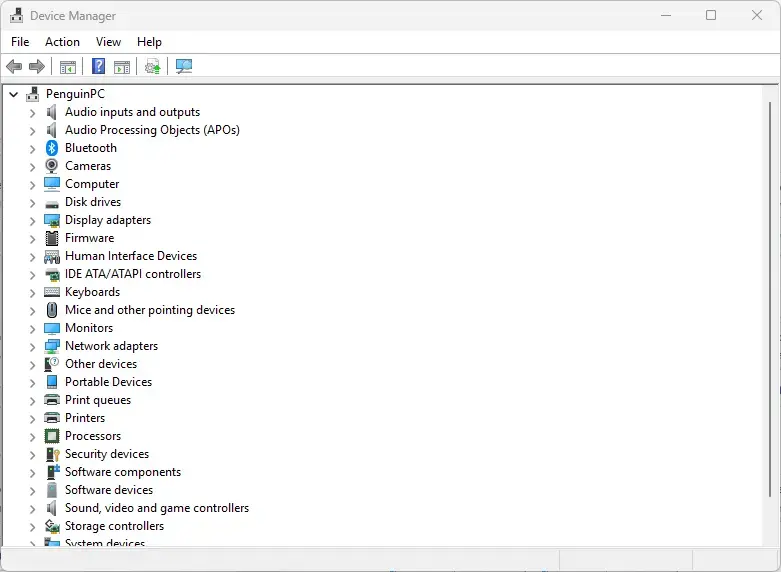
- Click the arrow next to the Bluetooth category. The list expands to show your installed wireless hardware.
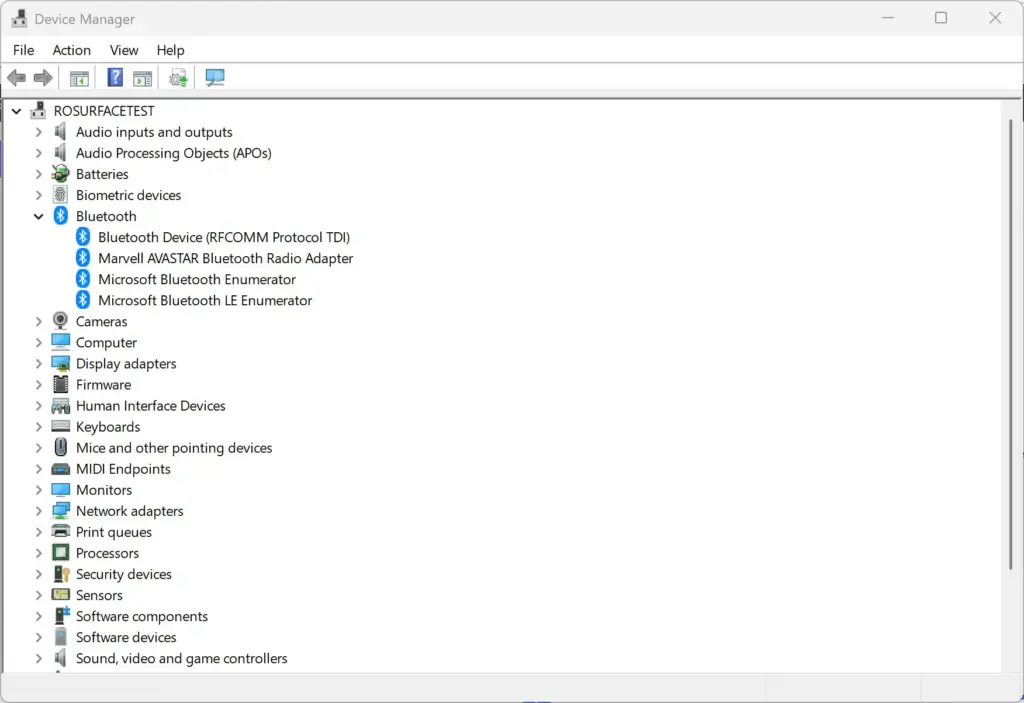
- Find your main Bluetooth adapter. It usually has a name like Intel Wireless Bluetooth, Realtek Bluetooth Adapter or Generic Bluetooth Adapter. Other entries in the list, such as individual paired devices, are not the adapter.
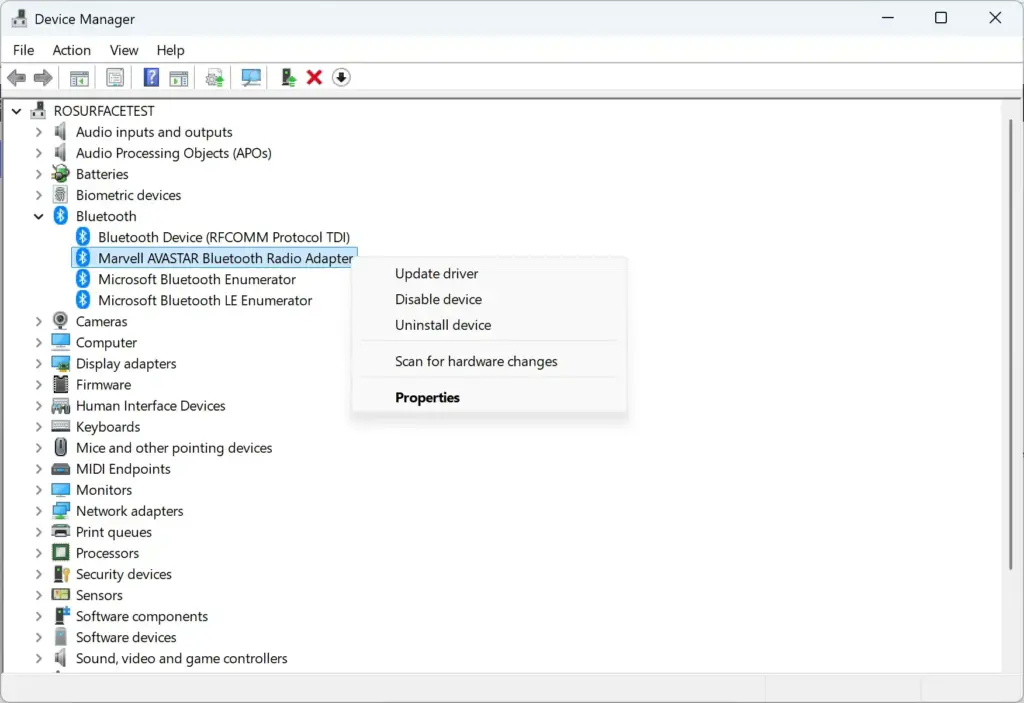
- Right-click the adapter and select Uninstall device. A confirmation prompt appears.
- In the prompt, check the box labeled Attempt to remove the driver for this device if it appears. It only shows up when Windows can remove the driver package.
- Click Uninstall. The Bluetooth category may disappear from the list, and that is expected.
Reinstall the driver automatically via Device Manager
You can reinstall the driver from the same Device Manager window. A hardware scan forces Windows 11 to detect the adapter again and install a fresh driver package.
- Stay in Device Manager. If you closed it, reopen it from the Start button’s right-click menu.
- Click the Action menu at the top of the window. A short drop-down list opens.
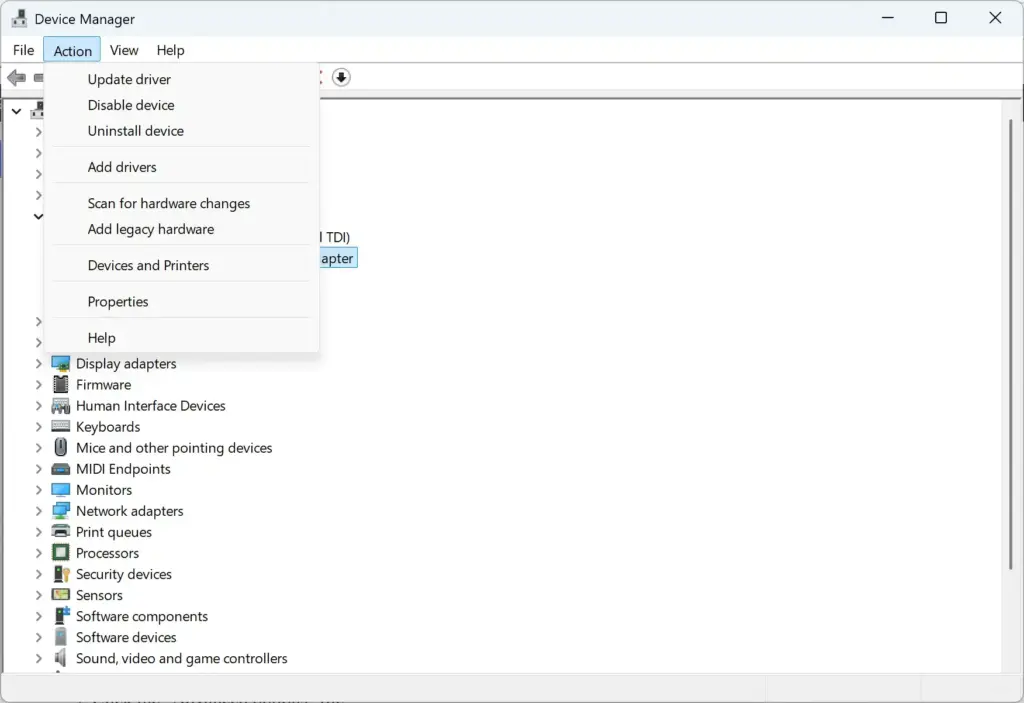
- Select Scan for hardware changes.
- Wait a few seconds while Windows scans your system buses, the internal connections that link hardware to the PC. The Bluetooth category and your adapter reappear in the list, and a clean driver installs automatically.
- Open Settings Bluetooth & devices and check that the Bluetooth toggle is on. Then try pairing a device.
If the adapter does not come back after the scan, restart the PC. Windows normally detects it during startup. If it still does not appear, check whether Bluetooth is turned off in your BIOS/UEFI, the firmware settings screen that loads before Windows, or by a physical switch on the laptop.
Install Bluetooth drivers using Windows Update
If the hardware scan does not restore Bluetooth, Windows Update may have a manufacturer-approved driver waiting. Windows 11 often hides these downloads in the optional updates menu instead of installing them automatically.
- Press the Windows key and I together to open Settings. The Settings window opens.

- Select Windows Update from the left-hand menu.
- Click the Advanced options tile. A page with extra update settings opens.
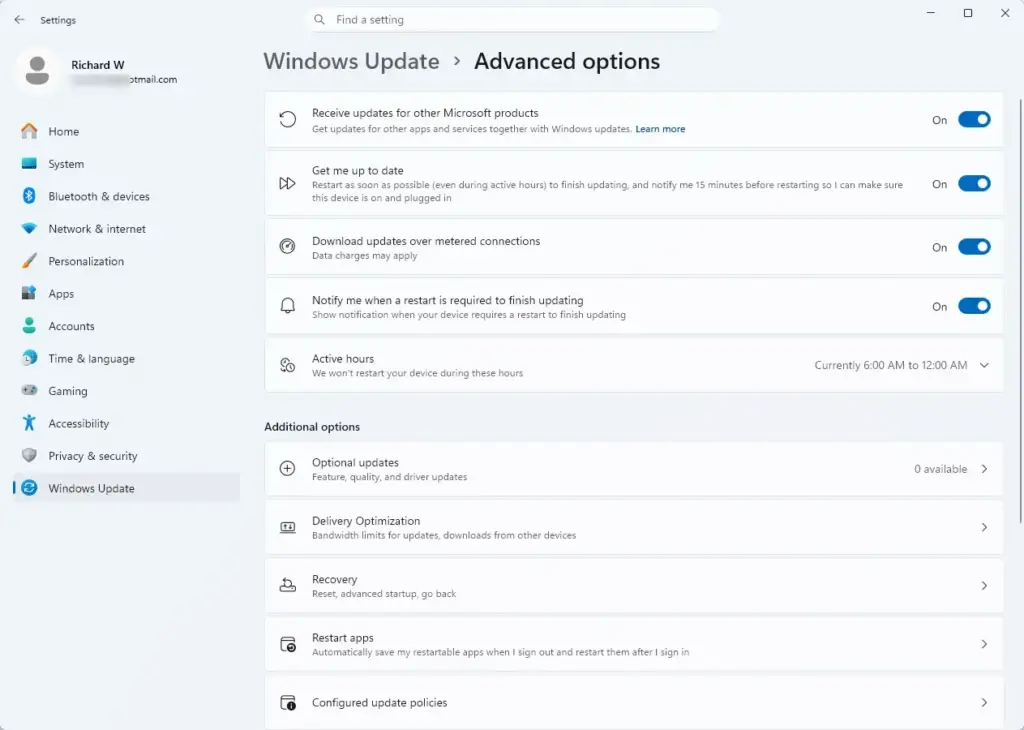
- Scroll down to the Additional options section and click Optional updates. If you do not see this entry, Windows has no optional updates for your PC right now.
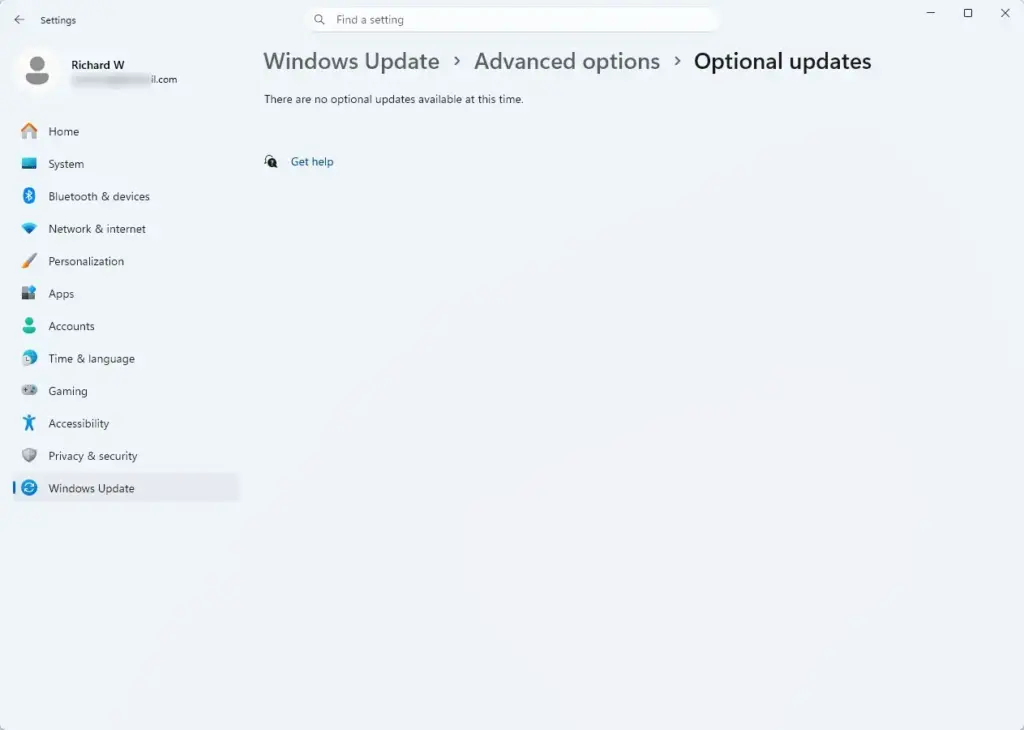
- Click the arrow next to Driver updates. A list of available hardware packages appears.
- Check the box next to any Bluetooth driver update, then click Download & install. Restart your PC if Windows asks.
Only install the Bluetooth entries here. Other driver updates in the list are not related to this problem, and you can leave them alone.
Download the latest driver from the PC manufacturer
Your computer manufacturer’s support website usually has the most stable Bluetooth driver for your hardware. This matters most when the generic driver from Microsoft lacks power-management features that your adapter needs.
- Open your web browser and go to the official support website for your computer maker, such as Dell, HP, Lenovo or ASUS. If you built a custom desktop PC, use the support page of your motherboard manufacturer instead.
- Enter your exact computer model number or serial number in the search field. The model is usually printed on a label on the case or the bottom of the laptop.
- Go to the Drivers and Downloads section and filter the results by operating system. Select Windows 11.
- Find the Bluetooth category and download the latest installer to your local drive. If your adapter is a separate Wi-Fi/Bluetooth card, the driver may be listed under the wireless or Wi-Fi category.
Download only from the manufacturer’s own site. Third-party driver sites often bundle unwanted software. Before you run the file, confirm that it came from the manufacturer’s domain and that the file name matches your model and Windows 11.
A driver package changes system files, so create a restore point first. A restore point is a saved snapshot of system files and settings that lets you undo a bad change. Type Create a restore point in the Start menu search, select your system drive on the System Protection tab, and click Create. If protection is off for that drive, click Configure and turn it on first.
- Run the setup file and follow the on-screen prompts. Windows may ask for administrator permission, so click Yes if it does.
- Restart your PC when the installer finishes.
Some manufacturers also offer a support assistant app that finds and installs the right Bluetooth driver for you. Examples include Intel Driver & Support Assistant for Intel adapters and Dell SupportAssist on Dell PCs. Realtek drivers usually come through your PC or motherboard maker’s own tool. Download these apps only from the manufacturer’s site as well.
Roll back the Bluetooth driver if an update broke it
Device Manager has a roll back feature that restores your previous Bluetooth driver. Use it if Bluetooth stopped working right after an update. A newer driver will not help when the update itself caused the failure.
- Right-click the Start button and select Device Manager.
- Expand the Bluetooth category, right-click your Bluetooth adapter, and select Properties. The properties window opens.
- Click the Driver tab at the top of the window.
- Click Roll Back Driver. If the button is greyed out, Windows has no older driver saved for this adapter. This is normal after a clean uninstall or a fresh Windows install, so use one of the other methods instead.
- Select a reason for rolling back when prompted, then click Yes. Wait for Windows to revert the driver, then restart your PC.
If the old driver works, you may want to pause updates for a while so Windows does not install the bad version again. Settings Windows Update has a Pause updates option. It pauses all updates, not only drivers, so resume them once a fixed driver is available.
Clear temporary Bluetooth cache files
File Explorer, the file management tool in Windows 11, lets you clear leftover Bluetooth configuration files that can keep accessories from connecting. Deleting them makes Windows treat your peripherals as new devices. Treat this as a last software step, because you are deleting system files. Only delete folders you can clearly tie to Bluetooth or device pairing.
The safest way to make Windows forget an accessory is to remove it normally. Go to Settings Bluetooth & devices, click the three dots on the device’s card, and select Remove device. If that does not help, continue below.
The steps below remove folders under 📁C:\
- Type Create a restore point in the Start menu search and open the result. The System Properties window opens on the System Protection tab.
- Select your system drive, usually C:. If Protection shows Off, click Configure, select Turn on system protection, and click OK.
- Click Create, type a name such as “Before Bluetooth cleanup”, and click Create again.
- Wait until Windows reports that the restore point was created, then click Close.
With the restore point in place, clear the pairing files. Write down the name of each folder before you delete it.
- Open Settings Bluetooth & devices and turn the Bluetooth toggle off.
- Open File Explorer and go to 📁C:\
Windows\ . Windows may ask for administrator permission to open it. Click Continue if so.System32\ config\ systemprofile\ AppData\ Local - Look for folders related to Bluetooth or device pairing and delete them. If you find none, do not delete anything else. Skip to the next step.
- Turn the Bluetooth toggle back on and pair your accessories again from scratch.
If something else breaks afterward, search for Create a restore point again, click System Restore, and choose the restore point you made.
Perform a hardware power reset
A full hardware power reset drains the leftover charge in your motherboard components, including the capacitors that store electrical energy. This can clear temporary lockups in the Bluetooth chip that no software reinstall can fix.
- Shut down your computer completely. Using Restart is not enough here, and Fast Startup can keep some hardware state alive after a normal shutdown.
- On a desktop PC, unplug the power cord from the wall outlet. Then press and hold the physical power button for thirty seconds.
- On a laptop with a removable battery, unplug the charger and take the battery out as well before holding the power button.
- Plug the power cord back in, put the battery back if you removed it, and turn the computer on.
- Check whether Bluetooth works again in Settings Bluetooth & devices.
Do not open the case of a laptop with a built-in battery to attempt this. Unplugging the charger and holding the power button is enough for most models.
What to do next
If problems continue after reinstalling the driver, three more checks are worth doing. One is removing and re-pairing the affected device. Another is the built-in Bluetooth troubleshooter. The third is the adapter’s power management setting, which can make Windows switch off your wireless hardware to save power.
To re-pair a device quickly, go to Settings Bluetooth & devices Devices. Click the three dots on the device’s card, select Remove device, and confirm. Then click Add device, choose Bluetooth, put the accessory in pairing mode, and select it when it appears.
- Open Settings System Troubleshoot Other troubleshooters.
- Find Bluetooth and click Run. Follow the prompts and apply any fix it offers.
- Open Device Manager, expand Bluetooth, right-click your adapter, and select Properties.
- Click the Power Management tab. Not every adapter has this tab, and if yours does not, there is nothing to change.
- Clear the check box for Allow the computer to turn off this device to save power, then click OK.
To undo the power setting, return to the same tab and check the box again. On a laptop, this setting uses slightly more battery, but the difference is small.
Have a question about this guide?
Answered by AI from this guide. Good questions may be added to this page — please don't include personal details.
Did this guide fix your problem?

About the Author
Richard
Tech Writer, IT Professional
Richard is a writer at Geek Rewind who turns complex IT tasks into clear, step-by-step guides. He draws on years of hands-on experience in system administration and enterprise IT operations, focusing on Windows, Linux and WordPress: the problems people actually run into, and the fixes that work. His server and WordPress guides come from systems he runs himself. Richard builds and maintains the platform behind Geek Rewind, from its Ubuntu servers and Nginx configuration to its custom WordPress plugins. Many new tutorials start with readers' questions, and he's always glad to answer them in the comments.
No comments yet — be the first to share your thoughts!