Windows 11 Bluetooth Not Working? 8 Ways to Fix Connection Issues

- 47 steps
- Needs administrator rights
- Includes a restart or sign-out
Bluetooth failures in Windows 11 keep wireless mice, keyboards and headphones from pairing or working properly. The cause is usually an outdated driver, a stuck background service or a minor software bug, not broken hardware.
The eight fixes below run from the quickest checks (a toggle, the built-in troubleshooter) to the more involved ones (driver reinstalls, interference and audio settings). Work through them in order and test your device after each one. Stop when it works.
Bluetooth not working in Windows 11 is usually fixed by turning Bluetooth off and on from the Quick Settings panel, then checking that the Bluetooth switch under Settings Bluetooth & devices is On. If that fails, run the Bluetooth troubleshooter from Settings System Troubleshoot Other troubleshooters, restart the Bluetooth Support Service in the Services app, and then work through the driver fixes.
1Check the Basics and Turn Bluetooth On and Off
Toggling Bluetooth off and on clears a frozen wireless connection and costs you nothing. Try it first.
- Click the network, sound or battery icons on the right side of the taskbar . The Quick Settings panel opens.
- Find the Bluetooth tile. If it is highlighted, Bluetooth is on, so click it to turn it off. The tile turns grey.
- Wait about five seconds, then click the tile again. It lights up and Windows starts looking for your paired devices.
If there is no Bluetooth tile, click the pencil icon (Edit quick settings) at the bottom of the panel, click Add and choose Bluetooth. If the tile is missing even after that, Windows may not see a Bluetooth adapter at all. In that case, skip ahead to the driver fixes below.
Next, check the main switch in Settings:
- Press the Windows key + I to open the Settings app.
- Click Bluetooth & devices in the left menu.
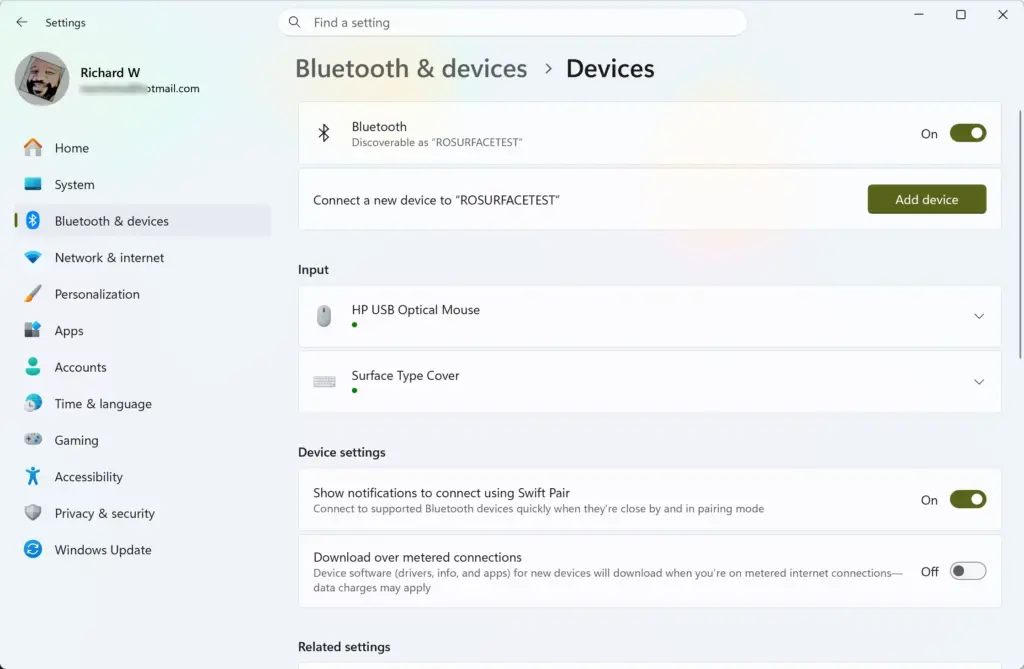
- Make sure the switch at the top is set to On. If it is off, turn it on and wait a few seconds for your devices to reappear.
If you use an external Bluetooth USB adapter, unplug it, wait 10 seconds and plug it into a different USB port. Avoid ports on a hub if you can, and use a port directly on the PC.
On a laptop, also make sure Airplane Mode is not on by accident. Airplane Mode blocks all wireless signals, including Bluetooth, on version 23H2 and newer updates. You can check its tile in the same Quick Settings panel.
2Run the Built-In Windows Bluetooth Troubleshooter
The built-in Bluetooth troubleshooter finds and fixes common connection errors without any extra software. It does not solve everything, but it takes under a minute and can reset settings you would not think to check.
- Open the Settings app by pressing the Windows key + I.

- Click System in the left menu, then click Troubleshoot on the right.
- Click Other troubleshooters. A list of available tools appears.
- Find Bluetooth in the list and click the Run button next to it. A window opens and the tool starts scanning.
- Follow any instructions that appear on your screen. If the tool finds a problem, it tries to fix it and tells you what it changed.
If the tool reports nothing wrong but your device still fails, that is normal. Move on to the next fix. Some changes may only take effect after a restart, so restart if the tool asks you to.
3Restart the Windows Bluetooth Support Service
The Bluetooth Support Service runs in the background and handles discovery and connections. If it crashes or is stopped, Windows cannot connect to wireless devices. Restarting it, and setting it to start automatically, often fixes devices that vanish or refuse to connect.
Sign in to a Windows 11 administrator account first. On a work or school PC, your IT department may have locked this down.
- Click the Start button on the taskbar, type Services in the search box and click the Services app. A window with a long alphabetical list opens.
- Scroll down until you find Bluetooth Support Service.
- Right-click Bluetooth Support Service and select Properties. A properties window opens.
- Next to Startup type, open the drop-down menu and change it from Manual to Automatic.
- Look at Service status. If it says Stopped, click the Start button right underneath it. The status changes to Running.
- Click Apply, then click OK.
- Restart your computer to make sure the changes take effect.
If the service is already running, you can also right-click it in the list and select Restart for a quick refresh. To undo the change later, set Startup type back to Manual.
4Remove and Re-Pair Your Bluetooth Device
Removing and re-pairing a device clears out corrupted connection data between your PC and the accessory. This is the best fix when only one device misbehaves while others work fine.
- Open the Settings app by pressing the Windows key + I.
- Click Bluetooth & devices.
- Find the device that is causing trouble in the list.
- Click the three dots menu button next to the device name and select Remove device. Confirm your choice when asked. The device disappears from the list.
- Turn off your Bluetooth device, wait a few seconds and turn it back on. Then put it into pairing mode. This is often a held button or a switch that makes a light blink. Check the device manual if you are unsure.
- Back on your computer, click the Add device button at the top of the Bluetooth settings page.
- Choose Bluetooth, select your device from the list and follow the on-screen instructions to finish pairing.
If your device does not show up in the list, make sure it is still in pairing mode. Many devices leave pairing mode after a minute or so. Also check that the device is not currently connected to a phone or another PC, because many only connect to one host at a time.
5Update Your Bluetooth Drivers
An outdated or faulty driver is one of the most common reasons Bluetooth stops working, especially after a Windows update. Updating the driver gives your PC the correct software to talk to the Bluetooth hardware.
- Right-click the Start button on the taskbar and select Device Manager from the menu.
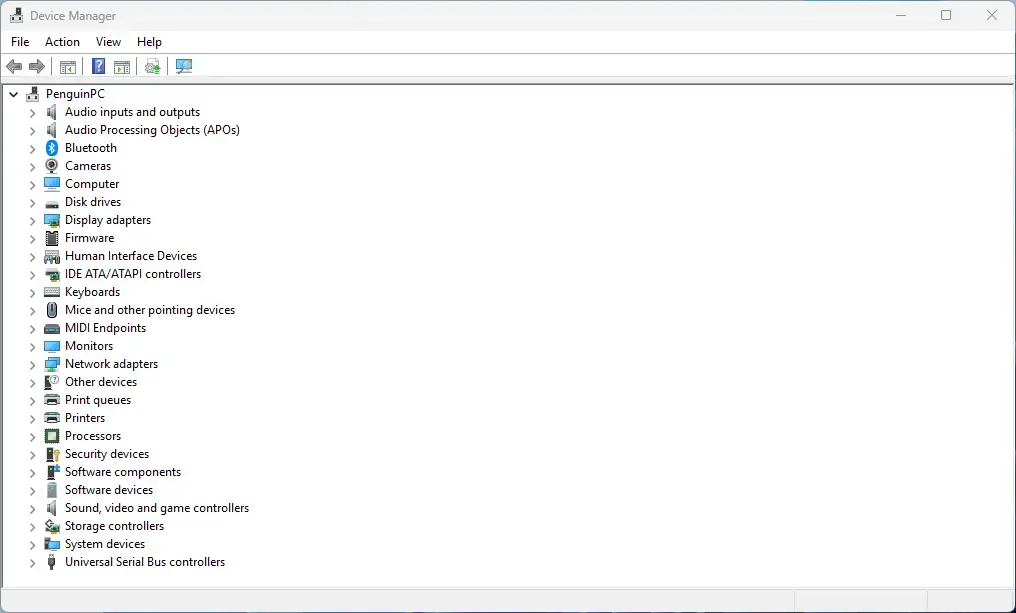
- Click the arrow next to Bluetooth to expand the list of wireless hardware.
- Look for your main Bluetooth adapter. It usually has a name like Intel Wireless Bluetooth, Realtek Bluetooth Adapter or Generic Bluetooth Adapter.
- Right-click your Bluetooth adapter and select Update driver.
- Choose Search automatically for drivers. Windows searches your computer and the internet for the newest software.
- If Windows says the best driver is already installed, visit the support website of your computer manufacturer, such as Dell, HP, Lenovo or ASUS, and download the latest official driver for your exact model. Windows often reports "already installed" even when the manufacturer has a newer version.
If the Bluetooth category is missing from Device Manager, look for an entry marked with a yellow warning icon under Other devices. That usually means the driver is missing entirely, and the manufacturer's download is the way to go.
6Uninstall and Reinstall Your Bluetooth Adapter
If updating does not help, remove the adapter completely. Uninstalling it forces Windows 11 to replace corrupted software files with a fresh copy when it restarts.
Note: This step requires administrator privileges. If your keyboard or mouse is Bluetooth-only, have a wired or USB-receiver backup nearby before you start, because they will stop working until the driver comes back.
- Right-click the Start button and select Device Manager.
- Click the arrow next to Bluetooth to expand the list.
- Right-click your main Bluetooth adapter and select Uninstall device. A warning box appears.
- If you see the box Attempt to remove the driver for this device, check it, then click Uninstall.
- Do not worry if your Bluetooth settings disappear temporarily. That is expected. Restart your computer normally.
- When Windows 11 starts back up, it automatically detects your hardware and installs a fresh copy of the Bluetooth driver. Give it a minute or two, then check that the Bluetooth tile and settings are back.
- If Bluetooth does not return, run Search automatically for drivers again from the previous fix, or install the driver from your manufacturer's website.
7Unique Expert Tip: Check for USB 3.0 Interference
Sometimes the problem is physical. USB 3.0 ports and cables, which often have blue plastic inside, can create radio frequency interference in the 2.4 GHz range. Bluetooth uses that same frequency, so nearby USB 3.0 gear can cause dropped connections.
Most Bluetooth devices and wireless mice use the 2.4 GHz band too. A USB 3.0 flash drive, an external hard drive or a poorly shielded USB hub plugged in near your computer's built-in Bluetooth antenna can ruin your wireless connection. The problem is worst on laptops, where the ports sit close to the antenna.
How to fix it:
- Unplug any unnecessary USB 3.0 storage devices or dongles from your computer.
- If you use a USB extension cable for your wireless receiver, move it further away from your computer ports.
- Move your Bluetooth device closer to your computer to see if the audio stutters or connection drops stop.
If the connection becomes stable after one of these changes, you have found the cause. Keep the interfering device farther from the Bluetooth antenna or receiver, or swap it for a better-shielded one.
8Unique Expert Tip: Disable Audio Enhancements for Headphone Issues
If your Bluetooth headphones connect but sound choppy or laggy, audio enhancements may be the cause. Windows 11 tries to improve your sound quality automatically, but these software features can conflict with Bluetooth audio codecs and cause lag and stuttering. Turning them off is easy to reverse.
- Open the Settings app by pressing the Windows key + I.
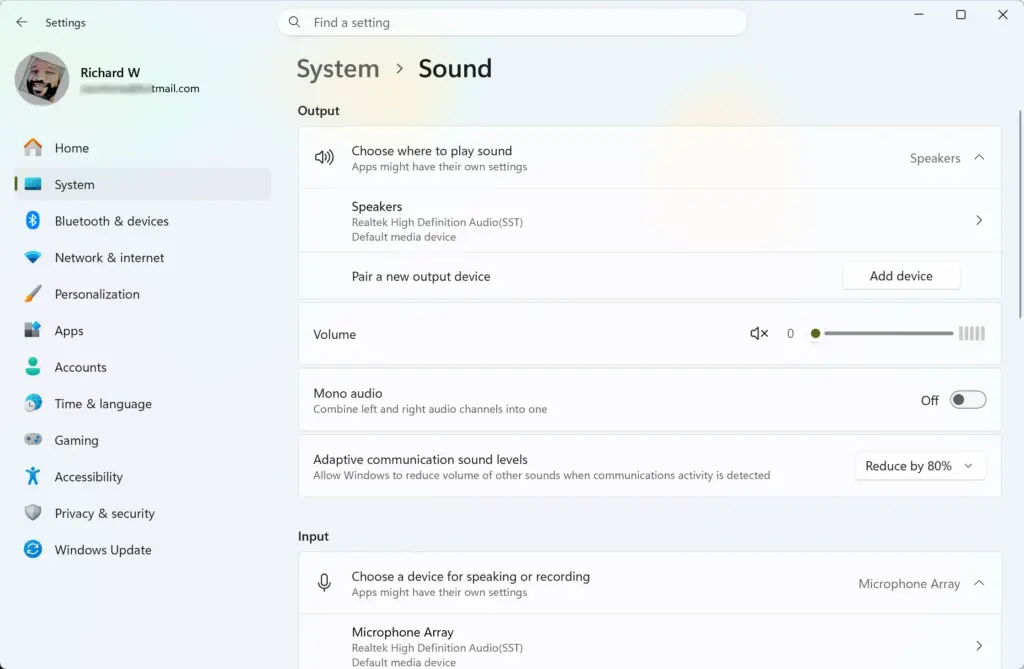
- Click System, then click Sound.
- Scroll down and click More sound settings. The classic sound control panel window opens.
- Under the Playback tab, find your Bluetooth headphones in the list. They need to be connected to appear.
- Right-click your headphones and select Properties.
- Go to the Enhancements tab if it is available and check the box for Disable all enhancements, or check Disable all sound effects, depending on what your version shows.
- If you do not see an Enhancements tab, look for a Spatial audio tab at the top and make sure it is set to Off.
- Click Apply, then click OK.
Play something to test. If it makes no difference, you can go back and untick the box to restore the original setting.
Summary
What to do next
Most Bluetooth connection issues clear up by toggling the wireless switch, running the built-in troubleshooter, restarting the Bluetooth service, re-pairing your devices or updating your drivers. For stubborn issues, clearing out USB interference, reinstalling your adapter or turning off audio enhancements will get your wireless devices working smoothly again.
Frequently asked questions
How to fix Bluetooth not working?
To fix Bluetooth not working, start by turning Bluetooth off and on from the Quick Settings panel, then restart your PC. If it still fails, run the Bluetooth troubleshooter in Settings System Troubleshoot Other troubleshooters, and remove and re-pair the device under Bluetooth & devices. Reinstalling the driver in Device Manager often fixes what remains.
How to restart Bluetooth service Windows?
To restart the Bluetooth service, press Windows key + R, type services.msc and press Enter. Find Bluetooth Support Service in the list, right-click it and choose Restart. If the Restart option is greyed out, choose Start instead. This reloads Bluetooth's background software without restarting your whole PC. Then try your device again.
How to fix Bluetooth connectivity issues on 🪟 Windows 11?
To fix Bluetooth connectivity issues on Windows 11, remove the device and pair it again, making sure it is in pairing mode. Keep it within a few feet of the PC and away from Wi-Fi routers and USB 3.0 ports, which can cause interference. Install any Bluetooth driver updates under Windows Update's Optional updates.
How to fix Bluetooth issues?
Bluetooth issues usually come from a stuck connection, an outdated driver or interference, not broken hardware. Start by turning Bluetooth off and on, then restart the PC. Next, remove and re-pair the device under Settings Bluetooth & devices If that fails, update or reinstall the Bluetooth driver in Device Manager. Test your device after each step.
Why is my Bluetooth not working 🪟 Windows 11?
Bluetooth most often stops working in Windows 11 because of an outdated or corrupted driver, a stuck Bluetooth Support Service, or interference from nearby devices. Check that Bluetooth is turned on in Quick Settings, restart your PC, and confirm the device is charged and in pairing mode. Those fixes solve most cases.
Still have a question?
Answered by AI from this guide. Good questions may be added to this page — please don't include personal details.
Did this guide fix your problem?

About the Author
Richard
Tech Writer, IT Professional
Richard is a writer at Geek Rewind who turns complex IT tasks into clear, step-by-step guides. He draws on years of hands-on experience in system administration and enterprise IT operations, focusing on Windows, Linux and WordPress: the problems people actually run into, and the fixes that work. His server and WordPress guides come from systems he runs himself. Richard builds and maintains the platform behind Geek Rewind, from its Ubuntu servers and Nginx configuration to its custom WordPress plugins. Many new tutorials start with readers' questions, and he's always glad to answer them in the comments.
No comments yet — be the first to share your thoughts!