How to Enable or Disable Access to Removable Storage Devices in Windows 11

- 30 steps
- Needs administrator rights
- Group Policy needs Windows 11 Pro, Enterprise or Education
- Includes a restart or sign-out
You can enable or disable access to removable storage devices in Windows 11 with the Local Group Policy Editor or the Registry Editor. Group Policy works on Pro, Enterprise, and Education, and the registry method works on every edition, including Home. Both control whether external hardware such as USB flash drives, external hard drives, and SD cards works when you plug it into your computer.
Blocking these devices stops people from copying private files off the machine. It also cuts the risk of malware arriving on an infected USB stick.
Windows 11 allows full read and write access to all external storage by default. You can change this to block all removable drives. You can also set them to read-only, but that needs a different policy and is not covered here. The Registry Editor is a database for system settings. Group Policy is easier to use, but it only exists on Pro, Enterprise, and Education.
The policy covers more than flash drives. It also applies to other removable storage classes, such as CD/DVD drives and portable devices like phones and cameras that show up as storage. If a removable device stops working after someone changed settings on the PC, check this policy first.
Open the Local Group Policy Editor by pressing Win+R, typing gpedit.msc, and pressing Enter. Navigate to Computer Configuration Administrative Templates System Removable Storage Access, double-click All Removable Storage classes: Deny all access, select Enabled, and click OK. Removable storage devices are now blocked until you set the policy back to Not Configured.
Enable or Disable Removable Storage Access for All Users Using Group Policy
Local Group Policy Editor (a built-in tool for managing system settings) lets you disable removable storage access for all users on your computer at once. This method works on Windows 11 Pro, Enterprise, and Education. It is not available on Home, because Home does not include the editor. If you run Home, use the Registry method later in this guide. The change blocks everyone from using USB drives and portable disks.
⚠️ Admin privileges required Sign in with an administrator account before you start.
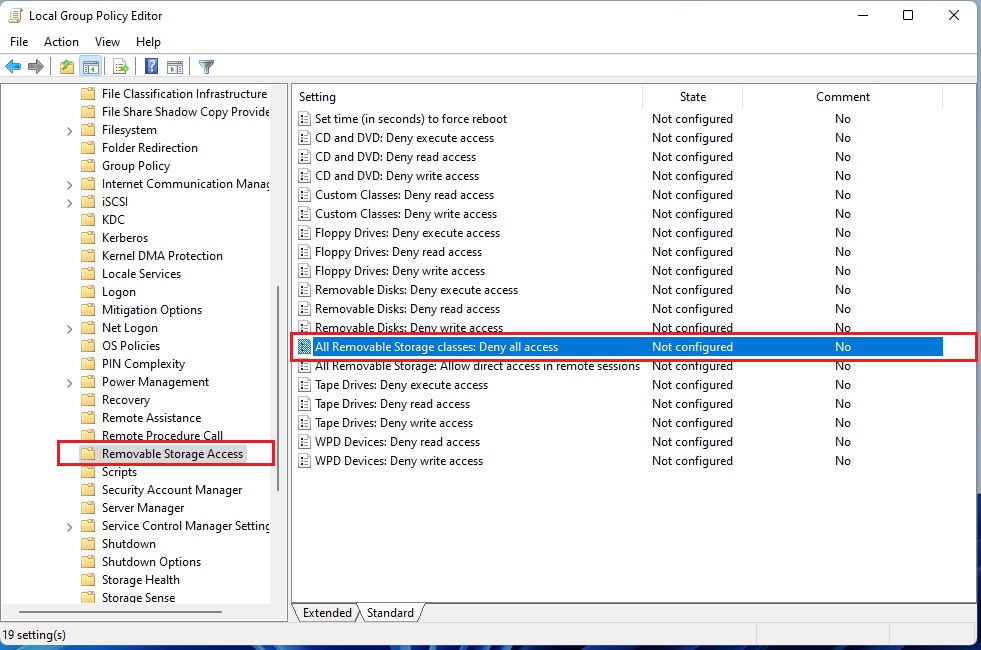
These steps open the policy that turns access to removable storage devices on or off for every user on the PC. The lists after the image then set it.
- Press the Win and R together. The Run box opens.
- Type
gpedit.mscand press Enter. If you get a “not found” error, you are on Windows 11 Home, which has no Group Policy Editor. Use the registry method instead. - Click Yes if a User Account Control prompt appears. The Local Group Policy Editor window should now open.
- Expand the folders in the left pane until you reach:
Computer Configuration > Administrative Templates > System > Removable Storage AccessThe right pane now lists the removable storage policies. - Double-click the policy called All Removable Storage classes: Deny all access. A settings window for that policy opens.
To Allow Access to Removable Storage Devices
To allow access again, set the policy back to its default. This is the default setting, so you only need to do this if someone changed it earlier. Do steps 6 to 8 below.
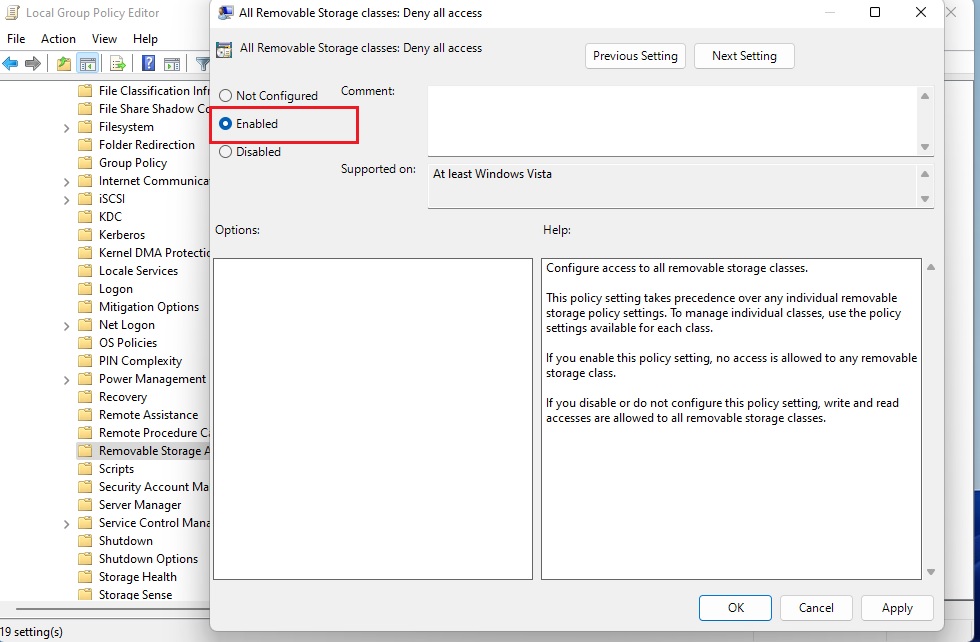
- Select the Not Configured option by clicking the dot next to it. Disabled also allows access, but Not Configured returns the policy to its original state.
- Click OK. The policy window closes and the policy list shows its state as Not configured.
- Close the Group Policy Editor.
Unplug any drive that was already connected and plug it in again. If it still does not appear, sign out and back in, or restart the PC, so the policy refreshes.
To Block Access to Removable Storage Devices
To block access instead, do steps 6 to 8 below in place of the ones above.
- Select the Enabled option by clicking the dot next to it.
- Click OK. The policy list now shows the state as Enabled.
- Close the Group Policy Editor.
Group Policy refreshes in the background, but not instantly. For a quick test, sign out and back in or restart the PC. Then plug in a USB drive. Windows should refuse to open it and show a message that access is denied. To undo the block, repeat the steps above and choose Not Configured.
Option Two
Enable or Disable Removable Storage Access for Specific Users Using Group Policy
Local Group Policy Editor also lets you disable removable storage access for specific user accounts while leaving other people free to use USB drives. This method requires Windows 11 Pro, Enterprise, or Education and administrative rights. You target individual user profiles without changing system-wide settings.
To limit the policy to one account or to the Administrators or Non-Administrators group, you need a user-specific local policy object, which you add through the Microsoft Management Console. Without that, a User Configuration setting applies to every account that signs in.
⚠️ Admin privileges required
These steps block or allow removable storage devices for one user or group only. The lists after the image set the policy.
- Open the Microsoft Management Console as an administrator. An empty console window opens.
- Click File Add/Remove Snap-in. A list of available snap-ins appears.
- Select Group Policy Object Editor and click Add. A wizard asks which Group Policy Object to use. The default is the local computer.
- Click Browse. The Browse for a Group Policy Object window opens.
- Open the Users tab and pick the account or group you want to control. Typical choices are Administrators, Non-Administrators, or a single user. Click OK.
- Click Finish, then OK. The editor now shows the policy object for that user or group.
- Expand the folders in the left pane until you reach:
User Configuration > Administrative Templates > System > Removable Storage Access - Double-click the policy called All Removable Storage classes: Deny all access. A settings window for that policy opens.
To Allow Access
To restore access for that user, set the policy back to its default. This is the default setting. Do steps 9 to 11 below.
- Select the Not Configured option.
- Click OK.
- Close the Group Policy Editor.
The affected user should sign out and back in so the change takes effect.
To Block Access
To block access for that user instead, do steps 9 to 11 below in place of the ones above.
- Select the Enabled option.
- Click OK.
- Close the Group Policy Editor.
Have the user sign out and back in, then test with a USB drive. Users who are not covered by the policy can keep using their drives as before.
Option Three
Enable or Disable Removable Storage Access for All Users Using the Registry
The Registry Editor method works on every edition of Windows 11, including Home. You change the setting with a command, so run it from an elevated window. Editing the registry can break things if you get it wrong, so copy the commands exactly.
⚠️ Admin privileges required
- Right-click the Start button . A quick menu opens.
- Choose Terminal (Admin) or Windows Terminal (Admin). The name depends on your Windows 11 build.
- Click Yes at the User Account Control prompt. An elevated terminal window opens.
To Allow Access to Removable Storage Devices
This is the default setting. Run the command below to block access.
- Run this command to block access. Copy it exactly, then press Enter.
reg delete "HKCU\Software\Policies\Microsoft\Windows\RemovableStorageDevices" /v Deny_All /f
reg delete "HKLM\SOFTWARE\Policies\Microsoft\Windows\RemovableStorageDevices" /v Deny_All /f
To Block Access to Removable Storage Devices
To undo the block later, use the command below.
- Run this command to restore access. Copy it exactly, then press Enter.
reg add "HKLM\SOFTWARE\Policies\Microsoft\Windows\RemovableStorageDevices" /v Deny_All /t REG_DWORD /d 1 /f
Summary
Blocking removable storage access on Windows 11 means using either the Local Group Policy Editor (Pro, Enterprise, and Education) or the Registry Editor (all editions). Both stop anyone from using unauthorized USB drives and portable storage devices. If a change does not seem to apply, restart the PC and reconnect the device. If you plan to reverse the block later, note which method you used and undo it the same way.
Have a question about this guide?
Answered by AI from this guide. Good questions may be added to this page — please don't include personal details.
Did this guide fix your problem?

About the Author
Richard
Tech Writer, IT Professional
Richard is a writer at Geek Rewind who turns complex IT tasks into clear, step-by-step guides. He draws on years of hands-on experience in system administration and enterprise IT operations, focusing on Windows, Linux and WordPress: the problems people actually run into, and the fixes that work. His server and WordPress guides come from systems he runs himself. Richard builds and maintains the platform behind Geek Rewind, from its Ubuntu servers and Nginx configuration to its custom WordPress plugins. Many new tutorials start with readers' questions, and he's always glad to answer them in the comments.
No comments yet — be the first to share your thoughts!