Stuck in Airplane Mode and Unable to Turn It off in Windows 11

- 52 steps
- Needs administrator rights
- Includes a restart or sign-out
Airplane mode that won’t turn off on Windows 11 leaves your PC offline. The toggle may do nothing, or it may flip back on its own, and Wi-Fi and Bluetooth stay dead. This usually happens after a sudden crash, a failed update, or a power event that leaves the wireless network adapter in a bad state.
Most of the time you can get back online in about 5 minutes without any connection. Try the physical wireless switch or key on your laptop first, then a full restart, then the network settings. Each fix below is a little deeper than the one before it, so work through them in order and stop when the toggle works again.
Airplane mode stuck on in Windows 11 usually means a physical airplane switch or function key has been pressed, or Windows and the wireless adapter have fallen out of step. Check for a physical airplane switch or an Fn plus airplane key combination first. Then restart with Restart, not Shut down. If it’s still on, press Win+A and click the Airplane mode tile.
Understanding Why 🪟 Windows 11 Gets Stuck in Airplane Mode
Windows 11 gets stuck in airplane mode when the operating system and the network hardware stop agreeing on whether the radios should be on. The usual causes are a software bug, an accidental bump to a physical switch or function key, and a power saving feature that turned off your wireless card without telling you. A damaged or outdated driver can cause it too.
You do not need to be an expert to fix it. The steps start with the most common causes and move on to more advanced troubleshooting if the simple ones don’t work. Some steps need an administrator account, and I’ve marked those. If you are signed in with a standard account, Windows will ask for an administrator password.
Basic Checks and Quick Fixes
Before you change any system settings, rule out the most common physical and software causes. They take a minute each and fix a large share of these cases.
Check for a Physical Airplane Mode Switch or Button
Many laptops have a physical airplane mode switch or a function key with an airplane icon. This control works on the wireless radios separately from the Windows setting. If it is in the wrong position, Windows can show airplane mode as on, or refuse to turn it off, no matter what you click on screen. It is easy to bump a slider in a laptop bag, or to hit the key by accident.
- Look along the edges, front and sides of your laptop for a small physical slider switch. If you find one, slide it to the opposite position.
- Look at the top row of function keys (F1 to F12) for a key with an airplane icon. On some models it looks like a radio tower instead.
- Press the airplane key by itself. If nothing happens, hold the Fn key and press the airplane key at the same time.
- Check whether the airplane mode indicator on screen or on the key has changed, and whether Wi-Fi is available again.
Desktop PCs and many tablets have no switch like this, so skip this fix if that describes your machine.
Restart Your Computer
A restart clears the system memory and reloads all background services and hardware drivers from scratch. That often clears a temporary software freeze and brings Wi-Fi back. Use Restart here, not Shut down. With Fast Startup turned on, a normal shutdown can bring back the same driver state you are trying to get rid of.
- Click the Start button on your taskbar.
- Click the Power icon.
- Select Restart.
- Wait for the PC to turn completely off and back on, then sign in and check whether airplane mode is still stuck.
Fix 1: Use the Windows Action Center and Settings App
If the quick settings button on the taskbar does not respond, you can try the same switch from a different place. Quick Settings and the main Settings app use the same underlying setting, but one of them may still work when the other is frozen.
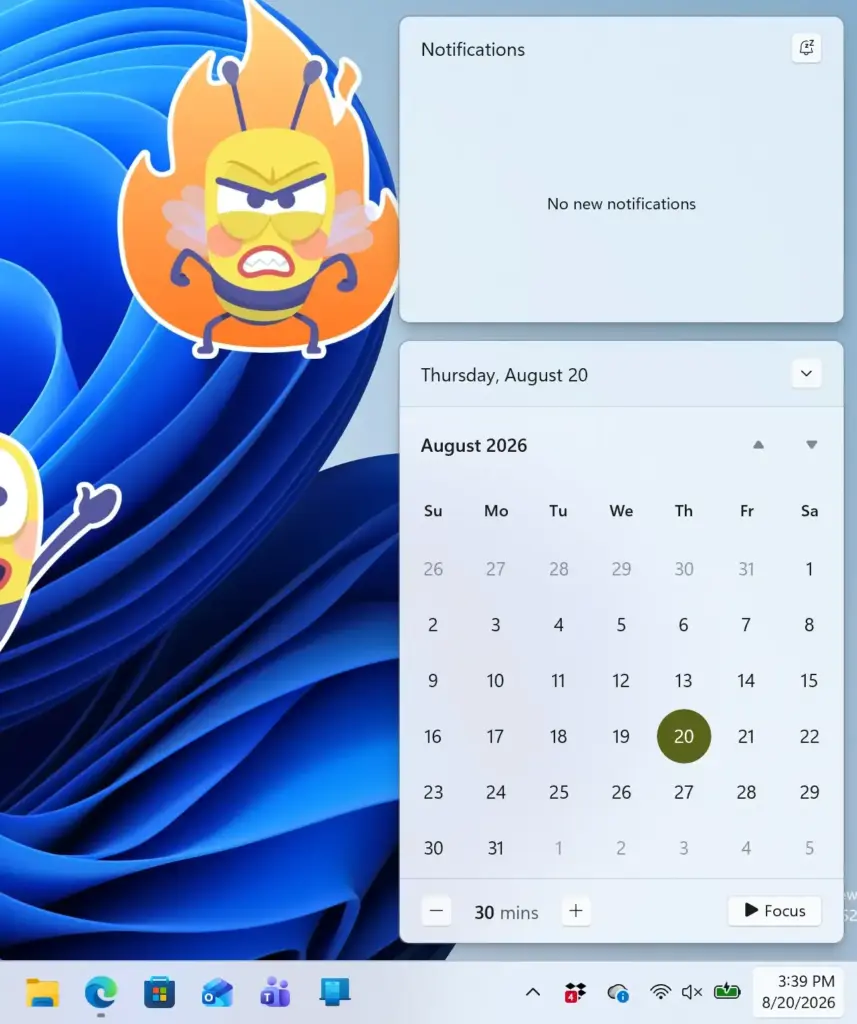
- Press Win+A to open the Quick Settings panel. You should see a panel above the taskbar with tiles for Wi-Fi, Bluetooth and Airplane mode.
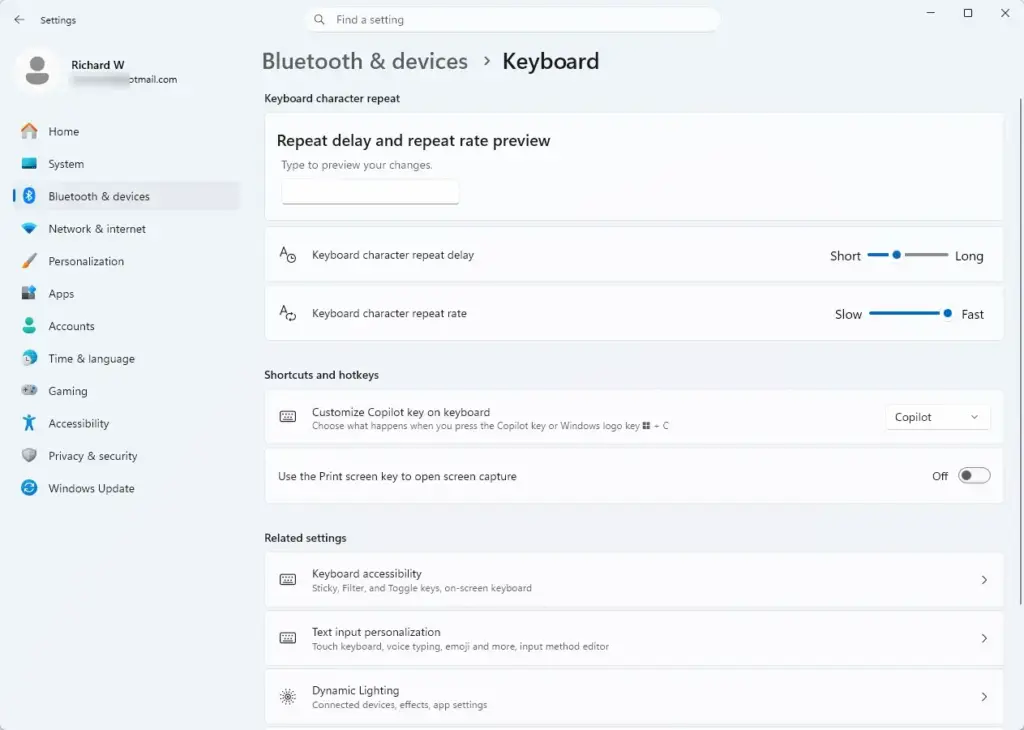
- Click the Airplane mode tile and see whether it responds. The tile should go from highlighted to plain, and the Wi-Fi tile should become usable.
- If nothing happens, press Win+I to open the Settings app.
- Click Network & internet in the left-hand menu.
- Turn off Airplane mode in the main settings area.
This glitch often comes from a keyboard shortcut or a bug in Windows 11 version 23H2 that holds the system in offline status. Turning airplane mode off here should restore your Wi-Fi and Bluetooth. If the toggle is greyed out, flips straight back, or you cannot click it, move on to the adapter fixes below.
Fix 2: Troubleshoot Your Network Adapter
The network adapter is the hardware inside your computer that handles wireless connections. If Windows crashes or disables it, the PC can stay in airplane mode until the adapter is turned back on. Device Manager lets you check its state and switch it off and on again.
- Right-click the Start button and select Device Manager from the menu. A window opens with a list of hardware categories.
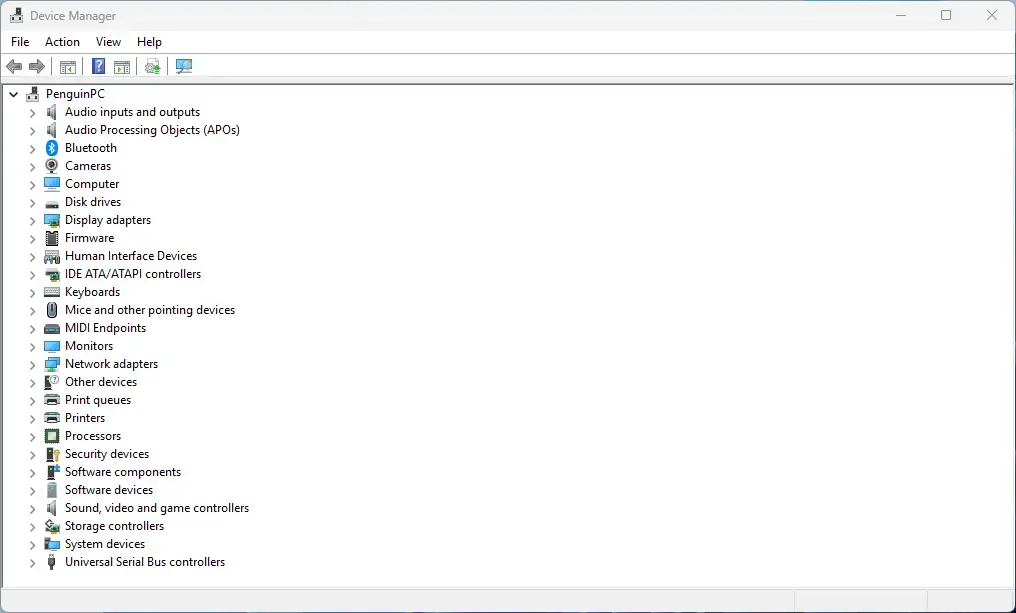
- Scroll down and click the arrow next to Network adapters to expand the list.
- Find your wireless adapter. The name usually includes words like “Wireless” or “Wi-Fi”, or a maker name such as Intel or Realtek. Don’t pick entries named “Bluetooth” or “Ethernet”.
- Right-click the wireless adapter and select Disable device. If Windows asks you to confirm, click Yes. The adapter icon should now show a small down arrow.
- Wait a few seconds, then right-click the same adapter and select Enable device.
- Close Device Manager and check whether the airplane mode switch works.
If you only see Enable device when you right-click the adapter, it was already disabled. Enable it and test again.
Fix 3: Adjust Power Management Settings
Windows can turn off the wireless card to save battery. On some machines the card does not wake up properly afterward, and the PC ends up stuck in airplane mode. Turning off that option stops Windows from putting your network adapter to sleep.
Note: Administrative privileges are required for this step.
- Right-click the Start button and select Device Manager.
- Expand the Network adapters category.
- Right-click your wireless network adapter and select Properties.
- Click the Power Management tab at the top of the properties window. If you do not see this tab, your driver doesn’t offer the setting, so skip to the next fix.
- Uncheck Allow the computer to turn off this device to save power.
- Click OK to save your changes.
- Restart your computer.
To undo this later, go back to the same tab and tick the box again. On a laptop you may see slightly shorter battery life with it off, though the difference is usually small.
Fix 4: Restart the Radio Management Service
The Radio Management Service is the background service in Windows 11 that handles the airplane mode switch and the wireless radios. If it hangs, the toggle can stop responding. Restarting it clears frozen tasks and often brings the wireless connection back.
Note: Administrative privileges are required for this step.
- Press Win+R to open the Run dialog box.

- Type
services.mscinto the box and press Enter. The Services window opens with an alphabetical list.
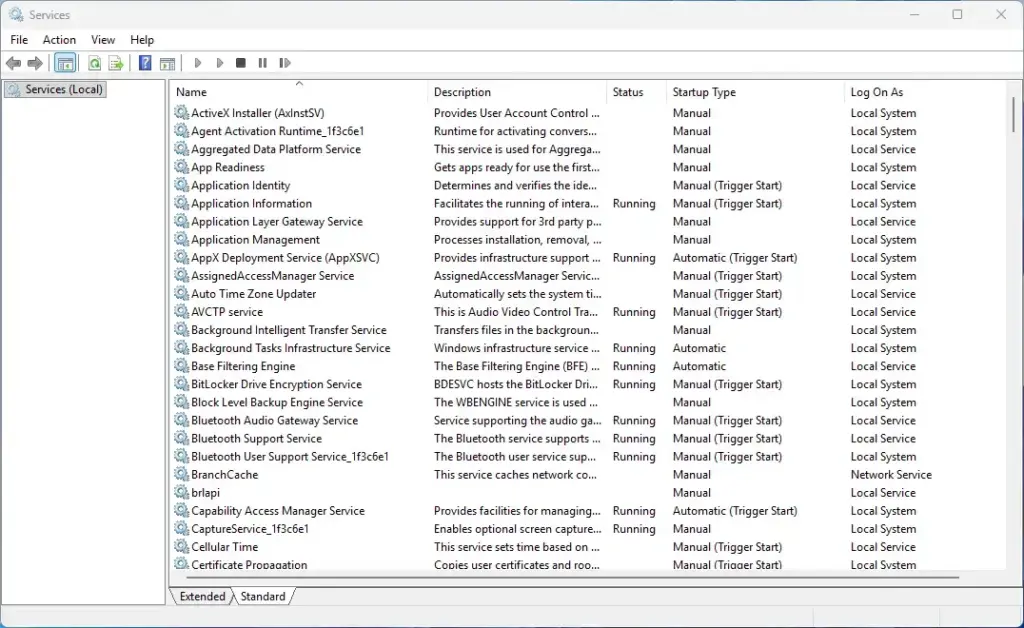
- Scroll down the list to find Radio Management Service.
- Right-click it and select Restart. If Restart is greyed out, the service is not running. Click Stop first if it is available, then right-click again and click Start.
- Right-click the service again and select Properties.
- Set the Startup type dropdown to Automatic, then click OK.
After this, try the airplane mode toggle again. If it already said Automatic, leave it as it is. If you can’t change the setting, you are probably not signed in as an administrator.
Fix 5: Update or Reinstall Your Network Drivers
Outdated or corrupted network drivers stop Windows 11 from communicating properly with your wireless hardware, and that often causes airplane mode to freeze. Updating the driver, or removing it and letting Windows reinstall it, replaces damaged files with a clean copy.
Note: Administrative privileges are required for this step.
- Right-click the Start button and open Device Manager.
- Expand the Network adapters section.
- Right-click your wireless network adapter and select Update driver.
- Choose Search automatically for drivers and follow the on-screen instructions. Windows will tell you if it finds a newer driver or if the best one is already installed.
- If updating does not help, right-click the adapter and select Uninstall device. Do not tick the option to delete the driver software unless you have the driver saved from the manufacturer’s site.
- Restart your computer. When Windows starts, it detects the adapter and reinstalls a working copy of the driver automatically.
Without a connection, you may need to download the driver on another PC and copy it over with a USB drive. Laptop makers usually list the Wi-Fi driver on the support page for your exact model.
Unique Expert Tips: Fixing Stubborn Airplane Mode Glitches
If the standard steps have not worked, the cause may be a deeper system bug or a stuck hidden flag. These two methods are worth trying before you consider a repair install or a full reset of Windows.
Expert Tip 1: The Network Reset Tool
The Network reset tool removes your saved network settings and returns all network adapters to their default configuration. It clears buried software bugs and corrupted settings that keep forcing the PC into airplane mode. It is a bigger step than the earlier fixes, so use it after they have failed.
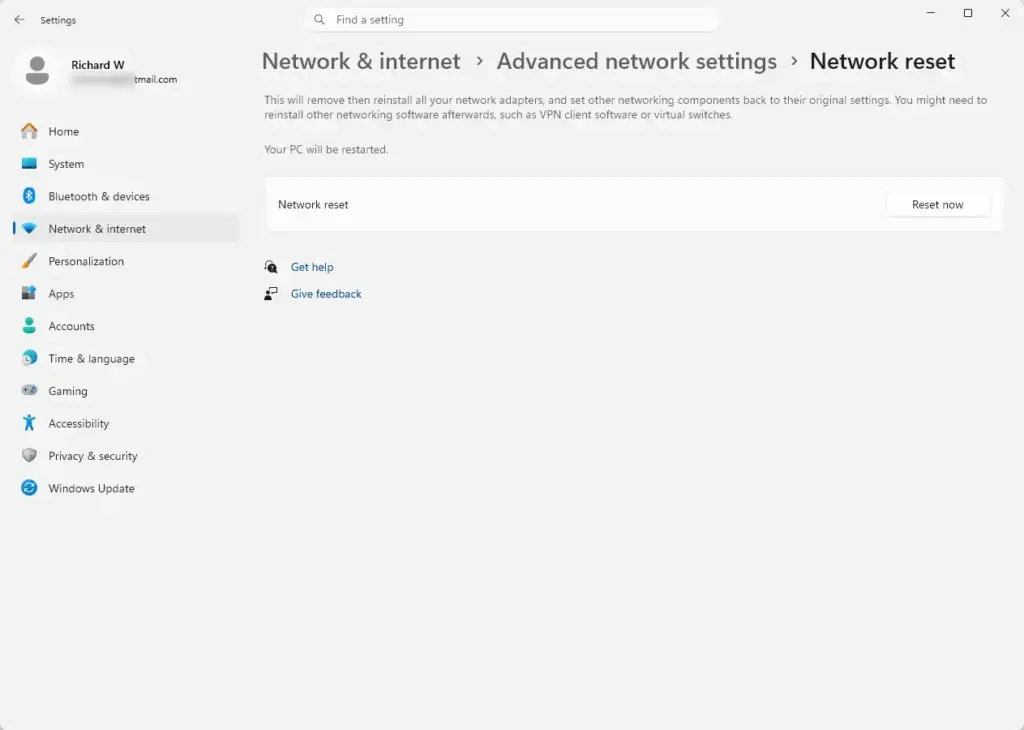
Note: Administrative privileges are required for this step. This will temporarily remove saved Wi-Fi networks, so you will need to type your Wi-Fi passwords in again afterward. VPN client software and virtual adapters may also need to be set up again.
- Press Win+I to open the Settings app.

- Click Network & internet on the left side.
- Click Advanced network settings.
- Scroll down and click Network reset.
- Read the warning and click the Reset now button.
- Click Yes to confirm. Windows will warn you that the PC is about to restart.
- Wait for the automatic restart. When the PC boots back up, check your connection and reconnect to your Wi-Fi network.
Expert Tip 2: Clear Radio Switches in System Settings
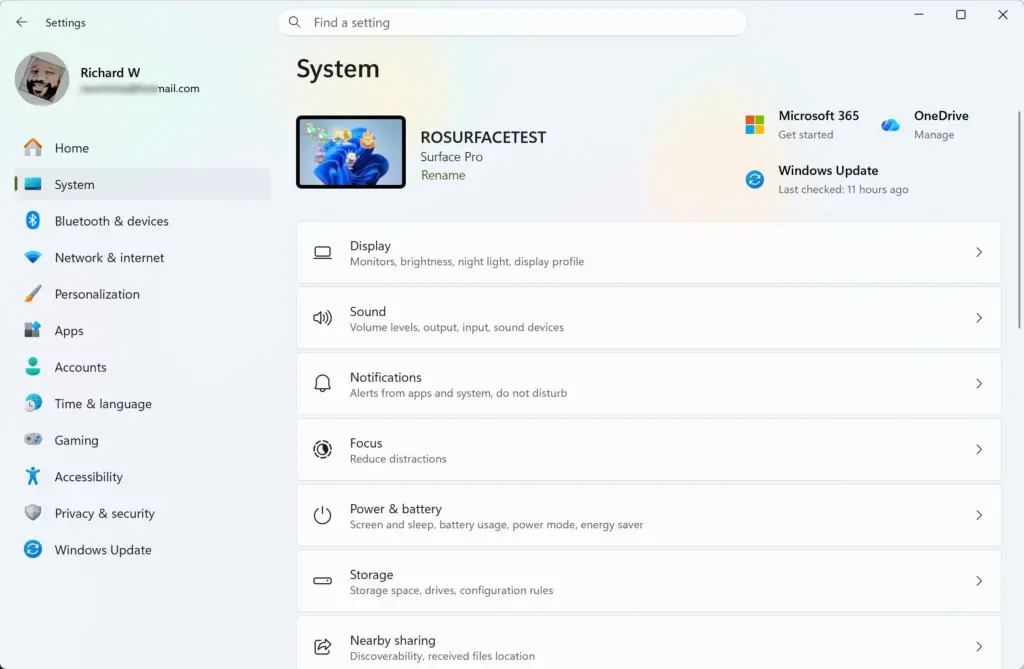
Sometimes Windows 11 acts as though a physical airplane mode switch is on, even when your laptop does not have one. A stuck software flag like this can keep the radios off. The steps below clear it by turning everything off by hand, removing outside hardware, and forcing a full shutdown.
Note: Administrative privileges are required for this step.
- Press Win+I to open the Settings app.
- Go to Network & internet Airplane mode.
- Make sure every wireless device listed there, such as Wi-Fi and Bluetooth, is manually switched to the off position. You should see each toggle show Off.
- Disconnect any external USB hubs, docking stations or USB network adapters. These can send conflicting hardware signals to Windows. You can plug them back in once the problem is solved.
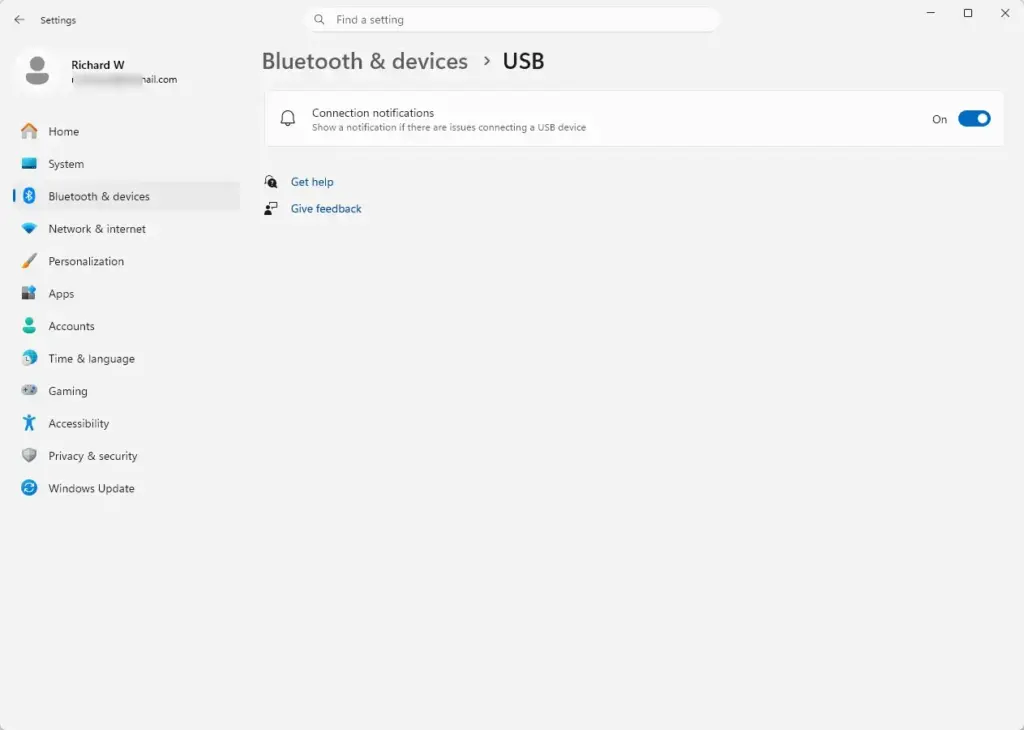
- Hold down the Shift key and click Shut down in the Start menu. Holding Shift makes Windows do a complete shutdown that skips Fast Startup, so the memory cache is cleared.
- Wait 30 seconds, then press the power button to turn the PC back on.
- Once you are signed in, open Settings Network & internet Airplane mode and turn the wireless devices back on one at a time.
Summary
A Windows 11 PC that is stuck in airplane mode usually needs a few things checked in order: the physical switch, a restart, then the network adapter settings. This guide covered power management, the Radio Management Service, driver updates and reinstalls, and the built-in Network reset. If none of these work, the adapter itself may be faulty, and it is worth testing with a USB Wi-Fi adapter or checking with the manufacturer.
Frequently asked questions
What does the phrase "we are unable" mean?
'We are unable' means 'we are not able' to do something. The group lacks the ability, time, or permission to complete an action. For example, 'We are unable to attend the meeting' means the group cannot go. It sounds formal and polite, so it often appears in letters, notices, and customer service messages.
What does "not unable" mean?
'Not unable' means able. It is a double negative: 'not' cancels out 'un-.' So 'I am not unable to finish' means I can finish. The phrase is grammatically correct but awkward, so most people use 'able' instead. Writers use it to stress that someone can do something despite doubt or difficulty.
Still have a question?
Answered by AI from this guide. Good questions may be added to this page — please don't include personal details.
Did this guide fix your problem?

About the Author
Richard
Tech Writer, IT Professional
Richard is a writer at Geek Rewind who turns complex IT tasks into clear, step-by-step guides. He draws on years of hands-on experience in system administration and enterprise IT operations, focusing on Windows, Linux and WordPress: the problems people actually run into, and the fixes that work. His server and WordPress guides come from systems he runs himself. Richard builds and maintains the platform behind Geek Rewind, from its Ubuntu servers and Nginx configuration to its custom WordPress plugins. Many new tutorials start with readers' questions, and he's always glad to answer them in the comments.
No comments yet — be the first to share your thoughts!