Developer Mode in Windows 11 changes how your PC handles software by turning on tools for writing programs, testing local apps, and running Linux environments. These switches stay hidden by default to keep your desktop stable, but you can turn them on in under a minute from the Settings app.
With these options on, you can sideload apps (install them from outside the Microsoft Store), adjust File Explorer views for debugging, and create symbolic links without an administrator prompt each time. Every change can be reversed from the same page, so you can try them without committing.
⚡ Quick Answer
To turn on developer settings in Windows 11, open Settings, select System, then Advanced, and click For developers. Switch on the Developer Mode toggle and confirm the warning. The toggle shows On immediately, and you can switch it back off from the same page at any time.
Advertisement
How to Open Developer Settings
The developer settings live on the For developers page of the Settings app. It holds the sideloading permission, File Explorer options, and remote access tools. The path below matches current Windows 11 builds.
On some older builds, such as early 22H2 releases, For developers sits directly under System and there is no Advanced entry. If you do not see Advanced, look for For developers in the System list instead.
Advertisement
Press the Win and the I key together to open Settings. The Settings⚙️ window opens.
Windows 11 Start menu with Settings gear icon highlighted.
Select System from the left menu, then select Advanced on the right.
Settings › System › Advanced
The page now lists further system options.
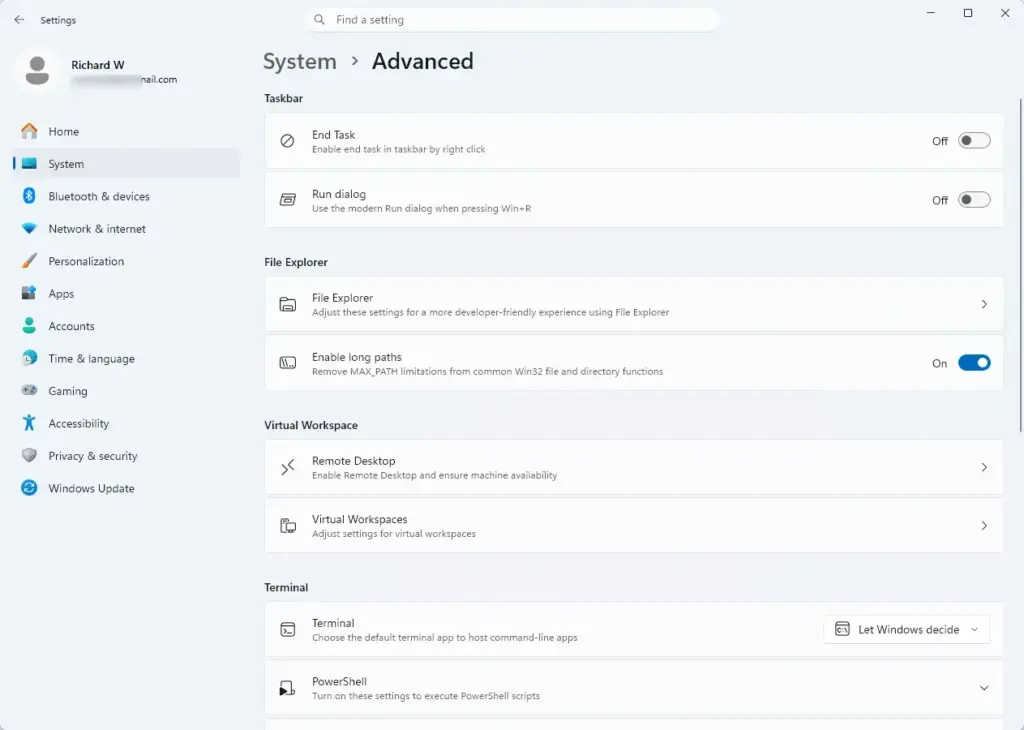
Click For developers in the list. The page opens with the Developer Mode toggle near the top, followed by the other developer sections.
Current Windows 11 builds also add newer options to this page. Depending on your version and installed updates, you may see settings for Terminal, Dev Drive (a storage volume tuned for developer workloads), Enable sudo (run a command as administrator from a normal terminal), and an End Task option that adds an end-task command to the taskbar right-click menu. If one is missing, check Windows Update first, because these options arrive with feature and cumulative updates.
Turning on Developer Mode
Developer Mode is the main switch on the For developers page. It lets you run unpackaged apps and install apps from outside the Microsoft Store. It also lets you create symbolic links without elevating, and it gives access to the other developer features. Windows may download a small developer package from Windows Update the first time you turn it on, so keep the PC online.
📝Good to KnowThis step requires administrator privileges. If you are signed in with a standard account, Windows asks for administrator credentials, or the toggle may refuse to change.
⚠️WarningDeveloper Mode allows Windows to install apps that Microsoft has not verified. A malicious app installed this way can damage your system or expose your data. Install only from sources you trust, and turn Developer Mode off when you no longer need it.
Advertisement
Open the For developers page in Settings.
Find the Developer Mode toggle at the top of the window.
Click the toggle to switch it from Off to On.
Settings › System › Advanced
A warning prompt appears.
Read the warning. It says Developer Mode lets you install apps from outside the Store, which can put your device and data at risk. Click Yes to confirm. The toggle now shows On.
To undo this, return to the same page and switch the toggle back to Off. A restart is not normally needed, but if an app still behaves as if the mode is on, sign out and back in.
Configuring File Explorer for Development
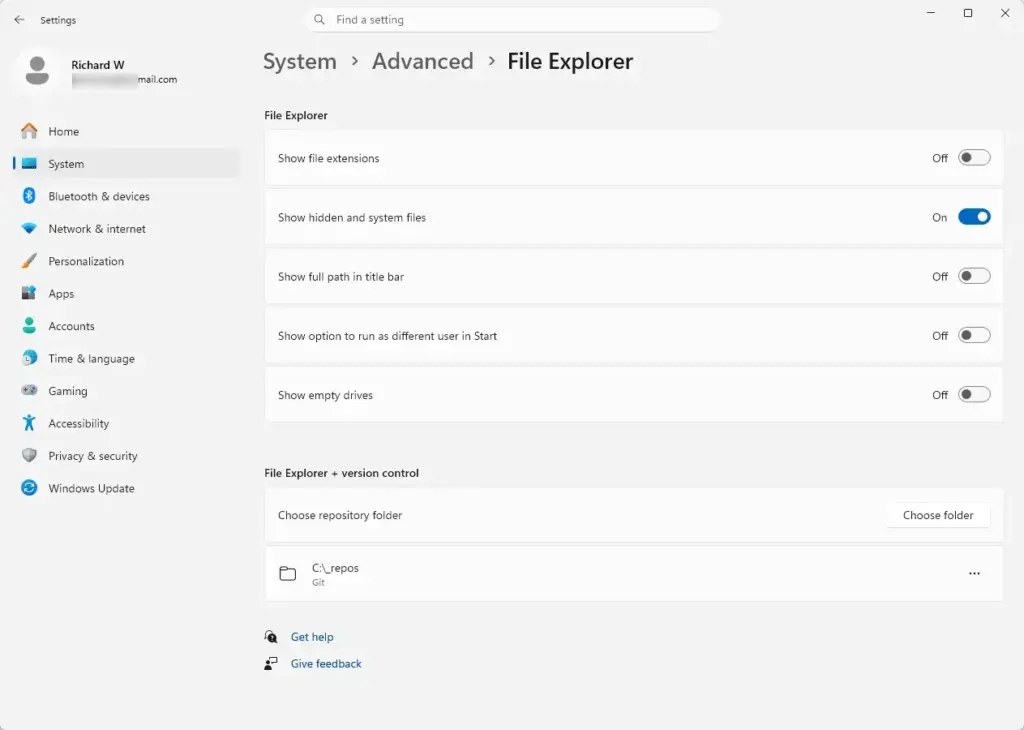
The File Explorer options on the For developers page expose hidden system files, full directory paths in the title bar, and file extensions. These views matter most when debugging code, since build tools and config files often live in hidden folders.
The exact wording of the labels varies slightly between Windows 11 builds. Some builds show toggles, others show check boxes. Use the matching option either way.
Advertisement
Open the For developers page in Settings.
Scroll down to the File Explorer📁 section. The file view options appear.
Settings › System › Advanced › File Explorer
Turn on Show hidden files, folders, and drives.
Turn on Show file name extensions.
Turn on Show full path in title bar.
Open a File Explorer window to check. Hidden items now appear slightly faded, file names end with their extensions, and the title bar shows the full folder path. To return to the default view, come back to this section and turn the same options off.
Setting Up Remote Desktop and SSH
Remote Desktop and SSH (Secure Shell, a command-line remote login) let you connect to your Windows 11 machine from another device on your local network. This helps when you test applications without sitting at the physical keyboard.
Check two requirements before you start. First, the Remote Desktop toggle needs Windows 11 Pro or higher (Pro, Enterprise, or Education). Home can connect out to other PCs but cannot accept incoming Remote Desktop connections, so on a Home PC the toggle is missing or greyed out. Second, SSH needs the OpenSSH Server optional feature, which you must install before remote shell connections will work.
Advertisement
Open the For developers page in Settings.
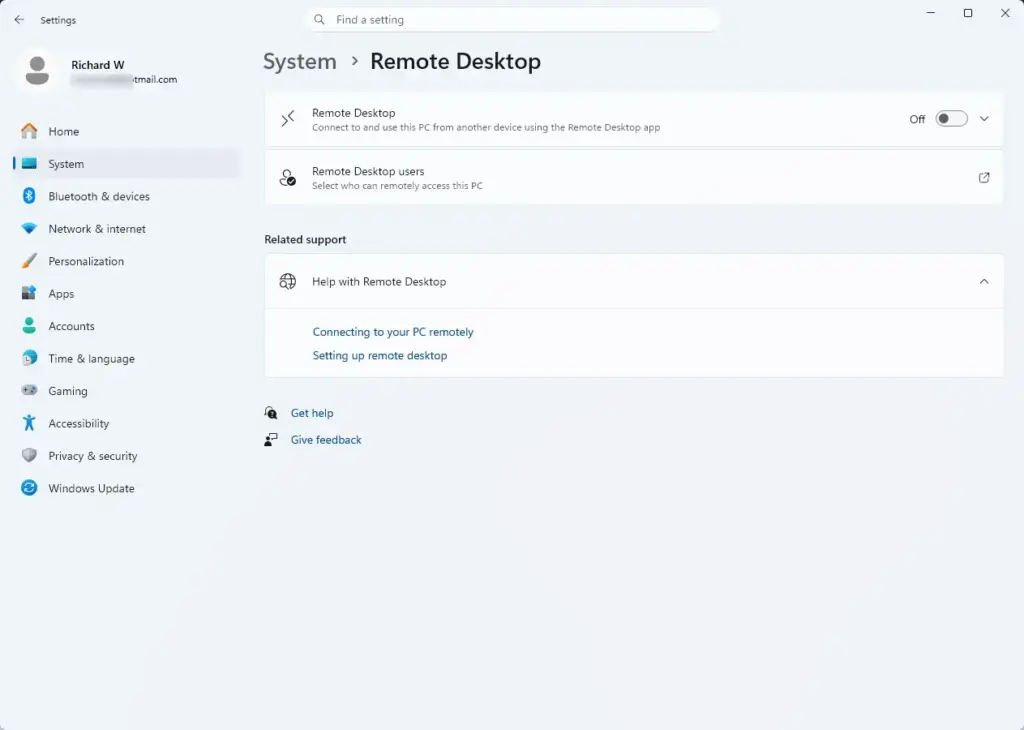
Scroll to the Remote Desktop section. The toggle appears here.
Settings › System › Remote Desktop
Click the toggle to turn on Remote Desktop connections for this PC. If Windows asks you to confirm, click Confirm.
Find the Terminal or SSH section if you plan to use command-line tools. Make sure the OpenSSH Server feature is installed and its server is running. If no SSH server is installed, add one first.
Enable these only on a trusted network, and turn them off when you finish testing. Remote access that you do not use is an open door for no reason. To undo step 3, switch the toggle back to Off.
Unlocking Advanced PowerShell Execution Policies
PowerShell blocks scripts by default as a protection. If you build projects or manage packages with local scripts, you may need to loosen the execution policy, which is the rule that decides which scripts may run. This changes a system-level setting, so you must use an administrator terminal.
Choose the least permissive policy that lets your scripts run. A looser policy lets more untrusted scripts execute. This step requires administrator privileges.
Advertisement
Right-click the Start button and select Terminal (Admin) or PowerShell (Admin). Click Yes if User Account Control asks for permission. An elevated terminal window opens.
Type the command Set-ExecutionPolicy RemoteSigned and press Enter. Write down any value it prints before you change anything, so you can restore it later.
Type Y and press Enter. Confirm the change when prompted.
After the change, you can run your local scripts in a new PowerShell window. If a script is still blocked, close and reopen the terminal. To undo the change, repeat step 3 with the original value you noted in step 2.
If a group policy controls the setting on your PC, Windows reports that the change was overridden. In that case, see the last section of this guide.
Troubleshooting Common Developer Mode Errors
If Developer Mode will not turn on, start with the basics. Check your internet connection first, because Windows fetches specific components from Windows Update. Missing updates or corrupted system files can stop that download. Restarting the computer often clears temporary installation blocks.
Advertisement
Confirm that the PC is online and can reach Windows Update🔃. A metered or restricted connection can delay the download.
Restart the🔄 PC, then try the Developer Mode toggle again.
If the toggle still reverts to Off, open Settings, go to Windows Update🔃, and click Check for updates🔃. Let all pending system patches finish installing💿, restart if asked, and try again.
If this didn’t work
If the basics do not help, check your account rights. Developer settings change system-level policies, so your user account must hold administrator rights. A standard account can open the page but cannot apply the change.
Domain-joined work or school computers often block these settings through group policy. In that case the toggle may be greyed out, or it may switch back to Off after you set it. You may also see a message that some settings are managed by your organization.
You cannot override this from Settings. Check with your IT department, or test the configuration on a personal PC or a local administrator account that no policy manages.
Frequently asked questions
How do I open developer settings?
Press Win+I to open Settings. Select System from the left menu, then click For developers in the list on the right. Toggle on Developer Mode to enable the feature and access sideloading and debugging tools.
How do I turn off developer mode on a phone?
This question asks about phones, not Windows 11. On Android phones, open Settings, tap About phone, and tap Build number seven times to reveal Developer options again. Then go back to Settings and toggle Developer options off.
How do I find hidden Developer options on Android?
This question asks about Android phones, not Windows 11. On Android, open Settings, scroll to About phone, and tap Build number seven times rapidly. Developer options will then appear in your main Settings menu under System options.
Which developer settings should I use?
For most users, leave Developer Mode off. Turn it on only if you're testing your own apps, sideloading software, or using Windows Subsystem for Linux. Enable only the specific features you need—like Device Discovery or Device Portal—rather than all options at once.
Still have a question?
Answered by AI from this guide. Good questions may be added to this page — please don't include personal details.
📬 Get new Windows tips in your inbox
One email when we publish something worth your time. We send a link to confirm. No spam, unsubscribe anytime.
Richard is a writer at Geek Rewind who turns complex IT tasks into clear, step-by-step guides. He draws on years of hands-on experience in system administration and enterprise IT operations, focusing on Windows, Linux and WordPress: the problems people actually run into, and the fixes that work.
His server and WordPress guides come from systems he runs himself. Richard builds and maintains the platform behind Geek Rewind, from its Ubuntu servers and Nginx configuration to its custom WordPress plugins.
Many new tutorials start with readers' questions, and he's always glad to answer them in the comments.



No comments yet — be the first to share your thoughts!