What to Do When Windows 11 Stuck on the Welcome Screen

- 54 steps
- Needs administrator rights
- Includes a restart or sign-out
A Windows 11 welcome screen freeze happens when the PC stops responding on the login page, usually right after you enter your PIN or password. The cause is usually a buggy Windows update, corrupted system files, or a misbehaving USB accessory.
The first fixes below, unplugging extra devices and starting in Safe Mode, take only a few minutes and do not touch your personal files. Work through the steps in order and stop as soon as you can log in normally again.
When Windows 11 stuck on the welcome screen, you should fix it by turning off your computer, unplugging all external devices like USB drives and printers, disconnecting from the internet, and restarting. If that does not work, start your computer in Safe Mode using the Windows Recovery Environment.
Understanding the Problem: Why 🪟 Windows 11 Gets Stuck
Windows 11 gets stuck on the welcome screen when it hits a problem while loading your personal settings, starting background services, or connecting to the network. The screen keeps spinning because Windows is waiting for something that never finishes.
The most common causes are:
- Faulty hardware or accessoriesA broken USB flash drive, a misbehaving mouse, or an old printer connected to your PC can confuse Windows while it boots.
- Network and internet issuesIf Windows tries to reach a broken Wi-Fi network or a cloud account service and fails, it can hang on the loading screen for a very long time.
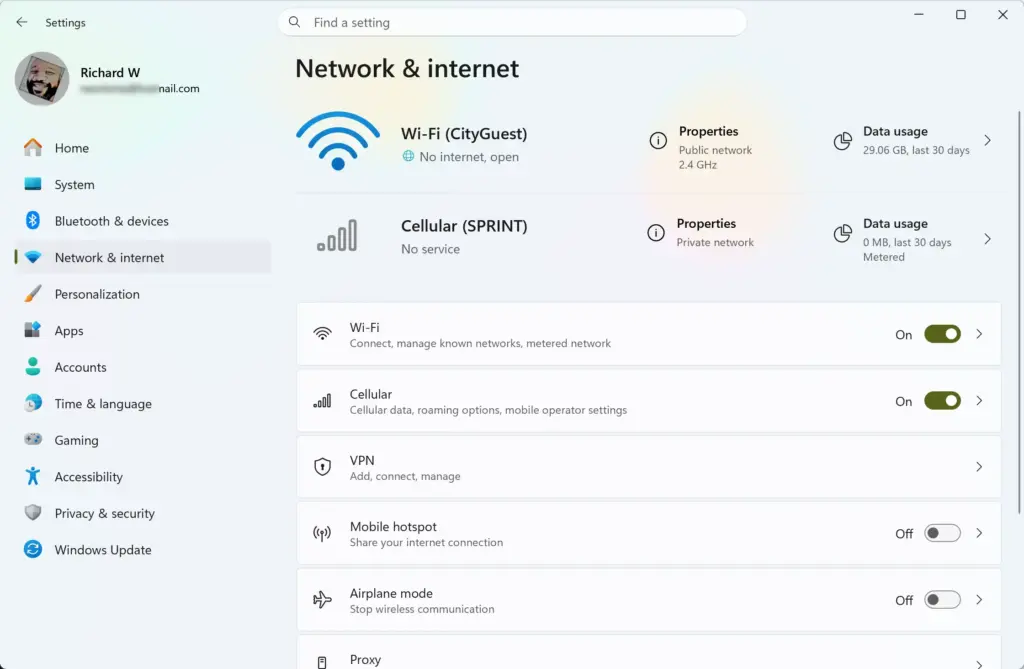
Settings › Network & internet - Corrupt system filesEssential Windows files can be damaged by a sudden power outage or an interrupted update.
- Driver conflictsAn outdated or broken graphics driver can stop the welcome screen from handing control over to your desktop.
- Background service loopsA program that starts automatically can get stuck in an endless loop and freeze the whole sign-in sequence.
Start with the easiest and safest fixes. These steps apply to Windows 11 version 23H2 and later. First, disconnect all non-essential USB devices, such as printers and external drives. Then restart the PC and give it up to 15 minutes, because a background update may still be finishing. Windows sometimes looks frozen while it is actually completing an update, so do not interrupt it too early. These basic steps clear many welcome screen freezes without any risk to your files.
Step 1Unplug External Devices and Disconnect from the Internet
Unplugging all external devices and disconnecting from the internet is the best first step. Your PC often freezes because it is waiting on an unresponsive USB accessory, printer, or network drive during startup.
- Hold down the physical power button for 5 to 10 seconds until the screen and lights go dark. The PC is now fully off.
- Unplug every external device. That includes USB flash drives, external hard drives, printers, webcams, extra monitors, game controllers, and any secondary mouse or keyboard. Leave only your primary mouse and keyboard connected.
- Cut the network connection. If you use a wired ethernet cable, unplug it. If you use Wi-Fi , switch off your router for now, or move a laptop far enough away to lose the signal.
- Press the power button to turn the PC back on and try to sign in.
If you reach the desktop, one of the devices or your internet connection was the cause. Plug the devices back in one at a time, restarting after each, until the freeze comes back. The last item you connected is the culprit. Reconnect the network last, and if the freeze only returns with the network connected, jump to the network reset tip further down.
Step 2Boot Into Safe Mode to Bypass Problem Software
Safe Mode lets you get around problem software. It starts Windows with only the bare minimum of drivers and services, so third-party apps and bad drivers cannot block your login.
Because you cannot reach your normal desktop, you have to force the PC into the Windows Recovery Environment:
- Turn on the PC. As soon as you see the manufacturer logo or the spinning Windows dots, press and hold the physical power button for 5 to 10 seconds to force a shutdown.
- Repeat this two more times.
- On the third start, let the PC boot fully. Windows detects the repeated failed starts and opens the blue Automatic Repair screen. On some PCs this appears after only two interrupted boots, so stop interrupting once you see it.
- On the Choose an option screen, click Troubleshoot.
- Click Advanced options.
- Click Startup Settings. If you do not see it, click See more recovery options at the bottom of the screen to find it.
- Click the Restart button in the bottom right corner. The PC restarts and shows a numbered list of startup choices.
- Press 4 or F4 to choose Enable Safe Mode. Press 5 or F5 instead if you need Safe Mode with Networking.
If a screen asks for a BitLocker recovery key, that is normal on PCs with device encryption. You can find the key in your Microsoft account at account.microsoft.com/devices/recoverykey, using another device.
Once you are in Safe Mode, the screen looks very basic and the background may be black. This is normal. From here you can uninstall recently installed apps, remove problem updates, or scan the system for errors. To leave Safe Mode, just restart the PC normally.
Step 3Run Built-in System Repair Tools
Built-in repair tools find and replace broken system files automatically. Two of them can fix deep operating system damage: the Deployment Image Servicing and Management (DISM) tool and the System File Checker. Run them from Safe Mode, or from a normal session if you can sign in at all.
- Click the Start button on the taskbar and type
cmdinto the search box. - Right-click Command Prompt in the results and select Run as administrator. Click Yes if Windows asks for permission. A black command window opens.
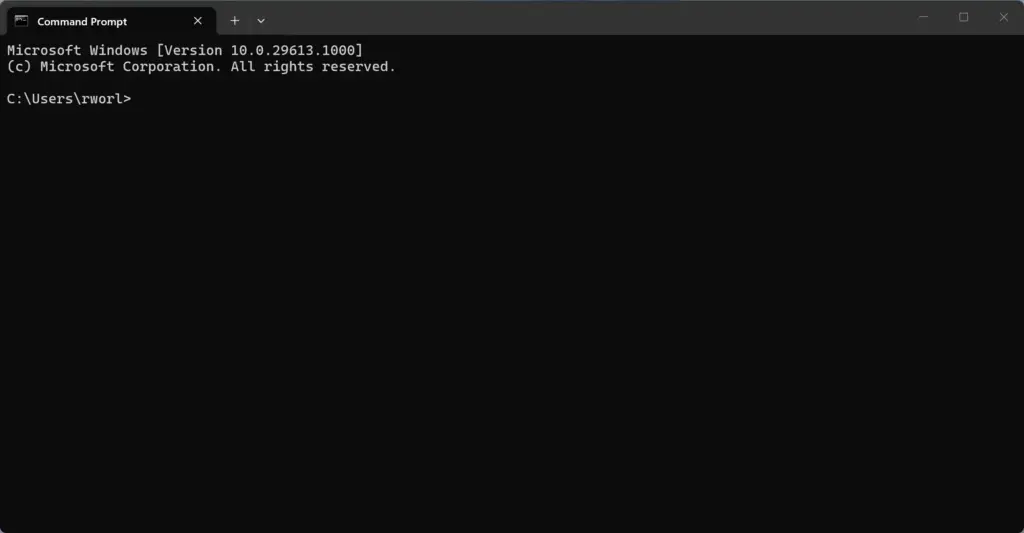
Command Prompt - Type the System File Checker command exactly as written, then press Enter.
Wait while the System File Checker scans all of your core Windows files. This can take 10 to 15 minutes, so do not close the window. If it finds corrupted or missing files, it replaces them with working copies automatically.
When the scan finishes, type the following command to check your drive for errors, and press Enter:
chkdsk c: /fIf a message asks whether you want to schedule the check for the next restart, type y for yes and press Enter. The check then runs before Windows loads, and it can take a while on a large drive.
Restart the PC normally to see whether the welcome screen freeze is gone.
Step 4: Disable Fast Startup to Fix Power State Freezes
Fast Startup makes your PC boot quicker by saving core system state during shutdown. That saved state can become stale or damaged, which causes loading bugs and startup loops. Turning the feature off forces a clean start every time. Do this from Safe Mode, or from a normal session if you can sign in occasionally.
- Click the Start button, type
Control Panelinto the search box, and click the Control Panel app.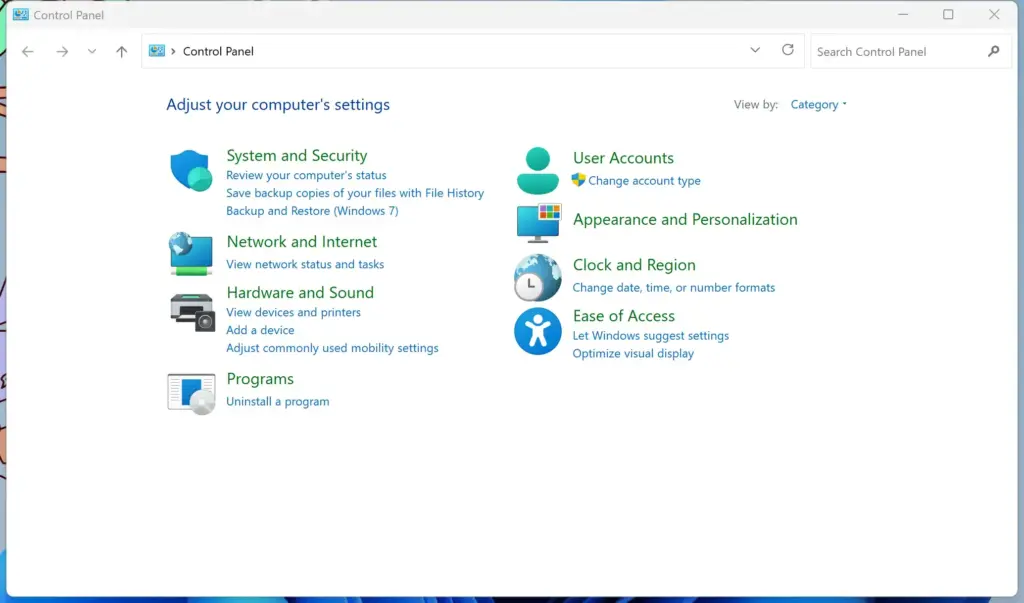
Control Panel - In the top right corner, set View by: to Large icons or Small icons.
- Click Power Options.
- On the left, click Choose what the power buttons do.
- Click Change settings that are currently unavailable near the top. This needs an administrator account, and it unlocks the greyed-out options below it.
- Scroll to the Shutdown settings section near the bottom.
- Uncheck Turn on fast startup (recommended). If the option is missing, hibernation is probably turned off on this PC, so there is nothing to disable.
- Click Save changes.
Your PC may take a few extra seconds to boot from a full shutdown, but you remove a very common source of login freezes and startup loops. To undo the change, tick the same box again.
Step 5: Disable Startup Apps Using Task Manager
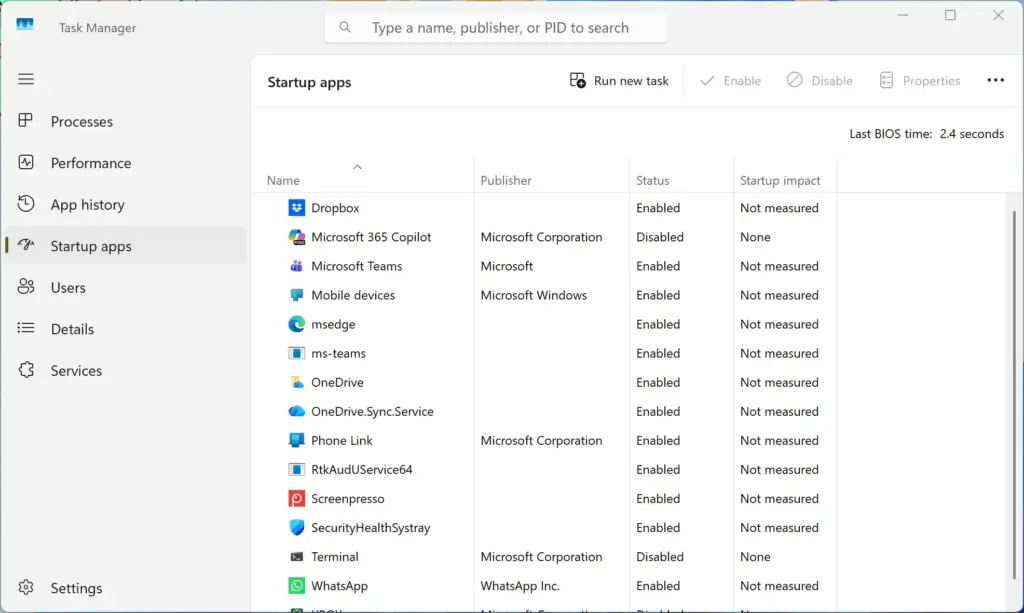
Programs that crash or hang while they start with Windows can freeze your sign-in. Stopping unnecessary ones from launching automatically keeps them from blocking the welcome screen. Disabling an app here does not uninstall it, and you can turn it back on at any time.
- Press Ctrl+Shift+Esc to open Task Manager .
- If Task Manager opens in a compact view, click More details at the bottom.

Task Manager - Click the Startup apps icon in the left-hand column (it looks like a speedometer). A list of programs that start when you sign in appears.
- Look for apps you do not need right away, such as download helpers, printer utilities, or chat apps. The Startup impact column helps you spot the heavy ones.
- Click an app, then click Disable in the top right corner of the window. The status changes to Disabled.
- Repeat for any other non-essential startup programs.
- Restart your PC normally.
If the freeze goes away, re-enable the apps one at a time until it returns to find the one at fault.
Unique Expert Tip: Resetting Network Profiles via Command Prompt
If Windows gets stuck syncing cloud settings or checking for updates online during login, clearing your network configuration can let the PC boot normally. Try this if your computer only freezes when it is connected to the internet. A restart is required at the end.
- Boot into Safe Mode with Networking by choosing option 5 in the Startup Settings menu covered earlier. You can also do this from a normal session if you can sign in.
- Click the Start button, type
cmd, right-click Command Prompt, and select Run as administrator. - Type the following command and press Enter to reset your network catalog:Code
netsh winsock reset - Type the following command and press Enter to reset your internet protocol settings:Code
netsh int ip reset - Type the following command and press Enter to clear your DNS cache:Command Prompt
ipconfig /flushdns - Close the command prompt window and restart the PC normally. The resets only take full effect after the restart.
Note that the network reset can clear custom settings such as a static IP address, so write those down first if you use them.
Unique Expert Tip: Checking User Profile Corruptions
If the folder that stores your desktop files and registry preferences is damaged, Windows can spin endlessly while it loads your account data. You can test this by creating a brand-new local user account.
- Boot into Safe Mode using the steps outlined earlier.
- Open the Start menu and click the Settings app (the gear icon).

Settings - Click Accounts in the left menu, then click Other users on the right.
- Click the Add account button next to Add other user.
- Click I don't have this person's sign-in information.
- Click Add a user without a Microsoft account.
- Type a simple user name (for example,
TEST-USER) and an easy password, then click Next to finish creating the account. - Restart the PC normally and try signing in to the new
TEST-USERaccount.
If the PC goes straight to the desktop with the new account, your original user profile is corrupted. Copy your important files from the old profile folder into the new profile to solve the problem permanently. The new account is a standard user by default, so if you need administrator rights, change the account type in Settings Accounts Other users.
Advanced Options: System Restore or Reset This PC
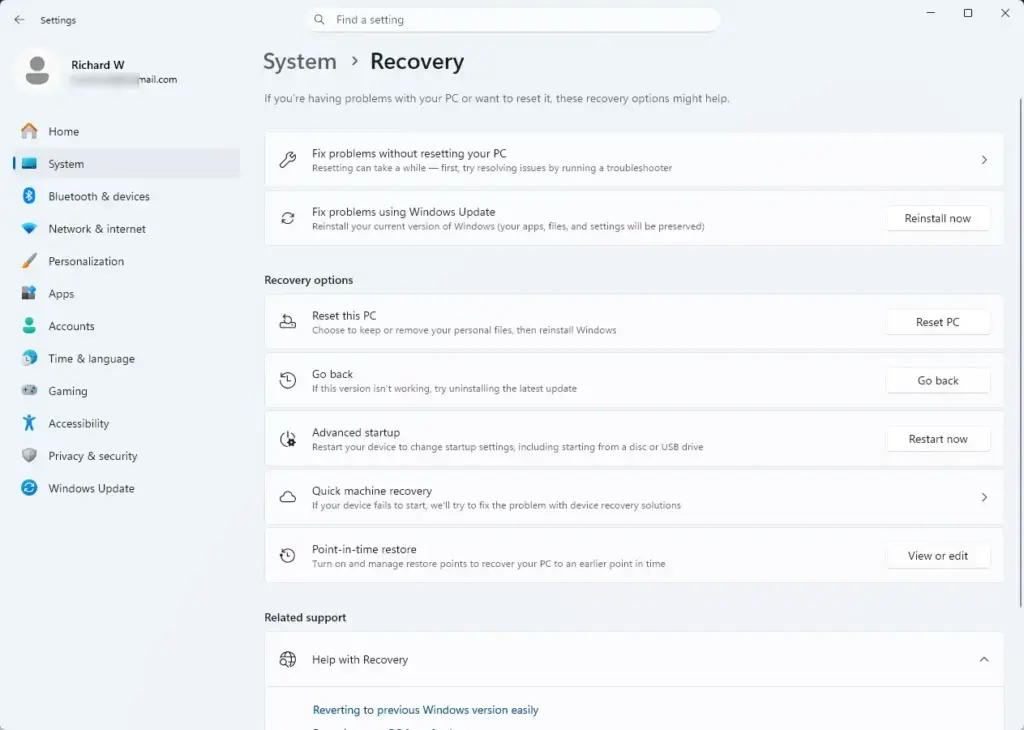
If none of the steps above work and the PC stays stuck on the welcome screen, use the heavier recovery options in the Windows Recovery Environment. Try System Restore first, because it is the less drastic of the two.
Using System Restore
System Restore rolls your PC back to an earlier point, before a bad update, driver, or app caused the freeze. It undoes recent system changes without deleting your personal files, although apps and drivers installed after the restore point are removed.
- Open the Windows Recovery Environment by forcing three interrupted boots, exactly as described in Step 2.
- Click Troubleshoot, then Advanced options.
- Click System Restore.
- Choose your user account and enter your password if prompted.
- Select a restore point dated before the PC started getting stuck. If the list is empty, System Protection was not turned on and no restore points exist, so move on to Reset this PC.
- Click Next, then Finish, and let Windows restore your system files. The PC restarts when it is done. Your personal files and documents are not deleted.
Reset This PC
Resetting reinstalls Windows 11 and gives you the option to keep your personal files. It is the last resort when standard repairs and Safe Mode fixes fail. Your installed apps and custom settings are removed, so plan to reinstall them afterward.
- Open the Windows Recovery Environment using the three interrupted boots described earlier.
- Click Troubleshoot, then select Reset this PC.
- Choose Keep my files.
- Follow the on-screen prompts to complete the reset. The process takes a while and the PC restarts several times, so leave it plugged in.
If you can get into Safe Mode first, copy anything irreplaceable to an external drive before you reset, as a precaution.
Summary
A Windows 11 PC stuck on the welcome screen with a spinning circle is usually dealing with corrupted system files, faulty external hardware, network loops, or background apps that fail to load. You can fix the freeze by unplugging accessories, booting into Safe Mode, running repair scans, or disabling Fast Startup.
If those fail, check your startup apps, reset the network settings, or test a new user account. System Restore and Reset this PC are the options of last resort.
How do I access Safe Mode if my PC is stuck on the login screen?
Turn on your computer and hold the physical power button for 10 seconds to force a shutdown as soon as it starts. Repeat this three times. On the third startup, Windows opens the Automatic Repair screen. Go to Troubleshoot, then Advanced options, select Startup Settings, and restart to choose Safe Mode.
Will running System Restore delete my personal files?
No. System Restore rolls back your system files, installed apps, and registry settings to an earlier point in time, but it leaves your personal documents, photos, and files untouched.
Have a question about this guide?
Answered by AI from this guide. Good questions may be added to this page — please don't include personal details.
Did this guide fix your problem?

About the Author
Richard
Tech Writer, IT Professional
Richard is a writer at Geek Rewind who turns complex IT tasks into clear, step-by-step guides. He draws on years of hands-on experience in system administration and enterprise IT operations, focusing on Windows, Linux and WordPress: the problems people actually run into, and the fixes that work. His server and WordPress guides come from systems he runs himself. Richard builds and maintains the platform behind Geek Rewind, from its Ubuntu servers and Nginx configuration to its custom WordPress plugins. Many new tutorials start with readers' questions, and he's always glad to answer them in the comments.
No comments yet — be the first to share your thoughts!