How to Reinstall the Bluetooth Driver in Windows 11 Using Microsoft Documentation Steps

- 28 steps
- Needs administrator rights
- Includes a restart or sign-out
Reinstalling the Bluetooth driver in Windows 11 fixes stubborn connection drops, a missing Bluetooth toggle, and pairing failures. It replaces corrupted driver software with a fresh copy. You need an administrator account, because the procedure changes low-level hardware drivers. It works the same on Windows 11 Home and Pro.
Before you begin, disconnect any non-essential USB accessories so they cannot conflict with the hardware refresh. The whole job takes about ten minutes, plus one restart.
Open Device Manager by pressing Win+X and clicking Device Manager, expand the Bluetooth category, right-click your adapter, select Uninstall device and tick the checkbox to remove the driver, then click Action Scan for hardware changes. Windows reinstalls the driver automatically. Restart your computer to complete the process.
Prepare Your PC and Disconnect Accessories
On a desktop PC, keep one wired or USB-dongle keyboard and mouse that do not use Bluetooth. Removing the driver drops every Bluetooth connection, and you will need something to type and click with.
- Turn off all connected wireless accessories, such as mice, keyboards, and audio headsets, using their physical power switches.
- Unplug any unnecessary USB dongles or hubs attached to your computer.
- Save all open documents and close active applications to prepare for a system restart.
Open Device Manager
Device Manager is a control panel snap-in that lists your computer’s hardware and lets you manage it. You use it to find your wireless adapter and start the uninstall.
- Press Win+X on your keyboard to open the hidden quick-link menu. Right-clicking the Start button does the same thing.
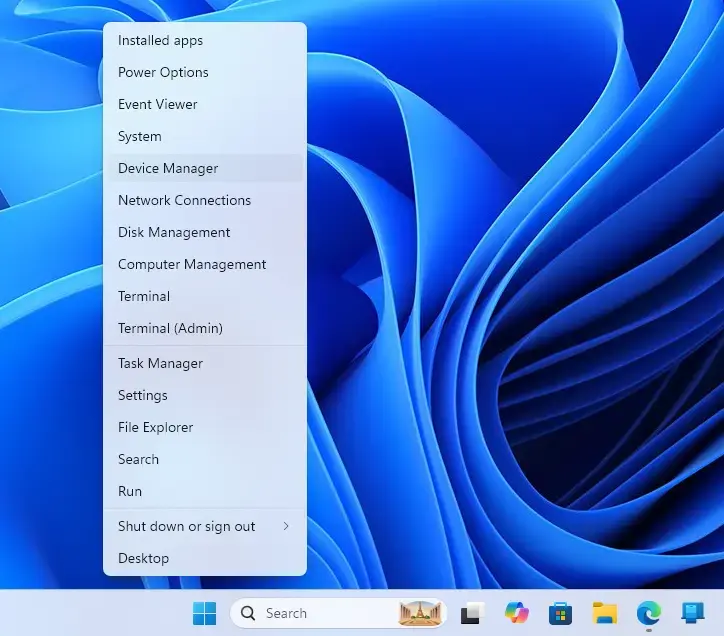
Device Manager - Click Device Manager from the list to open the main hardware window.
- Find the Bluetooth category in the device list and click the small arrow next to it to expand the installed adapters.
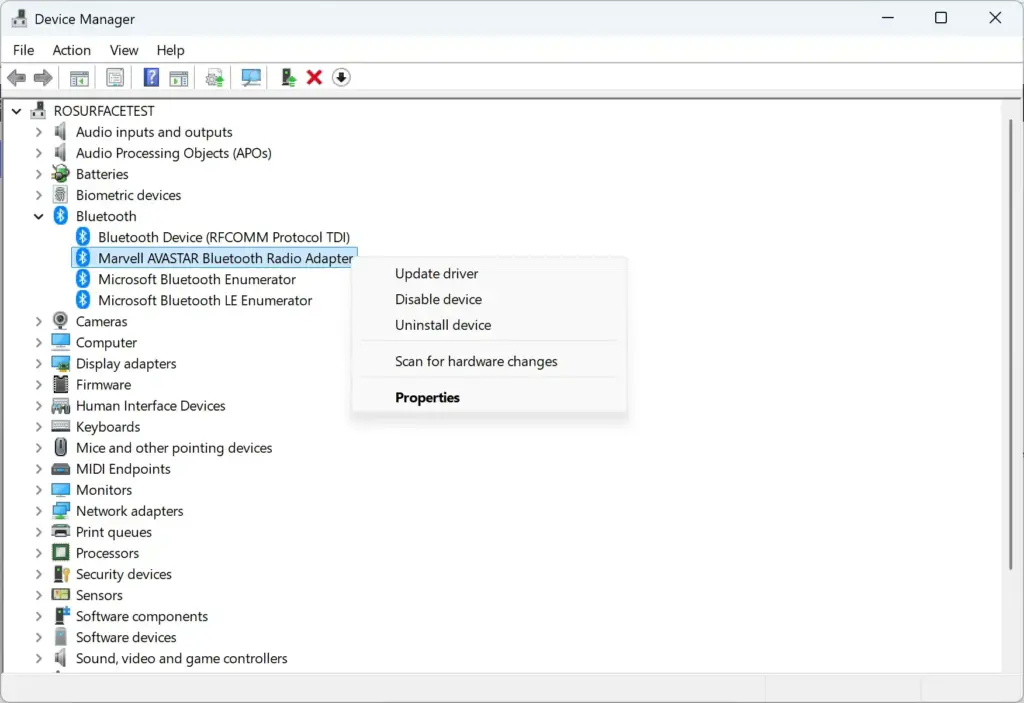
Device Manager
If you do not see a Bluetooth category, click View in the menu bar and choose Show hidden devices. A radio that has failed completely may also appear under Other devices with a yellow warning icon. If it is not listed anywhere, check that Bluetooth is not switched off in your BIOS or by a physical wireless switch on the laptop.
Uninstall the Bluetooth Adapter
Uninstalling the adapter removes the corrupted driver software so Windows can build a clean setup. Choose the adapter itself, not the names of individual paired devices.
- Right-click your primary wireless adapter in the expanded Bluetooth list and select Uninstall device from the context menu. Typical names are Intel Wireless Bluetooth, Realtek Bluetooth Adapter, or Generic Bluetooth Adapter.
- A confirmation dialog box warns you that you are about to remove the device from your system. If you see the checkbox Attempt to remove the driver for this device, tick it. Not every driver offers this option, so do not worry if it is missing.
- Click the Uninstall button to confirm. Windows removes the adapter and its files, and the entry disappears from the list.
Device Manager - Do not restart your computer yet. Leave Device Manager open for the next step.
If Uninstall device is missing or the action fails, you are probably not signed in as an administrator. Sign in with an administrator account and repeat the steps.
Scan for Hardware Changes
Scanning for hardware changes makes Windows detect the Bluetooth chip again and start a fresh driver installation. This is what brings the adapter back without a restart.
- Click the Action menu in the top menu bar of the Device Manager window.
- Select Scan for hardware changes from the drop-down menu.
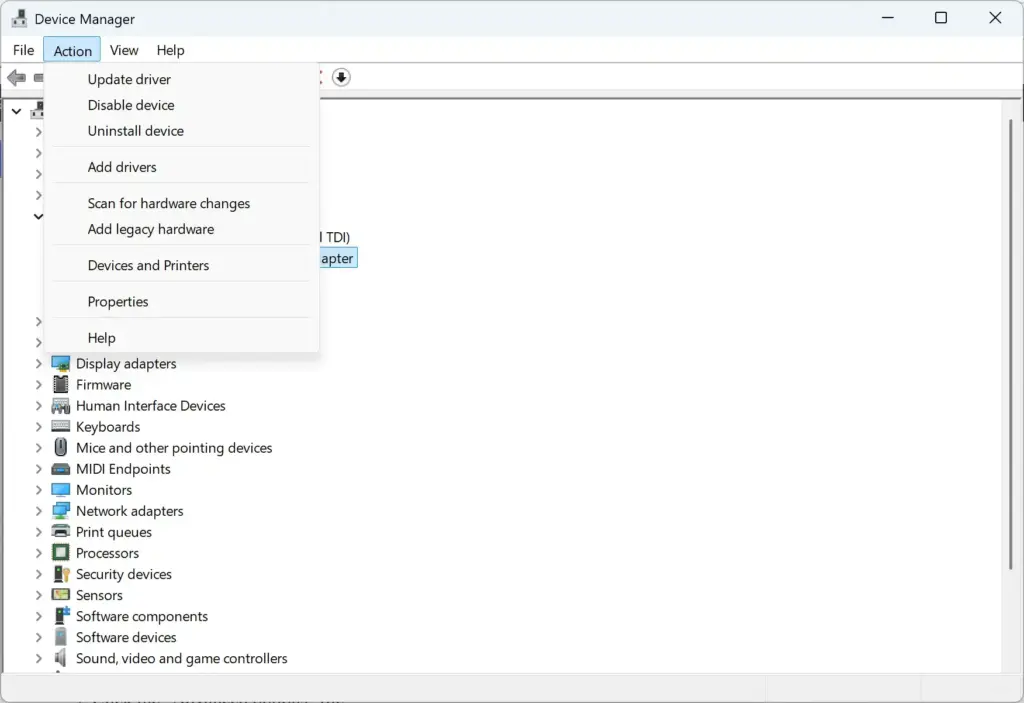
Device Manager - Wait a few seconds while Windows refreshes the device tree. Your Bluetooth adapter should reappear under Bluetooth, now using a fresh default driver package supplied by Windows.
If the adapter does not come back after the scan, carry on to the restart. Windows often finishes detecting it during boot.
Restart Your Computer
Restarting makes sure the new driver, its background services, and its registry entries all load cleanly. Use Restart rather than Shut down. Shutting down can use Fast Startup, which may not fully reload drivers.
- Click the Start button on your taskbar, then click the Power icon.
- Select Restart from the pop-up menu.
- Wait for your PC to boot back to the lock screen, then sign in to your user account.
Verify the Reinstallation
Checking Settings and Device Manager confirms the new driver is working and Windows recognizes your wireless hardware.
- Press Win+I on your keyboard to open Settings.
- Go to Bluetooth & devices and check that the main Bluetooth toggle is present and turned on.

Windows Settings menu highlighting the Bluetooth and devices option for printers - Open Device Manager again as described earlier, expand the Bluetooth section, and right-click your adapter.
- Select Properties and look at the General tab. The device status should read “This device is working properly.”
You can also open the Driver tab to see the driver provider, date, and version. A Microsoft provider means Windows used its built-in driver. If the toggle is still missing or the status shows an error, try the next two sections.
Alternative: Download Drivers from Your PC Manufacturer
The generic Windows driver does not always restore every feature. If problems remain, a driver package from your computer’s manufacturer is often a better fit, because it is built for your exact hardware.
- Open your web browser and go to the official support or download website for your computer manufacturer, such as Dell, HP, Lenovo, or ASUS.
- Enter your exact computer serial number, model number, or service tag in their search field to pull up drivers specific to your machine.
- Find the Bluetooth category in the driver list and download the latest installer package to your local drive.
- Run the setup file and follow the on-screen prompts. Restart your PC if the installer asks you to.
Alternative: Install Drivers Using Windows Update
Windows Update can supply a driver that matches your current Windows 11 build, with no manual download. Drivers usually appear as optional updates, not as regular ones, so you have to look for them.
- Press Win+I to open Settings.
- Click Windows Update in the left-hand sidebar.
- Click Advanced options, scroll down to the Additional options section, and click Optional updates.
- Expand the Driver updates section and look for any Bluetooth or wireless entries. Tick the box next to them and click Download & install.
If Optional updates does not appear, Windows has no extra updates for your PC at the moment. Restart if Windows asks you to once the install finishes.
What to do next
Once the driver is in place, test it with a real device. Turn your accessories back on and pair them in Settings under Bluetooth & devices. Click Add device, choose Bluetooth, and select your accessory when it appears.
If you use Bluetooth headphones or speakers, also check that Windows is sending sound to the right output device. You can adjust this in the Settings app, along with any sharing options you use. If a device still refuses to pair after all of this, remove it from the list, put it back in pairing mode, and add it again.
Frequently asked questions
How do I reinstall the Bluetooth driver in 🪟 Windows 11?
To reinstall the Bluetooth driver in Windows 11, open Device Manager, expand Bluetooth, right-click your adapter, and choose Uninstall device. Then restart your PC. Windows reinstalls a fresh copy of the driver during startup. If it doesn't, open Device Manager and select Action, then Scan for hardware changes.
How to reinstall Bluetooth adapter on 🪟 Windows 11?
To reinstall a Bluetooth adapter on Windows 11, open Device Manager and expand the Bluetooth category. Right-click the adapter, select Uninstall device, and confirm. Restart Windows, and it installs the adapter driver again. If the adapter does not return, select Action, then Scan for hardware changes in Device Manager.
I accidentally uninstalled my Bluetooth driver. How do I reinstall it?
Restart your PC first. Windows often reinstalls the Bluetooth driver automatically when it starts. If the Bluetooth toggle is still missing, open Device Manager, select Action, then Scan for hardware changes. If that fails, download the driver from your laptop or adapter maker's website and install it manually.
My Bluetooth adapter is missing in 🪟 Windows 11. How can I fix it?
Start by checking that the adapter is turned on. Open Device Manager, select View, then Show hidden devices, and expand Bluetooth. If the adapter appears with a warning or down arrow, right-click it and choose Enable device. If it is still missing, select Action, then Scan for hardware changes, and restart your PC.
Still have a question?
Answered by AI from this guide. Good questions may be added to this page — please don't include personal details.
Did this guide fix your problem?

About the Author
Richard
Tech Writer, IT Professional
Richard is a writer at Geek Rewind who turns complex IT tasks into clear, step-by-step guides. He draws on years of hands-on experience in system administration and enterprise IT operations, focusing on Windows, Linux and WordPress: the problems people actually run into, and the fixes that work. His server and WordPress guides come from systems he runs himself. Richard builds and maintains the platform behind Geek Rewind, from its Ubuntu servers and Nginx configuration to its custom WordPress plugins. Many new tutorials start with readers' questions, and he's always glad to answer them in the comments.
No comments yet — be the first to share your thoughts!