Stop Windows from Updating Your Printer Driver Automatically

- 33 steps
- Needs administrator rights
- Group Policy needs Windows 11 Pro, Enterprise or Education
Windows Update can replace a printer driver with its own copy, which sometimes breaks printing or removes features the maker’s driver includes. To stop this, turn off automatic driver downloads in Device Installation Settings, then install the driver from the printer maker’s website. You need an administrator account to change this setting, which lives in System Properties.
Windows 11 has no single switch that blocks only printer drivers. The method below works for all hardware, so it also stops driver updates for other devices such as graphics cards and network adapters. Later sections show how to check that it worked, how to roll back a driver Windows has already replaced, and what to do if the setting is greyed out.
To stop Windows from replacing your printer driver, open System Properties (press Win+R, type sysdm.cpl), select the Hardware tab, then Device Installation Settings and choose No. This blocks automatic driver downloads for all devices, so install the manufacturer’s printer driver afterwards. An administrator account is required.
Why Windows Replaces a Printer Driver You Installed
Windows Update (the service that delivers patches and driver packages) compares your hardware with Microsoft’s driver catalogue. It installs a package only when that package ranks higher than the driver already on your PC. If it finds a package it ranks higher than the one on your PC, it installs it. Some drivers arrive silently. Others appear as optional updates that you choose to install.
A replaced driver can cause real problems. Features from the manufacturer’s software may vanish, such as scan buttons, ink monitoring, or duplex and tray options. The printer may also fall back to a generic Microsoft driver. If your printer worked until a recent update, check the driver version before you change anything else.
Check Which Printer Driver You Have Now
Start here. This check shows whether Windows has already swapped your driver, and it gives you a before-and-after comparison to work from.
Read the Driver Version in Device Manager
Device Manager lists your hardware and shows the driver date and version for each item. Printers appear under Print queues.
- Right-click the Start button and select Device Manager.
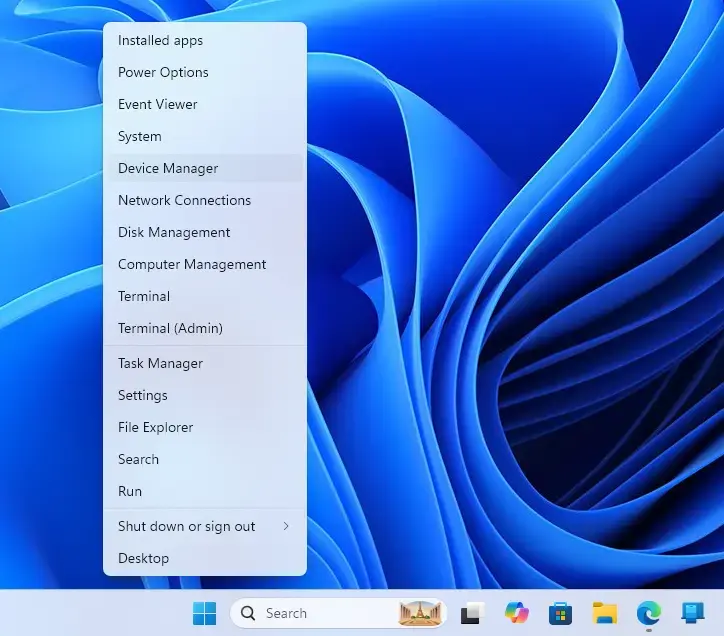
Device Manager - Expand Print queues. You should see your printer listed, for example Example Printer 500.
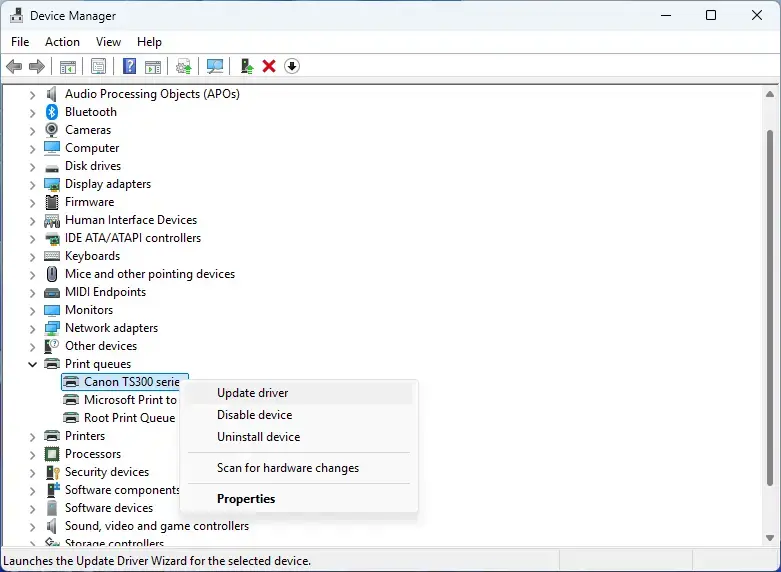
Device Manager - Right-click the printer and select Properties.
- Open the Driver tab. You should see the Driver Provider, Driver Date and Driver Version.
- Write down the provider, date and version.
If the provider says Microsoft and you installed the driver from the manufacturer, Windows has replaced it. If the printer isn’t under Print queues, expand Printers or Other devices instead. Some devices register under a different heading.
Look at Optional Driver Updates
This shows which driver updates Windows is holding back for you to approve.
- Open Settings Windows Update Advanced options Optional updates.
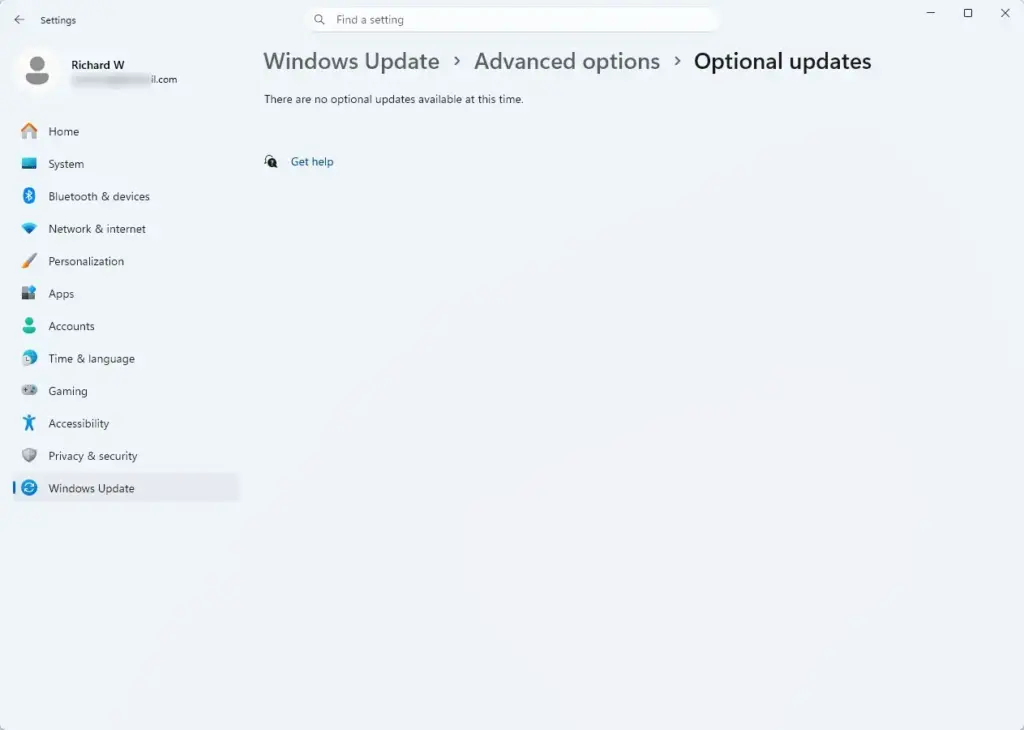
Settings › Windows Update › Advanced options › Optional updates - Select Driver updates to expand the list. If your printer is listed, Windows has a newer driver for it.
Optional drivers do not install until you select them and choose Download & install. Leave your printer’s entry unticked. If Driver updates doesn’t appear, no optional drivers are waiting.
Turn Off Automatic Driver Downloads
This is the main fix. It tells Windows not to download driver software for your devices. It is a system-wide setting, so it affects every device, not only your printer.
This step requires administrator privileges. A standard account sees a prompt for an administrator password.
Change Device Installation Settings
- Press Win+R to open the Run box.

Run dialog - Type
sysdm.cpland press Enter. The System Properties window opens. - Select the Hardware tab.
- Select Device Installation Settings. If a User Account Control prompt appears, select Yes or enter administrator credentials. A dialog asks whether you want Windows to download driver software and icons for your devices.
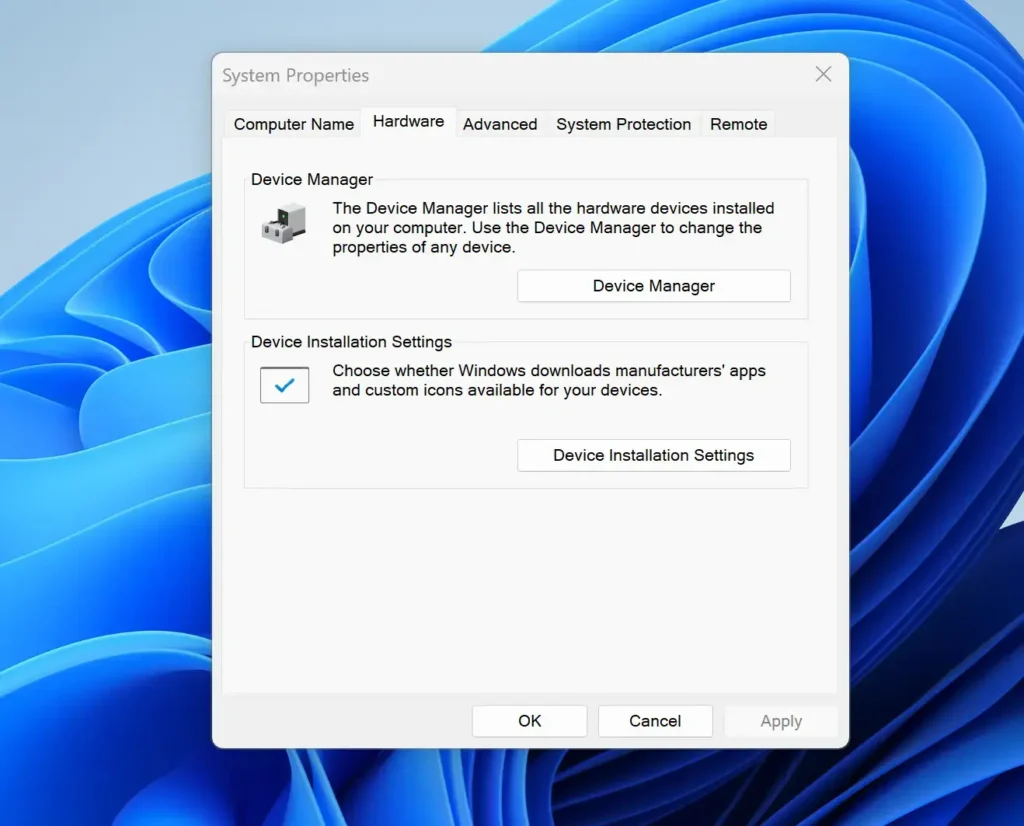
System Properties - Select No (your device might not work as expected). On some builds the wording differs slightly, but the choice is the same: the “No” option stops the downloads.
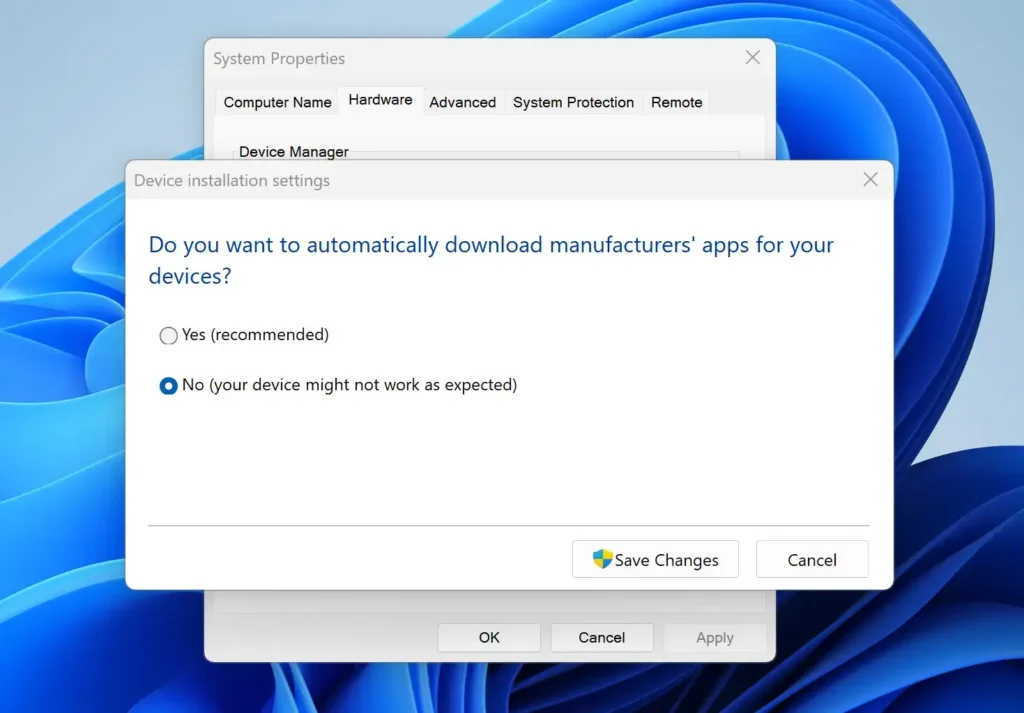
- Select Save Changes. The dialog closes.
- Select OK to close System Properties.
You do not need to restart for the setting to be saved. Restart anyway if you want to be sure no pending update is still waiting to install.
With downloads off, Windows does not fetch drivers for any new hardware you plug in. You must install those drivers yourself. Printers are rarely a problem because manufacturers supply installers, but a new graphics card or network adapter is a different matter. Turn the setting back on, or install each driver by hand.
If Device Installation Settings Is Greyed Out or Missing
If you can’t change the option, one of three things is usually the cause.
- You are not an administrator. Sign in with an administrator account and repeat the steps.
- Your organisation manages the PC. A work or school policy can lock this dialog. Ask your IT team to change it. On a company device, work with your IT team rather than changing a managed setting yourself.
- A policy was set on this PC earlier. A Group Policy setting or a registry change (a low-level settings store in Windows) made by you or another admin can lock the option. Windows 11 Home has no Group Policy Editor, so on Home a lock like this points to a registry change or management software.
Choose Whether to Use a Policy Instead
Windows 11 Pro, Enterprise and Education include the Local Group Policy Editor. It has a setting that excludes drivers from Windows quality updates. That is the cleaner choice for an office PC or a shared machine, because it applies without relying on the dialog above. Windows 11 Home does not include the editor.
I haven’t confirmed the exact policy path or the matching registry value for this article, so I’m not listing them here. [Registry method: to be verified]. Use the Device Installation Settings method above, which works on both Home and Pro.
Pause Updates Temporarily
If you only need a short break, for example while you finish a print job or wait for the manufacturer to release a fixed driver, pause updates. This holds back all updates, not only drivers, and it expires on its own.
- Open Settings Windows Update.
- Find Pause updates and open its drop-down list.
- Select the length of time you want. The page shows a notice that updates are paused until a date.
When the pause ends, Windows catches up on everything it held back. That can include the driver you wanted to avoid. Treat this as a short-term measure, not a fix.
Put Your Preferred Printer Driver Back
If Windows has already replaced your driver, turning off downloads does not restore the old one. You need to remove the current driver package and install the manufacturer’s version. Download the manufacturer’s installer first so it is ready.
Download the Manufacturer’s Driver
- Open the support page for your printer model on the manufacturer’s website.
- Choose Windows 11 as the operating system. If it isn’t listed, choose the newest Windows version offered.
- Download the full driver package. Save it somewhere you can find it, such as your Downloads folder.
Keep the file. If Windows replaces the driver again, you reinstall from this copy.
Remove the Driver Windows Installed
- Open Settings Bluetooth & devices Printers & scanners.
- Select your printer, then select Remove. Confirm if asked. The printer disappears from the list. Windows won’t remove a driver that is in use, so this step comes first.
- Scroll to Related settings and select Print server properties. The Print Server Properties window opens.
- Open the Drivers tab. You should see a list of installed printer drivers.
- Select the driver Windows installed for your printer, then select Remove. If the button is greyed out, select Change Driver Settings first to get administrator rights for the window.
- Choose Remove driver and driver package, then select OK. Windows may ask you to confirm. The driver disappears from the list.
- Close the Print Server Properties window.
If you get an error saying the driver is in use, close any open print jobs. Then open Task Manager, find Print Spooler on the Services tab or the Services app, and restart it. Try the removal again.
Reinstall the Manufacturer’s Driver
- Run the installer you downloaded. Approve the User Account Control prompt.
- Follow the installer’s prompts. Connect the printer when it asks you to.
- Return to Device Manager and open the printer’s Driver tab again, as described earlier. The provider should now match the manufacturer, and the version should be the one you installed.
Install the driver after you turn off driver downloads, not before. Otherwise Windows can replace it again while you are still working through the steps.
Confirm That Windows Leaves the Driver Alone
Don’t assume the change worked. Check it after the next round of updates.
- Open Settings Windows Update and select Check for updates. Let any updates install and restart if asked.
- Open Device Manager and check the printer’s Driver Date and Driver Version again.
- Compare them with the values you wrote down earlier. If they match, the driver was not replaced.
If the version changed, the driver arrived by a route this setting does not cover. Open Optional updates and check whether you approved it. If Windows installed it without your approval, run the removal steps again. Then ask your IT team about the Group Policy option if the PC is managed.
A Note on Windows’ Generic Printer Drivers
Modern network printers often work with a driver built into Windows, such as the Microsoft IPP Class Driver (a generic driver that talks to any printer supporting the Internet Printing Protocol). Windows may choose it when no model-specific driver is available. It prints basic jobs but usually lacks manufacturer extras like detailed tray control or maintenance tools. If your printer needs those, install the manufacturer’s driver as above. If basic printing is enough, the generic driver needs no maintenance.
If This Didn’t Work
To undo the change, repeat the Device Installation Settings steps, select Yes (recommended), and select Save Changes. Then run Check for updates so Windows can fetch any drivers it skipped. After a major Windows update, open the dialog again to confirm your choice was kept; Check the dialog again after a major Windows update, because the choice may not always be kept. If the printer still misbehaves with the manufacturer’s driver installed, the manufacturer’s support page for your model is the next place to look for a corrected package.
Have a question about this guide?
Answered by AI from this guide. Good questions may be added to this page — please don't include personal details.
Did this guide fix your problem?

About the Author
Richard
Tech Writer, IT Professional
Richard is a writer at Geek Rewind who turns complex IT tasks into clear, step-by-step guides. He draws on years of hands-on experience in system administration and enterprise IT operations, focusing on Windows, Linux and WordPress: the problems people actually run into, and the fixes that work. His server and WordPress guides come from systems he runs himself. Richard builds and maintains the platform behind Geek Rewind, from its Ubuntu servers and Nginx configuration to its custom WordPress plugins. Many new tutorials start with readers' questions, and he's always glad to answer them in the comments.
No comments yet — be the first to share your thoughts!