Should You Update Printer Drivers Yourself or Let Windows Do It

- 45 steps
- Needs administrator rights
- Includes a restart or sign-out
Windows can install and update printer drivers on its own, and that is the best choice for most people. A printer driver is the small piece of software that lets Windows talk to your printer. Update one yourself only when the printer acts up, a feature like scanning or ink-level reporting is missing, or the manufacturer has released a fix for your model.
The quickest check takes under a minute. Open Settings Windows Update Advanced options Optional updates and look for a printer driver. If one is listed, install it and test the printer before doing anything else.
Below, you can see when each approach makes sense and how to do both on Windows 11. The article also shows how to undo a driver change that goes wrong.
Let Windows update your printer driver by default, and update it yourself only when the printer misbehaves, a feature like scanning is missing, or the manufacturer has published a fix for your model. To check for a driver Windows has offered, open Settings Windows Update Advanced options Optional updates. If your printer works normally, leave the driver alone.
Update Printer Drivers Yourself or Let Windows Do It?
Both routes work. They suit different situations.
Let Windows do it if the printer prints normally, you only need basic printing, and you do not want to maintain anything. Windows Update fetches drivers it has tested and delivers them with the rest of your updates. For many modern printers, Windows can also use a class driver (a generic driver built into Windows that works with many printer models) and needs nothing from the manufacturer.
Update the driver yourself in these cases:
- The printer prints, but the scanner, fax or ink-level display in a multifunction printer does not work.
- Print jobs stall, come out with wrong fonts or margins, or the printer shows as offline when it is on.
- Windows installed a generic driver and you need features such as duplex options, tray selection or colour profiles.
- The manufacturer’s support page lists a newer driver for your model than the one you have.
- You have a new printer and an older driver from a previous Windows version.
If the printer works and none of those apply, leave it alone. A newer driver is not automatically a better one, and a driver swap on a working printer is a common way to create a problem.
What Windows Update Installs and What It Leaves Out
Windows Update installs a driver when it detects a printer, and it can offer newer driver versions later. It has limits you should know about before you rely on it:
- It may install a basic driver. You get printing, but not always the manufacturer’s scan software, maintenance tools or status monitor.
- Newer drivers often appear under Optional updates. Windows does not always install them automatically, so you may be running an older version without knowing.
- It does not update printer firmware. Firmware is software inside the printer itself. A driver update never changes it. Check your manufacturer’s support page or the printer’s own menu for firmware updates.
- It may be behind the manufacturer. The manufacturer’s website can have a newer version than Windows Update does.
Two more points apply to specific setups:
- Network printers. The driver is installed on each PC separately. Updating it on one PC does not update the others. If you connect to a printer shared from another PC, the driver comes from that PC. Update it there.
- Arm-based PCs. Windows 11 runs on both x64 and Arm64 processors (the two main types of processor chip). The driver must match your chip type. If you download from a manufacturer and see no driver for your processor type, use the Windows class driver instead.
Check Which Driver Your Printer Uses Now
Do this first. It tells you whether Windows is using a manufacturer driver or a generic one, and gives you a version to compare against. It does not change anything.
- Open Settings Bluetooth & devices Printers & scanners. The list of installed printers appears.
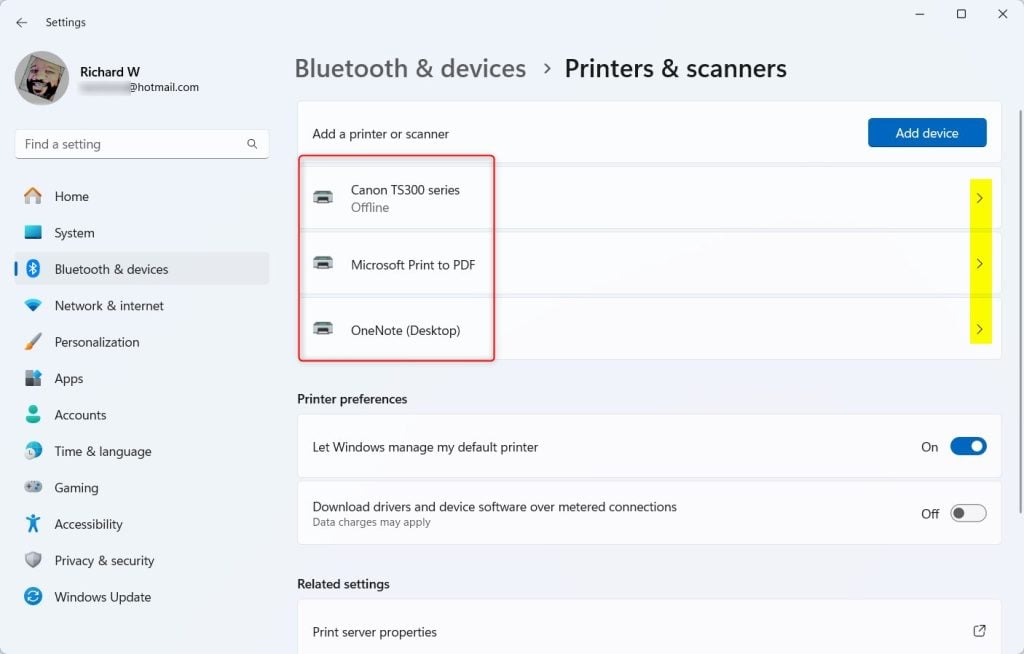
- Select your printer. Its settings page opens.
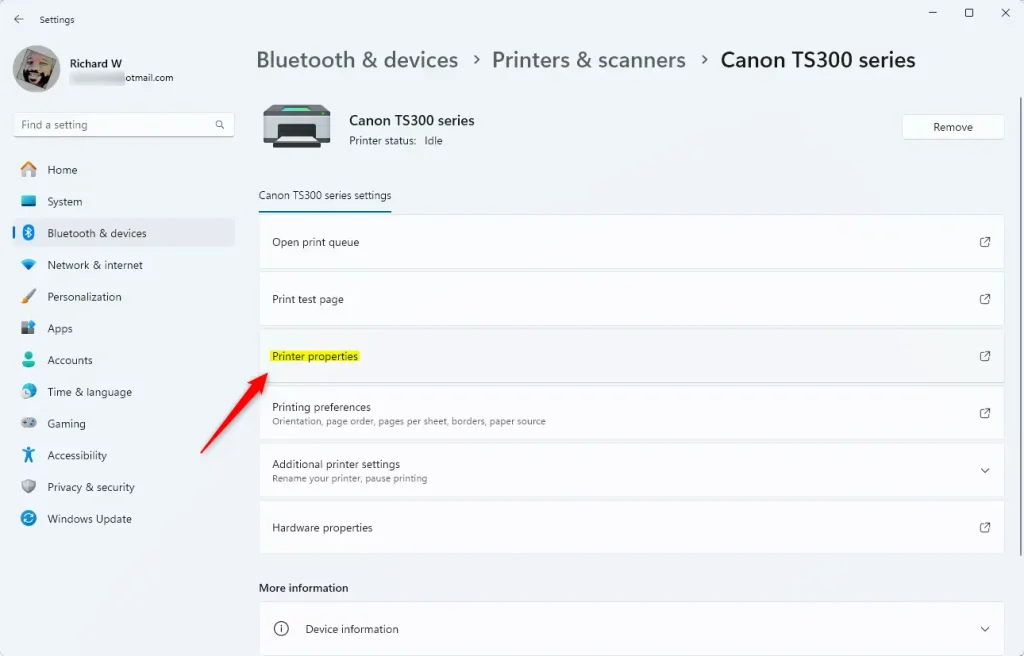
- Select Printer properties. A properties window opens.
- Open the Advanced tab. The Driver box shows the name of the driver in use. A name that starts with “Microsoft”, such as Microsoft IPP Class Driver, is a Windows class driver. A name with your printer’s model number is usually the manufacturer’s driver.
- Select Cancel to close the window without changing anything.
To see the driver version and date, use Device Manager:
- Right-click Start and select Device Manager.
- Expand Print queues. Your printer appears in the list.
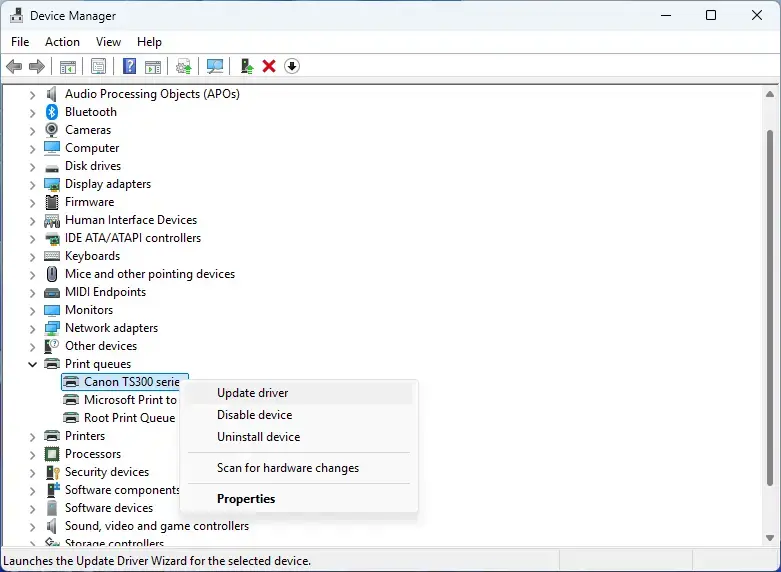
Device Manager - Double-click the printer and open the Driver tab. Driver Provider, Driver Date and Driver Version are listed. Note them down.
If your printer is not under Print queues, select View Show hidden devices. Some printers also appear under a different category. If you still cannot find it, use the Printers & scanners route above.
Let Windows Update Install the Driver
This is the lowest-risk route. Windows picks a driver it has tested for your printer. Installing driver updates usually requires administrator privileges, so sign in with an administrator account, or enter the username and password of an administrator account if prompted.
- Open Settings Windows Update.

Settings › Windows Update - Select Check for updates. Windows checks for updates and installs them as it finds them.
- Select Advanced options.
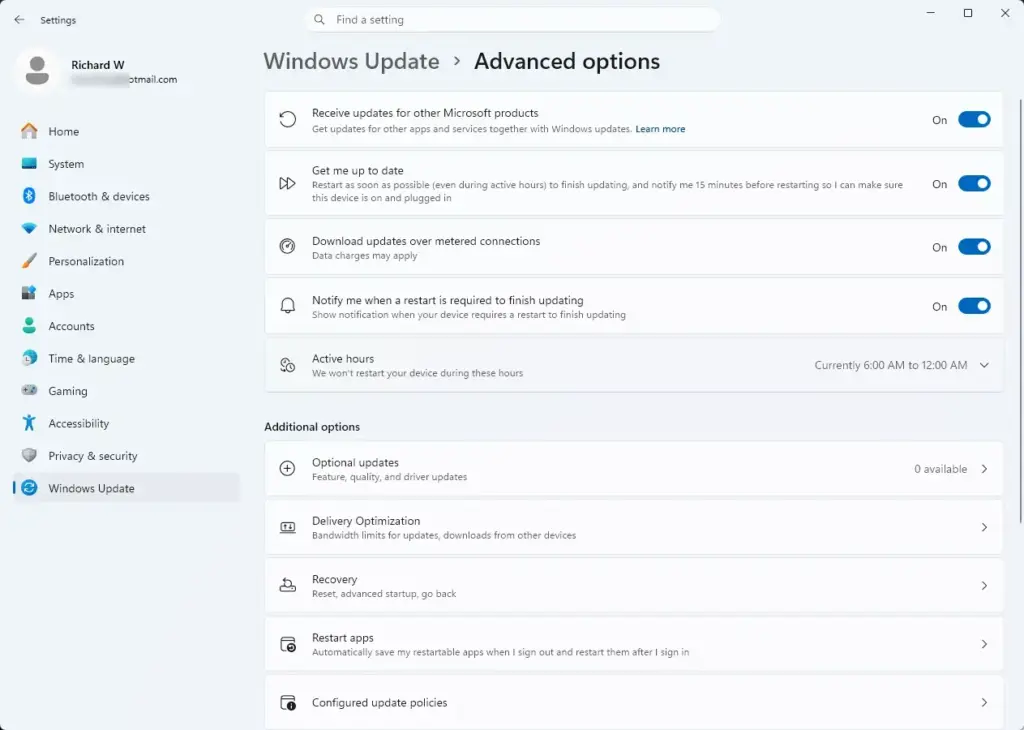
Settings › Update › Advanced options - Select Optional updates. If this entry is missing, Windows has no optional updates for your PC. That is not an error. It means no newer driver is waiting.
- Expand Driver updates. Look for an entry that names your printer or its manufacturer.
- Tick the box next to the printer driver and select Download & install. Windows installs the driver. You may see a restart prompt.
- Restart the PC if Windows asks you to, then print a test page to confirm it works.
If Driver updates lists several items and you do not recognise them, install only the printer entry. Leave the rest for now.
Check Whether Windows Can Download Drivers on a Metered Connection
If you use a mobile hotspot or another connection set to metered (a connection with a data limit), Windows may hold back driver downloads. To check, open Settings Bluetooth & devices Printers & scanners. Under Printer preferences, look for Download drivers and device software over metered connections. Turn it on only if your data plan allows it. Turn it off again afterwards if you want to save data.
Install the Driver From the Manufacturer
Installing a driver changes your system and can be awkward to remove, so create a restore point first. A restore point is a snapshot Windows can return to if something goes wrong. This step requires administrator privileges.
- Select Start, type Create a restore point and open the result. The System Properties window opens on the System Protection tab.
- Select Create, type a name such as Before printer driver, and select Create again. Windows tells you when the restore point is ready.
If Create is greyed out, System Protection is off for your system drive. Select the drive, select Configure, choose Turn on system protection, and then try again.
Now get the right driver:
- Open Settings System About. Under Device specifications, read System type. It shows 64-bit with either an x64-based or ARM-based processor. You need a driver that matches.
- Find the exact model on the printer itself. It is usually on a label on the front or back, for example Model 1234. Series names are often not enough, because one family can have different drivers.
- Open the manufacturer’s support site and search for your model.
- Select Windows 11 as the operating system. If the site lists only Windows 10, the Windows 10 driver usually works on Windows 11, but check the manufacturer’s notes.
- Choose the package. A “full software” package installs the driver plus scanning and utility tools. A “driver only” package installs just what Windows needs to print. Pick driver only if you want printing and nothing else.
- Download the file and save it somewhere you can find it, such as your Downloads folder.
- Right-click the downloaded installer and select Run as administrator. This step requires administrator privileges. Approve the User Account Control prompt if it appears.
- Follow the installer. Connect the printer’s USB cable only when the installer asks you to. Installing with the cable already attached can make Windows pick its own driver first.
- Restart the PC if the installer asks.
- Return to Settings Bluetooth & devices Printers & scanners, select your printer, select Printer properties, and on the General tab select Print Test Page. A test page prints if the driver works.
If the installer stops with an error such as “no printer found,” check that the printer is on and connected to the same network or USB port, and run the installer again. If it still fails, use the Device Manager route below with the downloaded files.
Update the Driver in Device Manager
Use Device Manager to point Windows at a driver you already have, or to ask Windows to look again. It suits cases where the manufacturer provides a driver folder with no installer.
- Right-click Start and select Device Manager.
- Expand Print queues.
- Right-click your printer and select Update driver. A window asks how you want to search.
- Select Search automatically for drivers to let Windows check. If Windows finds nothing, it says the best drivers are already installed. That only means Windows found nothing better in its own sources. The manufacturer may still have a newer one.
- To use files you downloaded, select Browse my computer for drivers instead. Select Browse, choose the folder with the extracted driver files, and select Next.
After a successful install, Windows shows a message that it has updated your drivers. Print a test page to confirm.
Undo a Driver Update That Made Things Worse
If printing broke after an update, go back to the previous driver. Try the options in this order. Start with the least disruptive.
Roll Back the Driver
Roll Back Driver restores the version that was installed before the last update. This step requires administrator privileges.
- Open Device Manager and expand Print queues.
- Double-click your printer and open the Driver tab.
- Select Roll Back Driver.
- Choose a reason when Windows asks and select Yes. Windows restores the previous driver.
If Roll Back Driver is greyed out, Windows has no earlier version stored. This is common with printers, because installing a package from the manufacturer often does not keep the old driver in a form Windows can roll back to. Use the next option.
Remove the Driver and Start Again
Removing the driver package clears the damaged driver completely. Windows then reinstalls a driver when you add the printer again. This step requires administrator privileges.
- Open Settings Bluetooth & devices Printers & scanners.
- Select your printer and select Remove. Confirm when asked.
- Scroll to Related settings and select Print server properties. A window opens.
- Open the Drivers tab.
- Select Change Driver Settings and approve the User Account Control prompt. The remove option becomes available.
- Select the driver for your printer and select Remove.
- Choose Remove driver and driver package and select OK. Confirm when asked.
- Restart the PC.
- Return to Printers & scanners and select Add device. Windows searches for the printer and installs a driver.
If Windows says the driver is in use and cannot be removed, the printer is still installed. Remove the printer first as in step 2, restart the PC, and try again.
Why Windows Keeps Replacing Your Driver
Two things catch people out:
- Windows Update can overwrite a driver you installed yourself. If Windows considers its version newer or better matched, it can replace yours later. Check the driver version in Device Manager after major updates. If you see a change, you can reinstall the manufacturer’s driver. Under Optional updates, do not install a printer driver you did not intend to use.
- Work or school PCs follow rules that an administrator sets. On a work or school PC, an administrator can control which drivers install. If an option is missing or reverts after you change it, ask your IT team instead of working around it.
Windows Protected Print Mode
On Windows 11 version 24H2 and later, a setting called Windows protected print mode appears in Settings Bluetooth & devices Printers & scanners. When turned on, Windows prints only through its built-in method and does not use third-party printer drivers. If it is on, a driver you install from the manufacturer has no effect. Check the setting before spending time on a manual update. It is off unless you or an administrator turned it on.
What to Do Next
If the printer still misbehaves after updating, remove it and add it again so Windows uses its class driver. If that works, the manufacturer’s driver is the cause, and you can leave the class driver in place. After the next large Windows update, check the driver version in Device Manager, because Windows may have installed a different one. If you printed over the network, update or reinstall the driver on the PC that shares the printer too.
Frequently asked questions
Do printer drivers need to be updated?
Usually not. Windows Update keeps most printer drivers current on its own. Update one yourself only when the printer misbehaves, a feature like scanning is missing, or the manufacturer has released a fix for your model. Check Settings Windows Update Advanced options Optional updates first, since a driver may already be waiting there.
Can I print without downloading the driver?
Often, yes. Many modern printers work with a generic driver that Windows includes, called a class driver. Connect the printer by USB or over your network, and Windows usually installs it automatically. You will still print, but extras like scanning, ink levels, and some paper settings may not work until you install the manufacturer's driver.
How do I install the HP printer driver?
Go to hp.com/support, enter your printer model, and download the full driver package for Windows 11. Download only from hp.com, because fake driver sites are common. Run the installer and follow the prompts. If it asks you to connect the printer, do so, then check Settings Bluetooth & devices Printers & scanners to confirm it appears.
Can a Windows Update cause printer driver issues?
Yes, occasionally. A new driver can stop a printer from printing, remove features, or prevent Windows from finding it. To undo the change, open Device Manager, expand Print queues, right-click your printer, and choose Properties. On the Driver tab, select Roll Back Driver if that button is available.
Still have a question?
Answered by AI from this guide. Good questions may be added to this page — please don't include personal details.
Did this guide fix your problem?

About the Author
Richard
Tech Writer, IT Professional
Richard is a writer at Geek Rewind who turns complex IT tasks into clear, step-by-step guides. He draws on years of hands-on experience in system administration and enterprise IT operations, focusing on Windows, Linux and WordPress: the problems people actually run into, and the fixes that work. His server and WordPress guides come from systems he runs himself. Richard builds and maintains the platform behind Geek Rewind, from its Ubuntu servers and Nginx configuration to its custom WordPress plugins. Many new tutorials start with readers' questions, and he's always glad to answer them in the comments.
No comments yet — be the first to share your thoughts!