Find Which Printer Driver Version Is Installed in Windows 11

- 30 steps
- Needs administrator rights
A printer driver is the small program that lets Windows 11 talk to your printer. You can check its version in three places: Device Manager, PowerShell, or the Print Management console. Device Manager is the quickest choice when you only need to check one printer. PowerShell lists every printer driver on the PC at once.
Once you have the version number, compare it with the latest release on the manufacturer’s support site. That tells you whether an update is worth installing. Check the version before you change anything, so you know what you started with.
Looking up driver details does not need administrator rights. Removing or replacing a driver does, and the steps below flag where that applies.
To check your printer driver version in Windows 11, open Device Manager, expand Print queues, right-click your printer, select Properties, and open the Driver tab. It shows the Driver Version and Driver Date. For printers missing from Device Manager, run Get-PrinterDriver in PowerShell, which lists every installed driver, including network printers.
Which Method Should You Use?
Each tool reads slightly different information, so pick the one that fits your situation.
- Device Manager shows the driver date and version for one printer. It is the easiest route, but some network printers do not appear in it.
- PowerShell lists every installed printer driver, including ones for network printers that Device Manager skips.
- pnputil lists driver packages in the driver store (the folder where Windows keeps driver packages before and after installing them). It also shows packages that are staged but not in use.
- Print Management gives a sortable table of drivers with a version column. It is not available on Windows 11 Home.
- Windows Update history does not show the current version. It shows which driver updates Windows has installed and when.
Check the Driver Version in Device Manager
Device Manager is the Windows tool that lists your hardware and the driver each device uses. Use it when the printer is connected by USB or has been added as a standard Windows printer.
Open the printer’s Driver tab
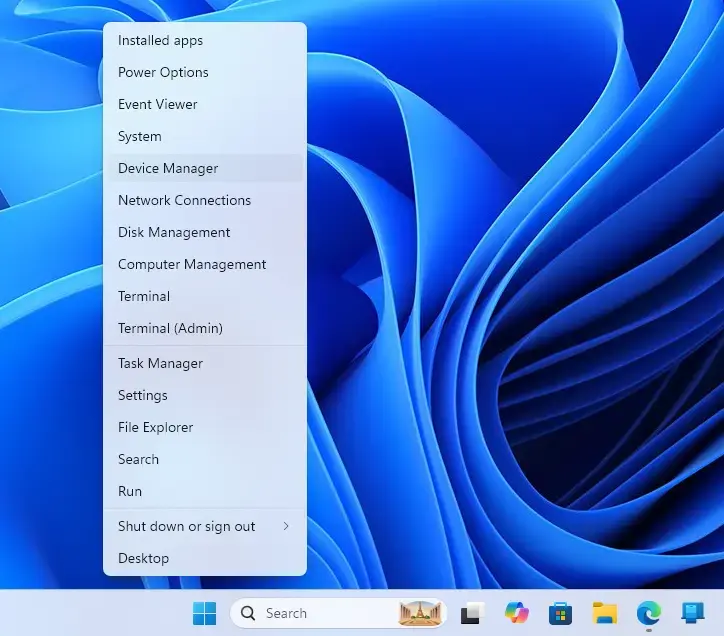
- Right-click the Start button and select Device Manager. The Device Manager window opens with a list of hardware categories.
Device Manager - Expand Print queues by selecting the arrow next to it. You see an entry for each installed printer, plus entries such as Microsoft Print to PDF.
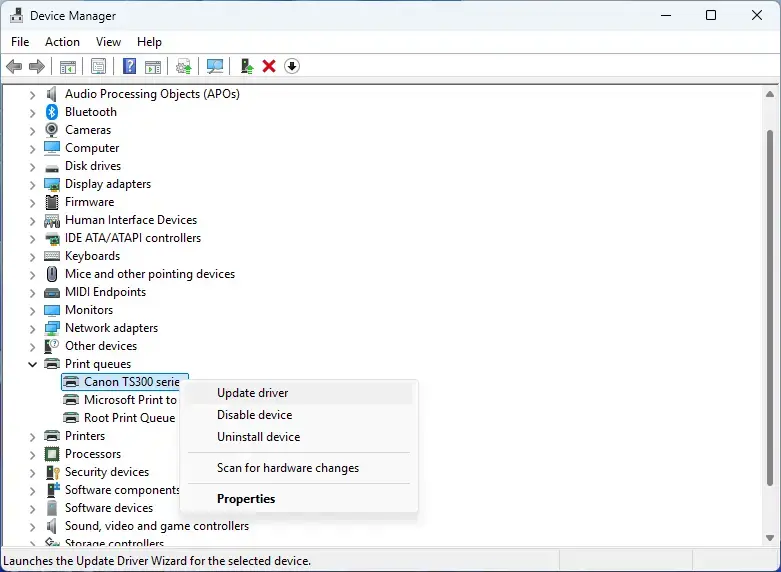
Device Manager - Right-click your printer and select Properties.
- Select the Driver tab. You see Driver Provider, Driver Date, Driver Version and Digital Signer.
- Note the Driver Date and Driver Version together. The manufacturer’s download page usually lists both, and the date helps when two releases have similar version numbers.
Select Driver Details on the same tab to see the individual files the driver uses and the folder each one sits in.
If your printer is not under Print queues
Network printers connected over a TCP/IP port (a standard network connection) often do not appear in Device Manager. Some printers appear twice, once as a USB device and once as a print queue. If yours is missing, or the printer’s Properties window has no Driver tab, use PowerShell or pnputil below.
List Every Printer Driver with PowerShell
The Get-PrinterDriver cmdlet (a built-in PowerShell command) reads the printer drivers Windows has installed. It does not need administrator rights.
Run Get-PrinterDriver
- Right-click the Start button and select Terminal. A PowerShell window opens. If your build opens Command Prompt instead, type
powershelland press Enter. - Run this command to list each driver with its provider and type:PowerShell
Get-PrinterDriver | Select-Object Name, Manufacturer, MajorVersion, DriverVersionYou see one row per driver. MajorVersion is 3 or 4, which tells you the driver type (explained below).
The DriverVersion column shows a very long whole number rather than something like 12.4.1.0. Windows stores the version as one large number with four parts. The next step turns it back into a readable version. The next step splits it back into a readable version.
Convert DriverVersion into a readable version
- Run this command as a single line:PowerShell
Get-PrinterDriver | Select-Object Name, @{Name='Version';Expression={ $v=[uint64]$_.DriverVersion; '{0}.{1}.{2}.{3}' -f (($v -shr 48) -band 0xFFFF), (($v -shr 32) -band 0xFFFF), (($v -shr 16) -band 0xFFFF), ($v -band 0xFFFF) }}The output now has a Name column and a Version column such as 12.4.1.0.
- Find your printer’s driver by name. If the table is long, add
| Where-Object Name -like "*Example*"to the end of the command, replacing Example with part of your printer’s model name.
If the Version column is blank or shows 0.0.0.0 for a driver, Windows has no version recorded for it. Use Device Manager or pnputil for that driver.
Why you see Type 3 and Type 4 drivers
A Type 3 driver is the older printer driver model. A Type 4 driver is the newer model that Windows 8 introduced and Windows 11 still supports. Many printers in Windows 11 use the Microsoft IPP Class Driver, a driver built into Windows that talks to modern network printers without a manufacturer package. Windows itself updates that driver, so its version follows Windows updates rather than the manufacturer’s releases. If your printer uses it, no manufacturer version exists to compare against.
Why the same printer appears more than once
The list can show two entries for one model. One may be a 32-bit and one a 64-bit driver, or one may be Type 3 and the other Type 4. Check the PrinterEnvironment property if you need to tell them apart. Add PrinterEnvironment to the Select-Object list in the first command.
Read Driver Packages with pnputil
The pnputil command is a built-in tool that manages the driver store. It lists the version and date for each driver package, whether or not a printer currently uses it. This helps when you want to see whether an old driver package is still on the PC.
- Open Terminal as described above.
- Run this command to list printer-class driver packages:Code
pnputil /enum-drivers /class PrinterIf you see an access denied message, close the window, right-click Start, select Terminal (Admin) and run the command again. This step may need administrator rights on some systems.
- Read each block of output. The fields that matter are Published Name (the name Windows gave the package, such as oem12.inf), Original Name (the manufacturer’s INF file), Provider Name, Driver Version and Signer Name. A block looks like this, with generic values:Code
Published Name:     oem12.inf
Original Name:      example.inf
Provider Name:      Example Corp
Class Name:         Printer
Driver Version:     03/14/2023 12.4.1.0
Signer Name:        Microsoft Windows Hardware Compatibility Publisher
The Driver Version line shows the date first and the version number second. Old packages you installed and later replaced can still show up in this list. An entry here does not prove the printer uses it.
Use the Print Management Console
The Print Management console is an administrative tool that shows printers and drivers in tables. It is not included in Windows 11 Home. On other editions it may need to be added first, and this article does not cover that. If the steps below fail to open the console, use one of the methods above.
- Press Win+R, type
printmanagement.mscand press Enter. If the console is installed, Print Management opens. If Windows reports that it cannot find the file, the console is not available on your PC. - Expand Print Servers, then expand the entry for your PC (named like COMPUTER-NAME (local)).
- Select Drivers. The centre pane lists every installed driver with columns for its name, environment, version and provider.
- Select the column header for the version to sort the list, or find your printer’s driver by name.
Find Out Which Driver a Printer Actually Uses
Your PC may have several drivers installed for one model. This check shows which one the printer queue uses right now.
- Open Settings and go to Bluetooth & devices Printers & scanners.
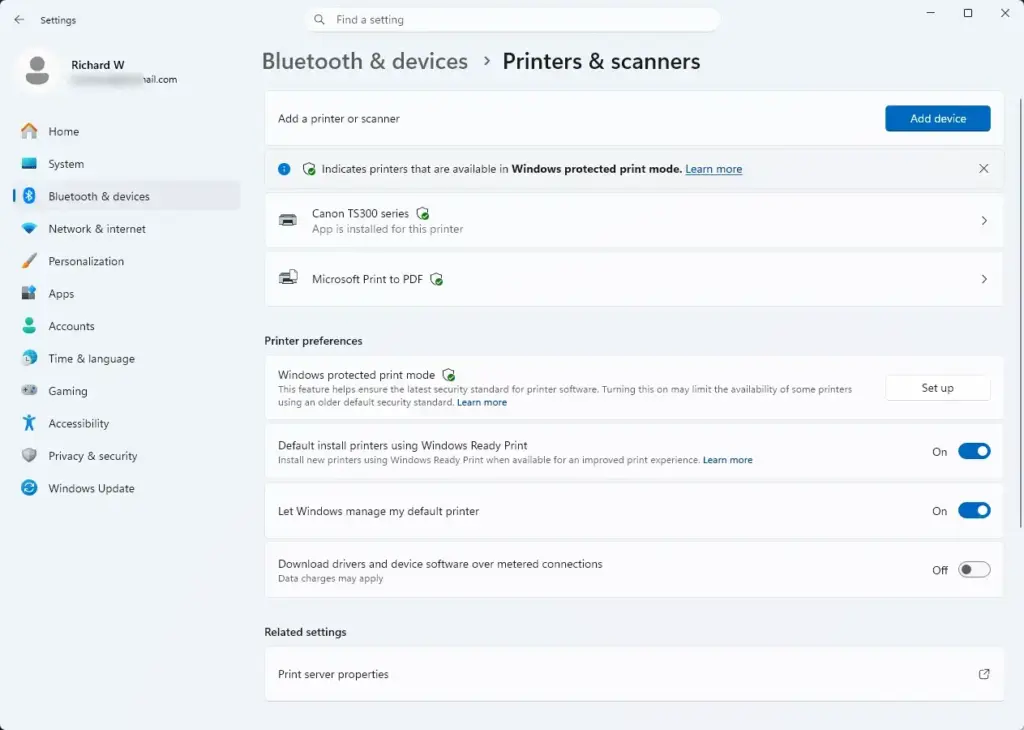
Settings › Bluetooth › Printers - Select your printer from the list. The printer’s page opens.
- Select Printer properties. A Properties window opens.
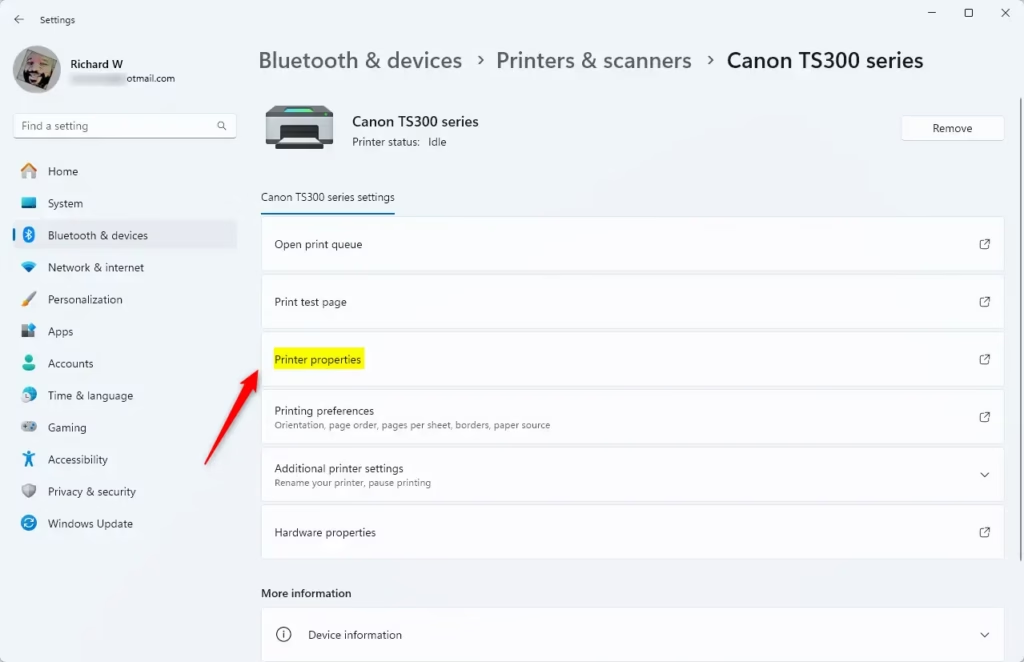
- Select the Advanced tab. The Driver box shows the name of the driver this printer uses.
- Match that name to the entry in Device Manager or in the PowerShell output.
See the List of Installed Drivers in Print Server Properties
This window lists driver names, but it does not show version numbers in the list. Use it to confirm which drivers exist, then check versions with another method.
- Open Settings and go to Bluetooth & devices Printers & scanners.
- Scroll to Related settings and select Print server properties. The Print Server Properties window opens.
- Select the Drivers tab. You see the installed drivers with their processor type (x64 or x86) and driver type.
Check Windows Update for Printer Driver Changes
Windows Update installs some printer drivers on its own. The update history shows when it did that, which explains why a driver version changed without you doing anything.
- Open Settings and go to Windows Update Update history.
- Expand Driver Updates. You see driver updates with their install dates. Printer drivers appear here by name when Windows installed them.
If no printer entry is listed, Windows Update did not install your driver. It came from the manufacturer’s installer or an earlier manual install.
Compare Your Version Before Updating Printer Drivers
Updating printer drivers makes sense when your installed version is older than the manufacturer’s current one and you have a problem to fix, such as missing features, garbled output or a printer that goes offline. If the printer works, a newer version is not always better.
- Note the Driver Date and Driver Version from Device Manager or the PowerShell output.
- Open the manufacturer’s support page for your exact printer model and choose Windows 11 as the operating system.
- Compare the version and release date on the page with what you noted. The numbers may not match exactly. A manufacturer sometimes lists the version of the whole software package, while Windows shows the version of the driver inside it. If the dates are close and the first numbers agree, you most likely have the current driver.
- If the manufacturer’s version is clearly newer, download it and run the installer. This step usually asks for administrator approval.
After installing, repeat the Device Manager steps to confirm the new version shows. Windows may also offer a newer driver through Settings Windows Update Advanced options Optional updates, under Driver updates.
Undo a driver update that made things worse
You can go back to the previous driver if the new one causes problems. In Device Manager, open the printer’s Properties, select the Driver tab and select Roll Back Driver. Roll Back Driver is greyed out when Windows has no older driver stored for that device. This is common after a clean install, or when the update removed the old driver. In that case, download the older version from the manufacturer and install it over the current one.
What to do next
If your printer still does not appear in any of these lists, it is not installed on this PC. Add it from Settings Bluetooth & devices Printers & scanners by selecting Add device. If the version you found is current and the printer still fails, the cause is more likely the print spooler (the Windows service that queues print jobs) or the port than the driver. Restarting the Print Spooler service from the Services app is the next thing to try.
Have a question about this guide?
Answered by AI from this guide. Good questions may be added to this page — please don't include personal details.
Did this guide fix your problem?

About the Author
Richard
Tech Writer, IT Professional
Richard is a writer at Geek Rewind who turns complex IT tasks into clear, step-by-step guides. He draws on years of hands-on experience in system administration and enterprise IT operations, focusing on Windows, Linux and WordPress: the problems people actually run into, and the fixes that work. His server and WordPress guides come from systems he runs himself. Richard builds and maintains the platform behind Geek Rewind, from its Ubuntu servers and Nginx configuration to its custom WordPress plugins. Many new tutorials start with readers' questions, and he's always glad to answer them in the comments.
No comments yet — be the first to share your thoughts!