How to Turn On or off Downloading Windows Updates on Metered Internet in Windows 11

- 4 ways to do it
- Needs administrator rights
- Group Policy needs Windows 11 Pro, Enterprise or Education
- Includes a restart or sign-out
Windows 11 can hold back large update downloads when you are on a metered connection. A metered connection is any connection where your provider charges by data use or caps it, such as a mobile hotspot or a limited home plan. This tutorial shows how to let Windows download updates on those connections, or stop it from doing so, so updates do not use up your data.
By default, Windows only downloads priority updates over a connection marked as metered. Larger updates wait until you connect to an unmetered network. Turning this setting on lets Windows download everything, including large updates. Turning it off keeps the default, data-saving behavior.
There are four ways to change it: the Settings app, a registry command, Local Group Policy Editor, or a registry policy command. The Settings app is the easiest and works on every edition. The other methods need administrator rights, and Group Policy Editor is only available on Pro, Enterprise and Education.
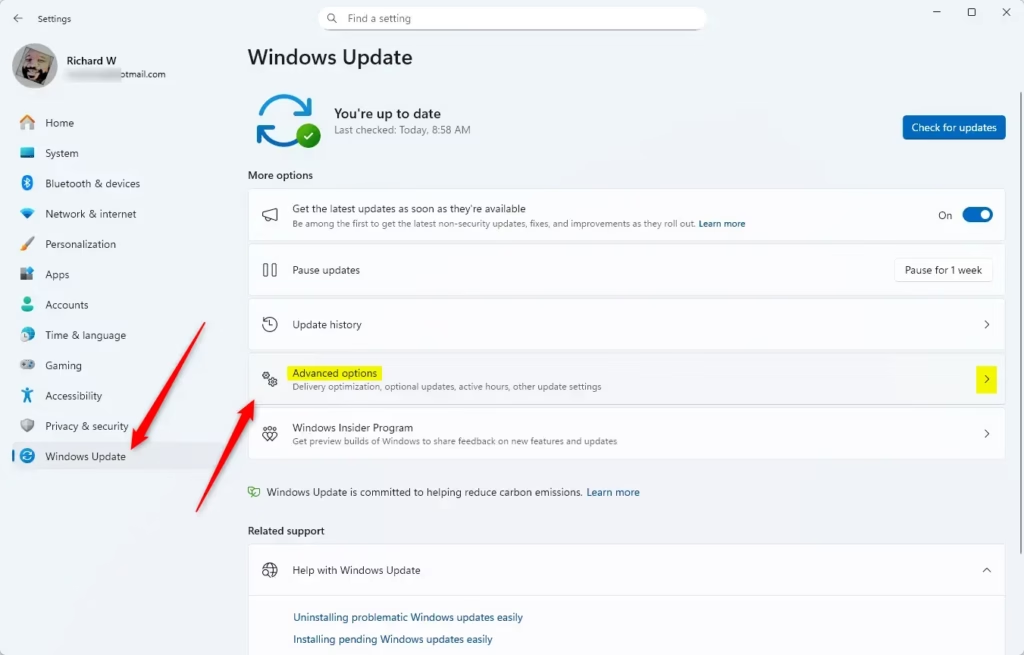
Open Settings Windows Update Advanced options and toggle Download updates over metered connections On to allow all updates on limited data, or Off to download only priority updates. The change applies immediately.
How To Turn On or Off Automatic Update Downloads on Metered Connections
Option 1Use the Settings App (Easy Way)
- Press Win+I to open Settings.
- On the left side, click Windows Update. The update status page opens on the right.
- On the right side, click Advanced options.
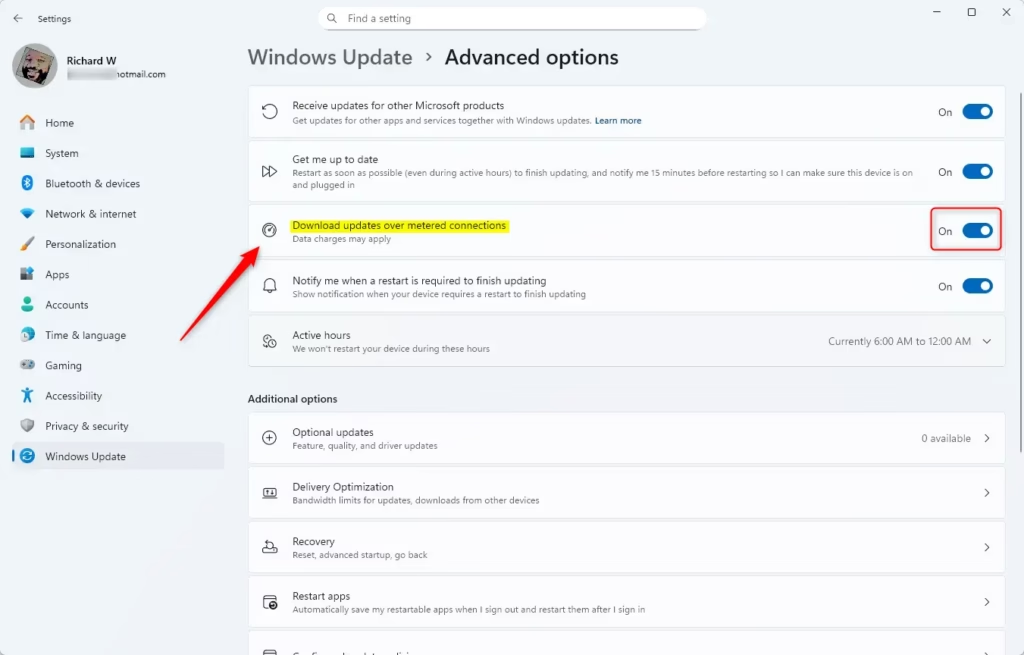
- Find the setting called Download updates over metered connections.
- Turn it On if you want Windows to download all updates even on limited data. Expect more data use, since feature and cumulative updates can be several hundred megabytes or more.
- Turn it Off (default) if you want to save data and download only important updates.
- Close the Settings window. The change applies immediately and you do not need to restart.
This setting only matters when Windows treats your current network as metered. To check that, go to Settings Network & internet, open the properties of your Wi-Fi or Ethernet connection, and look at the Metered connection switch. To undo the change, return to the same page and flip the toggle back.
Option 2Use a Registry File (For Advanced Users)
To enable downloading updates on metered connections, run the command below.
reg add "HKEY_LOCAL_MACHINE\SOFTWARE\Microsoft\WindowsUpdate\UX\Settings" /v AllowAutoWindowsUpdateDownloadOverMeteredNetwork /t REG_DWORD /d 1 /f
If you wish to disable these downloads (which is the default), use this command:
reg add "HKEY_LOCAL_MACHINE\SOFTWARE\Microsoft\WindowsUpdate\UX\Settings" /v AllowAutoWindowsUpdateDownloadOverMeteredNetwork /t REG_DWORD /d 0 /f
After running the command, restart your computer for the changes to take effect. To confirm the result, open Settings Windows Update Advanced options and check the Download updates over metered connections toggle. To undo the change, run the other command.
Option 3Use Local Group Policy Editor (For 🪟 Windows 11 Pro and above)
Local Group Policy Editor is the policy-based way to control this setting. It is only available in Windows 11 Pro, Enterprise and Education. On Windows 11 Home the editor is not installed, so use the Settings app or the registry methods instead.
- Press Win+R, type
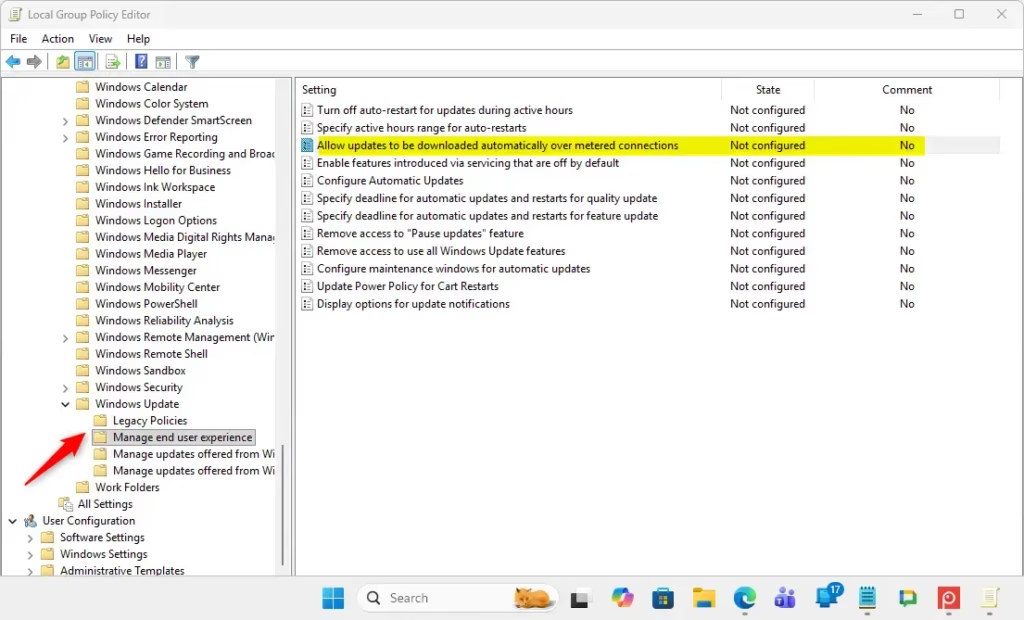
gpedit.msc, and press Enter. The Local Group Policy Editor window opens. Click Yes if User Account Control asks for permission. - In the left pane, go to:
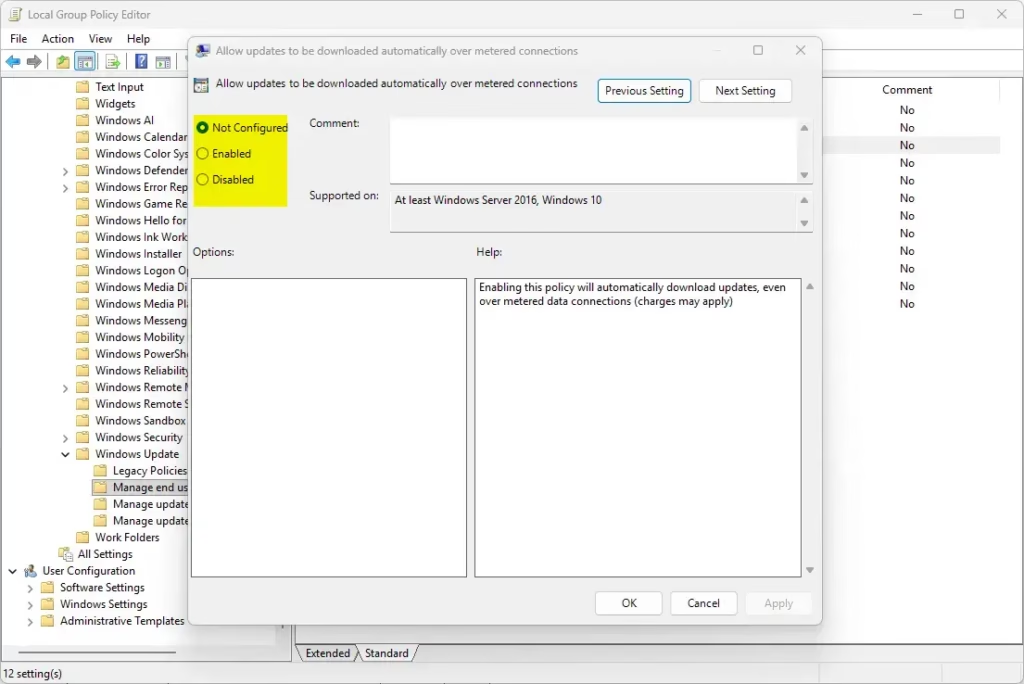
Computer Configuration > Administrative Templates > Windows Components > Windows Update > Manage end user experience - In the right pane, double-click Allow updates to be downloaded automatically over metered connections. The policy settings window opens.
- To allow automatic updates over metered connections, select Enabled, then click OK.
- To block them, select Disabled or Not Configured (default), then click OK.
- Close the Local Group Policy Editor and restart your PC.
To undo the change, open the same policy and set it back to Not Configured. That returns Windows to its default behavior.
Option 4Use Registry File for Policies (Advanced)
This method sets the same policy that Group Policy Editor uses, but writes it straight to the registry. It works on any edition, including Home. Open Terminal, Windows PowerShell or Command Prompt as administrator before you run the commands.
To enable:
reg add "HKEY_LOCAL_MACHINE\SOFTWARE\Policies\Microsoft\Windows\WindowsUpdate" /v AllowAutoWindowsUpdateDownloadOverMeteredNetwork /t REG_DWORD /d 1 /f
To disable (default):
reg add "HKEY_LOCAL_MACHINE\SOFTWARE\Policies\Microsoft\Windows\WindowsUpdate" /v AllowAutoWindowsUpdateDownloadOverMeteredNetwork /t REG_DWORD /d 0 /f
To remove this setting and use default behavior:
reg delete "HKEY_LOCAL_MACHINE\SOFTWARE\Policies\Microsoft\Windows\WindowsUpdate" /v AllowAutoWindowsUpdateDownloadOverMeteredNetwork /f
Restart your computer after applying these changes. If you are unsure which command to use, the remove command is the safest way to undo your work, because it deletes the policy value instead of overriding it.
Summary
- You can control whether Windows 11 downloads all updates automatically on metered (limited data) connections.
- Use the Settings app for the easiest way. No restart is needed.
- Advanced users can use Registry Editor or Group Policy Editor for more control. Group Policy Editor is only on Pro, Enterprise and Education, and both methods need a restart.
- Always be sure you have administrator rights before making these changes.
- Checking these settings can help you avoid unexpected extra data charges.
Managing updates on metered connections in Windows 11 helps you avoid unexpected data charges and keeps your plan within its limit. Choose the Settings app, the registry, or Group Policy Editor depending on your edition of Windows and how much control you need.
Frequently asked questions
Should I turn on download updates over metered connections?
Turn it on only if you have plenty of data. By default, Windows holds back large updates on metered connections and only downloads essential priority updates. Enable it if you want all updates downloaded immediately, but be aware this can use significant data on plans with caps or overage charges.
How to stop 🪟 Windows 11 update on metered connection?
Open Settings and go to Windows Update. Click Advanced options, then scroll down and toggle off "Download updates over metered connections". This keeps Windows in its default mode: only priority updates download on metered networks, larger updates wait for unmetered internet.
Should I turn on or off the metered connection in 🪟 Windows 11?
Turn metered connection on if your internet plan has data limits or charges per gigabyte—like a mobile hotspot or capped home plan. Turn it off for unlimited connections. Mark the connection in Settings under Network by clicking it and toggling "Set as metered connection".
Is it better to have metered connection on or off?
Have metered connection on if you pay per gigabyte or have monthly caps—it reduces data use by delaying large updates. Have it off for unlimited plans where data doesn't matter. The right choice depends entirely on whether your provider charges by usage or limits your monthly total.
Still have a question?
Answered by AI from this guide. Good questions may be added to this page — please don't include personal details.
Did this guide fix your problem?

About the Author
Richard
Tech Writer, IT Professional
Richard is a writer at Geek Rewind who turns complex IT tasks into clear, step-by-step guides. He draws on years of hands-on experience in system administration and enterprise IT operations, focusing on Windows, Linux and WordPress: the problems people actually run into, and the fixes that work. His server and WordPress guides come from systems he runs himself. Richard builds and maintains the platform behind Geek Rewind, from its Ubuntu servers and Nginx configuration to its custom WordPress plugins. Many new tutorials start with readers' questions, and he's always glad to answer them in the comments.
No comments yet — be the first to share your thoughts!