How to Enable or Disable Windows Update Delivery Optimization in Windows 11

- 18 steps
- Needs administrator rights
- Group Policy needs Windows 11 Pro, Enterprise or Education
- Includes a restart or sign-out
Windows Update Delivery Optimization shares Windows 11 system updates and app downloads with other computers on your local network or the internet to speed up installation. It runs in the background. It reduces the data you pull from Microsoft by grabbing pieces of an update from nearby PCs instead of downloading every file directly from Microsoft servers.
Windows 11 turns this sharing on by default during setup. You can restrict sharing to devices on your local network, or turn it off completely. This tutorial covers two ways to do that: the Settings app, which works on every edition, and the Local Group Policy Editor, which is only on Pro, Enterprise and Education.
Open Settings, go to Windows Update Advanced options Delivery Optimization, then toggle Allow downloads from other PCs on or off. Choose Devices on my local network for local sharing only, or Devices on the internet and my local network to share over the internet. The change applies immediately.
What is Delivery Optimization?
Delivery Optimization is a built-in Windows 11 feature that speeds up large system updates and app downloads by fetching files from other computers on your local network and, if you allow it, the internet. Instead of downloading every file directly from Microsoft servers, your PC gets pieces of the update from nearby devices. It also shares pieces it already has with them. That saves internet bandwidth and cuts down the wait, especially if you manage several PCs on one connection.
Here’s how it works:
- Your PC looks for other devices that already have parts of the update or app you need.
- It downloads small pieces from those devices and from Microsoft at the same time. Microsoft still checks that the pieces are genuine and complete before Windows installs anything.
- This helps the download finish quicker and uses less internet data. The saving is biggest when several PCs on the same network need the same update.
Turn On or Off Delivery Optimization in Settings
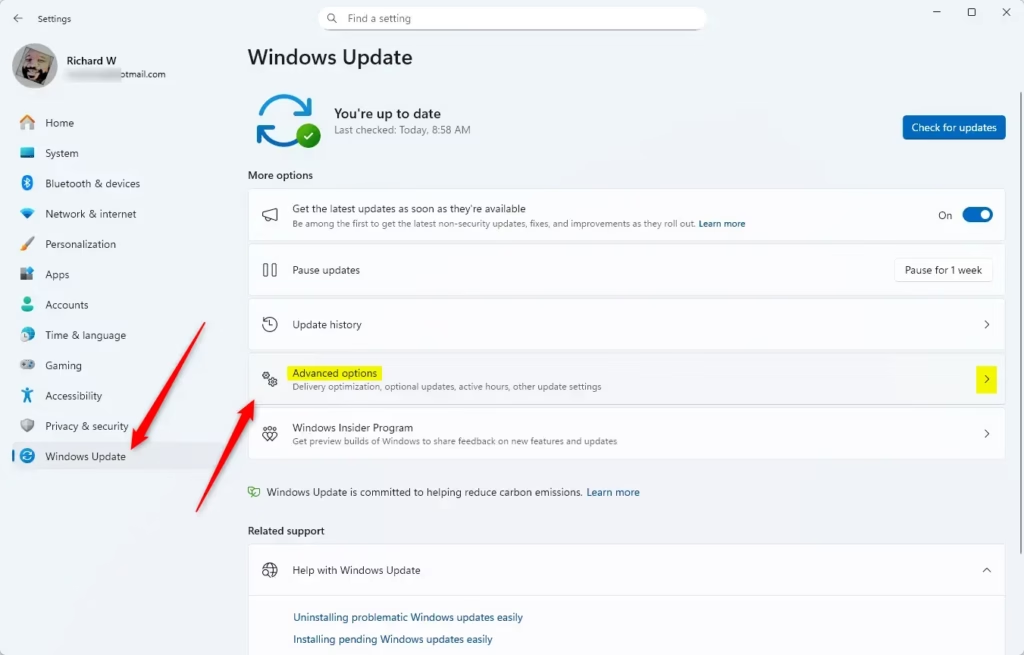
- Press
Win + Ion your keyboard to open Settings Settings. The Settings window opens with a list of categories on the left. - On the left, click Windows Update . Then on the right, click Advanced options. You should now see a list of extra update settings.
- Scroll down and click Delivery Optimization. It sits under the Additional options group. The page that opens has the sharing switch.
This works on both Home and Pro, and you need no special tools. Press the Win and I together to open Settings, go to Windows Update, click Advanced options, and select Delivery Optimization. Then use the steps below.
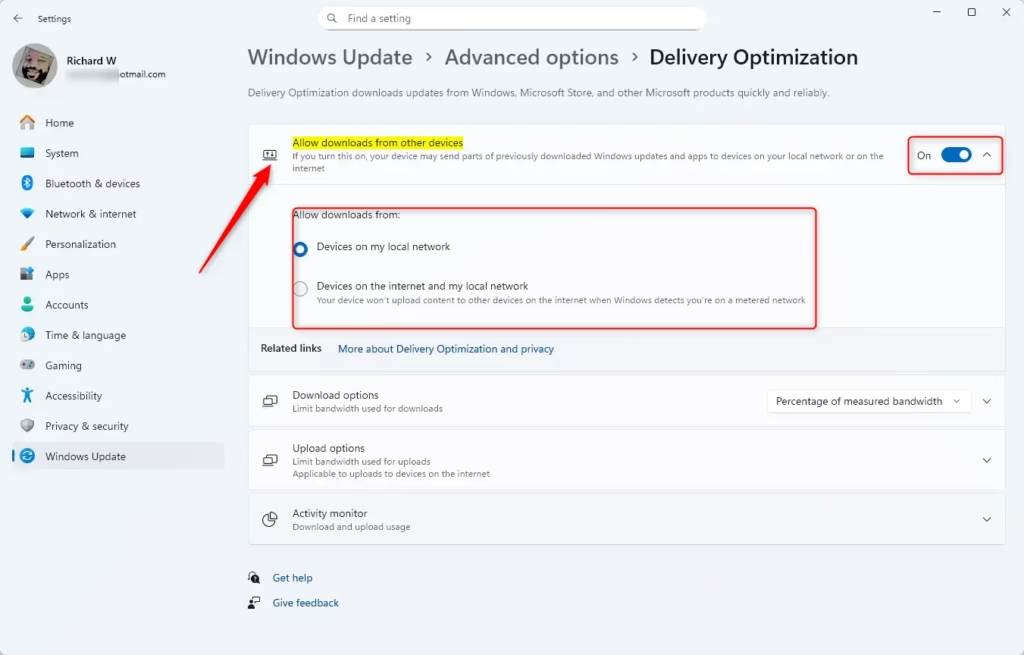
- Switch on Allow downloads from other PCs. When the switch is on, the sharing options appear below it.
- Choose either:
- Devices on my local network (recommended for home networks). Your PC only swaps update pieces with other PCs behind your router.
- Devices on the internet and my local network (allows sharing over the internet too). Your PC can also exchange pieces with other Windows PCs elsewhere, which uses some of your upload bandwidth. Avoid this on a metered or slow connection.
To turn off Delivery Optimization:
- Switch off Allow downloads from other PCs. The sharing options disappear. Your PC now downloads updates only from Microsoft, and Windows Update keeps working as before.
With those changes made, you can close the Settings window. The change applies straight away and you do not need to restart. To undo it, come back to the same page and flip the switch again.
If the switch is greyed out, or you see a message that some settings are managed by your organization, a Group Policy setting is controlling it. Use the next section to check or change that policy.
Enable or Disable Delivery Optimization Using Local Group Policy Editor
You can enable or disable Delivery Optimization in Windows 11 using the Local Group Policy Editor (a built-in tool for managing system settings) if you use Windows Pro, Enterprise, or Education editions. Windows 11 Home does not include this editor, so Home users should stick with the Settings method above. Press the Win and R together, type gpedit.msc, and press Enter to open the editor. A policy set here overrides the switch in Settings.
- **ADMIN REQUIRED** Press
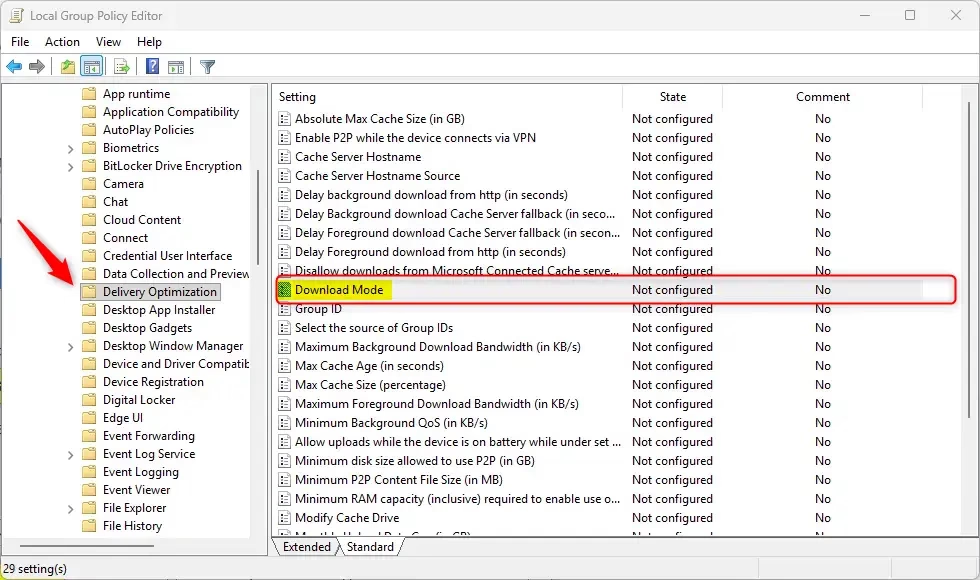
Win + R, typegpedit.msc, and pressEnterto open the Local Group Policy Editor. Click Yes if a User Account Control prompt appears. You need to be signed in as an administrator. - In the left pane, go to:
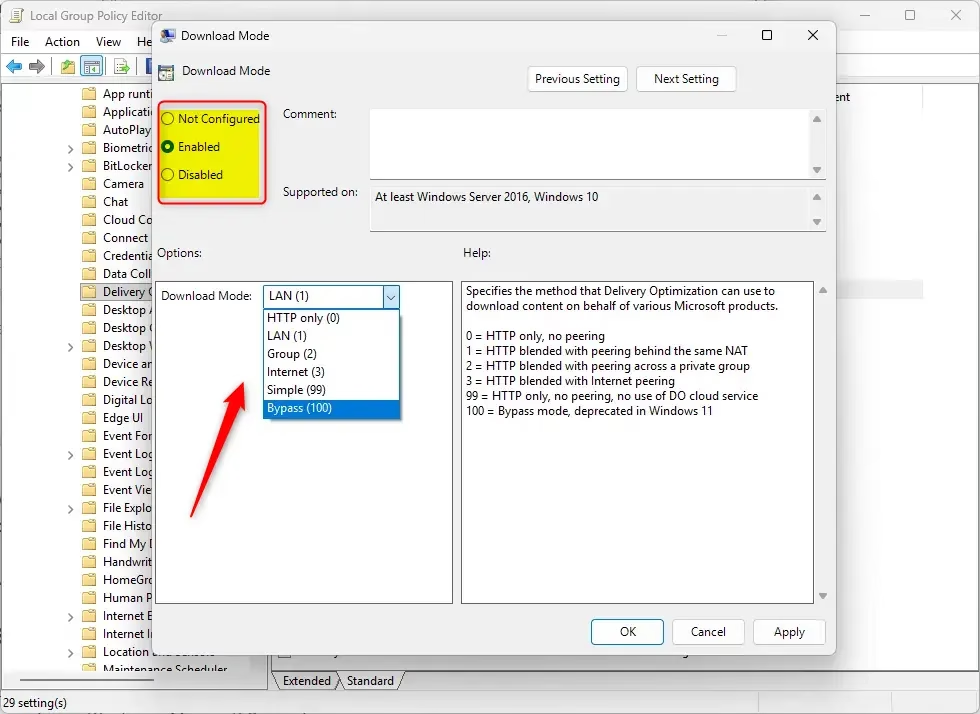
Computer Configuration\Administrative Templates\Windows Components\Delivery Optimization. Click each folder to expand it until you reach the last one. - On the right, double-click Download Mode. A window opens with the policy options.
- Choose one of these options:
- Enable and select LAN (1) to allow downloads only from devices on your local network.
- Enable and select Internet (3) to allow downloads from devices on your local network and the internet.
- Enable and select HTTP only (0) to turn off Delivery Optimization (downloads only from Microsoft).
- Not Configured to let users decide in Settings. This is the default, and it is the option to pick if you want to undo any earlier change.
- Click OK to save your choice. The policy window closes and the Download Mode entry now shows its new state.
- Close the Local Group Policy Editor. The policy usually takes effect without a restart. If Settings still shows the old value, sign out and back in, or restart the PC.
Summary
- Faster updatesDownloads parts from other PCs to speed up updates.
- Data savingShares download data between PCs, saving internet bandwidth.
- Safe and privateOnly shares Windows updates and apps, not personal files.
- Easy controlYou can turn Delivery Optimization on or off anytime.
Delivery Optimization brings several benefits: faster update downloads, lower internet data usage, and safe sharing of update files across your local network. You keep full control. You can turn peer-to-peer sharing on or off whenever you want, and your personal files are never involved. For most home networks, limiting sharing to the local network is a sensible middle ground. If you have a metered connection or want the strictest setup, turn the feature off.
Learn More
Have a question about this guide?
Answered by AI from this guide. Good questions may be added to this page — please don't include personal details.
Did this guide fix your problem?

About the Author
Richard
Tech Writer, IT Professional
Richard is a writer at Geek Rewind who turns complex IT tasks into clear, step-by-step guides. He draws on years of hands-on experience in system administration and enterprise IT operations, focusing on Windows, Linux and WordPress: the problems people actually run into, and the fixes that work. His server and WordPress guides come from systems he runs himself. Richard builds and maintains the platform behind Geek Rewind, from its Ubuntu servers and Nginx configuration to its custom WordPress plugins. Many new tutorials start with readers' questions, and he's always glad to answer them in the comments.
No comments yet — be the first to share your thoughts!