How to Get the Stats with Activity Monitor When Using Delivery Optimization in Windows 11

Delivery Optimization in Windows 11 includes a built-in Activity Monitor. It shows how your PC shares download and upload bandwidth with other devices. It reports your average download speed and where the data came from: Microsoft servers, computers on your local network, or peers on the internet.
These numbers show how much data your PC has contributed to help other PCs finish their updates faster. You can also use them to check how much local network and internet traffic Delivery Optimization is using. Everything is in the Settings app, and you don’t need to install anything. The Activity Monitor is available in both Home and Pro editions.
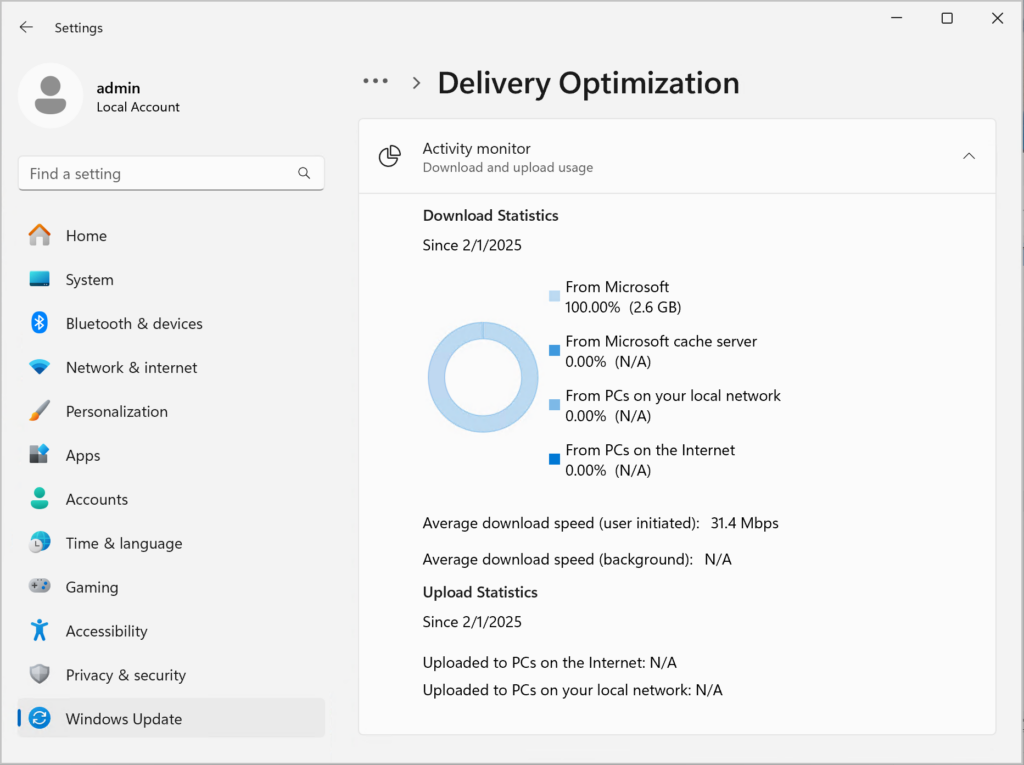
Open Settings , go to Windows Update Advanced options Delivery Optimization, then scroll down and click Activity monitor. This page displays your download sources, average download speed, and how much data your PC uploaded to help other devices.
How to Open the Activity Monitor
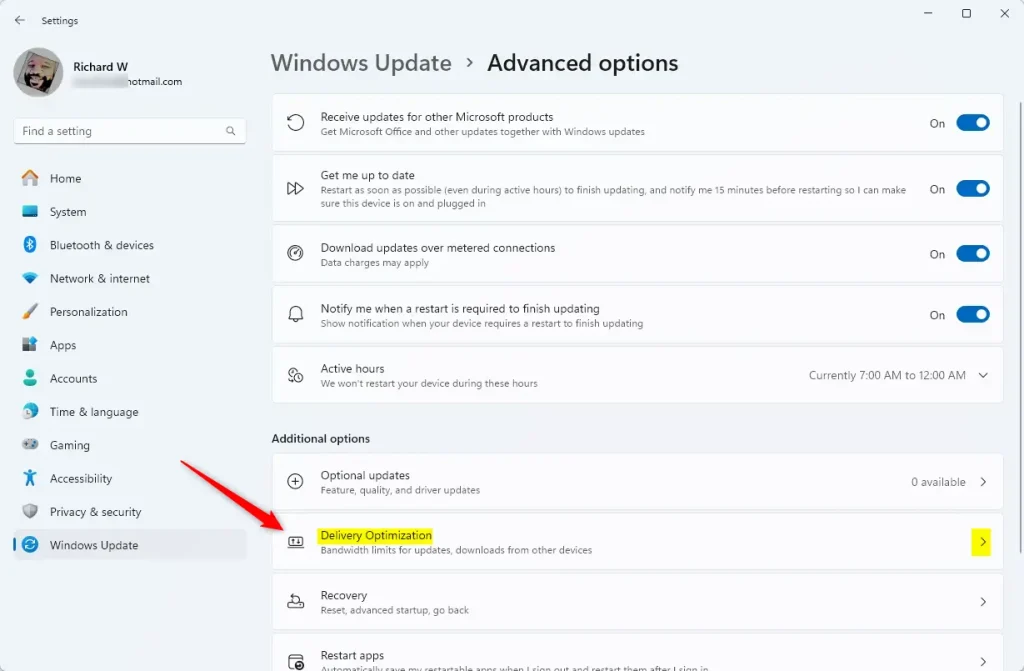
The path to the Activity Monitor is Windows Update , then Advanced options, then Delivery Optimization. Follow these steps on Windows 11:
- Press the Windows key and select the gear icon to open Settings. You should see the Settings window with a menu down the left side.
- Click Windows Update in the left-hand menu. The Windows Update page opens on the right.
- Scroll down and click Advanced options.
- Under Additional options, click Delivery Optimization. This opens the Delivery Optimization settings page.
If you are on Windows 10, the menu is named differently. Click Update & Security, then select Delivery Optimization from the left menu. The layout there differs slightly from Windows 11, so look for the Activity monitor link on that page.
This page has the Allow downloads from other PCs switch. The Activity Monitor only has peer data to show if this switch is On. If it is Off, your PC gets updates only from Microsoft, and the peer figures will be zero or empty.
- Scroll down the Delivery Optimization page to the Additional options section.
- Click Activity monitor. The Activity Monitor page opens and shows your Delivery Optimization stats.
That’s it. You are now looking at the Delivery Optimization Activity Monitor. Nothing here changes any settings, so you can open it as often as you like. To go back, click the back arrow at the top left of the Settings window.
What the Activity Monitor Shows
Delivery Optimization stats show how your computer shares update files with other devices. The Activity Monitor gives exact numbers for data downloaded from local network PCs and internet peers, your average download speed, and upload totals showing how much your own system has shared with others. The figures cover a recent period, not just the last update, so a quiet week may show small totals.
Here is what the main figures mean:
- Downloads from other PCs: This shows how much data your PC downloaded from other computers. It tells you whether the downloads came from your local network or the internet.
- Average download speed: This shows how fast you received downloads from other PCs.
- Upload stats: This shows how much data your computer has sent to help other devices get updates and apps.
- Boost from other PCs: This estimates how much faster your downloads were because other PCs on the internet helped you.
Another common reason is that your PC hasn't downloaded any updates or Store apps recently. If you are on a metered connection, Windows may also limit uploads. Turning the switch back on or off on the Delivery Optimization page is the way to undo or change sharing at any time. No restart is needed.
References:
Summary
The Activity Monitor is found in Windows Settings under Windows Update Advanced options Delivery Optimization It shows where your downloads come from, how fast they are, and how much data you've shared to help other devices on the network or internet. If you want to change how much sharing happens, use the settings on the same Delivery Optimization page.
Have a question about this guide?
Answered by AI from this guide. Good questions may be added to this page — please don't include personal details.
Did this guide fix your problem?

About the Author
Richard
Tech Writer, IT Professional
Richard is a writer at Geek Rewind who turns complex IT tasks into clear, step-by-step guides. He draws on years of hands-on experience in system administration and enterprise IT operations, focusing on Windows, Linux and WordPress: the problems people actually run into, and the fixes that work. His server and WordPress guides come from systems he runs himself. Richard builds and maintains the platform behind Geek Rewind, from its Ubuntu servers and Nginx configuration to its custom WordPress plugins. Many new tutorials start with readers' questions, and he's always glad to answer them in the comments.
No comments yet — be the first to share your thoughts!