How to Choose Network Sharing Options for Delivery Optimization in Windows 11

Delivery Optimization is a built-in Windows 11 feature that lets your PC share downloaded updates and apps with other computers. It speeds up downloads and can cut down on internet data use. You choose how your PC shares these files: with devices on your local network only, with devices on the internet as well, or not at all.
Keeping update traffic inside your home network saves bandwidth and limits who your PC talks to. This guide shows you how to pick the right sharing mode for your setup. The whole change takes about a minute.
Open Settings Windows Update Advanced options Delivery Optimization. Toggle Allow downloads from other devices on or off, then choose Devices on my local network to share only with your home network, or Devices on the internet and my local network to include internet computers. The setting applies immediately with no restart needed.
Choosing How Your Computer Shares Downloaded Files
The Delivery Optimization settings control whether your computer gets updates and apps from other PCs and shares them in return. You can turn sharing off, or restrict it to devices on your local network. Both options save internet bandwidth, and local sharing can still make updates arrive faster. The steps are the same on Windows 11 Home and Pro. No restart is needed, and the change takes effect right away.
Here’s how to change these settings:
- Open Settings . Click the Start button, then click the gear icon labelled Settings. You can also press the Win+I. The Settings window opens.
- Go to Windows Update . In the left-hand list, click Windows Update . You will see the update status and the Check for updates button.
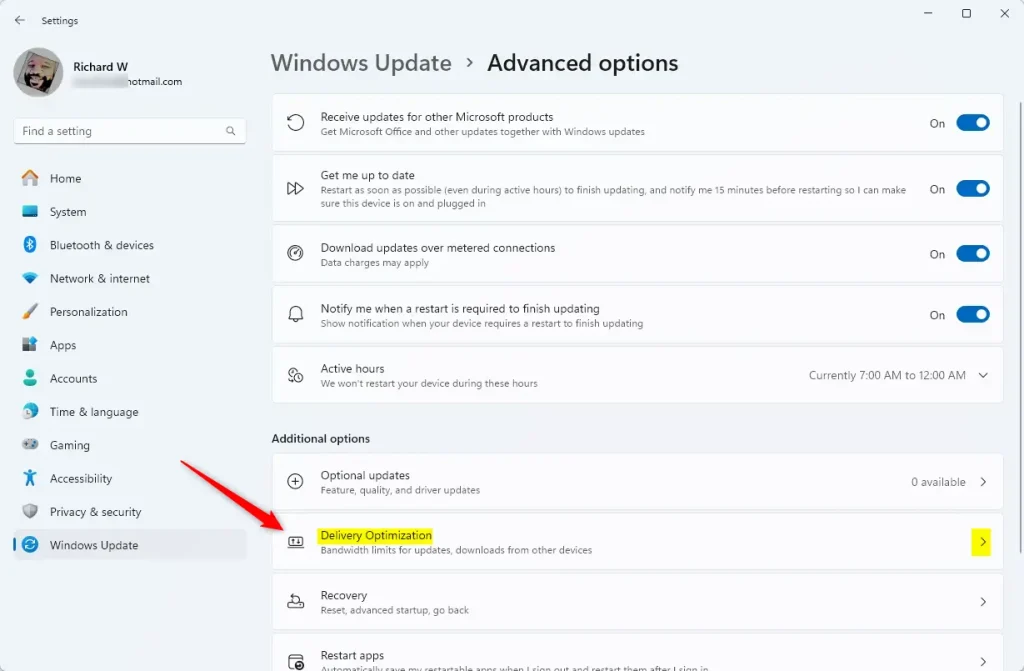
- Open Advanced options. Scroll down on the Windows Update screen and click Advanced options.
- Open Delivery Optimization. In Advanced options, scroll to the Additional options section and click Delivery Optimization. You will see a toggle and, below it, a short explanation of what the feature does.
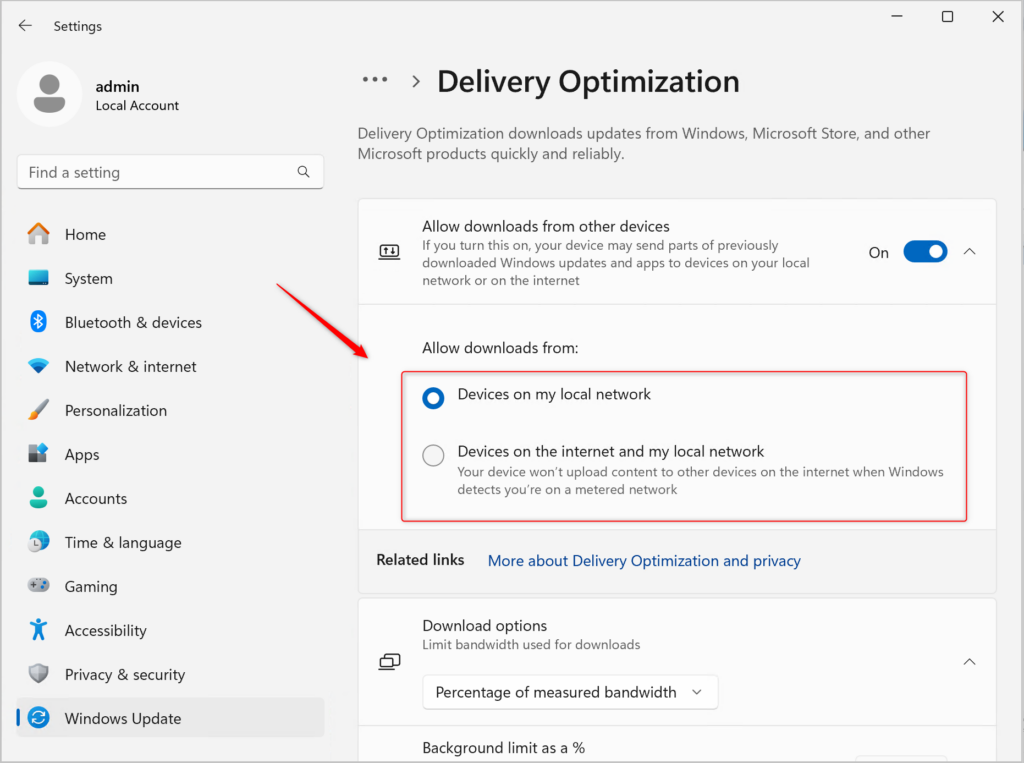
- Choose how your PC downloads from other devices. This is the main decision. Find the toggle called Allow downloads from other devices. On some Windows 11 builds the label reads Allow downloads from other PCs. It is the same setting. Pick one of the following:
- Turn it On if you want your computer to download parts of updates from other computers on your home network, such as other PCs or some Xboxes. This can make downloads faster, especially if your internet connection is slow. When you turn it on, two choices appear below the toggle:
- Devices on my local network: Your computer only exchanges update files with devices on your own network. This is the safer choice. You still get the speed benefit, and you don’t deal with computers you don’t know.
- Devices on the internet and my local network: Your computer can also exchange files with other computers on the internet. This can give the fastest downloads. The trade-off is that your PC may download from, and upload to, computers you don’t know.
- Turn it Off if you want your computer to download only from Microsoft and not share or receive files from other computers. You will still get all your updates and apps. Downloads may take a little longer, because your internet connection does all the work.
- Turn it On if you want your computer to download parts of updates from other computers on your home network, such as other PCs or some Xboxes. This can make downloads faster, especially if your internet connection is slow. When you turn it on, two choices appear below the toggle:
- Check the result. There is no Save button. The setting applies as soon as you change it, so you can close Settings. To undo it, come back to the same page and switch the toggle or the radio button back.
In that case you will usually see a message saying some settings are managed by your organization, and you can’t change them yourself. A PC that isn’t managed should show the toggle normally. If it doesn’t, check that Windows is fully up to date.
This gives a good balance between speed and safety. It uses your home network without sharing files over the public internet. If you have only one PC and a fast connection, there is little to gain from sharing, so Off is a reasonable choice.
References:
Summary
Delivery Optimization in Windows 11 speeds up downloads by sharing files between devices on your local network or the internet. You manage these options in Settings under Windows Update Advanced options Delivery Optimization. You decide how your computer takes part in file sharing for updates: local network only, local network plus internet, or off. You can change your mind at any time, without a restart.
Have a question about this guide?
Answered by AI from this guide. Good questions may be added to this page — please don't include personal details.
Did this guide fix your problem?

About the Author
Richard
Tech Writer, IT Professional
Richard is a writer at Geek Rewind who turns complex IT tasks into clear, step-by-step guides. He draws on years of hands-on experience in system administration and enterprise IT operations, focusing on Windows, Linux and WordPress: the problems people actually run into, and the fixes that work. His server and WordPress guides come from systems he runs himself. Richard builds and maintains the platform behind Geek Rewind, from its Ubuntu servers and Nginx configuration to its custom WordPress plugins. Many new tutorials start with readers' questions, and he's always glad to answer them in the comments.
No comments yet — be the first to share your thoughts!