How to Set Bandwidth Limits for Downloads with Delivery Optimization in Windows 11

Delivery Optimization is a built-in Windows 11 feature that manages how much internet bandwidth your PC uses to download system updates and apps in the background. Out of the box, Windows adjusts the download speed on its own. With no limit set, an update can use most of your connection, which often causes lag in online games and slow web browsing.
You can stop background updates from hogging your internet by setting an exact speed limit measured in megabits per second (Mbps). You can also set a percentage of your measured bandwidth instead. Capping your update speed helps if you share a slow network or use a limited mobile data plan. The settings are the same on Windows 11 Home and Pro, and you don’t need to restart the PC after changing them.
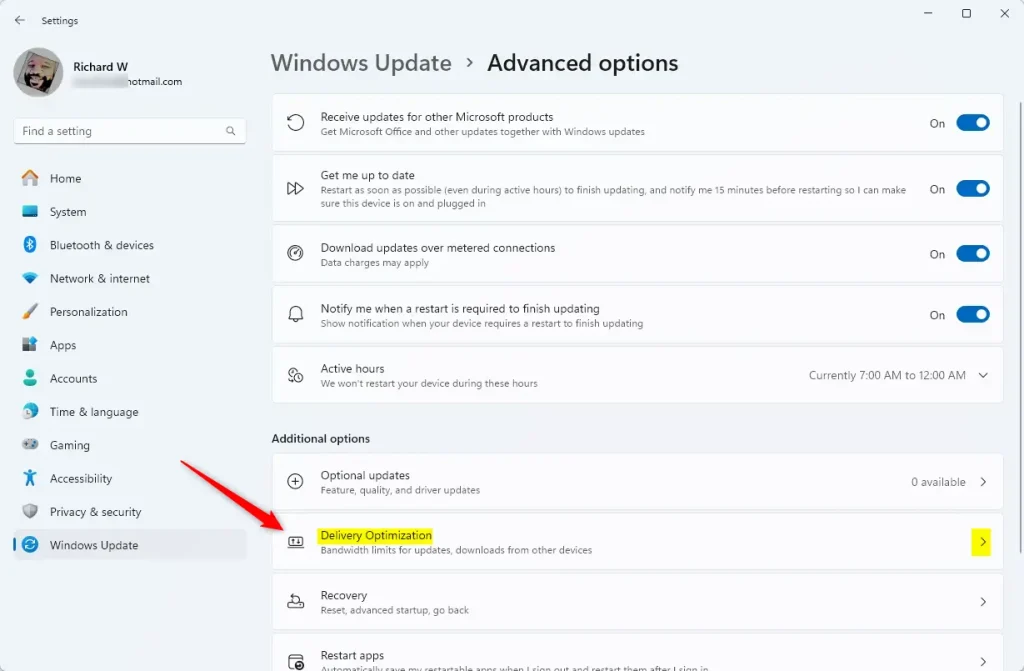
Open Settings Windows Update Advanced options Delivery Optimization Advanced options Under Download options, turn on Limit bandwidth used for downloads and enter a speed in Mbps or select a percentage of your total bandwidth. The limit applies immediately without restart.
Accessing Delivery Optimization Settings
Here’s how to find the settings that control download speeds:
- Click the Start button (the Windows icon, usually in the bottom-left corner or centered on the taskbar ).
- Select Settings (the gear icon). You can also press the Win+I.
- In the Settings window, click Windows Update in the left-hand list.
- Click Advanced options.
- Scroll down and click Delivery Optimization. You should now see the page for Delivery Optimization, including the switch that allows downloads from other PCs and a second Advanced options link.
You’ll need to ask your administrator to change it.
Choosing Your Download Limit Method
The download settings let you control how much internet speed Delivery Optimization uses for downloads in Windows 11. You can set a specific bandwidth limit. For example, you could allow only 20% of your total bandwidth for background downloads.
You can set limits in two main ways:
- An absolute limit, which is a fixed speed in Mbps.
- A percentage limit, which is a share of the bandwidth Windows measures on your connection.
Both are in the Advanced options page under Delivery Optimization. Pick whichever suits your network. The sections below cover each one.
1Set a Specific Speed Limit
A fixed speed limit controls how fast background updates download, whatever your connection is doing. It suits a network with a steady speed that you know well.
- Go to Settings Windows Update Advanced options Delivery Optimization, then click Advanced options. You should now see the download settings.
- In the "Download options" section, find the setting called Limit bandwidth used for downloads. On some Windows 11 builds, this appears as an Absolute bandwidth choice with its own checkboxes. The wording varies a little between builds, but the idea is the same.
- Turn this setting On (or select the absolute option) if it's not already.
- Choose whether the limit applies to downloads that happen while you're not actively using your PC (background downloads), while you are using it (foreground downloads), or both. If you only care about protecting your browsing and gaming, a background limit is usually enough.
- Enter a number in the box or move the slider. This number is in Mbps (megabits per second), the same unit your internet provider uses to advertise your speed. It is the highest speed your downloads will reach.
To undo the limit, return to this page and turn the setting off or clear the checkbox.
The right limit depends on your internet speed and how you use the internet. For example, if your connection is 100 Mbps, a download limit of 20 Mbps leaves plenty of room for streaming or browsing. Change the limit later if it feels too slow or too generous. Remember that Mbps is megabits, not megabytes. A 20 Mbps cap is about 2.5 megabytes per second of actual file transfer.
2Set a Percentage of Your Internet Speed
A percentage limit adjusts download speeds to your total internet capacity as Windows measures it. It's a good fit if your speed changes through the day or you move between networks.
- Go back to Settings Windows Update Advanced options Delivery Optimization Advanced options.
- In the "Download options" section, find Limit bandwidth used for downloads and turn it On.
- Choose the option that says Percentage of measured bandwidth.
- Use the slider, or type a percentage. This is how much of your internet speed Delivery Optimization can use. Lower values leave more room for everything else you do.
- Select whether this applies to background downloads, foreground downloads, or both. Most builds show a separate checkbox and slider for each.
As with the fixed limit, nothing needs a restart. To remove the cap, turn the setting off or clear the checkbox.
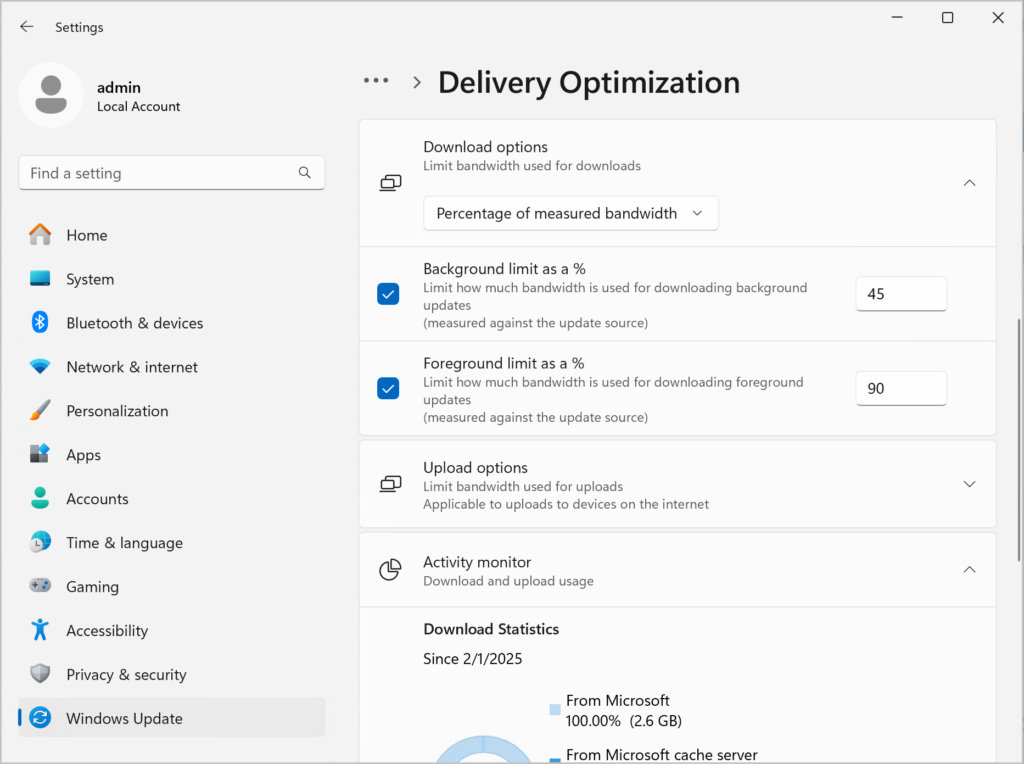
A percentage limit adapts to your connection. When your connection slows, Delivery Optimization uses less bandwidth. When it speeds up, Delivery Optimization can use more, up to the percentage you set. This stops Delivery Optimization from slowing your internet too much, especially when your overall speed fluctuates.
References:
Summary
Setting a bandwidth limit keeps background updates from ruining your web browsing or online gaming. Open Settings Windows Update Advanced options Delivery Optimization, then choose a fixed speed or a percentage cap. If your network is slow, start with a low value, check how it feels for a day or two, and adjust from there.
Frequently asked questions
How do I show a compact download limits summary?
Windows 11 has no single compact summary, but Activity monitor comes closest. Open Settings, click Windows Update, select Advanced options, then click Delivery Optimization. Click Activity monitor to see your current download and upload activity for updates and apps, including how fast each one is moving right now.
How to limit to 95 mbps download on PC?
To cap downloads at 95 Mbps, open Settings, click Windows Update, select Advanced options, then click Delivery Optimization. Click Advanced options, find Download settings, and select Absolute bandwidth. Enter 95 in the Mbps box for both background and foreground downloads. The limit applies right away, so you don't need to restart.
How do I keep users informed about the download limit quick?
Windows 11 has no built-in setting that alerts other users about a download limit. The quickest option is to tell them the limit directly or post it in a shared note. To check the current limit, open Settings, click Windows Update, select Advanced options, then click Delivery Optimization and review the Download settings.
Still have a question?
Answered by AI from this guide. Good questions may be added to this page — please don't include personal details.
Did this guide fix your problem?

About the Author
Richard
Tech Writer, IT Professional
Richard is a writer at Geek Rewind who turns complex IT tasks into clear, step-by-step guides. He draws on years of hands-on experience in system administration and enterprise IT operations, focusing on Windows, Linux and WordPress: the problems people actually run into, and the fixes that work. His server and WordPress guides come from systems he runs himself. Richard builds and maintains the platform behind Geek Rewind, from its Ubuntu servers and Nginx configuration to its custom WordPress plugins. Many new tutorials start with readers' questions, and he's always glad to answer them in the comments.
No comments yet — be the first to share your thoughts!