How to Set Bandwidth Limits for Uploads with Delivery Optimization in Windows 11

Delivery Optimization is the Windows 11 service that shares pieces of system updates and app downloads with other PCs, on your local network or on the internet. It can eat a large share of your upload speed, which you notice as laggy video calls or online games.
You can limit this in the Settings app. There you cap upload bandwidth as a percentage of your total bandwidth, and optionally set a monthly upload limit in gigabytes (GB). Settings does not take an exact speed in megabits per second. A fixed-speed cap is a Group Policy setting, available on Pro, Enterprise and Education editions. The steps below use the options in Settings, which work on both Home and Pro.
Open Settings Windows Update Advanced options Delivery Optimization In Advanced options, toggle on “Limit how much bandwidth is used for uploading updates” and set a percentage, then optionally enable Monthly upload limit and enter a gigabyte value. Changes save automatically.
Step 1Open Delivery Optimization Settings
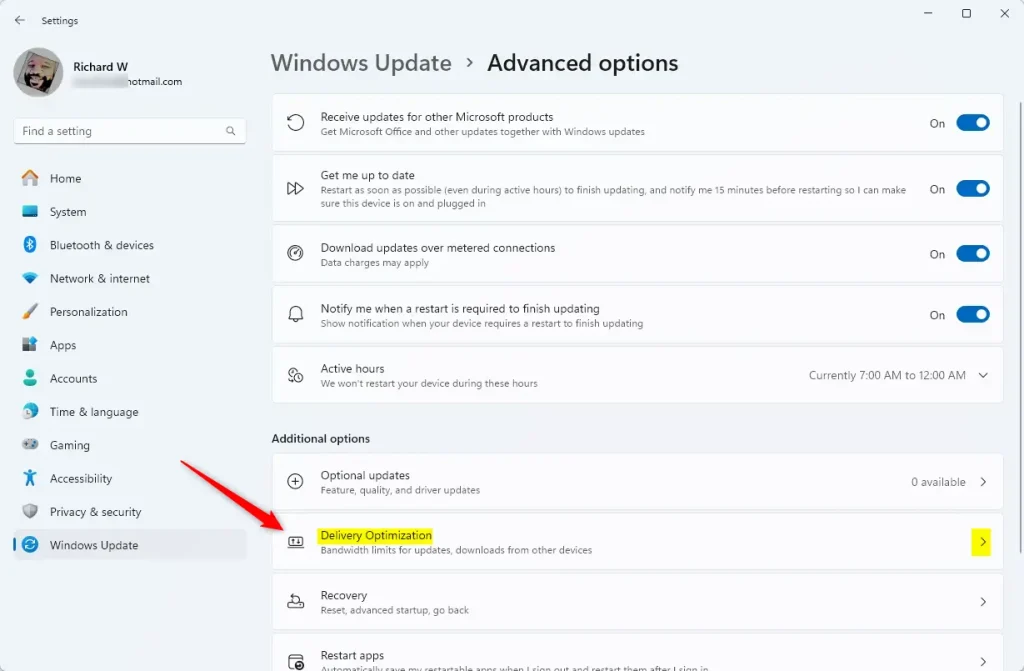
The Delivery Optimization settings are under Windows Update , in Advanced options. Follow these steps to get there.
- Click the Start button, usually in the bottom-left corner of the taskbar (or in the center, depending on your taskbar alignment).
- Click the Settings cogwheel icon. The Settings window opens.
- In the left pane, click Windows Update .
- Click Advanced options.
- Scroll down and click Delivery Optimization. You should now see the Delivery Optimization page.
Step 2Find the Upload Settings
If it is off, your PC is not sharing updates with anyone, and the upload limits below have nothing to limit. If you want sharing on but capped, leave it on. If you do not want any sharing, turning it off is the simplest fix.
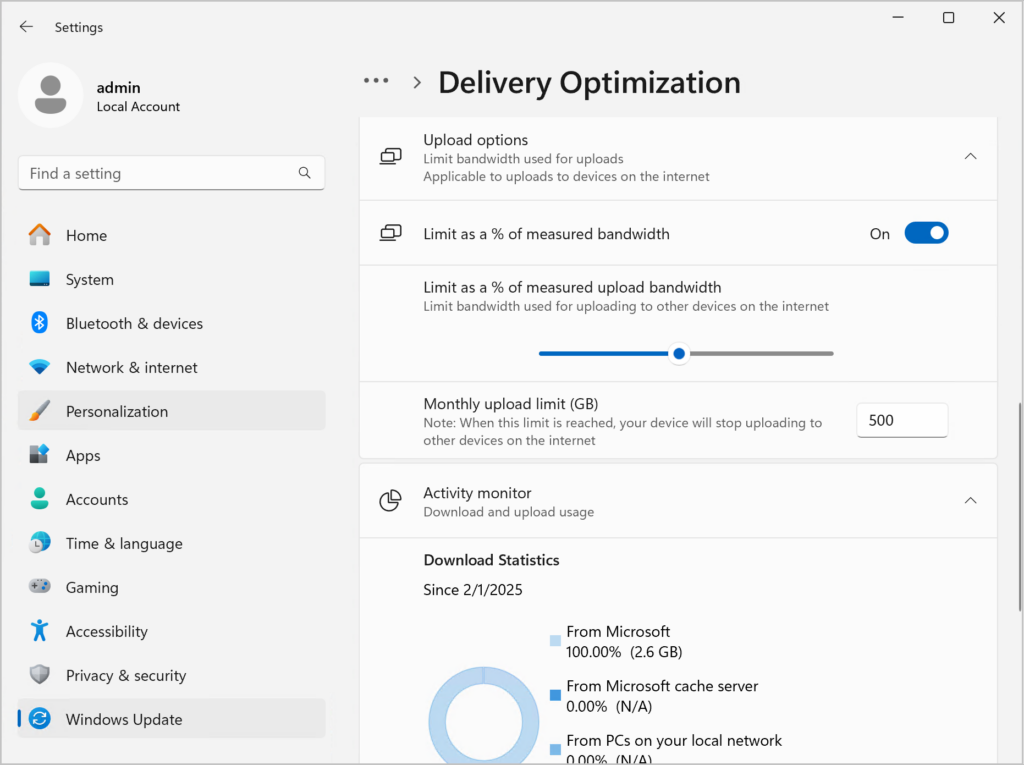
Below the toggle, open the page’s Advanced options and find the upload section. The original version of this guide calls it Upload options. On some Windows 11 builds the label may read Upload settings instead. Both hold the same controls, which set how much of your connection is used for sending update files to other computers.
Also make sure Windows is fully updated, because the layout has changed slightly between Windows 11 releases.
Step 3Limit Upload Speed Percentage
This setting caps the share of your upload speed that Windows can use for sending updates to other devices. It leaves enough bandwidth for browsing, streaming and calls.
- In the upload section, find the setting labeled "Limit how much bandwidth is used for uploading updates to other devices on the internet." (On some builds the wording is slightly different, for example "other PCs on the Internet".)
- Turn the option on if it has a checkbox or toggle. Then use the slider or dropdown menu to choose a percentage.
- Pick a low value. A setting of 5% or 10% means Delivery Optimization will use only that small part of your upload speed. You should see the percentage you chose displayed next to the control.
This limit applies to uploads to devices on the internet. If you only share with PCs on your own network, that traffic does not use your internet upload. To undo the change, move the slider back up or turn the option off.
Step 4Set a Monthly Upload Limit (Optional but Recommended for Data Caps)
A monthly upload limit puts a ceiling on the total data Windows can send for update sharing in one month. This is useful on a metered or capped connection, since it helps you avoid overage charges and throttling. A limit of 50 GB is one example.
- Still in the upload section, find Monthly upload limit.
- Turn the option on if it has a toggle or checkbox.
- Use the slider or dropdown menu to choose a maximum in gigabytes (GB). Windows offers values from a few GB up to 500 GB or more, depending on your build. Choose an amount that fits your internet plan and how you use the connection.
Once the monthly limit is reached, Windows stops uploading update data to other devices until the next month. Your own updates and downloads are not affected. To remove the cap, turn the option off or raise the value.
Step 5Save Your Settings
Delivery Optimization saves your changes as you make them, so there is no save or apply button. You do not need to restart the PC. When you have set the upload percentage and, if you want one, the monthly limit, close the Settings window.
Windows starts using the new limits right away for background update sharing. To check your settings later, repeat the steps above to return to the Delivery Optimization page.
References:
Summary
Delivery Optimization lets you control how much upload speed and data Windows uses to share updates with other computers. Limiting it keeps your connection responsive for your own work. Go to Settings Windows Update Advanced options Delivery Optimization. There, set a percentage limit for upload speed and, if you want, a monthly data limit. If you do not want to share updates at all, turn off Allow downloads from other devices.
Have a question about this guide?
Answered by AI from this guide. Good questions may be added to this page — please don't include personal details.
Did this guide fix your problem?

About the Author
Richard
Tech Writer, IT Professional
Richard is a writer at Geek Rewind who turns complex IT tasks into clear, step-by-step guides. He draws on years of hands-on experience in system administration and enterprise IT operations, focusing on Windows, Linux and WordPress: the problems people actually run into, and the fixes that work. His server and WordPress guides come from systems he runs himself. Richard builds and maintains the platform behind Geek Rewind, from its Ubuntu servers and Nginx configuration to its custom WordPress plugins. Many new tutorials start with readers' questions, and he's always glad to answer them in the comments.
No comments yet — be the first to share your thoughts!