What Windows 11 Delivery Optimization Actually Does to Your Internet Bandwidth

- 2 ways to do it
- Needs administrator rights
- Includes a restart or sign-out
Delivery Optimization is a built-in Windows 11 feature that uses your internet connection to send system updates and app downloads to other computers. It works like a peer-to-peer network. Your PC downloads an update from Microsoft, then shares pieces of that file with other devices on your local network or, depending on the setting, across the internet.
Microsoft turns this feature on by default to take load off its own servers. If web pages are slow or online games lag while updates download in the background, Delivery Optimization is worth checking. This guide shows how to see what it is doing, limit it, or stop your PC from uploading to other devices.
Delivery Optimization uses your upload speed to send Windows update and app files to other PCs, so it can slow video calls, online games and other devices on your connection. To stop it, open Settings, go to Windows Update, then Advanced options, then Delivery Optimization, and choose “Devices on my local network” or “Off”.
How Delivery Optimization Affects Your Internet Bandwidth
Delivery Optimization affects your bandwidth by uploading Windows update and app files from your PC to other devices. Home internet plans usually have much slower upload speeds than download speeds. A steady upload stream can therefore fill your upload channel, and that is when everything else on the connection starts to suffer.
The feature depends on your upload speed. Windows manages the amount it sends automatically, but if you have not set any limits, it can still take a large share of a slow upload connection. Your PC may be sending gigabytes of update data to strangers elsewhere, and your own network pays for it. The effect is worst when the internet sharing mode is on (covered below).
Here is what you might notice when Delivery Optimization is running in the background:
- Your online games show high ping and lag spikes because your upload channel is clogged.
- Video calls freeze, stutter, or drop because your PC cannot send your video feed smoothly.
- Other devices in your house, such as phones, tablets, or smart TVs, feel slow because your Windows 11 PC is taking a big share of the connection.
- If your internet provider caps monthly data, uploads count against it. Your PC can use up part of your allowance without you knowing.
These symptoms also have other causes, such as weak Wi-Fi or a busy router. Check the Activity monitor (see below) before you blame Delivery Optimization.
The Different Modes of Delivery Optimization
Delivery Optimization has three modes. They control which devices your PC shares update files with. You can share only with computers on your home network, share with your home network and the internet, or turn sharing off so your PC never uploads update files to anyone else.
- PCs on my local network: Your PC shares update files only with other Windows devices on your home Wi-Fi or router. Your data stays inside your house and uses no outside upload bandwidth.
- PCs on my local network and PCs on the internet: Your PC shares files locally and also with other computers over the internet. This mode causes the most bandwidth drain and can eat into a data cap.
- Off: Your PC stops sharing with every other device. It only downloads updates for itself from Microsoft.
The exact wording of these options can differ slightly between Windows 11 builds. In some versions they read “Devices on my local network” and similar. The meaning is the same. Whatever your PC is set to now, check it before you change anything.
How to Check Your Delivery Optimization Usage
The Settings app has an Activity monitor that shows how much data Delivery Optimization has downloaded and uploaded. It splits the numbers by source, so you can see how much bandwidth the feature has used on your local network and over the internet. Check it first, because it tells you whether any change is worth making.
Follow these steps to check your usage statistics:
- Click the Start button on your taskbar and open Settings (the gear icon). The Settings window opens.

- In the left-hand menu, click Windows Update. The update status page appears.

- Click Advanced options.
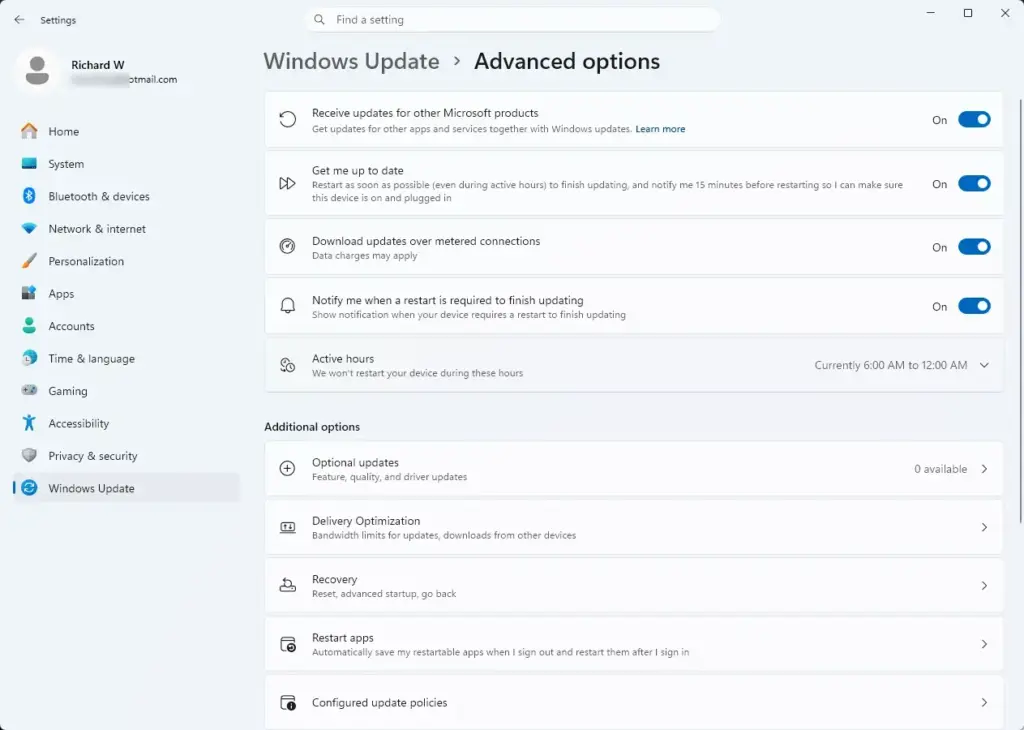
- Scroll down to the Additional options section and click Delivery Optimization.
- On the Delivery Optimization page, click Activity monitor. It sits in the lower part of the page, so you may need to scroll. The usage screen opens.
This screen shows how much data came directly from Microsoft and how much came from other PCs. It also shows how much your PC uploaded to others. If the upload figures are high, Delivery Optimization has been using your bandwidth. If they are close to zero, the feature is probably not the cause of your slowdowns.
Step-by-Step: How to Turn Off or Limit Delivery Optimization
Stopping external bandwidth sharing takes a few clicks in Settings. You can restrict sharing to devices inside your home, or turn it off completely. Neither change needs a restart, and you can reverse both at any time by returning to the same page.
Method 1Restrict Sharing to Your Local Network Only
Restricting Delivery Optimization to your local network lets your Windows 11 computers share update files with each other over your home Wi-Fi or router, with no upload over the internet. This protects your outside bandwidth, and if you have several PCs at home, they can still get updates faster from each other.
- Open Settings from the Start menu.

- Click Windows Update in the left menu.
- Click Advanced options.
- Scroll down and click Delivery Optimization.
- Find Allow downloads from other PCs near the top of the page. Make sure it is switched on, because the sharing options only appear when it is.
- Select PCs on my local network. The selection should now show as chosen.
Method 2Completely Disable Delivery Optimization (Recommended for Limited Internet)
Turning Delivery Optimization off stops your PC from sharing update files with any device, on your network or on the internet. I recommend this if your connection is slow, you have a strict monthly data cap, or you want all of your upload and download speed for your own use. Updates still install normally, because your PC downloads them straight from Microsoft.
- Open Settings.
- Go to Windows Update Advanced options.
- Click Delivery Optimization.
- Find the toggle next to Allow downloads from other PCs and switch it to Off. The toggle should now read Off.
With the switch off, your PC downloads updates only from Microsoft and does not upload update files to anyone else. To undo this, switch the toggle back on and pick the mode you want.
Advanced Bandwidth Controls: Putting Limits Instead of Turning It Off
If you would rather keep sharing on, you can put speed limits on Delivery Optimization instead. Capping both download and upload lets updates run quietly in the background without hurting your gaming, streaming, or browsing.
Follow these steps to cap your download and upload speeds:
- Open Settings and go to Windows Update Advanced options Delivery Optimization.
- Click Advanced options near the bottom of the Delivery Optimization page. The bandwidth settings open.
- In the Download settings section, check Limit how much bandwidth is used for downloading updates in the background. Use the slider to set a low percentage.
- Check Limit how much bandwidth is used for uploading updates to other PCs. Drag the slider down to a low percentage.
- If you want a monthly ceiling, check Monthly upload limit and set a maximum number of gigabytes that suits your data plan. Once Delivery Optimization reaches that limit, it stops uploading for the rest of the month.
Section names and option wording can vary a little between Windows 11 builds. If you do not see an option exactly as written here, look for the closest match in the same Advanced options page. Lower percentages mean slower background updates, so you may wait longer for large downloads.
Troubleshooting: Why Is Delivery Optimization Turning Itself Back On?
Delivery Optimization can seem to turn itself back on because major Windows 11 feature updates and repair tools sometimes reset network and update settings to their defaults. After a large update, it is worth opening the Delivery Optimization page again to confirm that your choices are still in place.
If a system update keeps re-enabling peer-to-peer sharing, you can use the Windows Registry to set a policy that keeps it off. This works on both Windows 11 Home and Pro, since it edits the registry directly instead of using Group Policy.
Follow these steps to enforce your Delivery Optimization setting:
- Press Win+R on your keyboard. The Run dialog box opens.

- Type regedit into the box and press Enter.
- If a User Account Control prompt asks whether you want to allow this app to make changes to your device, click Yes. Registry Editor opens.
- In the left-hand sidebar, go to this location: 🗝️HKEY_LOCAL_MACHINE\
SOFTWARE\ Policies\ Microsoft\ Windows\ DeliveryOptimization
(If you do not see the DeliveryOptimization folder, right-click the Windows folder, select New Key, and name it DeliveryOptimization.)
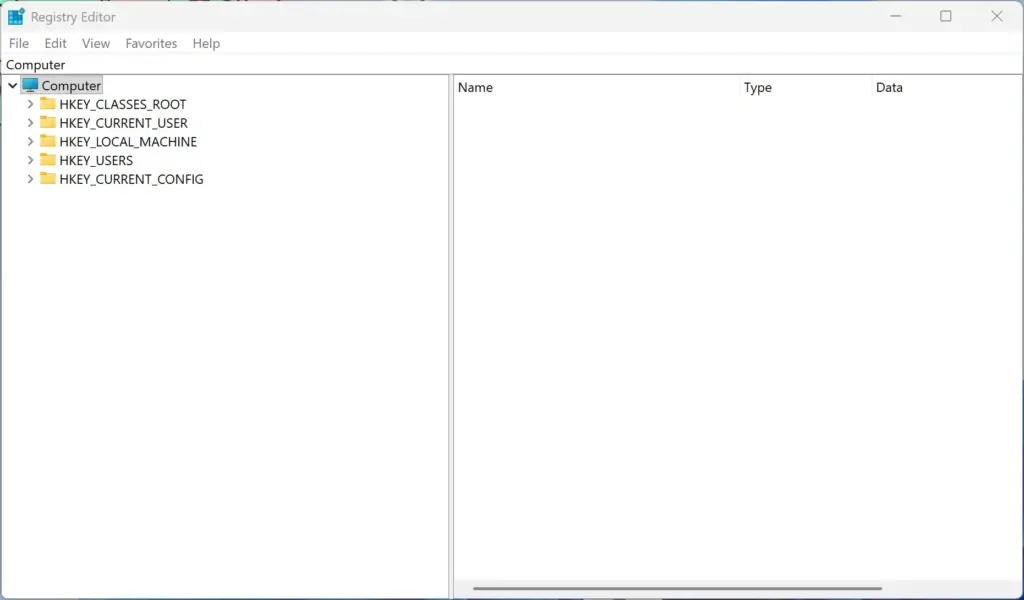
- With the DeliveryOptimization folder selected, right-click an empty space in the right-hand panel, select New DWORD (32-bit) Value, and name it DODownloadMode.
- Double-click the new DODownloadMode value, set its value data to 0 (zero), and click OK.
- Close Registry Editor and restart your computer to apply the change.
A value of 0 turns off downloading from and sharing with other PCs, so your system relies solely on official Microsoft servers. After the restart, the Delivery Optimization page in Settings may show some options greyed out or managed by your organization. That is expected, because a policy now controls the setting. To undo the change, delete the DODownloadMode value (or set it back to your preferred mode), then restart.
Summary
Windows 11 Delivery Optimization speeds up downloads by sharing your system updates with other computers over the network. That helps in offices with fast business lines. On home connections, it can slow things down, use up monthly data caps, and add background network traffic unless you adjust the settings. Check the Activity monitor, then choose local-only sharing, a bandwidth cap, or Off to suit your connection.
Have a question about this guide?
Answered by AI from this guide. Good questions may be added to this page — please don't include personal details.
Did this guide fix your problem?

About the Author
Richard
Tech Writer, IT Professional
Richard is a writer at Geek Rewind who turns complex IT tasks into clear, step-by-step guides. He draws on years of hands-on experience in system administration and enterprise IT operations, focusing on Windows, Linux and WordPress: the problems people actually run into, and the fixes that work. His server and WordPress guides come from systems he runs himself. Richard builds and maintains the platform behind Geek Rewind, from its Ubuntu servers and Nginx configuration to its custom WordPress plugins. Many new tutorials start with readers' questions, and he's always glad to answer them in the comments.
No comments yet — be the first to share your thoughts!