How to Clear Temporary Download Caches in Windows 11 Storage Settings

Storage Sense is the Windows 11 tool that cleans out junk files. It can clear temporary download caches and free up disk space in a few clicks. Over time, Windows keeps old web installers, cached documents and leftover installation files in your download folders, and it does not tell you.
You can remove these unneeded files from the Windows 11 Settings app without installing any cleanup software. In Settings, go to System, then Storage, then Temporary files. Windows lists each category it can clear and shows how much space each one uses. Storage Sense, on the same Storage page, can also delete files from your Downloads folder automatically after a set number of days. That setting is off by default.
One warning before you start: the Downloads category in the cleanup list is your actual Downloads folder, not a hidden cache. Anything you tick there is deleted. So first look at what is in the folder, as shown below.
Open Settings System Storage Temporary files, then check the boxes next to the caches you want to remove and click Del. Storage Sense also clears your Downloads folder automatically if you enable it on the same Storage page.
Locating the Default Downloads Folder in Windows
You can find your downloads in File Explorer in a few seconds. By default, Windows saves every file, picture and program you download from the internet into the Downloads folder in your user profile. You can open, move or delete these items at any time to free up space or tidy your saved files.
- Press Win+E on your keyboard to open File Explorer .

File Explorer
A File Explorer window opens. In Windows 11 it usually starts on Home. - Look at the left sidebar and click Downloads. If you do not see it, expand Home (called Quick access in some builds) and look for it there.
The folder opens and lists everything you have downloaded. - Review the contents. Items are grouped by date by default, with your most recent downloads at the top. To see which files take the most space, right-click an empty area of the folder, choose Sort by, and then choose Size.
- Select any file you no longer need and press Delete.
The file goes to the Recycle Bin , so the space is not freed yet. Empty the Recycle Bin to get it back. If you delete something by mistake, open the Recycle Bin, right-click the file and choose Restore to put it back.
Make sure the program is already installed and working before you delete its installer.
Changing Where Your Web Browser Saves Files
Change your browser settings if you want to choose where each file goes, or if you want downloads to go to a different drive to save space on your main partition. Every browser has its own download settings, and the exact wording can differ between versions. In general, you can do two things:
- Open the browser's Settings and go to the Downloads section. In Firefox, it is under General, in the Files and Applications area.
- Change the download Location to a folder on another drive, or turn on the option that asks where to save each file before it downloads.
New downloads then go to the folder you picked. Files already in your old Downloads folder stay where they are, so move or delete them yourself. To undo the change, set the location back to the Downloads folder in your user profile.
Changing Download Location in Google Chrome
Changing where downloads on this computer are saved stops your main drive from filling up with large files. Google Chrome lets you switch the default folder to a different drive or set the browser to ask you every time you save something new from the web.- Open Google Chrome and click the three vertical dots in the top-right corner.
- Select Settings from the menu.
- Click Downloads in the left sidebar.
- Click the Change button next to the Location field to pick a new folder, or toggle on Ask where to save each file before downloading to manually choose a destination every time.
Changing Download Location in Microsoft Edge
- Open Microsoft Edge and click the three horizontal dots in the top-right corner.
- Select Settings.
- Click Download in the left menu.
- Click the Change button to select a new default folder, or turn on the switch for Ask what to do with each download.
Finding Missing Downloads Using Windows Search
Tracking down downloads on this computer that seem to have vanished takes only a moment with the built-in search tool. Windows lets you look for specific file names or search by file types like PDFs and installers so you can locate misplaced documents quickly.
- Press the Windows Key + S to open the search menu.
- Type the exact name of the file if you remember it, or type an extension like
.pdf,.zip, or.exeto see recent files of that type. - Click Documents or Folders in the filter tabs across the top of the search pane to narrow down your results.
- Right-click the file in the search results and select Open file location to reveal the folder containing it.
Checking Browser Download History
Checking download history in your web browser shows you a complete list of every file you have ever grabbed, even if you already deleted the item from downloads on this computer. This built-in page lets you track down the original web links or jump straight to the file on your hard drive.
- Open your web browser and press Ctrl + J on your keyboard to open the Downloads page.
- Scan the list to find the item you are looking for.
- Click Show in folder beneath the file name to jump directly to its location on your hard drive.
Managing Download Storage Space with Storage Sense
You can use this settings menu to wipe out old temporary files and clear everything currently sitting in your downloads folder to regain valuable disk space.
- Open Settings by pressing the Windows Key + I.

Windows 11 Start menu with Settings gear icon highlighted. - Click System on the left, then click Storage on the right.
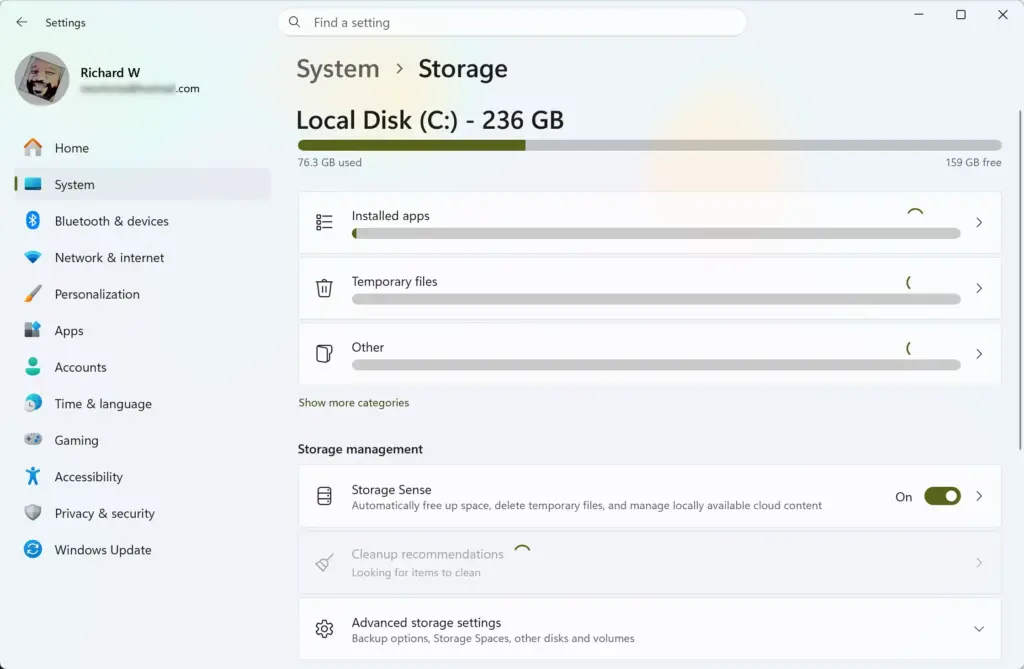
Settings › System › Storage - Click on Temporary files to scan your system for data that can be safely removed.
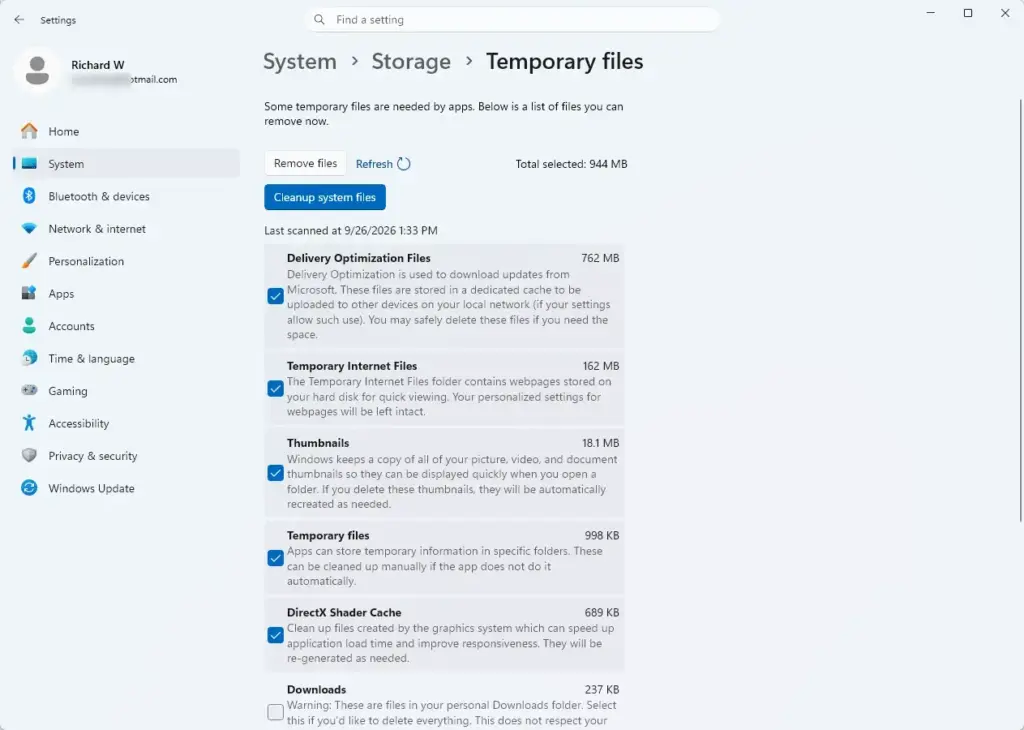
Settings › System › Storage › Temporary files - Check the box next to Downloads if you want to clear out everything currently sitting in that folder. This step is risky and permanent, so make sure you have moved any important files out of the Downloads folder first.
- Click Remove files to delete the contents.
What to do next
You should now be able to locate, move, and manage any file downloaded to your system. Next, you can organize your file structure by setting up custom subfolders or configuring automated clean-up rules for your workspace.
Frequently asked questions
What are the best deals on cheap laptops at Walmart?
This question is off-topic for a Windows tech tutorial site. We cover how to use Windows features, not shopping or product pricing.
How to see everything you've downloaded on PC?
Open File Explorer and click Downloads in the left sidebar to see all files you've downloaded. Sort by date to find recent items. For browser downloads, check your browser's download history with Ctrl+H (Chrome, Edge) or Ctrl+Shift+H (Firefox).
How can I find my documents on this computer?
Press Windows Key + E to open File Explorer. Click This PC on the left, then open the Documents folder in your user profile. You can also search for specific documents using the search box at the top of File Explorer.
How to see if anything is downloading on PC?
Check your browser's download manager: press Ctrl+J in Chrome or Edge, or Ctrl+Shift+Y in Firefox. In Windows, open Task Manager with Ctrl+Shift+Esc and check the Processes tab for active downloads, or monitor your network activity in the Performance tab.
Still have a question?
Answered by AI from this guide. Good questions may be added to this page — please don't include personal details.
Did this guide fix your problem?

About the Author
Richard
Tech Writer, IT Professional
Richard is a writer at Geek Rewind who turns complex IT tasks into clear, step-by-step guides. He draws on years of hands-on experience in system administration and enterprise IT operations, focusing on Windows, Linux and WordPress: the problems people actually run into, and the fixes that work. His server and WordPress guides come from systems he runs himself. Richard builds and maintains the platform behind Geek Rewind, from its Ubuntu servers and Nginx configuration to its custom WordPress plugins. Many new tutorials start with readers' questions, and he's always glad to answer them in the comments.
No comments yet — be the first to share your thoughts!