How to Make More Storage Space in Windows 11

Storage Spaces in Windows 11 combines two or more physical drives into a single pool. From that pool you create virtual drives, called storage spaces, that show up in File Explorer like any other drive. You stop juggling separate folders across different hardware, and one drive letter can sit on top of several disks.
You need at least two drives connected to your PC to set up a storage pool. A storage space can also be set larger than the physical capacity of the pool (this is called thin provisioning). That lets you add more drives later as the space fills up, without rebuilding anything. Windows will warn you when the pool runs low on real capacity, so keep an eye on those notices.
Open Settings System Storage Advanced storage settings Storage Spaces, select your pool, click the storage space’s Properties, then click Extend and enter a new size. The space grows immediately without restarting.
How to Extend Storage Space in 🪟 Windows 11
You can often get more storage space in Windows 11 without buying new hardware, using tools that are already built in. The usual options are:
- Delete temporary files and other clutter. Settings System Storage shows what is using space, and Storage Sense can clear temporary files for you automatically.
- Move apps to another drive. This works for many Microsoft Store apps and some desktop apps, but not all of them.
- Expand an existing partition into unallocated space using Disk Management. This only works if the unallocated space sits directly next to the partition you want to grow.
- Extend a storage space inside a storage pool. This is the method the steps below cover.
Any of these can reclaim gigabytes quickly. If you only need a few GB, start with the cleanup. Extending a storage space makes sense when you already use Storage Spaces.
- Open Windows Settings . Click the Start menu and select Settings, or press Win+I on your keyboard. The Settings window opens.
- In Settings, click System in the left pane. The System options appear on the right.
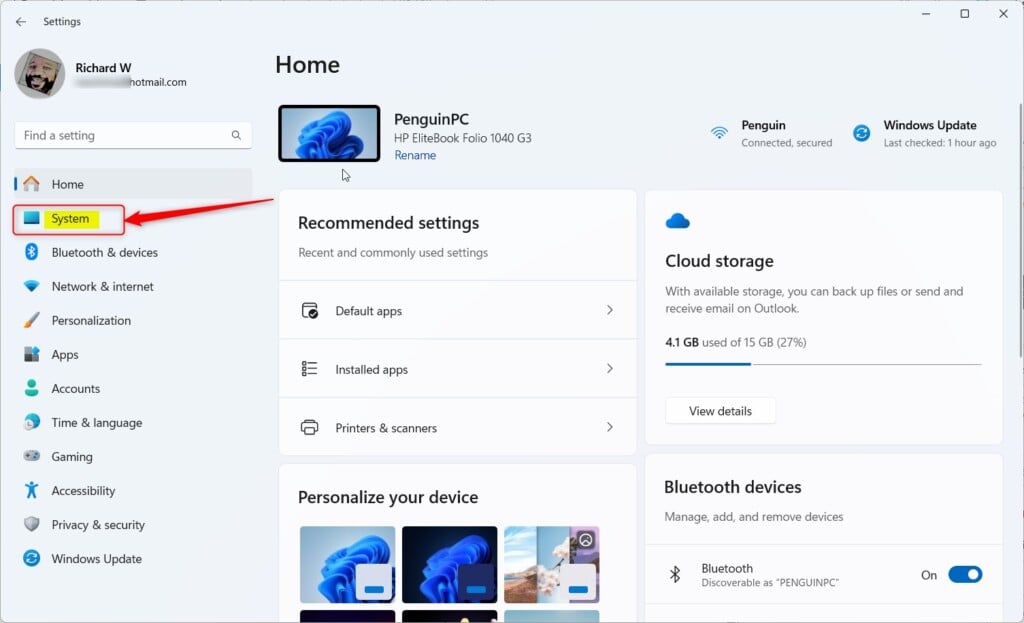
Windows 11 System button in Settings - Click Storage on the right. You should see a bar showing how much space is used on your main drive.
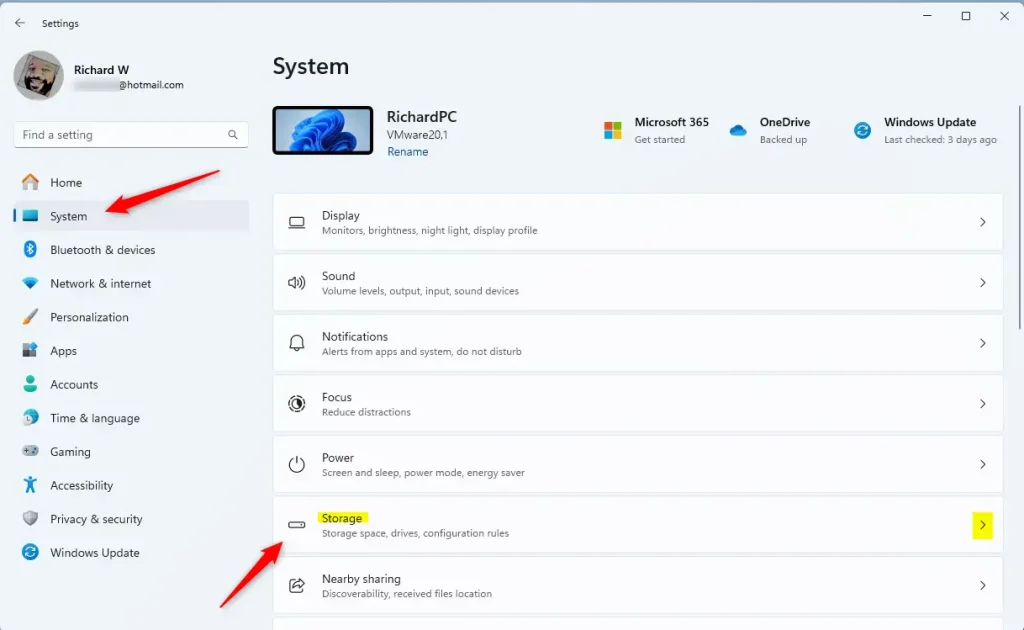
Windows 11 Settings app with System and Storage options highlighted. - Scroll down and click Advanced storage settings to expand it, then select Storage Spaces. The Storage Spaces page lists any pools on this PC. If the list is empty, you have not created a pool yet, so there is nothing to extend.
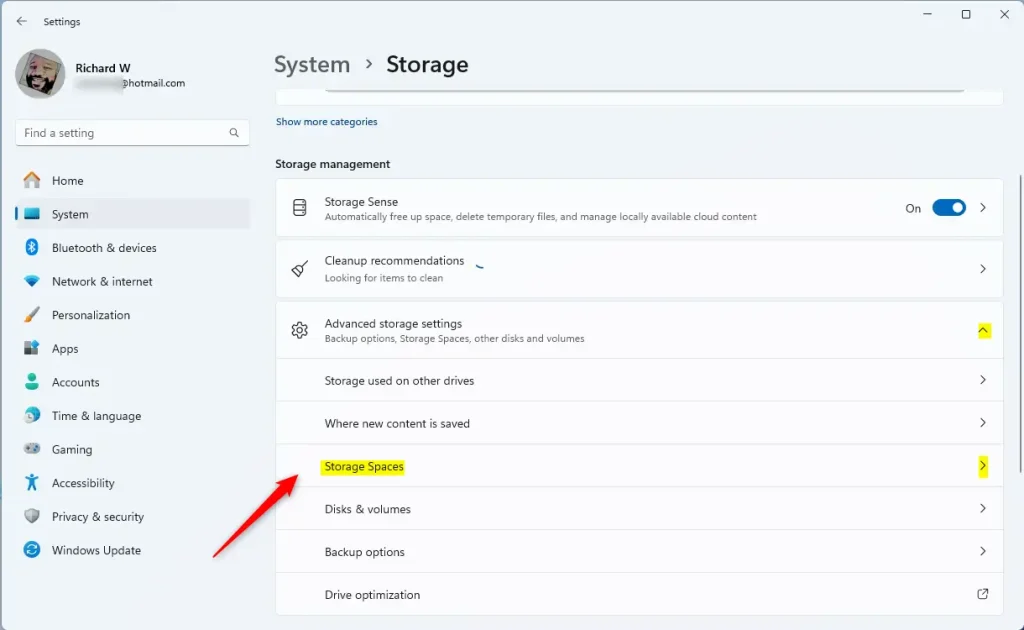
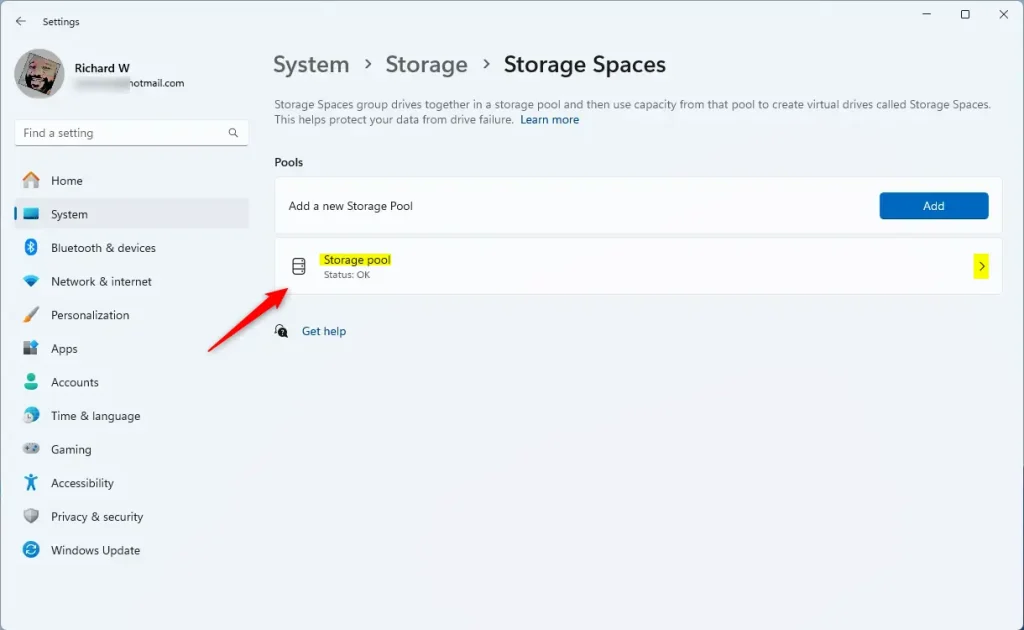
Storage Spaces option in Windows 11 Settings - Choose the storage pool you want to manage and click it to open it. The pool’s drives and its storage spaces are listed.
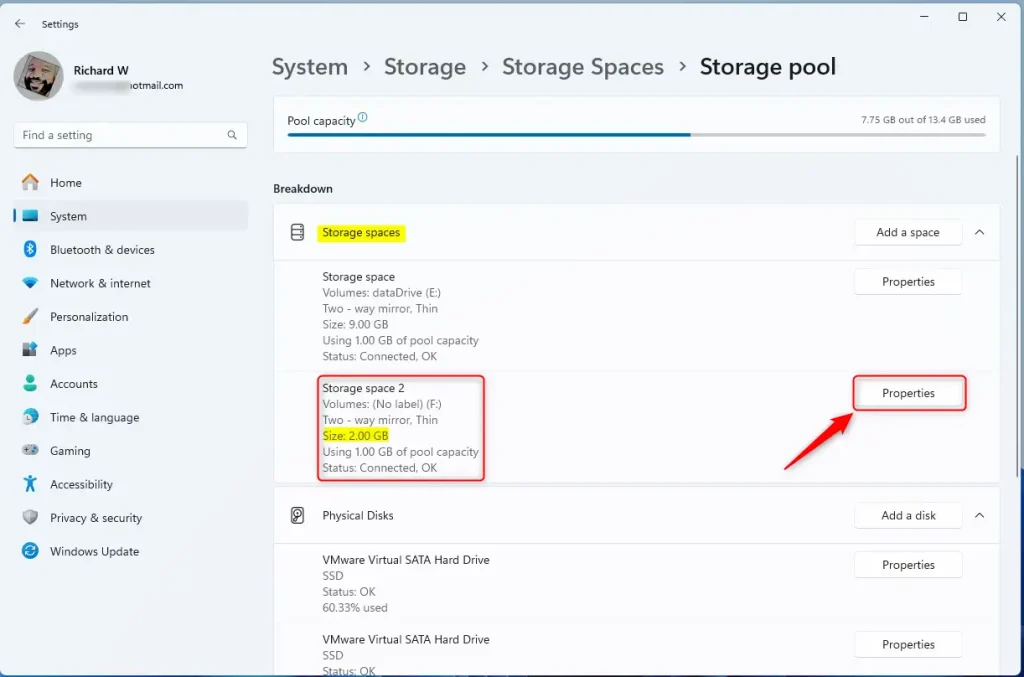
Storage Pool in Windows 11 - Find the storage space you want to make bigger and click its Properties button. The details for that space open, including its current size.
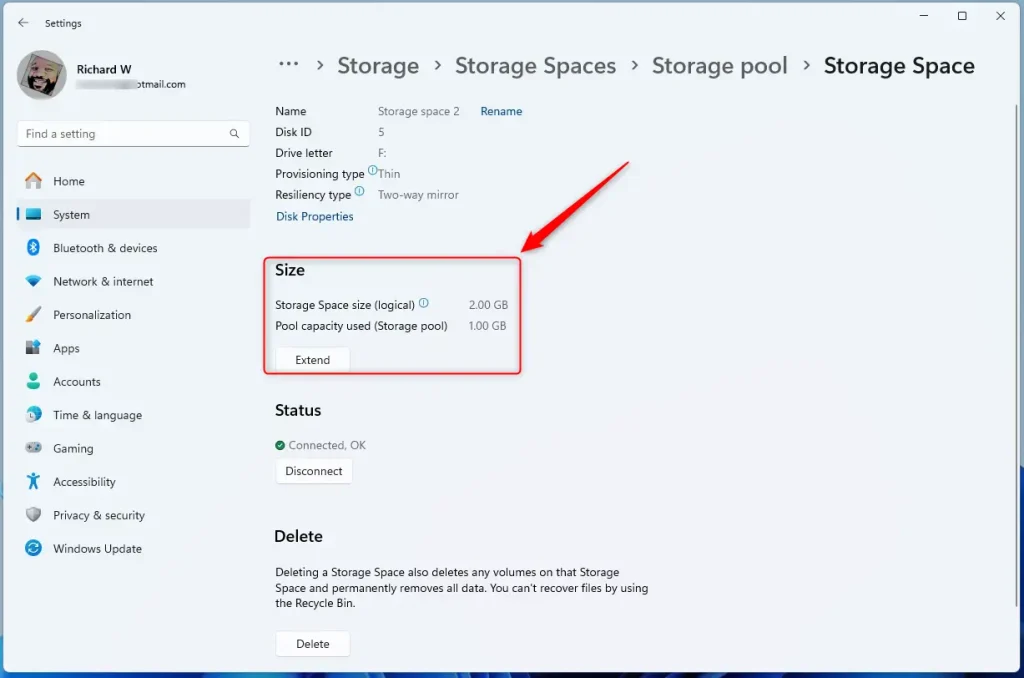
Storage Space Properties - Click the Extend button under the Size section. If you can’t click it, the pool most likely has no free capacity left. Add a drive to the pool first (see the link below).
Click the 'Extend Storage Space Size' button in Windows 11 settings. - Type the new size you want for your storage space. It must be bigger than the current size. Then click OK. The space grows, and the extra room shows up in File Explorer without a restart.
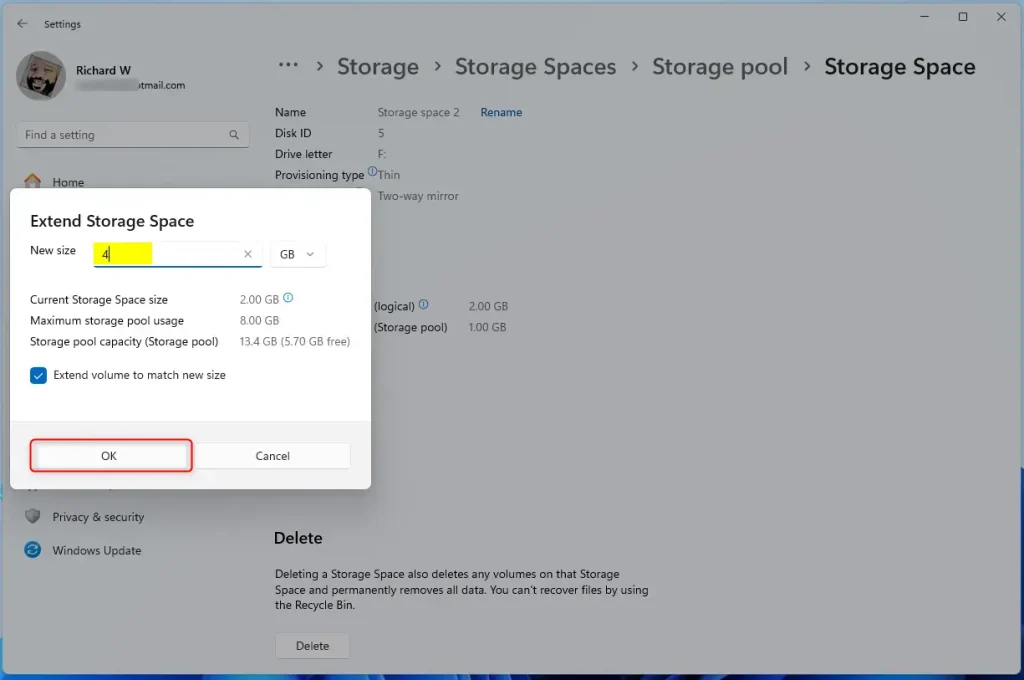
Adjust the slider to extend storage space size in Windows 11.
Learn how to add drives to your Storage Pool here. Back up important files before you change pool settings, especially if the pool has no resiliency. A failed drive in that kind of pool can take data with it.
Summary
- Extending your storage space is an easy way to get more room for your files and apps in Windows 11, as long as the pool has capacity to give.
- This method helps you avoid deleting or moving files just to free up space.
- If you have any questions or tips, feel free to share them in the comments!
Have a question about this guide?
Answered by AI from this guide. Good questions may be added to this page — please don't include personal details.
Did this guide fix your problem?

About the Author
Richard
Tech Writer, IT Professional
Richard is a writer at Geek Rewind who turns complex IT tasks into clear, step-by-step guides. He draws on years of hands-on experience in system administration and enterprise IT operations, focusing on Windows, Linux and WordPress: the problems people actually run into, and the fixes that work. His server and WordPress guides come from systems he runs himself. Richard builds and maintains the platform behind Geek Rewind, from its Ubuntu servers and Nginx configuration to its custom WordPress plugins. Many new tutorials start with readers' questions, and he's always glad to answer them in the comments.
No comments yet — be the first to share your thoughts!