Save Videos Automatically to Another Drive in Windows 11

Windows 11 can automatically save videos to a second drive once you change one setting in Storage and move the Videos folder. The setting is under Settings System Storage Advanced storage settings Where new content is saved, and the folder move happens in the Videos folder’s Properties window.
Video files fill a system drive quickly, and a 4K recording can run to several gigabytes. Pointing new recordings at a larger internal or external drive keeps drive C: from running out of space. The menu names below match current Windows 11 versions 22H2, 23H2 and 24H2, so your screen should look the same. Home and Pro behave the same way.
To automatically save videos to another drive in Windows 11, open Settings System Storage Advanced storage settings Where new content is saved, and set New photos and videos will save to your second drive, such as D:. Then right-click the Videos folder in File Explorer , choose Properties, and use the Location tab to move it to 📁D:\
Before you start
Check three things first, because most failures trace back to one of them.
- The drive is connected and visible. Open File Explorer and look for it under This PC. If it is missing there, it will also be missing from the Settings list.
- The drive has a file system and free space. Windows needs a formatted drive. NTFS (the file system that organises files on the drive) is the usual choice for internal drives. Leave enough room for the videos you already have, because one of the steps moves them.
- You are signed in with the account that makes the recordings. These settings apply per user account, not to the whole PC.
If your PC belongs to a school or employer, an administrator may have locked these options, and some controls may appear greyed out.
Plan for two changes, because they cover different apps. The New photos and videos will save to setting covers apps that follow Windows’ default, such as the Camera app. Moving the Videos folder controls anything that saves into that folder, such as Xbox Game Bar captures. Do both to cover most cases.
How to automatically save videos to another drive in 🪟 Windows 11
These steps make Windows automatically save videos to the drive you choose, first through the Storage setting and then by moving the Videos folder itself.
- Connect the destination drive. Plug in the external drive, or confirm the internal drive appears under This PC in File Explorer. Note its drive letter, for example D:.
- Open Settings. Press Windows + I. The Settings window opens on the System page.

- Select Storage. Go to Settings System Storage You see a bar showing how much space each category uses on drive C:.
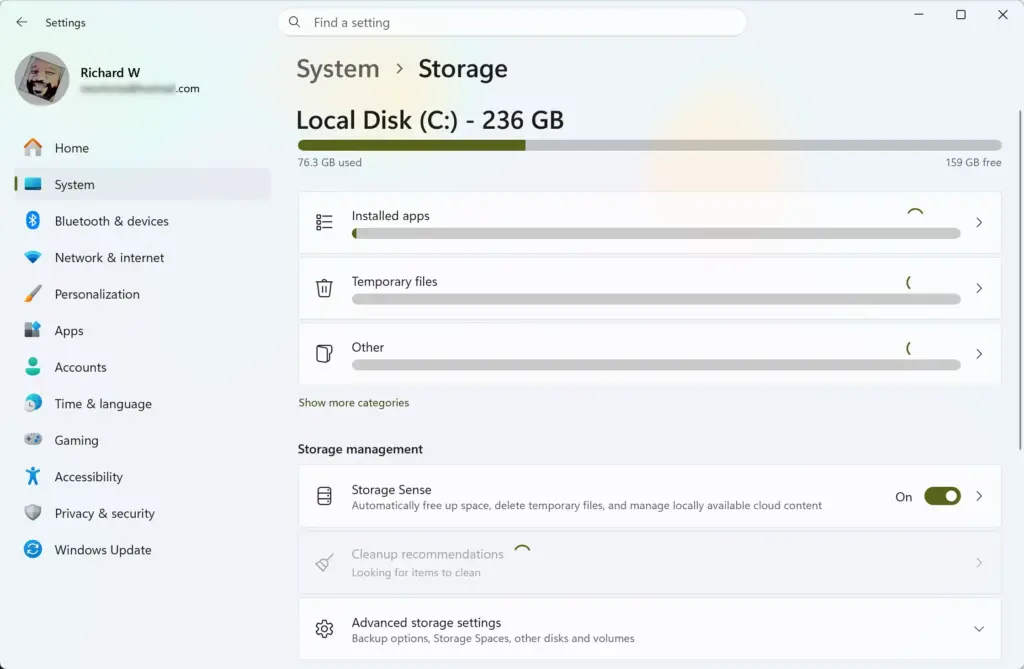
Settings › System › Storage - Expand Advanced storage settings. Scroll down and click the heading. It opens a short list of extra options.
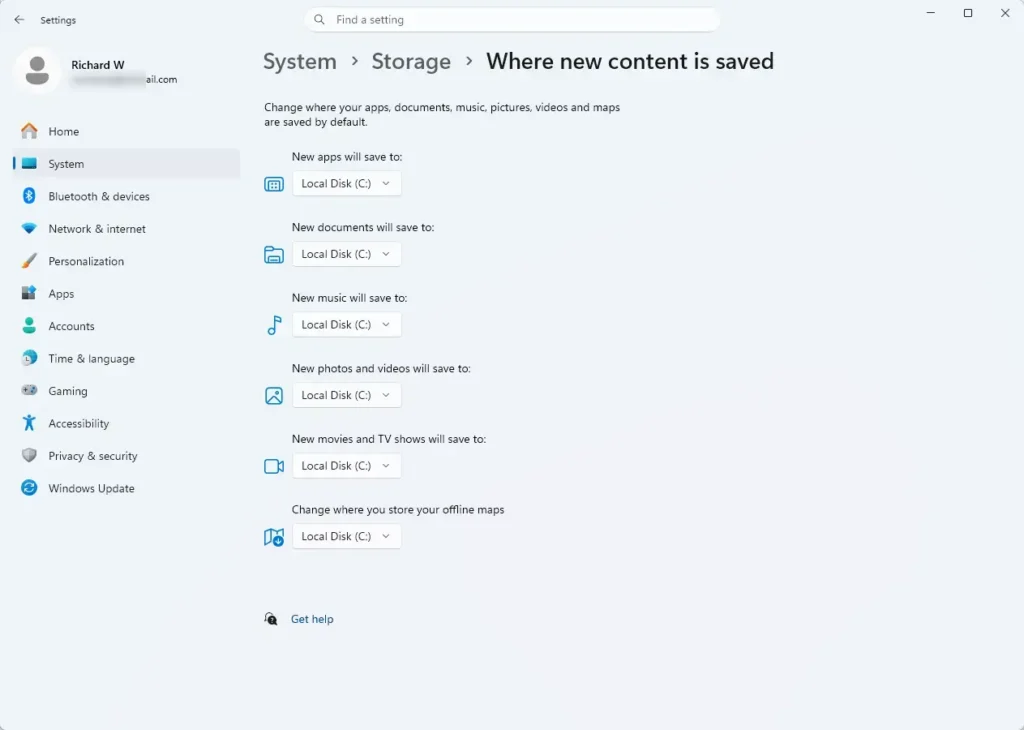
- Select Where new content is saved. A page opens with a list of content types, each with its own drop-down menu. If you cannot find this item, skip to step 9 and use the Videos folder method alone.
- Open the New photos and videos will save to menu. Click the drop-down. It lists every drive Windows can use, with drive C: selected by default.
- Choose your destination drive. Select the drive letter, for example New Volume (D:). If the drive is not in the list, reconnect it and reopen this page.
- Click Apply. The button appears beside the menu once you change the drive. Windows creates the folders it needs on the new drive, and the setting takes effect without a restart.
- Open File Explorer. Press Windows + E. This starts the second change, which moves the Videos folder itself.
- Create a folder for your videos on the new drive. Open the drive, right-click an empty area, choose New Folder, and name it Videos. The result is a path such as D:\Videos.
- Right-click the Videos folder. Find Videos in the left pane (under Home or This PC) and right-click it. Choose Properties. The Videos Properties window opens.
- Click the Location tab. It shows the current path, usually C:\Users\USERNAME\Videos. If the tab is missing, see the fix after this list.
- Click Move. A folder picker opens.
- Select the new Videos folder. Browse to D:\Videos, then click Select Folder. The new path now appears in the Location box.
- Click Apply. Windows asks whether to move all files from the old location to the new one.
- Click Yes. Windows copies your existing videos to the new drive and removes them from the old location. Large libraries take several minutes, so leave the window open until it finishes.
- Click OK. The Properties window closes. Open Videos in File Explorer and check that the address bar shows the new drive.
- Test with a short recording. Record a few seconds with the Camera app or Xbox Game Bar (Windows + G), then confirm the file appears on the new drive.
If the Location tab is missing
The Location tab only appears on the real Videos folder. It does not appear on a subfolder inside Videos or on a regular folder that happens to be named Videos. Close the Properties window and right-click the Videos entry in the left pane of File Explorer instead.
If the drive is missing from the Settings list
Reconnect the drive, wait a few seconds for Windows to detect it, and reopen the page. An unformatted drive shows in Disk Management (the Windows tool for managing drives) but not in this list. Formatting erases everything on it, so do that only on an empty drive.
If you see an error when you click Apply
An "Access is denied" message or a stalled move usually means a program is using a file inside the folder. Close apps that play or record video, including Clipchamp and Xbox Game Bar. Then repeat steps 15 and 16.
Which apps follow these settings
Neither change reaches every program. Each app decides where it writes files, and some ignore both Windows settings. This is the part most guides skip, and it explains why videos sometimes keep landing on drive C: after you have changed everything.
Apps that follow the Videos folder
Xbox Game Bar saves captures to a Captures subfolder inside Videos, so moving Videos moves them too. The Snipping Tool saves its screen recordings in the Videos folder as well. After the move, both apps write to the new drive.
The Camera app
The Camera app saves recordings with your pictures, not in the Videos folder. Moving Videos alone therefore does not redirect them. The New photos and videos will save to setting, found in steps 6 to 8, is the one that covers the Camera app.
You can also open the Camera app, click its settings icon, and look under Related settings for a link to change where photos and videos are saved. That link opens the same Storage page.
Third-party recorders and editors
Programs such as OBS Studio and other screen recorders have their own output folder setting. Open the app's settings, find the recording or output path, and point it at the new drive. The same applies to video editors, which often keep exports in a project folder. If an app was open when you changed the Windows settings, close and reopen it so it reads the new location.
Videos you download in a browser
Browsers use their own download folder. In Microsoft Edge, go to Settings Downloads Location and click Change. Chrome has the same option under Settings Downloads This is separate from the Windows setting, so a downloaded clip lands on drive C: until you change it.
What happens if the drive is not connected
An internal drive is always available, so nothing changes there. An external drive is different. If you unplug it, the Videos folder points at a location that no longer exists, and File Explorer shows a "Location is not available" message when you open it.
Apps that save to that folder may fail to record, or they may fall back to another folder. Reconnect the drive and the folder works again. Files saved during the gap may land in a folder you did not expect. For that reason, an internal second drive suits this task better than a USB stick or portable drive.
Sleep settings can also cause trouble, mainly with external drives that power down when idle. Some external drives power down after a period of inactivity and take a few seconds to wake. If a long recording fails at the start, open the drive in File Explorer first so it fully powers up.
How to undo the change
Both changes reverse cleanly. Undo them in the opposite order, and keep the drive connected until you finish.
- Open the Videos properties. In File Explorer, right-click Videos and choose Properties.
- Click the Location tab. It shows the path on the other drive.
- Click Restore Default. The path changes back to the default location inside your user profile on drive C:.
- Click Apply, then Yes. Windows offers to move the files back. Choose Yes to bring your videos back to drive C:. This needs enough free space on that drive.
- Open Where new content is saved. Go to Settings System Storage Advanced storage settings Where new content is saved.
- Reset the New photos and videos will save to menu. Select your system drive, usually Local Disk (C:), then click Apply.
If you pick No when Windows asks about moving files, the old videos stay where they were and only new ones follow the new path. That leaves your library split across two places, so choose Yes unless you have a reason to keep them apart.
Check that it worked
Open File Explorer and click This PC. The destination drive's free space should shrink as the old videos arrive, and the C: bar should grow shorter. Open the Videos folder and look at the address bar (the path at the top of the window) to confirm it shows the new drive.
For a second check, go to Settings System Storage and open the Videos category if it is listed. Storage lists how much space each drive uses, so you can see the videos counted on the new drive. The Storage page can take a moment to refresh after a large move.
A restart is not required for either change. If one app still writes to the old location, close it completely, including from the system tray (the icons next to the clock), and open it again.
What to do next
If an app keeps saving videos to drive C:, open its own settings and change its output folder, because Windows cannot override that. A new Windows user account starts with the default locations, so repeat the steps while signed in to each account that records video. To clear space that old files still take on drive C:, open Settings System Storage and turn on Storage Sense (a Windows feature that deletes temporary files on its own).
Frequently asked questions
Does canva automatically save?
Yes. Canva saves your design automatically as you edit, so you don't need to press a save button. Watch the save status near the top of the editor. If it shows an error instead of saved, copy any important work before you close the tab.
How to save videos from youtube?
YouTube doesn't offer a standard download button for most videos. The official way is YouTube Premium, which lets you download videos in the YouTube app on a phone or tablet to watch offline. Downloaders from other websites break YouTube's terms of service, and they can install unwanted software.
Do Google docs automatically save?
Yes. Google Docs saves every change as you type, usually within a few seconds. Look for the word Saved or the cloud icon near the top of the page. To keep editing without a connection, turn on offline access in Google Drive, and your changes will sync when you reconnect.
Still have a question?
Answered by AI from this guide. Good questions may be added to this page — please don't include personal details.
Did this guide fix your problem?

About the Author
Richard
Tech Writer, IT Professional
Richard is a writer at Geek Rewind who turns complex IT tasks into clear, step-by-step guides. He draws on years of hands-on experience in system administration and enterprise IT operations, focusing on Windows, Linux and WordPress: the problems people actually run into, and the fixes that work. His server and WordPress guides come from systems he runs himself. Richard builds and maintains the platform behind Geek Rewind, from its Ubuntu servers and Nginx configuration to its custom WordPress plugins. Many new tutorials start with readers' questions, and he's always glad to answer them in the comments.
No comments yet — be the first to share your thoughts!