Find My Videos Folder on My Computer in Windows 11

The Videos folder in Windows 11 is at C:\Users\USERNAME\Videos by default. To open it, press Win+E, expand This PC in the left pane, and click Videos.
Videos is a personal folder (a folder Windows creates inside your user profile for one type of file). Every user account on the PC has its own copy. Screen recordings, downloaded clips and files you save from video apps often end up there.
The steps below cover opening the folder, confirming its exact path, and finding it when OneDrive (Microsoft’s cloud storage service) or an earlier change has moved it. None of them needs administrator privileges, and they work the same on Windows 11 Home and Pro.
The Videos folder in Windows 11 is at 📁C:\
Where the Videos Folder Lives by Default
Windows 11 stores the Videos folder inside your user profile, which is the folder named after your account under C:\Users. For an account called USERNAME, the full path is C:\Users\USERNAME\Videos. Replace USERNAME with your own account name.
The folder is not hidden. It sits beside Documents, Downloads, Music and Pictures in the same profile. Because each account has its own profile, a second user on the same PC cannot see your videos in their Videos folder. They have a separate folder at a different path.
Two things can change this default. OneDrive can take over the folder and move it into your OneDrive folder, and you or another person can move it to another drive. Both cases are covered later.
Open the Videos Folder From File Explorer
File Explorer (the window that shows your files and folders) is the most reliable route to your video folder. These steps open it from the left pane and show you the full path.
- Press Win+E. File Explorer opens, usually on Home. The left pane lists Home, Gallery, your OneDrive folder and This PC. Gallery appears only on newer builds of Windows 11, so you may not see it.

File Explorer - Scroll the left pane to This PC. It sits below your OneDrive entry.
- Click the small arrow next to This PC. The entry expands to show Desktop, Documents, Downloads, Music, Pictures, Videos and your drives.
- Click Videos. The right pane shows the contents of your video folder. A new account shows few files, and an empty folder shows the message “This folder is empty.”
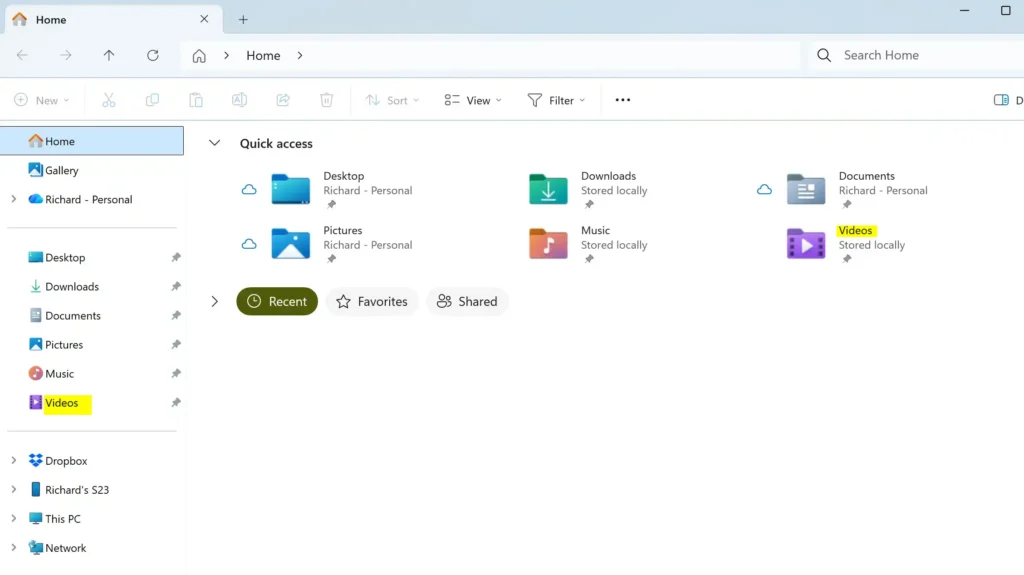
- Click an empty spot in the address bar at the top. The bar changes from a clickable trail to the full path, such as
C:\Users\USERNAME\Videos. If the path starts with OneDrive, read the OneDrive section below. - Right-click Videos in the left pane and choose Pin to Quick access. This keeps a shortcut to the folder under Home, so you skip the first four steps next time.
If the arrow next to This PC is missing, double-click the words This PC instead. If Videos is not in the list at all, go to the troubleshooting section further down.
Other Ways to Open the Video Folder
File Explorer is not the only route. These two methods are faster once you know them, and they work even when the left pane looks different from the one above.
Use the Run Dialog
- Press Win+R. The Run box opens in the lower-left corner.

Run dialog - Type
shell:My Videoin the Open box. - Press Enter. File Explorer opens your current Videos folder.
This command follows the folder if it has been moved. That makes it a good check when the default path does not show your files.
Type the Path Into the Address Bar
The address bar in File Explorer accepts a short path that points to your own profile, so you do not need to know your account name.
- Press Win+E to open File Explorer .
- Press Ctrl+L. The address bar highlights.
- Type
%USERPROFILE%\Videosand press Enter. File Explorer opens the Videos folder inside your user profile.
This route goes to the default profile location. If the folder has been redirected to OneDrive or another drive, use the Run method instead.
Confirm the Exact Path of Your Videos Folder
Properties (the folder’s settings window, opened by right-clicking it) shows where Windows currently stores your video folder. Check it before you copy files in or out, especially on a PC that has OneDrive set up.
- Open File Explorer and expand This PC.
- Right-click Videos and choose Properties. The Videos Properties window opens.
- Click the Location tab. A box shows the full folder path.
- Read the path, then click Cancel. Cancel closes the window without changing anything.
A path that starts with C:\Users\USERNAME\Videos is the Windows default. A path that includes OneDrive or a different drive letter means the folder has been redirected.
If OneDrive Has Taken Over Your Videos Folder
OneDrive can back up your personal folders to the cloud. When it does, the folder can move into your OneDrive folder, so the path becomes C:\Users\USERNAME\OneDrive\Videos. On a work or school account, the OneDrive folder name usually includes the organisation name.
Which folders OneDrive backs up depends on the choices made when it was set up, and the options vary between OneDrive versions. To see what yours does, open the OneDrive settings and check the folder backup options.
- Click the OneDrive cloud icon in the system tray (the icons at the right end of the taskbar ). If you do not see it, click the up arrow first.
- Click the Settings gear and choose Settings.
- Select Sync and backup.
- Click Manage backup. A window lists the folders OneDrive backs up. If Videos appears in the list, it can be included in the backup.
Check both places before you assume files are missing. Your files are still available at onedrive.com when you sign in to the same account.
Where Recordings and Clips Are Saved
Not every video you make goes into the main Videos folder. Knowing where each app saves its files saves a lot of searching.
- Xbox Game Bar recordings go to a subfolder named Captures inside Videos, at
C:\Users\USERNAME\Videos\Captures. The related guides on adjusting video quality for game clips and changing video frame rate and quality explain how those recordings are set up. - The Camera app saves its videos in the Camera Roll folder inside Pictures, not in Videos. The guide to locating your Pictures folder shows how to reach it.
Other apps choose their own save location. Look in the app's settings or its Save As window for the folder name.
Fix a Missing or Moved Videos Folder
Most problems come down to the wrong account, a folder that has moved, or File Explorer showing a different view. Work through these in order.
Videos Is Missing From the Left Pane
First, confirm you are signed in to the account that owns the files. Videos belongs to a single user profile, so another account has its own copy. Select Start and click your account picture to see which account is active.
If the account is right, press Windows + R, type shell:My Video and press Enter. If the folder opens, Windows can still find it, and you can pin it from there with Pin to Quick access. If nothing opens, the folder may have been deleted. Restoring its default location, covered below, can recreate it.
The Location Tab Is Missing
The Location tab appears only on the main Videos folder in your profile. If you right-click a subfolder, such as Captures, the tab is absent. Go up one level to the folder named Videos, then open Properties again.
Move the Videos Folder or Restore the Default Location
Moving the folder changes where Windows saves new videos, so do it only if you need the space on another drive. You can undo the change at any time with Restore Default.
To move the folder:
- Right-click Videos in File Explorer and choose Properties.
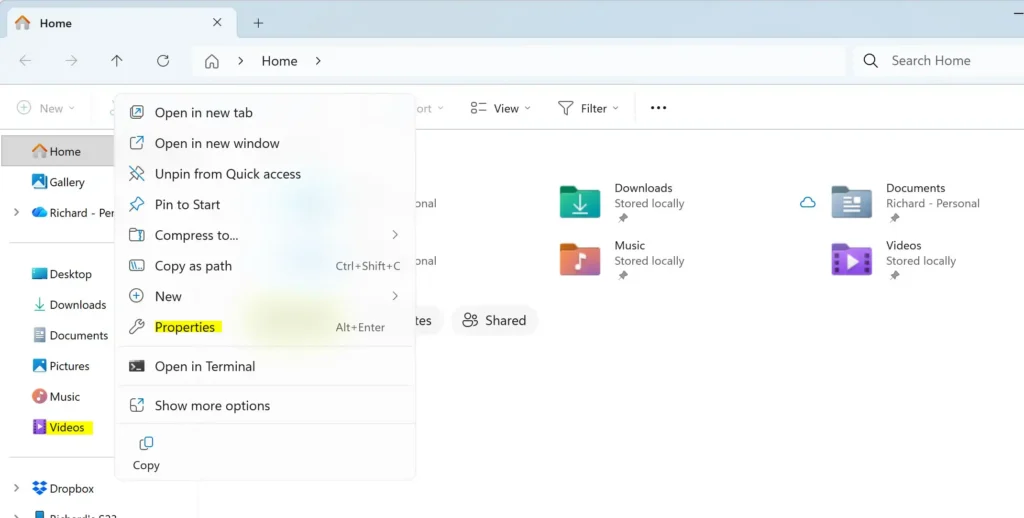
- Click the Location tab.
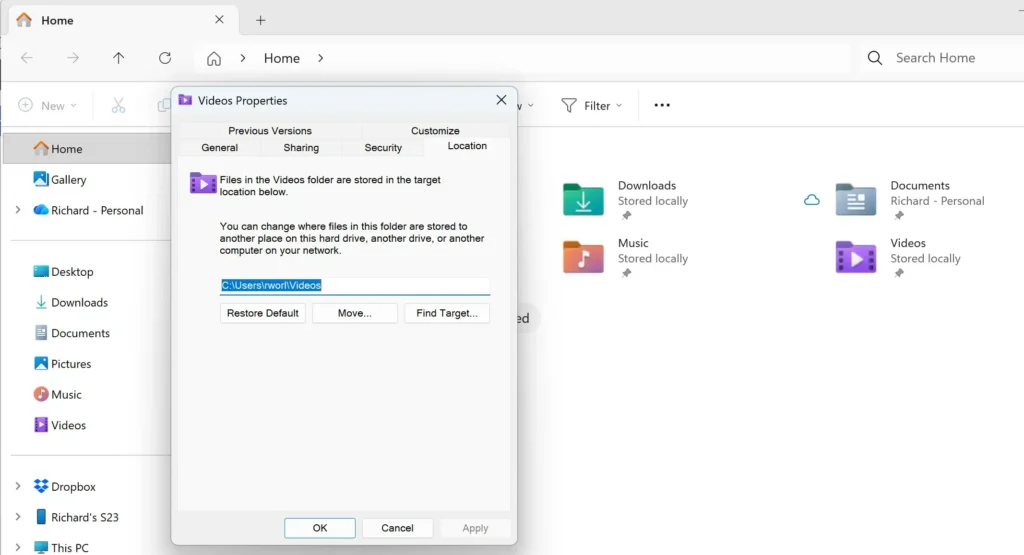
- Click Move. A folder picker opens.
- Choose the new folder, then click Select Folder. The new path appears in the Location box.
- Click Apply. Windows asks whether to move your existing files to the new location. Click Yes to move them, or No to leave them where they are.
To undo the move and return to C:\Users\USERNAME\Videos:
- Right-click Videos and choose Properties.
- Click the Location tab.
- Click Restore Default. The box fills with the default path.
- Click Apply. Windows asks about moving files back. Choose Yes if you want your videos back in the default folder.
Neither change needs a restart. If Windows reports that the destination does not exist, click Yes when it offers to create the folder. If an error says access is denied, pick a folder inside your own profile or on a drive you own.
What to Do Next
Pin Videos to Quick access and you can reach your clips in one click from File Explorer Home. If playback looks dull, the Auto Enhance setting in the video player can help. The related guide on turning Auto Enhance on or off during video playback explains how to use it. If your photos are scattered as well, the guide to finding your Pictures folder follows the same steps.
Have a question about this guide?
Answered by AI from this guide. Good questions may be added to this page — please don't include personal details.
Did this guide fix your problem?

About the Author
Richard
Tech Writer, IT Professional
Richard is a writer at Geek Rewind who turns complex IT tasks into clear, step-by-step guides. He draws on years of hands-on experience in system administration and enterprise IT operations, focusing on Windows, Linux and WordPress: the problems people actually run into, and the fixes that work. His server and WordPress guides come from systems he runs himself. Richard builds and maintains the platform behind Geek Rewind, from its Ubuntu servers and Nginx configuration to its custom WordPress plugins. Many new tutorials start with readers' questions, and he's always glad to answer them in the comments.
No comments yet — be the first to share your thoughts!