Locate My Pictures Folder on My Computer in Windows 11

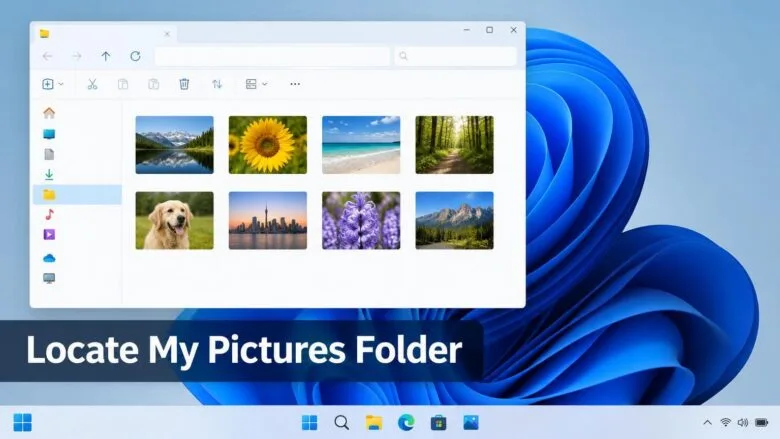
Your photos live in the Pictures folder on a Windows 11 PC. It sits at 📁C:\
Older versions of Windows called this folder My Pictures. Windows 11 shows it as plain Pictures, though some programs and older documents still use the old name. This guide covers the main route, four other ways in, how to check the folder’s full path, and what to do when your photos are not where you expect. None of it needs administrator rights, apart from one case noted below.
The “my pictures file” on Windows 11 is the Pictures folder, which sits at 📁C:\
Where the Pictures Folder Lives in 🪟 Windows 11
Every Windows account gets its own set of personal folders inside 📁C:\
Windows also keeps a Public Pictures folder at 📁C:\
The Pictures folder usually holds a few subfolders that Windows and its apps create as needed:
- Camera Roll holds photos and videos taken with the Camera app.
- Saved Pictures holds images that some apps save by default.
- Screenshots holds screenshots captured with Windows + Print Screen. Windows creates it the first time you take one this way.
You may not see all three. A subfolder appears only after an app has used it.
Open the Pictures Folder in File Explorer
These steps open your Pictures folder from the desktop and show you how to browse what is inside. Opening a folder does not change any files, so these steps are safe to follow.
- Press Win+E to open File Explorer . A File Explorer window opens. You can also click the yellow folder icon on the taskbar .

File Explorer - Find Pictures in the navigation pane. The navigation pane is the list down the left side of the window. Look below Home, Gallery (on newer builds), Desktop, Downloads, and Documents. A small pin icon sits beside it.
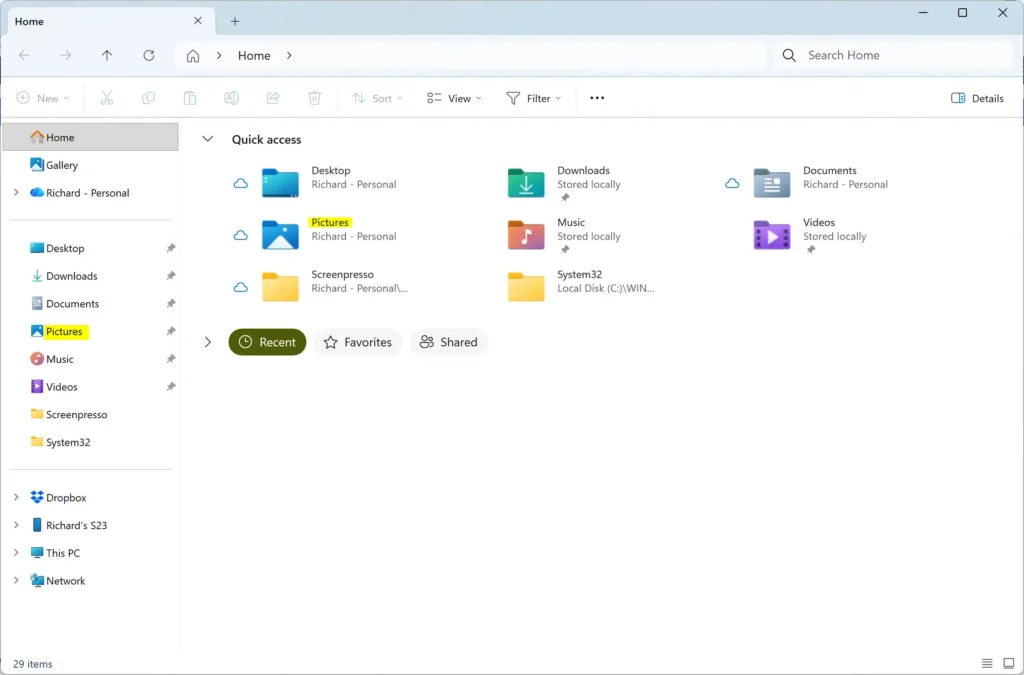
- Click Pictures. The main pane shows the contents of the folder, and the address bar at the top shows the folder name.
- Open a subfolder such as Camera Roll by double-clicking it. The pictures inside appear as thumbnails. Click the back arrow in the top-left corner to return to Pictures.
- Click View on the toolbar and choose Large icons. Thumbnails grow, so you can recognize photos without opening each one.
- Double-click any picture to open it. Windows opens it in your default photo app, which is usually the Photos app.
If the file names show no endings such as .jpg or .png, turn on file extensions. The post on how to open File Folder Options in Windows 11 shows where that setting is.
If Pictures Is Missing From the Navigation Pane
Someone may have removed the folder from the sidebar, or a reset of your user account may have deleted the shortcut. The folder itself is still on your drive. Follow the steps below to add Pictures back to the navigation pane.
- Click This PC in the navigation pane. If you do not see it, scroll down the pane. The main pane lists your drives and a Folders group.
- Double-click Pictures in the Folders group to open it.
- Go back one level, right-click Pictures, and choose Pin to Quick access. On some builds the label reads Pin to Home. The shortcut returns to the navigation pane.
If This PC shows no Folders group, the group is collapsed. Click the small arrow next to the Folders heading to expand it.
Other Ways to Open the Pictures Folder
File Explorer is the main route, but these methods help when the window is already busy or when you want a shortcut you can reuse.
Open Pictures From the Run Box
The Run box (a small window that opens a folder or program from a typed command) takes you straight to the folder, whatever else is open.
- Press Win+R to open the Run box.

Run dialog - Type
shell:My Picturesand press Enter. The Pictures folder opens in File Explorer .
shell: prefix is a shortcut Windows understands for its special folders.Because it follows the folder wherever it lives, it works even if you moved Pictures to another drive or into OneDrive. You can also type %USERPROFILE%\Pictures and press Enter, but that opens the default location only.
Open Pictures From Search
- Click the Search box on the taskbar , or press Win+S.
- Type
Pictures. The folder appears under Folders in the results. - Click the result to open it. If you see more than one Pictures folder in the results, check the path under each one. Yours sits inside 📁C:\
Users\ .USERNAME
Add a Pictures Shortcut to the Start Menu
This adds a Pictures icon beside the power button on the Start menu , so the folder is one click away.
- Open Settings . Press Win+I.
- Go to Settings Personalization Start
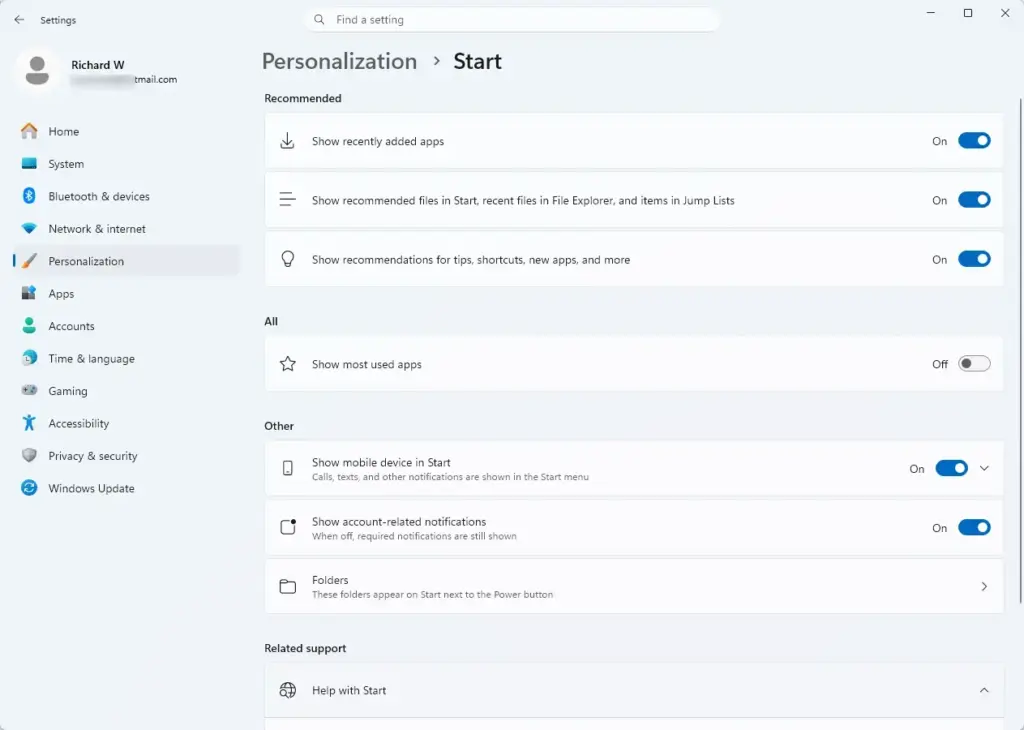
Windows 11 Settings Personalization Start menu options for recent files - Click Folders. A list of folder toggles opens.
- Switch the Pictures toggle to On. The Pictures icon now appears next to the power button when you open the Start menu .
To remove the shortcut later, return to Settings Personalization Start Folders and switch the Pictures toggle to Off.
Check the Full Path of Your Pictures Folder
The folder’s path tells you which drive and location hold your photos. That matters when you back up files, set up an app that asks for a folder, or find that Pictures is not where you thought it was.
- Open File Explorer and right-click Pictures in the navigation pane.
- Choose Properties. The Pictures Properties window opens.
- Click the Location tab. The box shows the full path, for example 📁C:\
Users\ .USERNAME\ Pictures - Click Cancel to close the window without changing anything.
If the Location tab is missing, you are probably looking at a subfolder or a Library shortcut (a view that gathers folders from several places) rather than the main Pictures folder. Close the window and right-click the top-level Pictures entry instead.
To copy the path for use in another app, see how to copy file and folder paths in Windows 11.
Why Your Pictures Might Be Inside OneDrive
OneDrive (Microsoft’s cloud storage service) can take over the Pictures folder. When you turn on folder backup in OneDrive, Windows moves the folder’s location into your OneDrive folder. The path then becomes 📁C:\
The folder still appears as Pictures in File Explorer, and you open it the same way. But the files are now copied to OneDrive online storage, and they use up the space in your OneDrive account. Some files may show a cloud icon, which means the file is stored online and not on this PC until you open it.
This is the most common reason people see a different path than they expect, or find two Pictures folders. Check the Location tab, as described above, to see which one your account actually uses. Pictures saved before OneDrive took over may still be in C:\Users\USERNAME\Pictures if the move did not carry them across.
Fix a Pictures Folder That Moved or Looks Empty
If the folder opens but your photos are missing, the usual cause is that the folder's location points somewhere else. The Location tab can send it back to the default. Before you change anything, check the path. Restoring the default changes where Windows looks for your pictures, so do not move files you are unsure about.
- Right-click Pictures in the navigation pane and choose Properties.
- Open the Location tab and read the path. Note it down so you can find the other folder later.
- Click Restore Default to point Pictures back to C:\Users\USERNAME\Pictures.
- Click Apply. Windows may ask whether to create the folder if it does not exist. Click Yes.
- Click OK and open the folder again.
Open the path you noted from the Location tab and copy any files you need into the restored folder. If a window asks whether to move files from the old location, read the message before you click Yes.
To put Pictures somewhere new, such as a second drive, use the Move button on the same Location tab and pick the destination folder. You can reverse it at any time with Restore Default.
Find Pictures Saved in Other Places
Not every image on your PC lands in the Pictures folder. A few common cases:
- Images saved from a web browser usually go to the Downloads folder. The post on how to locate and open downloaded files in Windows 11 covers it.
- Files sent to you through an app are often saved in that app's own folder. Check the app's settings to find it.
- Pictures on another user account are in that account's folder under C:\Users. Administrator privileges are required to open another user's folder. Windows shows a permission message and asks you to click Continue, which prompts for administrator approval. Open another person's files only with their consent.
- Pictures you share with everyone on this PC go in C:\Users\Public\Pictures.
For a shorter walkthrough of the same task, see how to find the Pictures folder in Windows 11.
If you want to look for one particular image, open the Pictures folder and use the search box at the top right of File Explorer. Type part of the file name and press Enter. Windows searches the current folder and all its subfolders.
What to Do Next
With the Pictures folder open, you can drag photos in from a USB drive or phone to keep them in one place. To send a few of them to another computer on the same network, follow the guide on how to share pictures between nearby PCs in Windows 11. Pin the folder to Quick access or add it to the Start menu, as shown above, and you will not need to search for it again.
Frequently asked questions
How to import pictures from an sd card to 🪟 Windows 11 and not to cloud?
Insert the SD card, or plug in your card reader. Open File Explorer, click the card under This PC, select your photos, and copy them into Pictures. Copying does not upload anything by itself. Windows 11 may also offer Import in the Photos app, which copies files from the card to a folder you choose.
How to add music to the music folder 🪟 Windows 11?
Your Music folder is at C:\Users\USERNAME\Music. Open File Explorer, click Music in the left pane, and drag in your song files or album folders. You can also copy files from a USB drive and paste them there. The Media Player app finds new tracks in this folder automatically.
The 🪟 Windows 11 ‘expand folder’ doesn’t work. is there a registry fix or group edit fix?
Check the File Explorer setting first: open Folder Options from the File Explorer menu, go to the View tab, and tick Expand to open folder under Navigation pane. Group Policy Editor has no setting for this, so skip that fix. If the option stays off, back up the Registry Editor first, then set NavPaneExpandToCurrentFolder to 1 under HKEY_CURRENT_USER\Software\Microsoft\Windows\CurrentVersion\Explorer\Advanced.
Still have a question?
Answered by AI from this guide. Good questions may be added to this page — please don't include personal details.
Did this guide fix your problem?

About the Author
Richard
Tech Writer, IT Professional
Richard is a writer at Geek Rewind who turns complex IT tasks into clear, step-by-step guides. He draws on years of hands-on experience in system administration and enterprise IT operations, focusing on Windows, Linux and WordPress: the problems people actually run into, and the fixes that work. His server and WordPress guides come from systems he runs himself. Richard builds and maintains the platform behind Geek Rewind, from its Ubuntu servers and Nginx configuration to its custom WordPress plugins. Many new tutorials start with readers' questions, and he's always glad to answer them in the comments.
No comments yet — be the first to share your thoughts!