How to Turn On or off OneDrive Folder Backup Syncing Across Windows 11 Devices

OneDrive folder backup saves your Desktop, Documents, and Pictures folders to the cloud, so your files are available on any Windows 11 computer you sign in to. It also protects your personal data if your hardware fails or your PC is lost or stolen, because a copy is stored online.
You can turn backup on or off for each folder separately. That lets you manage your cloud storage space or keep private items off the internet. The steps below show how to do both.
Open Settings Accounts Windows backup, click Manage sync settings, then toggle the switch On for Desktop, Documents, or Pictures to back them up to OneDrive. Click Save changes to start syncing. No restart needed.
Why Back Up Your Folders?
When a folder is backed up to OneDrive, its files are stored in the cloud as well as on your PC. You can open them from another device, and you won’t lose them if your computer breaks.
A free personal OneDrive account includes 5 GB, and a large Pictures or Documents folder can fill that quickly. OneDrive will warn you if the folders you picked are bigger than the space you have.
New Features in 🪟 Windows 11
Windows 11 now lets you stop or snooze the OneDrive backup prompts directly from File Explorer , so you don’t have to keep dismissing them.
Starting with build 26100.4484 in version 24H2, Microsoft is rolling out a PC-to-PC migration experience. You will begin to see a new landing and pairing page in the Windows Backup app. In the full experience, you will be able to transfer files and settings from an old PC to a new one during setup. Support for this during PC setup will arrive in a future update.
The rollout is gradual, so you may not see the new page yet even on a build that includes it.
What You Need
Check for the OneDrive cloud icon in the taskbar corner. If it isn't there, start OneDrive from the Start menu and sign in first.
If you sign in with a work or school account, your organization may control which folders can be backed up. In that case the options can be greyed out or turned on for you, and only your administrator can change them.
Option 1Turn On or Off OneDrive Folder Backup Syncing in Settings
- Press Win+I to open Settings.
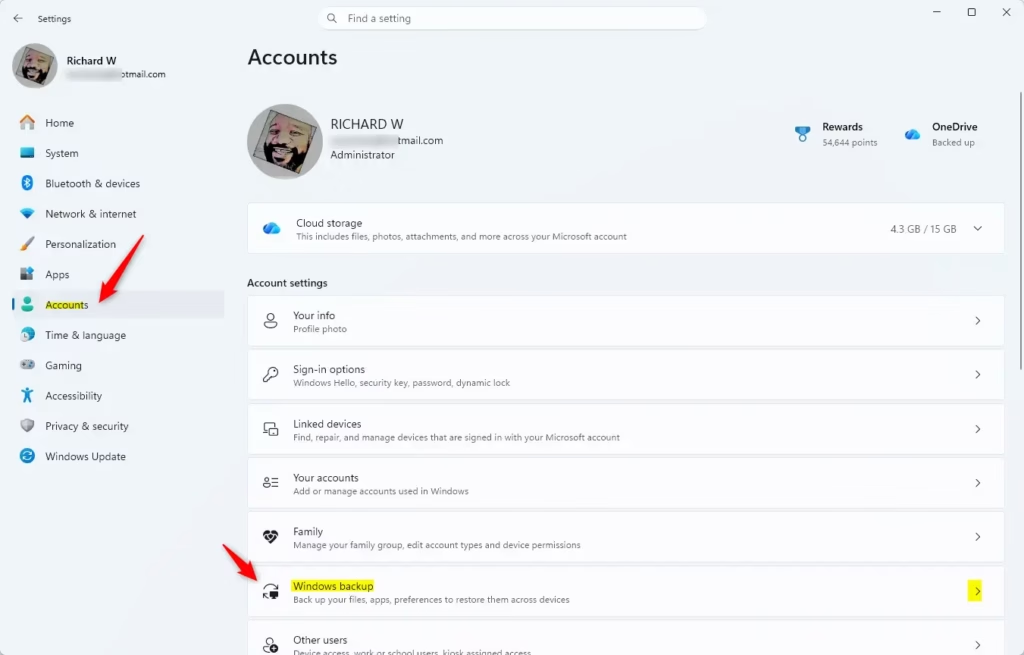
- Click Accounts on the left side. Then click Windows backup on the right side. The Windows backup page opens, with a section for OneDrive folder backup.
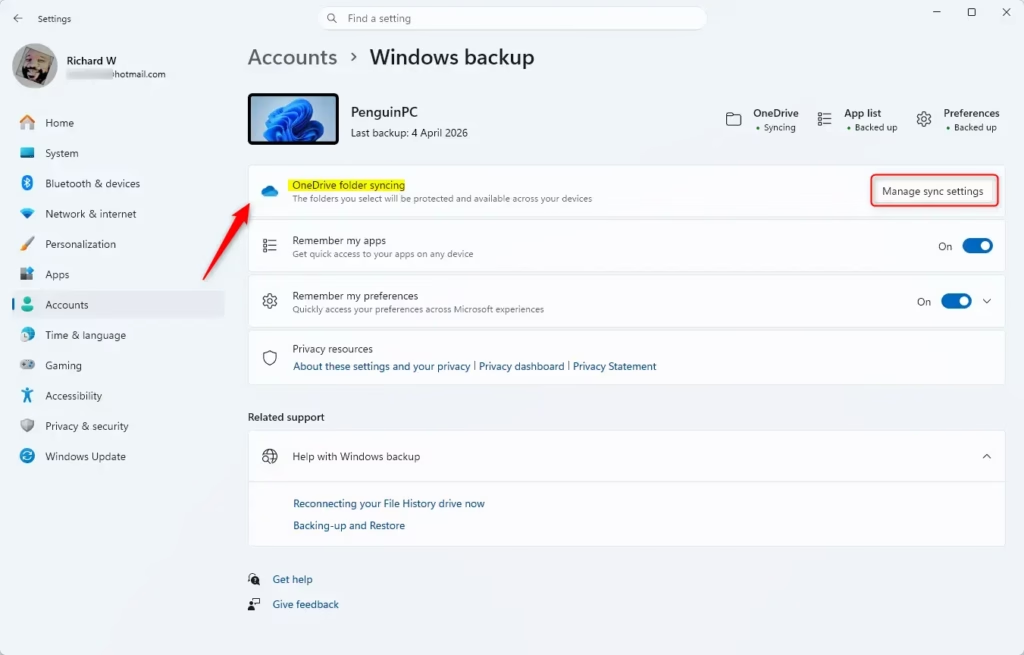
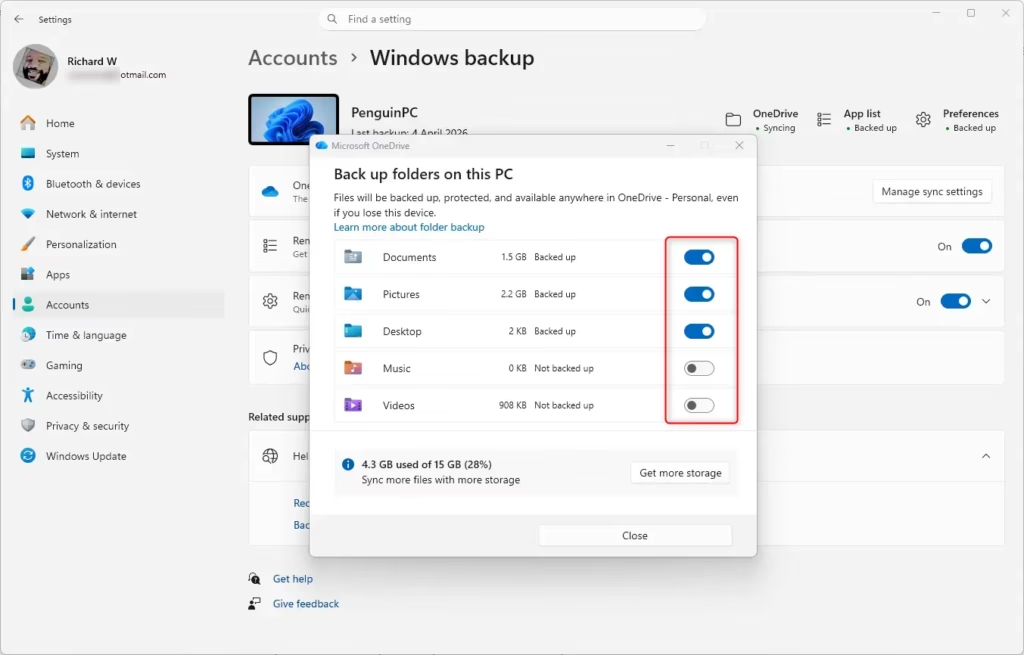
- Click Set up syncing if you haven't used folder backup before. If it is already set up, the button reads Manage sync settings. Click that instead. The OneDrive folder backup window opens.
- Click Continue if Windows asks you to confirm.
Option 2Turn On or Off OneDrive Folder Backup Syncing in OneDrive Settings
You can also reach the same settings from the OneDrive app. This is useful if the Windows backup page doesn't show the OneDrive section.
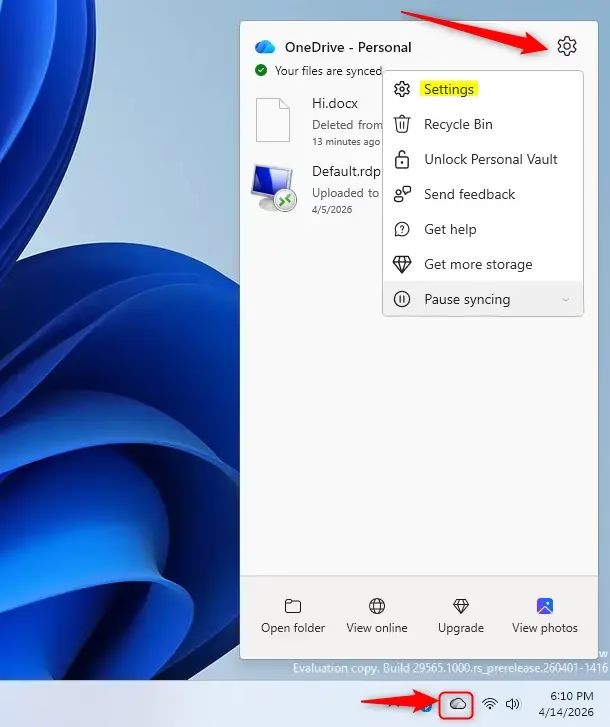
- Click the OneDrive icon in the taskbar corner. If you don't see it, click the arrow to show hidden icons first. The OneDrive flyout opens.
- Click the Help & Settings (gear) icon, then click Settings. The OneDrive Settings window opens.
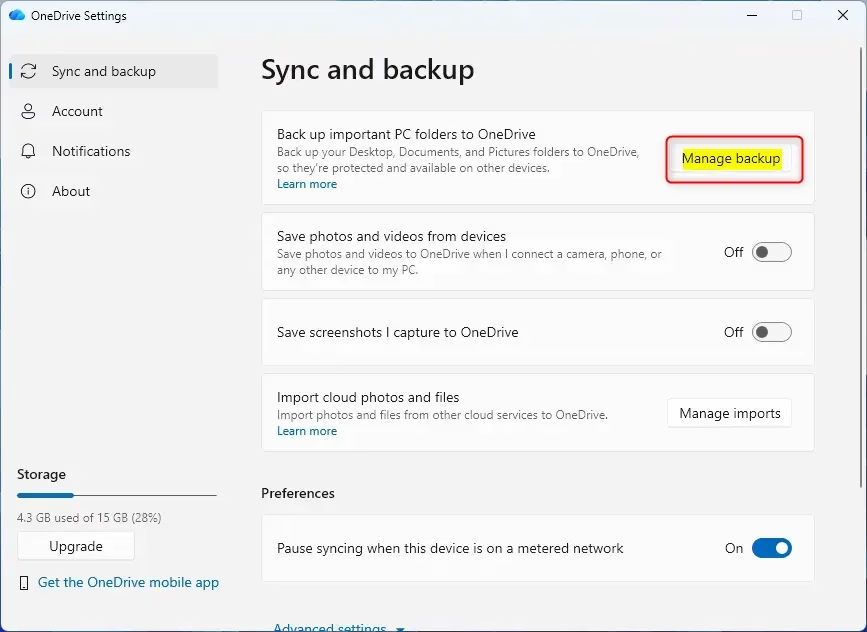
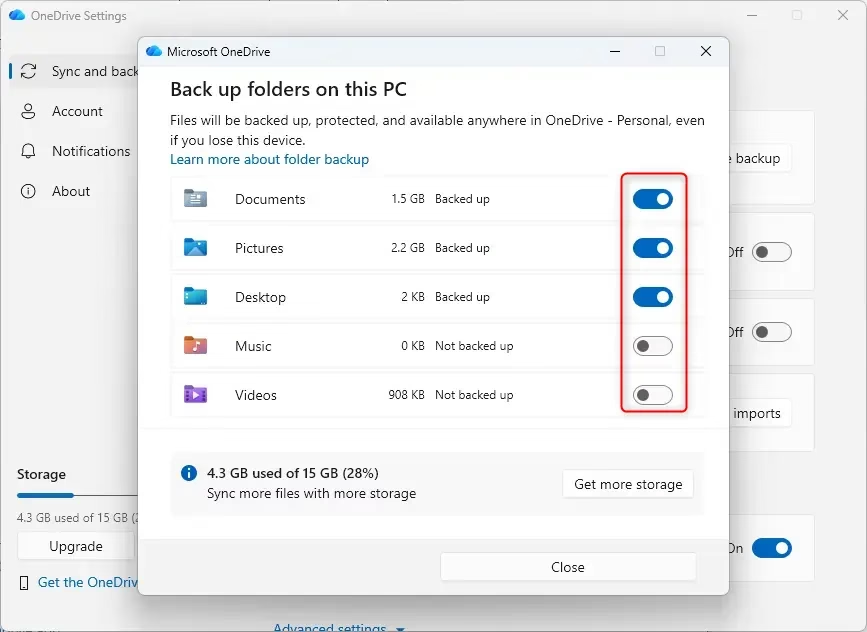
- Click Sync and backup in the left pane, then click Manage backup. The folder backup window opens, with a switch for each folder.
Turn On Folder(s) to Start Backing Up to OneDrive
- Turn On the switch for each folder you want to back up to OneDrive. To stop backing up a folder, turn its switch Off instead. If OneDrive asks you to confirm stopping a folder, confirm it. Files that were already uploaded stay in your OneDrive, but they no longer appear in that folder on your PC. You can move them back later if you want them there.
- Click Save changes when you are finished. OneDrive starts uploading the selected folders. No restart is needed.
- Click View sync progress to watch the backup. The OneDrive flyout shows how many files are left and whether anything has failed. A large folder can take a while on the first sync, so leave the PC on and connected.
Turn Off Folder(s) to Stop Backing Up to OneDrive
You can stop backing up specific folders to OneDrive by changing their settings, which prevents them from syncing to the cloud and frees up storage space.Related Resources
Microsoft's support pages cover OneDrive folder backup in more depth, including account setup and file management. They show how to sync your important folders with the cloud so your files stay safe and easy to reach on all your Windows devices.
Sync your computer's files and folders with OneDrive - Microsoft Support — Learn how to install and use OneDrive to sync files and folders between your computer and the OneDrive cloud.
Back up and restore with Windows Backup - Microsoft Support — Learn how to back up and restore apps, settings, files, photos, and Microsoft Edge favorites and preferences on your Windows PC using Windows Backup.
Getting the most out of your PC backup - Microsoft Support — Learn why it's important to have a backup, and how Windows Backup can help you keep your files and settings safe.
Windows Backup: How to Back Up Files to Transfer Between Devices | Microsoft — Learn how to transfer your data between Windows PCs with Windows Backup.
Summary
OneDrive folder backup syncs key folders such as Desktop, Documents, and Pictures to the cloud, so your files are protected and reachable from any of your devices. You control it folder by folder, from either Settings or the OneDrive app, and you can turn any folder on or off whenever you need to.
Did this guide fix your problem?

About the Author
Richard
Tech Writer, IT Professional
Richard is a writer at Geek Rewind who turns complex IT tasks into clear, step-by-step guides. He draws on years of hands-on experience in system administration and enterprise IT operations, focusing on Windows, Linux and WordPress: the problems people actually run into, and the fixes that work. His server and WordPress guides come from systems he runs himself. Richard builds and maintains the platform behind Geek Rewind, from its Ubuntu servers and Nginx configuration to its custom WordPress plugins. Many new tutorials start with readers' questions, and he's always glad to answer them in the comments.
No comments yet — be the first to share your thoughts!