How to Change the Default Photo Viewer in Windows 11

- 21 steps
- Needs administrator rights
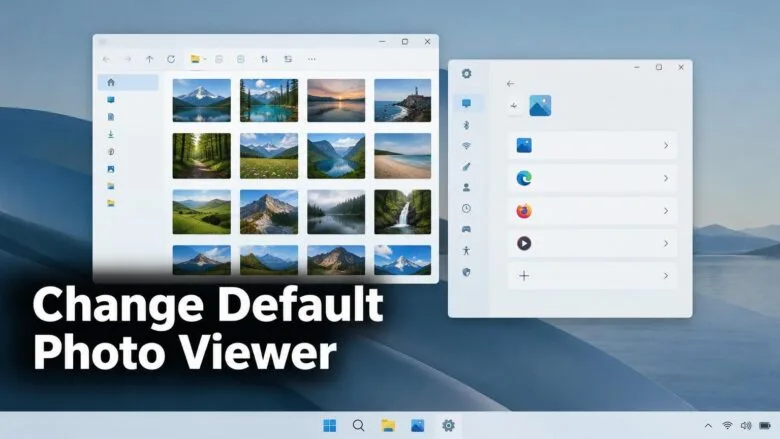
Changing the default photo viewer in Windows 11 means choosing which app opens when you double-click a picture. The quickest route is Settings Apps Default apps, where you assign a new app to each image file type, such as .jpg and .png. Windows 11 versions 24H2 and 25H2 both use this page.
Windows stores defaults per file type (the ending of a file name, called an extension, such as .jpg). Setting one type does not change the others, so repeat the steps for every format you open often.
Microsoft is also testing an updated built-in Photo Viewer in Windows Insider preview builds, which are test versions of Windows that Insider program members get early. The updated viewer is not in regular releases yet. The sections below cover what Microsoft has said so far.
Open Settings Apps Default apps, then search for.jpg and choose your preferred viewer from the app list. Repeat for.png and any other image type you open often, since Windows sets defaults per file extension. The change applies to your own user account and needs no restart on Windows 11 24H2 or 25H2.
What opens your pictures by default right now
On a standard Windows 11 PC, the Photos app opens image files. It handles viewing, basic editing and resizing. If you have installed another viewer, the installer may have claimed some file types, and the others still open in Photos.
The updated Photo Viewer in Windows Insider builds
Microsoft’s announcement, Coming to Windows 11: An updated Photos experience, describes an updated native Photo Viewer. Individual images opened from File Explorer or elsewhere in Windows open in this viewer, and it is the default for opening image files.
This is in Windows Insider preview builds only so far. Microsoft may change this before it reaches everyone, so the behaviour may still change.
Microsoft has also said the Photos app will get a new Gallery, a faster Viewer and a rebuilt Editor. It will also add tools such as Relight and object removal. Microsoft says the rollout began on October 15, 2026, but it does not say which Windows builds include the change yet. Microsoft has not said whether the Default apps page changes for the new viewer. If you are in the Windows Insider program and run a preview build, check Settings Apps Default apps on your own PC to see what it offers.
Before you start
Windows only lists apps that sign up for image file types when they are installed. If your viewer is a portable app (one that runs without installing), it may not appear. The troubleshooting section below covers that case.
None of these steps require administrator privileges. They change the default for your own user account only. On a work or school PC, your organisation can lock default apps with a Windows policy, which is a rule set by IT that controls what users can change. The option may be greyed out or reset at sign-in.
Windows 11 Home and Pro behave the same here, and you do not need to restart.
Change the default photo viewer in 🪟 Windows 11 from Settings
This method changes the default photo viewer for each image format in one place. Follow these steps to open Settings, choose your new viewer for each image type, and test that it opens.
- Open Settings. Press Win+I. The Settings window opens with a list of categories on the left.
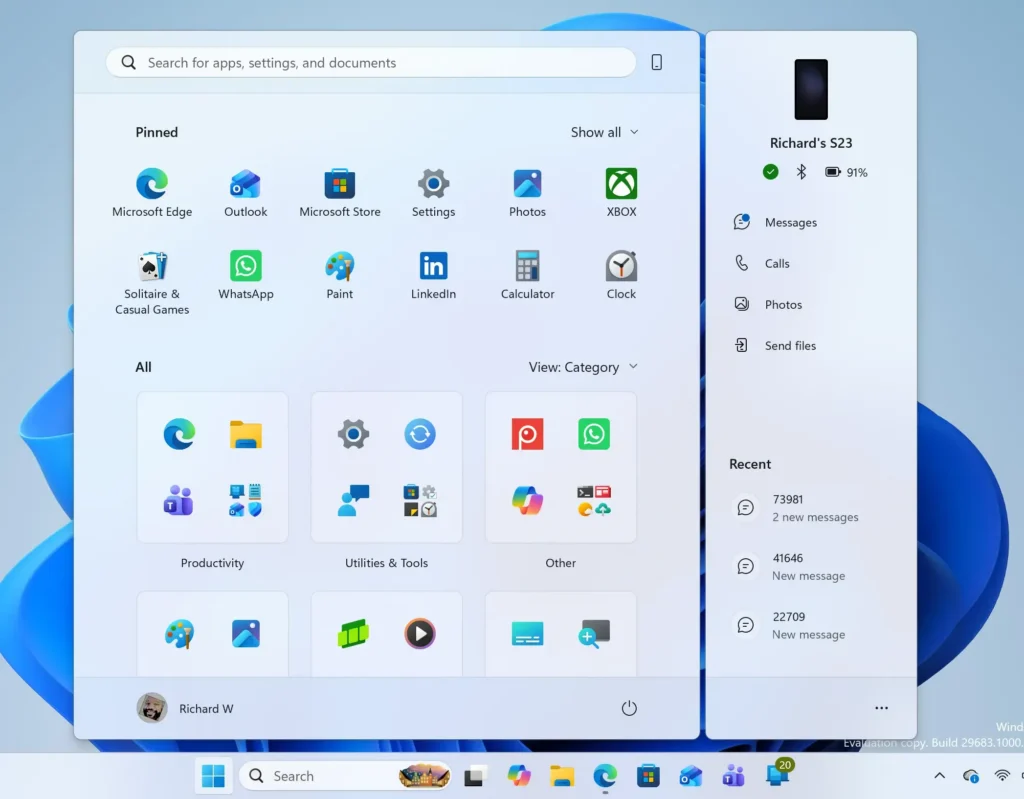
Start Menu - Select Apps. It is in the left pane. The page shows options such as Installed apps and Default apps.
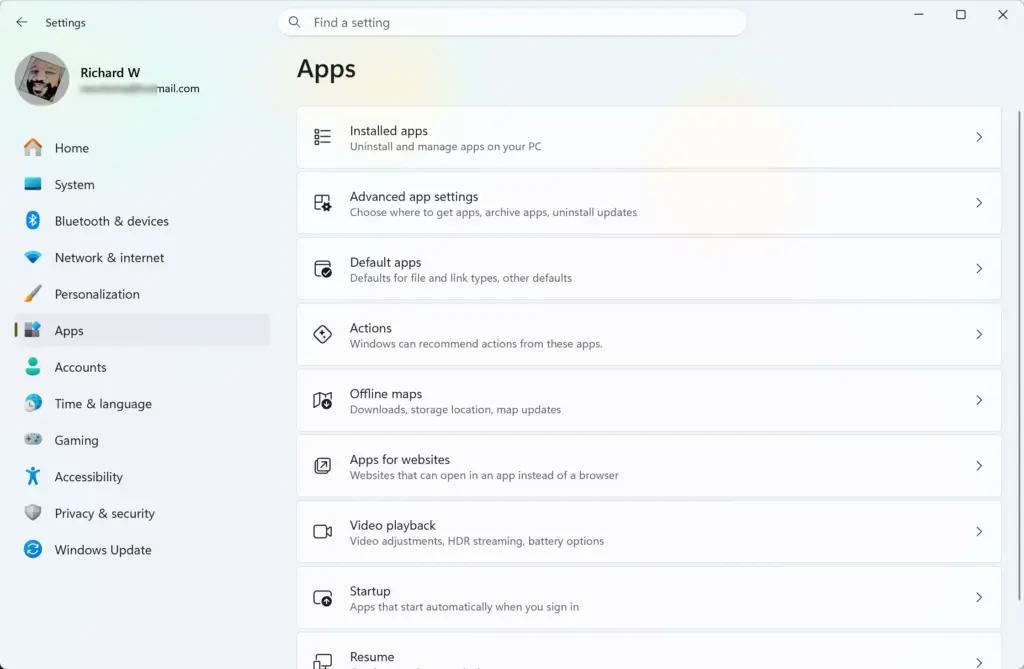
Settings › Apps - Select Default apps. The page lists your installed apps and a search box for file types. Settings Apps Default apps is the full path.
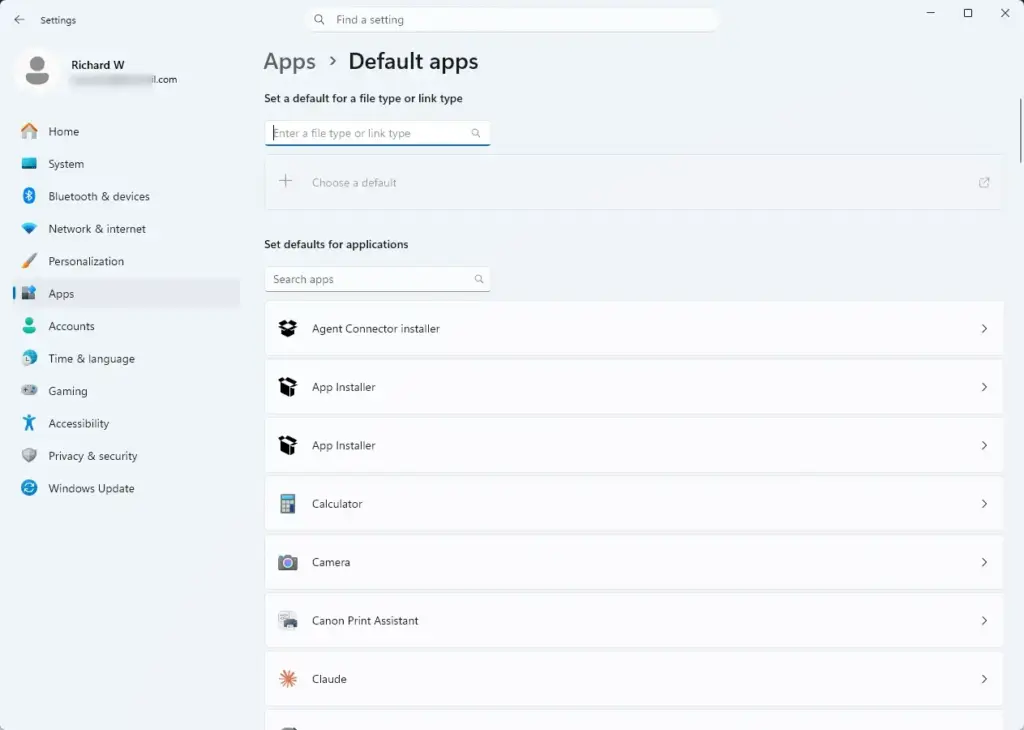
Settings › Apps › Default apps - Click the file type search box. It sits near the top of the page. Its label varies between Windows 11 builds, but it asks for a file type or link type.
- Type .jpg and select the result. Windows shows the app that currently opens .jpg files, usually Photos.
- Select the app currently listed. A list of installed apps that can open this file type appears.
- Choose your preferred viewer. If it is missing from the list, select a “More apps” or “Look for another app on this PC” option if one appears. Then browse to the app’s .exe file. The .exe file is the program itself, usually under 📁C:\
Program Files . - Select Set default. On some builds the button reads OK instead. The file type now shows your chosen app.
- Repeat for each format. Common ones are .jpeg, .png, .gif, .bmp and .webp. Each needs its own change.
- Test the result. Open File Explorer and double-click a picture. It should open in the app you chose.
If the picture still opens in Photos, you may have changed the wrong extension. Check the file’s type first, as described below. Right-click the file, select Properties, and check the Type of file line on the General tab. Then set that extension.
Change the default from the right-click menu
This method changes the default photo viewer for one file type, starting from a picture you already have. It is faster when you only care about one format.
- Open File Explorer. Press Win+E, then browse to a picture of the type you want to change.
- Right-click the image. A compact menu opens. If you do not see Open with, select Show more options or press Shift+F10.
- Select Open with. A short list of apps appears, with Choose another app at the bottom.
- Select Choose another app. A window opens listing apps that can open this file.
- Select your preferred viewer. If it is not shown, select More apps and scroll down the list.
- Select Always. On some builds, this is a checkbox labelled “Always use this app to open” the file type, followed by an OK button.
The picture opens in the new app, and every file of that type does the same from now on. This approach changes only the extension of the file you clicked. A .png file will not switch when you change a .jpg file.
Set defaults starting from the app
The Default apps page also lets you start from the app instead of the file type. This works well when you install a viewer and want it to take over every format it supports in one visit.
- Open Settings Apps Default apps. Use Win+I, then select Apps and Default apps.
- Search for the app by name. Use the search box above the app list. Select the app when it appears.
- Review the file types listed. The page shows each file type the app can open and which app holds it now.
- Select an image file type. A picker opens for that extension.
- Choose the app and confirm. Repeat for each image type in the list.
The same approach works for any other file type. For a worked example with a text editor, see how to make Notepad++ the default in Windows 11. For the general Default apps layout, read how to choose default apps in Windows 11.
If your photo viewer is missing or the change does not stick
Work through these causes in order, starting with the first one. Check them in this order.
The viewer does not appear in the list
Windows lists only apps that register for the file type during installation. A portable app often skips this step. Reinstall the app with its installer if one exists, or use the Look for another app on this PC option and select the app’s .exe file.
If you still cannot pick it, the app may not support that format. Many viewers handle .jpg and .png but not newer formats such as .webp, so check the app’s supported formats.
The option is greyed out or resets
On a work or school PC, an administrator can control default apps through policy. In that case, ask your IT team. On a personal PC, a Windows update or an app installer can change a default without asking. If the default changes back, repeat the steps in the Settings section above.
For a related pattern with browsers, see why Windows 11 keeps resetting your default browser. Image defaults can reset for similar reasons.
The classic Windows Photo Viewer is not listed
The older Windows Photo Viewer is not offered as an option on a standard Windows 11 install. Bringing it back needs an edit to the Windows registry, which is the database that stores Windows settings. This guide does not cover that edit. [Registry method: to be verified]. Microsoft has not confirmed a way to restore it, so choose one of the installed apps in the list instead.
Pictures open in a different app than expected
Check the exact extension of the file. A picture named photo.jpeg uses .jpeg, not .jpg. A file with no visible extension may have it hidden. In File Explorer, select View Show File name extensions to display it.
Undo the change
To go back for one file type, repeat the Settings steps and choose Photos again. To undo a single app’s choices, follow how to reset an app to default in Windows 11.
What to do next
Defaults can change after a feature update or an app reinstall, so check one picture after either. If Windows keeps reverting your choices, resetting default apps to Microsoft recommendations shows what Windows applies when it resets them. If you are in the Windows Insider program and run a preview build, revisit Settings Apps Default apps after each preview update, because Microsoft may change how the updated Photo Viewer is assigned before release.
Have a question about this guide?
Answered by AI from this guide. Good questions may be added to this page — please don't include personal details.
Did this guide fix your problem?

About the Author
Richard
Tech Writer, IT Professional
Richard is a writer at Geek Rewind who turns complex IT tasks into clear, step-by-step guides. He draws on years of hands-on experience in system administration and enterprise IT operations, focusing on Windows, Linux and WordPress: the problems people actually run into, and the fixes that work. His server and WordPress guides come from systems he runs himself. Richard builds and maintains the platform behind Geek Rewind, from its Ubuntu servers and Nginx configuration to its custom WordPress plugins. Many new tutorials start with readers' questions, and he's always glad to answer them in the comments.
No comments yet — be the first to share your thoughts!