Why Does Windows 11 Keep Resetting My Default Browser

- 29 steps
- Needs administrator rights
- Group Policy needs Windows 11 Pro, Enterprise or Education
- Includes a restart or sign-out
Windows 11 can switch your default browser back to Microsoft Edge after a system update or patch. Edge is registered for more than 20 file types and link categories, so any gap in your choices gives Windows a reason to fall back to it.
The fix goes beyond the one browser menu. You need to make sure your browser owns each individual association, including HTM, HTML and the web link types, and then deal with whatever keeps undoing it. This guide covers both.
Windows 11 resets your default browser when a major update or third-party software overwrites your web file associations, such as.htm,.html, HTTP and HTTPS, and leaves a gap that falls back to Microsoft Edge. To stop it, open Settings, go to Apps, then Default apps, and set your browser for each of those entries.
Understanding How 🪟 Windows 11 Handles Default Apps
Windows 11 has no single master switch for your default browser. It tracks default apps by file type and link type. When you click a link, Windows checks the specific format, such as HTTP, HTTPS, .htm or .html, and opens whichever app is registered for that format.
That is why changing the default browser means updating several entries rather than one setting. Edge is tied closely to these link types in the core system, so any entry you miss can still point to Edge.
Updates and some applications can reset your web file types to Microsoft’s recommended settings. Edge is built into Windows 11, so Microsoft treats it as the safety net. If a browser setting looks corrupted or incomplete, Windows falls back to what it knows best, which is Edge.
The Main Reason Windows Reverts Your Browser
The most common cause is a major Windows update. These updates refresh core operating system files and can overwrite your custom file associations with the original Edge settings. If your browser is not set across every web-related file type, Windows sees a gap and fills it with Edge. After a major update, plan on checking your browser choice again.
The second common cause is third-party software. A newly installed program or a background updater can reset your web preferences without telling you. Driver utilities, “optimizer” tools and some bundled installers are the usual suspects.
Step-by-Step Fix 1: Setting Your Default Browser Correctly in Settings
The most reliable fix is to set your browser through Windows Settings and check every web-related entry yourself. Do not assume one button covered everything. No restart is normally needed.
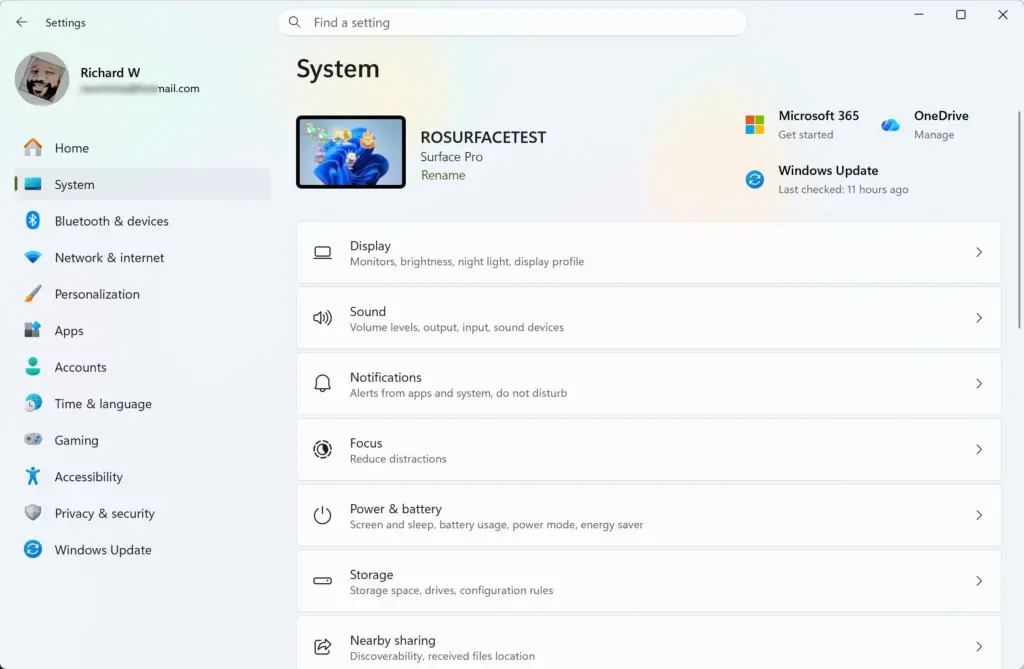
- Click the Start button and open Settings (the gear icon). The Settings window opens.
- Click Apps in the left-hand menu.
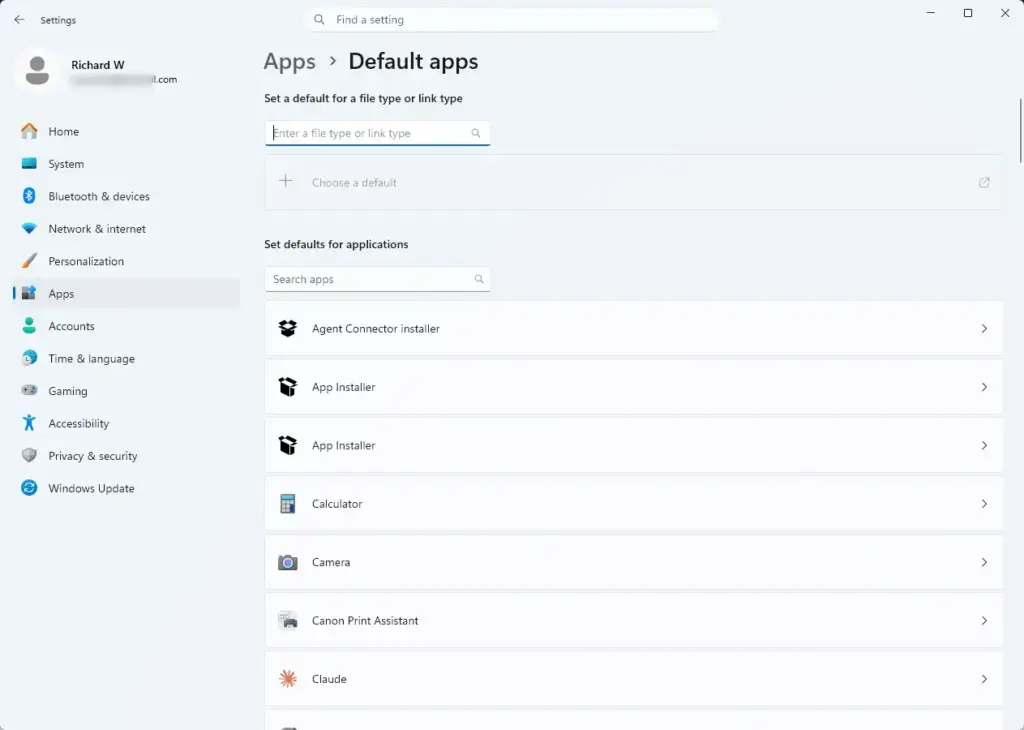
- Click Default apps on the right side of the screen. You will see a list of installed apps and a search box .
- In the box labelled Find an app, type the name of your preferred browser, for example Google Chrome or Mozilla Firefox.
- Click your browser when it appears in the results. Its page opens with a list of file types and link types, such as .htm, .html, HTTP and HTTPS.
- If you see a Set default button at the top of the page, click it. Recent Windows 11 builds include it, and it assigns the main web types in one go. Older builds do not have it, so skip this step if it is missing.
- Click the app currently listed next to .htm. A window appears asking how you want to open this type of file.
- Choose your preferred browser and click Set default.
- Repeat for .html, HTTP and HTTPS. If your list also shows PDF, decide whether you want your browser or another app to open PDFs, and set it the same way.
When you finish, every entry you changed should show your browser’s name. To undo any of this, repeat the steps and pick Edge again.
Step-by-Step Fix 2: Forcing the Browser to Re-register Its Settings
Sometimes the browser itself is the problem, because it never told Windows that it wants to stay the default. Most major browsers have a button in their settings that checks your default status and asks Windows to register the browser again. This can repair broken associations that cause unwanted switches back to Edge.
- Open your preferred browser, such as Chrome or Firefox.
- Open the browser’s settings menu. It is usually behind the three dots or three lines in the top right corner.
- Look for a section called Default browser or Startup. In Firefox, it sits under the General settings.
- Click the button labelled Make default or Check now. The browser reports whether it is currently the default.
- If a Windows prompt asks whether to switch or keep your current settings, choose your preferred browser.
Running this check after each major Windows update is a quick way to catch a reset before you notice it by accident.
Step-by-Step Fix 3: Checking for Conflicting Startup Apps and Background Programs
If your settings keep reverting even after you fix them, look at what runs at startup. Third-party utilities and system cleaners can reset file associations each time the computer boots. Task Manager shows you what starts with Windows. Aggressive optimization software is the first thing to disable.
- Press Ctrl+Shift+Esc at the same time to open Task Manager .
- Click Startup apps in the left sidebar (the gauge icon). A list of programs that launch at sign-in appears, with a Status column.
- Review the list and look for unfamiliar system optimizers, registry cleaners or helper tools.
- Right-click any suspicious program and select Disable. Its status changes to Disabled.
- Restart the computer and check your default browser again.
Disabling a startup entry does not uninstall the program, so you can undo it. Right-click the entry and select Enable. Only disable programs you recognise as non-essential. If you are unsure what something is, search for its name first.
Advanced Unique Angle: Fixing Edge Startup Boost and Background Processes
Edge can keep running in the background even after you close its window. This can confuse the picture of which browser is handling your web requests, and it is worth turning off if you do not use Edge. Disabling these two options stops Edge from running in the background. Both are in Edge’s own settings.
- Open Microsoft Edge.
- Click the three dots in the top right corner and select Settings.
- Click System and performance in the left menu.
- Find Startup boost and turn the toggle Off.
- Turn off Continue running background extensions and apps when Microsoft Edge is closed as well.
Both toggles should now show as off. To undo this, return to the same page and switch them back on. The wording of these options can shift slightly as Edge updates, but they stay in the System and performance section.
Advanced Unique Angle: Managing Group Policy and Enterprise Settings (Admin Required)
On a school or employer-managed computer, an administrator may enforce Edge as the default for security reasons. If so, your browser setting will revert automatically, often after every restart, and nothing you change locally will hold. Administrators use central controls to lock down default apps across a network. In that case, ask your IT department rather than trying to work around the policy.
If you are the administrator of a local workgroup computer or a home PC, you can check whether a local policy is locking your browser settings.
The Local Group Policy Editor is available in Windows 11 Pro, Enterprise and Education. It is not included in Windows 11 Home, so Home users can skip this section.
- Click the Start button, type Local Group Policy Editor and press Enter. The editor opens in a new window.
- In the left pane, expand Computer Configuration, then Administrative Templates, then Windows Components, and click Microsoft Edge.
- Look through the settings on the right for any policy related to default browser behavior. If the Microsoft Edge folder is missing or empty, the Edge policy templates are probably not installed, and there is nothing local to change here.
- If a policy is set to Enabled and forces Edge to stay as the default browser, double-click it.
- Change it to Not Configured or Disabled and click Apply.
This removes the system-level rule that was overriding your personal choice. You can undo it by setting the policy back to its previous state. Some advanced users try registry edits for this, but the graphical editor is safer and easier to reverse.
What NOT To Do: Avoiding Dangerous File Deletions
Do not do either. Windows 11 relies on Edge for core functions. Widgets, search results in the taskbar and help menus open web pages using components built into Edge.
If you delete or damage those files, you can break parts of the operating system. You might see broken search menus, a crashing Settings app or failed system updates. Stick to the configuration steps in this guide, which you can fully reverse.
Preventing Future Resets After Windows Updates
Keep your third-party browser updated. Major Windows updates arrive several times a year, and they are the most likely moment for a reset. When Chrome, Firefox or your browser of choice releases a new version, it often includes updated code for working with the latest Windows 11 changes. That helps the browser hold onto its default status when Windows updates.
Check for browser updates regularly, and check your default browser status after each major Windows update.
Summary
Windows 11 keeps resetting your default browser because it ties web links deeply into the operating system and sometimes overwrites your choices during updates. To fix it for good, open Default apps in Settings and assign your browser to every web link and file type. Then keep the browser updated and disable conflicting background tools. On a managed computer, check with the administrator, because a policy may be forcing the reset.
Frequently asked questions
Google Chrome sticks you with "make Google Chrome your default browser" window on startup, why?
Chrome shows that prompt because its default-browser check is turned on. Each time Chrome opens, it looks at whether it is your default browser. If it is not, it asks again. Click Yes to make Chrome the default, or turn off the check in Chrome's settings under Default browser. Windows 11 may still ask you to confirm the change in Default apps.
Why isn't edge the default browser on a new installation of 🪟 Windows 11?
A new Windows 11 install usually sets Microsoft Edge as the default browser. If it does not, another browser may have claimed the web links during setup, or the computer's maker or region may have set a different app. To check, open Settings, go to Apps, then Default apps, and choose the browser you want.
Why does edge attempt to take over my browser when I selected Google Chrome as my default browser?
Windows 11 resets web links and file types to Microsoft Edge after updates. Edge is built into Windows, so Windows falls back to it when a setting is missing. Edge may also prompt you to make it the default. Set Google Chrome for each web link and file type in Default apps, and turn off Edge's prompts in its settings.
Why does my browser keep resetting to something I didn't choose?
Windows updates, app installs, and Microsoft Edge can change your web settings back to Microsoft's recommended choices. Each link type and file type is stored separately, so one missed entry can open a different browser. Check the entries for HTTP, HTTPS, .htm, and .html in Default apps, and set each one to your browser.
Why does my default browser keep changing?
Your default browser changes when a Windows update resets your settings, or when an app such as Microsoft Edge asks to be the default and you accept. Some third-party programs also change it during installation. Check Settings, then Apps, then Default apps. Set your browser there and clear any prompts that try to change it again.
Still have a question?
Answered by AI from this guide. Good questions may be added to this page — please don't include personal details.
Did this guide fix your problem?

About the Author
Richard
Tech Writer, IT Professional
Richard is a writer at Geek Rewind who turns complex IT tasks into clear, step-by-step guides. He draws on years of hands-on experience in system administration and enterprise IT operations, focusing on Windows, Linux and WordPress: the problems people actually run into, and the fixes that work. His server and WordPress guides come from systems he runs himself. Richard builds and maintains the platform behind Geek Rewind, from its Ubuntu servers and Nginx configuration to its custom WordPress plugins. Many new tutorials start with readers' questions, and he's always glad to answer them in the comments.
No comments yet — be the first to share your thoughts!