Disable Edge Default Browser Prompts in Windows 11


Microsoft Edge keeps asking to be your default browser. The banner shows up when Edge opens, and sometimes after a Windows 11 23H2 update, if you use Chrome, Firefox or another browser instead. You can stop it with one Registry Editor value (the Registry is a built-in database of Windows and app settings). The value is an Edge policy that tells Edge not to check whether it is the default browser, so it stays quiet. The steps below work on both Home and Pro editions.
To stop Microsoft Edge from asking to be your default browser in Windows 11, open Registry Editor as administrator, go to 🗝️HKEY_CURRENT_USER\
Stop Microsoft Edge browser prompts to switch the default browser
You can keep using Chrome, Firefox or whatever else you prefer. Back up the Registry or create a restore point first if you like to be careful. This is a small change and easy to reverse.
- Search for the Registry Editor in the Start menu , right-click the result and choose Run as administrator. Open the Registry Editor (a tool that lets you make advanced changes to Windows settings ) this way. Approve the User Account Control prompt. The Registry Editor window should open, with a folder tree on the left and values on the right.
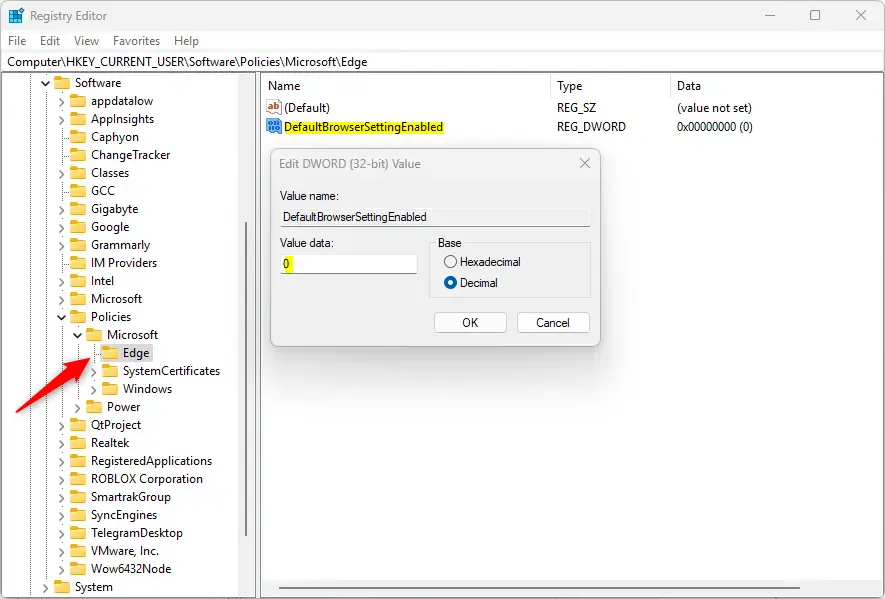
- Navigate to the following registry key. You can click through the folders on the left, or paste the path into the address bar at the top of the Registry Editor window:
ComputerHKEY_CURRENT_USERSoftwarePoliciesMicrosoftEdge
On many PCs the Edge key does not exist yet, because nobody has set an Edge policy. If it is missing, right-click the Microsoft key, choose New Key and name the new key Edge. Then select it. The right pane may be empty, and that is fine.
- Look in the right pane of the Edge key for the ‘DefaultBrowserSettingEnabled‘ entry (a registry value of type REG_DWORD). If it is there, double-click it to open it. A small Edit DWORD (32-bit) Value window should appear.
- Type 0 in the Value data box and click OK. A value of 0 disables the Edge prompts for the current user. The right pane should now show DefaultBrowserSettingEnabled with the data 0x00000000 (0).
If the ‘DefaultBrowserSettingEnabled‘ item isn’t visible, you need to create it.
- Right-click an empty space in the right pane and choose New DWORD (32-bit) Value. A new entry appears with its name highlighted for editing, ready to be renamed.
- Type the name ‘DefaultBrowserSettingEnabled‘ exactly as written and press Enter. Then double-click the new entry, set Value data to 0 and click OK. The new value defaults to 0, but confirm it. This disables the feature for the current user.
Confirm when asked. Removing the value is cleaner than setting it to 1, because Edge goes back to its normal behavior.
The steps above only affect your own user account. To apply the change to everyone who uses the computer, repeat the same steps with the following registry key instead. You need administrator rights for this, which is why you opened the Registry Editor as an administrator. Create the Edge key and the value here too if they are missing.
ComputerHKEY_LOCAL_MACHINESOFTWAREPoliciesMicrosoftEdge
- Close the Registry Editor and restart your computer so the change takes effect. Sometimes closing every Edge window is enough, but a restart is the sure way. If Edge later shows a "managed by your organization" notice, that is normal. It appears whenever any Edge policy is set in the Registry, and it goes away when you remove the entries.
After the restart, open Edge. The banner asking you to make it the default browser should no longer appear. If it still does, check that the value name is spelled exactly right and that the data is 0.
Reference:
Conclusion:
- Users can easily prevent Microsoft Edge from prompting to be the default browser in Windows 11 by adjusting settings in the Windows Registry.
- The process involves modifying the "DefaultBrowserSettingEnabled" registry key under "ComputerHKEY_CURRENT_USERSoftwarePoliciesMicrosoftEdge" and setting the value to "0" to disable the prompt.
- To apply this policy to all computer users, the modification can be made under "ComputerHKEY_LOCAL_MACHINESOFTWAREPoliciesMicrosoftEdge" instead.
- It's important to note that rebooting the computer may be necessary for the changes to take effect.
Did this guide fix your problem?

About the Author
Richard
Tech Writer, IT Professional
Richard is a writer at Geek Rewind who turns complex IT tasks into clear, step-by-step guides. He draws on years of hands-on experience in system administration and enterprise IT operations, focusing on Windows, Linux and WordPress: the problems people actually run into, and the fixes that work. His server and WordPress guides come from systems he runs himself. Richard builds and maintains the platform behind Geek Rewind, from its Ubuntu servers and Nginx configuration to its custom WordPress plugins. Many new tutorials start with readers' questions, and he's always glad to answer them in the comments.
No comments yet — be the first to share your thoughts!