Disable Chrome Default Browser Prompt in Windows 11


The Chrome default browser prompt in Windows 11 is a persistent notification asking you to make Google Chrome your main web browser instead of Microsoft Edge. Chrome checks its default status every time it starts. If it isn’t the default, it shows a “Set as default” banner. Windows 11 makes this more annoying because default apps are set through a multi-step Settings menu, so clicking the banner never ends the question.
The fix is a small change in the Registry Editor, the tool that stores Windows settings . You add one value that tells Chrome to stop checking its default status. The change takes about two minutes and is easy to undo. It works the same on Windows 11 Home and Pro.
To stop the Chrome default browser prompt in Windows 11, open Registry Editor as administrator and go to 🗝️HKEY_CURRENT_USER\
Prevent Google Chrome from asking to be the default browser
To disable the Chrome default browser prompt, you add a specific entry in the Registry Editor. Chrome reads it as a policy and stops asking you to change your main web browser when you open the program. Nothing else about Chrome changes, and Edge stays your default browser. Once any Chrome policy is set, Chrome may show a “managed by your organization” notice in its menu or settings. That is expected on a PC set up this way.
Without admin rights you will get an error when you try to create the value.
These steps stop the Chrome browser for Windows 11 from asking to be your default browser.
- Close all Google Chrome windows. Check the system tray near the clock as well, in case Chrome is still running in the background.
- Open the Start menu and search for Registry Editor. The app should appear at the top of the results.
- Right-click the result and choose Run as administrator.
- Click Yes on the User Account Control prompt. The Registry Editor window opens, with the registry tree on the left and values on the right.
- Go to the registry key shown below. You can paste the path into the address bar at the top of the Registry Editor, or expand the folders in the left pane one by one.
ComputerHKEY_CURRENT_USERSoftwarePoliciesGoogleChrome
- Create any missing keys in the path. If the Policies, Google or Chrome folders are missing, that is normal on a PC where no browser policies have been set. Right-click the parent folder, choose New Key, and name the new key exactly as shown in the path. Repeat until the full path exists. Skip this step if every folder is already there.
- Click the Chrome key in the left pane. Its contents now show on the right.
- Double-click DefaultBrowserSettingEnabled if it is listed in the right pane. A dialog opens so you can edit the value. If the entry isn't there, go to step 10.
- Type
0in the Value data box and click OK. This stops Google Chrome from asking you to make it your default browser for your user account. A value of 0 means the setting is off. The entry should now show 0 in the Data column. If you did this step, you are finished with the edit, and steps 10 to 14 are only for when the value was missing.
- Right-click an empty space in the right-hand pane. A short menu opens.
- Choose New DWORD (32-bit) Value. A new entry appears with its name highlighted for editing.
- Type the name DefaultBrowserSettingEnabled and press Enter. Spelling and capitalization matter, so check them before you move on.
- Double-click the new entry. The edit dialog opens.
- Enter
0in the Value data box and click OK. This disables the feature for the current user. Leave Base on its default setting. For a value of 0 it makes no difference.
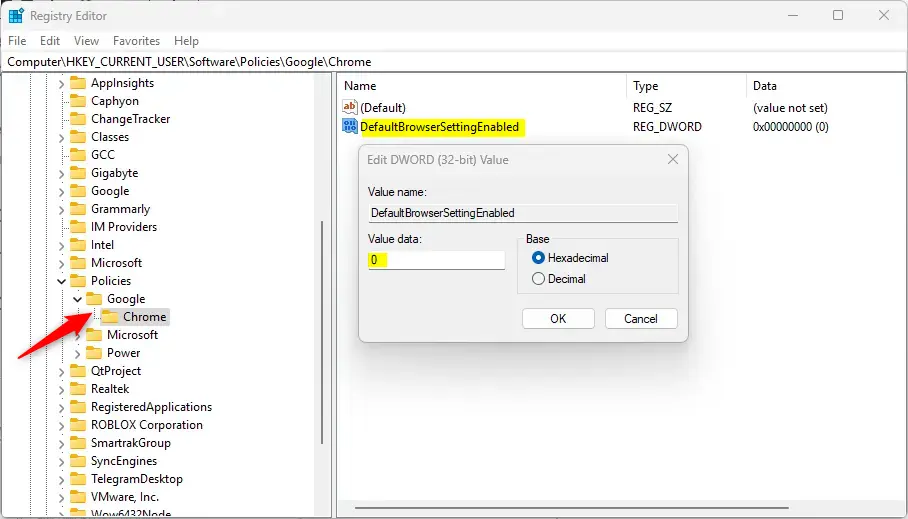
To go back to how things were and have Google Chrome ask again about being your default browser, delete the entry you created:
- Right-click DefaultBrowserSettingEnabled in the right-hand pane and choose Delete.
- Click Yes to confirm. The entry disappears from the list.
The prompt returns the next time Chrome starts. Setting the value back to 1 is not the same as deleting it, so delete the entry if you want to fully undo the change.
The steps above only affect your own user account. To apply the policy to every user on the PC, create the same DefaultBrowserSettingEnabled value under the HKEY_LOCAL_MACHINE hive, in the SOFTWARE\Policies\Google\Chrome key, instead of the user hive. Follow the same steps as above, with the same value data. This keeps browser settings consistent across all accounts, because it changes the Windows Registry, the central database for system configuration, at machine level. You need an administrator account to write there.
ComputerHKEY_LOCAL_MACHINESOFTWAREPoliciesGoogleChrome
You may have to restart your computer for the changes to apply. Try the quicker route first:
- Close every Chrome window and make sure Chrome isn't still running in the background.
- Open Chrome again and check whether the banner is gone.
- If the banner still appears, restart Windows and open Chrome once more.
This works the same on Windows 11 Home and Pro, since you are editing the registry directly and not using Group Policy.
That should do it! Chrome should now open without asking to be your default browser.
Reference:
Disabling the prompt stops Chrome from checking your default browser status every time you launch it. Here are the key points:
- Disabling Google Chrome's "Set as default" prompt prevents it from checking if it's the default browser
- To disable the prompt, use the Windows Registry Editor to navigate to the corresponding registry key and set the value to 0
- To revert to the default behavior, delete the "DefaultBrowserSettingEnabled" item created
- The policy can be applied to all computer users via the HKEY_LOCAL_MACHINE\SOFTWARE\Policies\Google\Chrome Registry key
- Restarting the computer may be necessary to apply the changes
Have a question about this guide?
Answered by AI from this guide. Good questions may be added to this page — please don't include personal details.
Did this guide fix your problem?

About the Author
Richard
Tech Writer, IT Professional
Richard is a writer at Geek Rewind who turns complex IT tasks into clear, step-by-step guides. He draws on years of hands-on experience in system administration and enterprise IT operations, focusing on Windows, Linux and WordPress: the problems people actually run into, and the fixes that work. His server and WordPress guides come from systems he runs himself. Richard builds and maintains the platform behind Geek Rewind, from its Ubuntu servers and Nginx configuration to its custom WordPress plugins. Many new tutorials start with readers' questions, and he's always glad to answer them in the comments.
No comments yet — be the first to share your thoughts!