How to Disable Chrome PDF Viewer


Disabling the built-in Chrome PDF viewer stops Google Chrome from showing PDF files inside a browser tab. Chrome downloads the file instead, and you open it in a desktop application such as Adobe Acrobat Reader. The built-in viewer is a basic reader that Chrome ships with, so it handles simple viewing but not everything a dedicated app can do.
A desktop reader is the better choice for filling out complex forms, working with digital signatures or opening protected files. This guide covers two ways to switch the built-in viewer off. The first uses Chrome’s own settings and takes a few clicks. The second uses the Windows Registry and is meant for administrators who manage many PCs.
Open Chrome, click the three dots and select Settings Privacy and security > Site settings Additional content settings PDF documents. Choose Download PDFs. Chrome saves the change immediately, and PDFs now download to your computer instead of opening in a browser tab.
Method 1Using Chrome Settings
The simplest method is in Chrome’s site settings. You change how Chrome handles PDF documents, so a PDF downloads to your computer instead of opening in a tab. You then open the downloaded file in the app of your choice. This works the same on Windows 11 Home and Pro, and it needs no administrator rights. The setting applies only to the Chrome profile you are signed in to.
- Open Google Chrome from the Start menu or the taskbar .
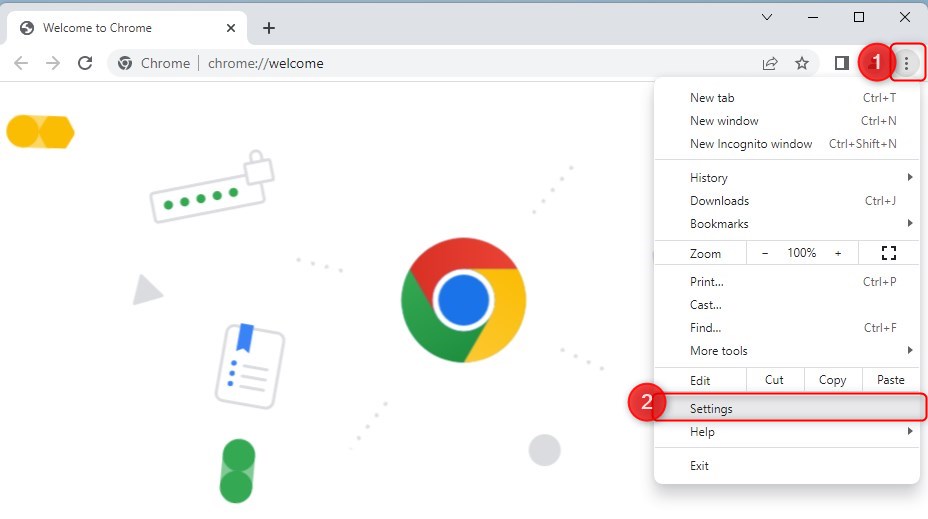
- Click the three dots in the top-right corner of the window, then select Settings. A new tab opens with the Settings page. %📂%LNK0%%
- Click Privacy and security in the left-hand menu.
- Select Site settings. You now see a list of permissions such as Location, Camera and Notifications.
google chrome settings options - Scroll to the bottom of the page and click Additional content settings. The section expands and shows more options.
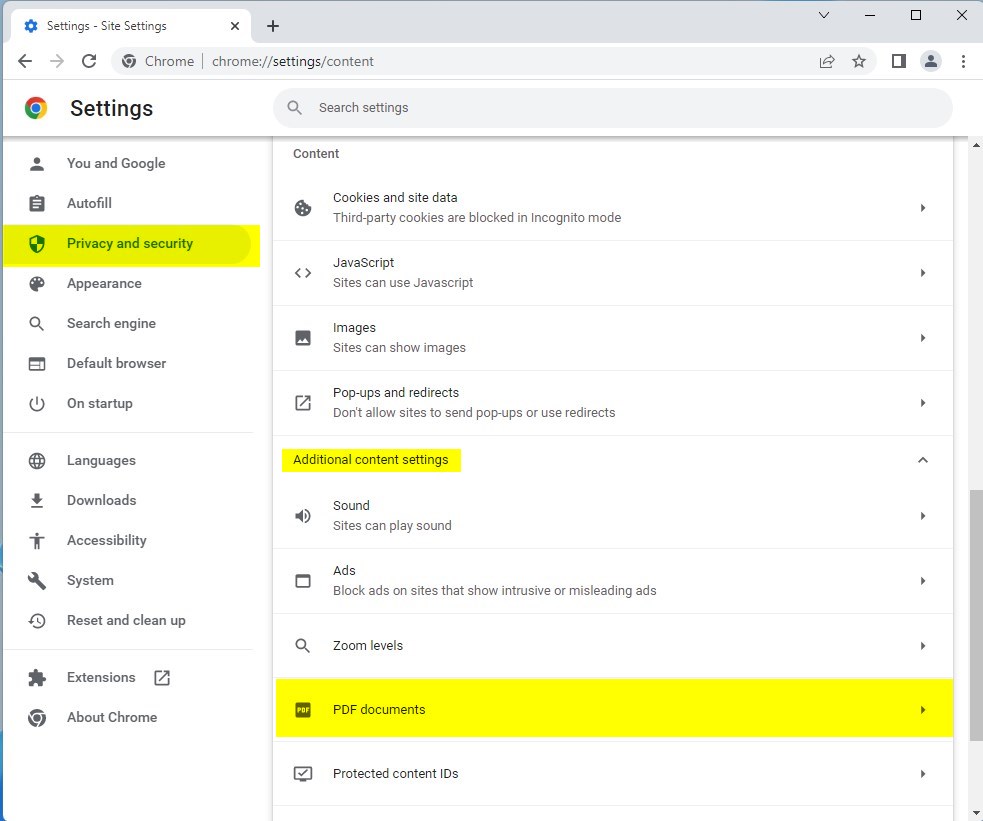
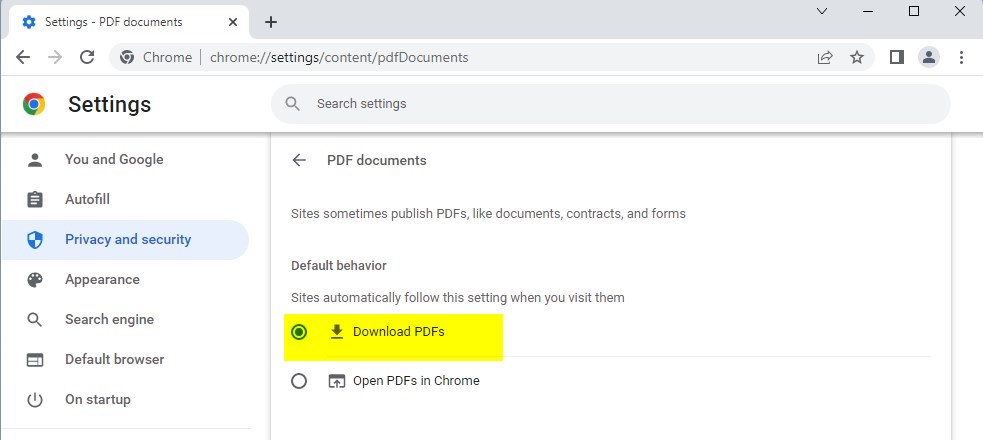
chrome download pdf - Select PDF documents. You should see two options: Open PDFs in Chrome and Download PDFs.
- Choose Download PDFs. Chrome saves the change at once, so there is no Save button and no restart.
download pdf documents in chrome
To test it, open any PDF link. Chrome should save the file to your Downloads folder instead of showing it in a tab. If the file does not open in the app you want, go to Settings Apps Default apps in Windows and set your PDF reader there. To undo the change, return to the same page and select Open PDFs in Chrome.
Method 2Using the Windows Registry (Admin Required)
It is best for IT teams managing many computers. Unlike the Chrome setting above, it applies to every user who signs in to the PC. Back up the registry or create a restore point before you edit it. A wrong change in the Registry Editor can cause problems that are hard to trace.
- Press Win+R to open the Run box, type
regedit, and press Enter. Click Yes if User Account Control asks for permission. The Registry Editor opens.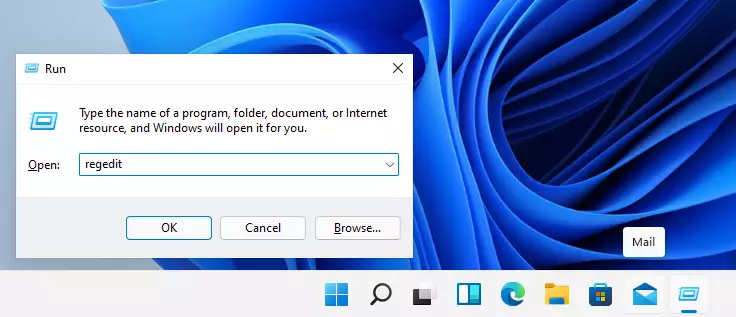
windows registry editor run box - Go to this location:
HKEY_LOCAL_MACHINE\SOFTWARE\Policies\Google\Chrome. You can paste the path into the address bar at the top of the Registry Editor. If the Google or Chrome key does not exist yet, right-click the key above it, choose New Key, and name it exactly as shown in the path.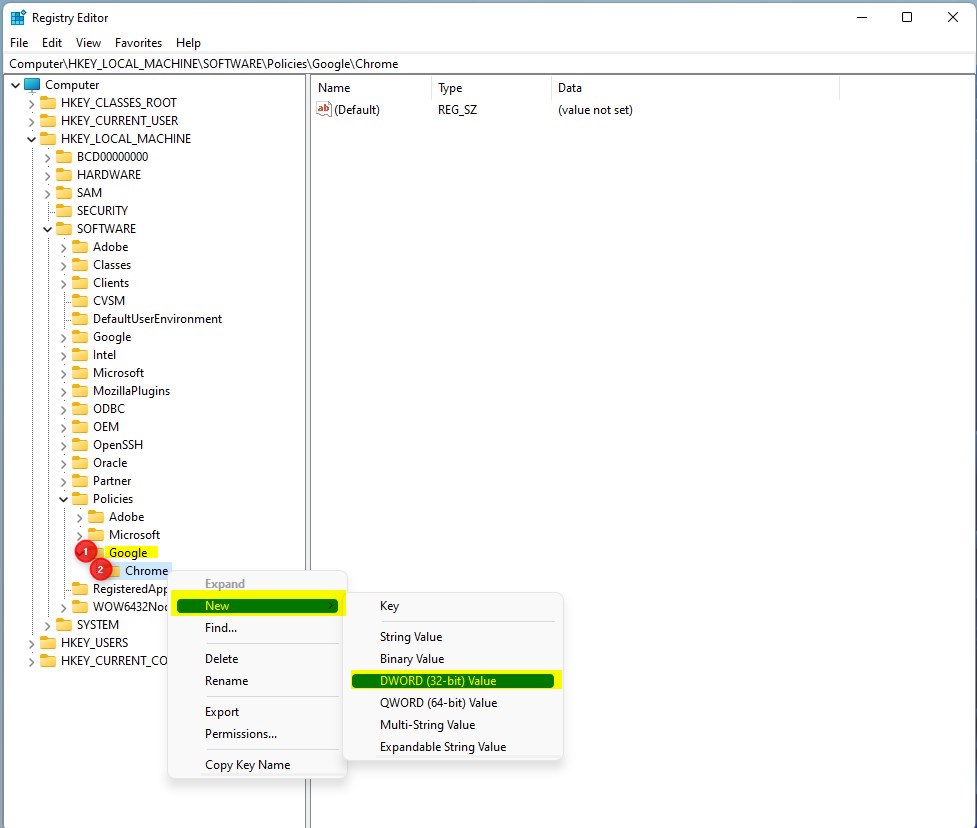
create google chrome key registry - Right-click the Chrome key and choose New DWORD (32-bit) Value. A new entry appears in the right-hand pane with its name highlighted.
- Type the name
AlwaysOpenPdfExternallyand press Enter. - Double-click the new value, enter
1in the Value data box, and click OK.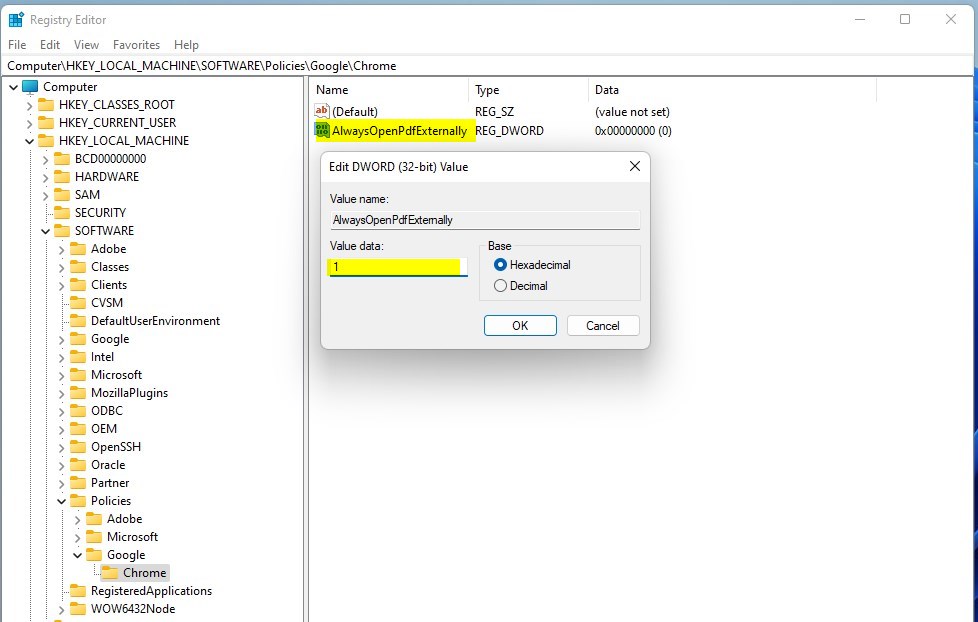
chrome external open pdf in window
After that, Chrome downloads PDFs instead of opening them. Chrome now treats the option as managed, so the PDF documents setting may be greyed out. The three-dot menu may also show a “Managed by your organization” notice. This is expected. To undo the change, delete the value you created, then restart Chrome.
Troubleshooting PDF Issues
If a PDF keeps downloading again and again, clear your browser cache and try the link once more. If PDFs stop opening altogether, go back to the PDF documents page in Chrome's settings and switch the setting back to Open PDFs in Chrome. This restores Chrome's default behavior.
If the setting is greyed out and you did not set a policy yourself, a registry policy or your organization is controlling it. Check whether the registry value from the second method exists, or ask your administrator. If PDFs download but nothing opens them, install a PDF reader and set it as the default in Windows.
Summary
You can disable the Chrome PDF viewer through the standard settings menu, or through the Windows Registry when you need control across many PCs. Either way, PDFs go to an external tool such as Adobe Acrobat. The built-in viewer runs inside Chrome's sandbox, so once you turn it off, keep your external reader up to date. PDF files can carry malicious content, and an outdated reader is a common way in.
Was this guide helpful?

About the Author
Richard
Tech Writer, IT Professional
Richard is a writer at Geek Rewind who turns complex IT tasks into clear, step-by-step guides. He draws on years of hands-on experience in system administration and enterprise IT operations, focusing on Windows, Linux and WordPress: the problems people actually run into, and the fixes that work. His server and WordPress guides come from systems he runs himself. Richard builds and maintains the platform behind Geek Rewind, from its Ubuntu servers and Nginx configuration to its custom WordPress plugins. Many new tutorials start with readers' questions, and he's always glad to answer them in the comments.



No comments yet — be the first to share your thoughts!