How to Download Google Chrome on PC in Windows 11

- 43 steps
- Needs administrator rights
Google Chrome is a free web browser that lets you visit websites, run web apps, and sync your bookmarks across devices on Windows 11. Microsoft Edge is the built-in browser on your PC, but Chrome offers access to millions of extensions and Google account features.
Downloading Chrome takes about two minutes, even though Microsoft prompts you to stick with Edge during the setup process. You grab the official installer file, run it, and then set Chrome as your main browser. This guide also covers what to do if the install fails and how to install Chrome from the command line.
Open Microsoft Edge, go to google.com/chrome, and click Download Chrome. Then run the ChromeSetup.exe file from Edge’s Downloads list (press Ctrl+J) and click Yes at the User Account Control prompt. Chrome installs on Windows 11 in about two minutes, and you can set it as your default browser afterwards.
Prepare Your 🪟 Windows 11 PC for the Download
Before you begin the download, check that your system meets the requirements. Also be ready for Microsoft SmartScreen, a security feature that warns you about potentially malicious apps. SmartScreen may pop up a warning while you download or run the installer. If it does, make sure the file came from Google’s official site before you choose to continue. If you got the file from anywhere else, cancel and download it again from Google.
Check 🪟 Windows 11 Architecture
Google Chrome requires a 64-bit version of Windows 11. Windows 11 itself only ships as a 64-bit system, so most PCs pass this check, but it takes a few seconds to confirm.
- Open Settings. You can press Win+I to get there quickly.
- Click System. It is the first item in the left sidebar.
- Scroll to the bottom and select About. The page shows details about your PC.
- Find the System type entry under Device specifications. It should say a 64-bit operating system on an x64-based processor.
If it says an ARM-based processor instead, you have an ARM PC. Chrome can still run on it, and Google’s download page normally offers the right build for your device.
Open Microsoft Edge
Follow these steps to download Google Chrome on Windows 11 and install it. You start with the pre-installed Microsoft Edge browser, which you use to reach the official Google website. The numbering carries on through the sections below until Chrome is installed and set as your default browser.
- Click the Start menu. The Start menu opens with the search box ready.
- Type
Edge. Edge should appear at the top of the results. - Press Enter to launch the browser. An Edge window should open with a new tab ready.
Navigate to the Official Google Chrome Website
Now go to Google’s download page.
- Click the Edge address bar. It sits at the top of the window, and the current text should highlight.
- Type
google.com/chrome. Check the spelling before you go on. - Press Enter. The Chrome landing page should load.
Download the Chrome Installer
- Click the Download Chrome button on the landing page. The download should begin.
- Ignore any Edge banner that suggests you stay with Microsoft Edge. These are only suggestions and do not block the download.
- Wait about five seconds. If the download does not start on its own, click the explicit download link on the page.
- Confirm that you want to keep the file if Edge asks. Edge sometimes holds a download until you approve it, and SmartScreen may show a warning here too.
The download is a small installer, so it should finish quickly on a normal connection.
Run the Chrome Setup File
When the download finishes, run the setup package to install the application files.
Locate the Downloaded File
- Press Ctrl+J inside Microsoft Edge. The Downloads manager opens.
- Find the entry named
ChromeSetup.exe. It should be at the top of the list. - Click Open file on that entry. The installer starts, and a prompt should appear next.
You can also open the file from your Downloads folder in File Explorer by double-clicking it.
Grant Administrator Permissions
This step requires administrator privileges. Windows 11 displays a User Account Control prompt asking whether you want to allow this app to make changes to your device.
- Click Yes to let the installer write files to your Program Files directory and registry keys.
If you are signed in with a standard account, Windows asks for an administrator password. Enter it, or ask the person who manages the PC. If you click No, nothing is installed, and you can run the file again.
Complete the Installation and Initial Setup
The installer automatically downloads the remaining core components from Google servers and installs the application without requiring further input from you. This is why the file you downloaded was so small, and why the PC needs an internet connection during this step.
- Wait for the installer to finish. A progress bar shows how far along it is.
Once the progress bar reaches completion, Google Chrome launches automatically and displays a welcome screen. No restart is needed.
Sign In to Sync Your Data
- Click Sign in. A Google sign-in page opens.
- Enter your Google Account credentials. Follow any verification prompts your account uses.
Signing in synchronizes your bookmarks, saved passwords, autofill data, and browsing history across all your devices. Signing in is optional. You can skip it and use Chrome without an account, then sign in later from the profile icon in the top-right corner of the browser.
Pin Chrome to the Taskbar or Start Menu
- Right-click the active Google Chrome icon on your Taskbar at the bottom of the screen. A small menu appears above it.
- Select Pin to taskbar. The option may take a second to show.
The icon now stays on the Taskbar after you close Chrome, so you can launch the browser quickly in future sessions. To undo this, right-click the icon again and select Unpin from taskbar.
Set Chrome as Your Default Browser in 🪟 Windows 11
Microsoft Windows 11 designates Edge as the default handler for HTTP, HTTPS, and HTML files. You must update these associations yourself if you want links clicked in emails or other desktop applications to open in Chrome. Windows does not switch them automatically when you install a new browser.
Open Windows Settings
- Press Win+I to open Settings.
- Click Apps on the left sidebar.
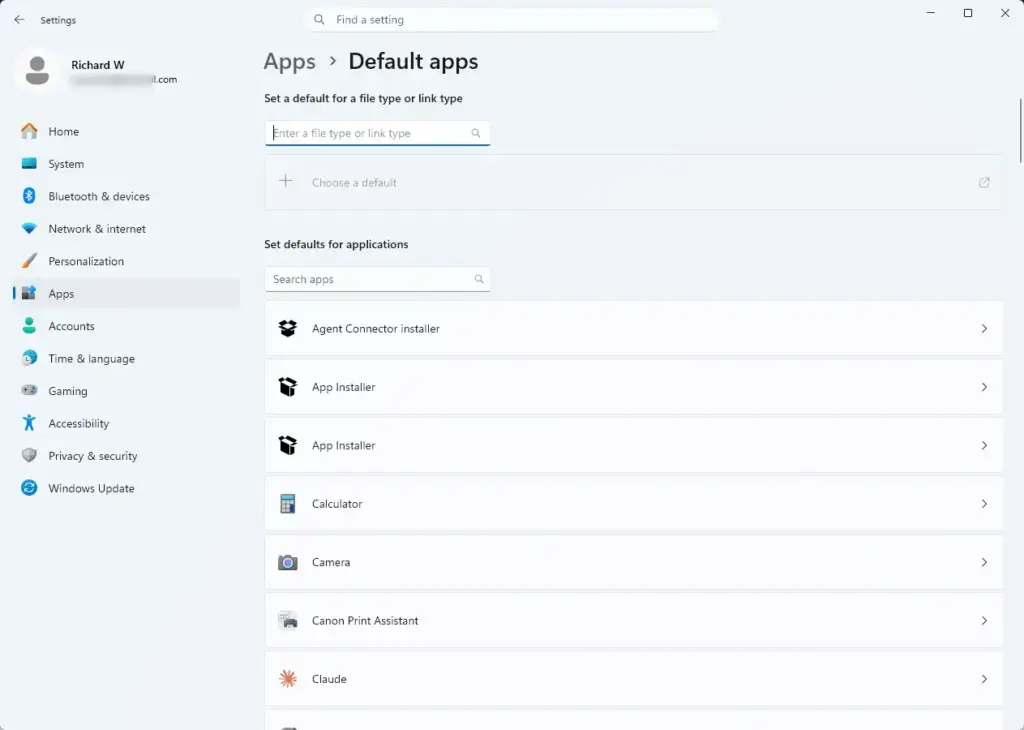
- Click Default apps on the right. A list of installed apps appears, with a search box at the top.
- Click Google Chrome in the list of apps. You can also type Chrome into the search box at the top to find it.
- Click Set default if your version of Windows 11 shows that button. Newer builds usually do.
- Set HTTP, HTTPS, .htm, and .html to Chrome one at a time if you see a list of file and link types instead.
- Choose Chrome if Windows asks whether you want to switch from Microsoft Edge. This confirms the change.
Locate and Update File Associations
File associations control which web browser opens when you click links or web pages on your PC. You can change these settings so that after a Chrome download on a Windows 11 PC, web files open in Chrome instead of Microsoft Edge. Checking this list ensures that web links, HTML files, and internet shortcuts always open in your preferred browser.
To go back, return to the same page and set Microsoft Edge as the default for the same types. No restart is needed for either change.
Troubleshooting Common Download and Installation Errors
Installation failures typically come from three causes: interference from third-party antivirus suites, corrupted temporary files, or too little free space on your primary drive. Check free space in Settings under System and Storage before you try anything else.
Disable Third-Party Antivirus Software Temporarily
If your installation freezes or throws a network error code, your security software may be blocking the installer from reaching Google’s download servers.
- Open your security application’s interface. The layout differs between products, so look for a protection or shields page.
- Temporarily disable real-time protection. Some products ask how long to pause it, so choose the shortest time.
- Run the
ChromeSetup.exefile again. - Re-enable protection immediately after the installation finishes.
Use the Offline Installer Package
If your internet connection drops repeatedly during the standard web installation process, use the official Google Chrome standalone offline installer instead. Get it from Google’s own site only.
- Search for the official Google Chrome standalone offline installer.
- Download the larger enterprise-grade bundle using a stable connection.
- Transfer it to your Windows 11 machine via USB if necessary.
- Run it locally.
The offline bundle contains everything Chrome needs, so it does not have to fetch more files while it installs.
Alternative Installation Methods Using Windows Terminal
Advanced users can deploy Chrome via command-line utilities without interacting with graphical browser prompts. This is handy for setting up several PCs or scripting a fresh install. It uses the Windows Package Manager, which is included with current Windows 11 builds.
Open Windows Terminal with Administrator Rights
- Right-click the Start menu.
- Select Terminal (Admin) or PowerShell (Admin). Which one you see depends on your Windows 11 version.
- Click Yes on the User Account Control prompt. An elevated window should open.
Execute the Package Manager Command
- Type
winget install Google.Chrome. - Press Enter.
The Windows Package Manager fetches the latest official build, verifies the cryptographic hash, and installs the browser silently in the background. The first time you use it, it may ask you to agree to its source terms. Once the command returns to the prompt, Chrome is installed and you can find it in the Start menu.
What to do next
Google Chrome now runs on your Windows 11 desktop with your default associations updated. Import your bookmarks and saved passwords from your previous browser, or open the Chrome Web Store to add extensions and customize your browsing experience.
Frequently asked questions
What is the latest offline installer for Chrome?
Google's standalone offline installer is a single file that installs Chrome without downloading the rest of the program during setup. Get it from Google's official Chrome download page by choosing the alternative or offline installer option. Chrome updates itself after installation, so the file may not be the newest release.
How do I set Chrome as my default browser?
Open Chrome, select the three-dot menu, then choose Settings and Default browser. Click Make default. Windows 11 opens Default apps, where you select Google Chrome and set the web links to it. Confirm the change when Windows asks.
Can you Download Chrome on 🪟 Windows 11?
Yes. Download Chrome for free from the official google.com/chrome page using Microsoft Edge or any browser you already have. Run the ChromeSetup.exe file you downloaded, and the installer finishes in a few minutes. Chrome works alongside Edge, so you do not need to remove anything.
What is the latest version of Chrome?
Chrome updates itself automatically, so it installs the newest version when updates are available. To check your version, open Chrome, select the three-dot menu, then choose Help and About Google Chrome. The page shows your version and whether an update is ready. Restart Chrome to finish any update.
Still have a question?
Answered by AI from this guide. Good questions may be added to this page — please don't include personal details.
Did this guide fix your problem?

About the Author
Richard
Tech Writer, IT Professional
Richard is a writer at Geek Rewind who turns complex IT tasks into clear, step-by-step guides. He draws on years of hands-on experience in system administration and enterprise IT operations, focusing on Windows, Linux and WordPress: the problems people actually run into, and the fixes that work. His server and WordPress guides come from systems he runs himself. Richard builds and maintains the platform behind Geek Rewind, from its Ubuntu servers and Nginx configuration to its custom WordPress plugins. Many new tutorials start with readers' questions, and he's always glad to answer them in the comments.
No comments yet — be the first to share your thoughts!