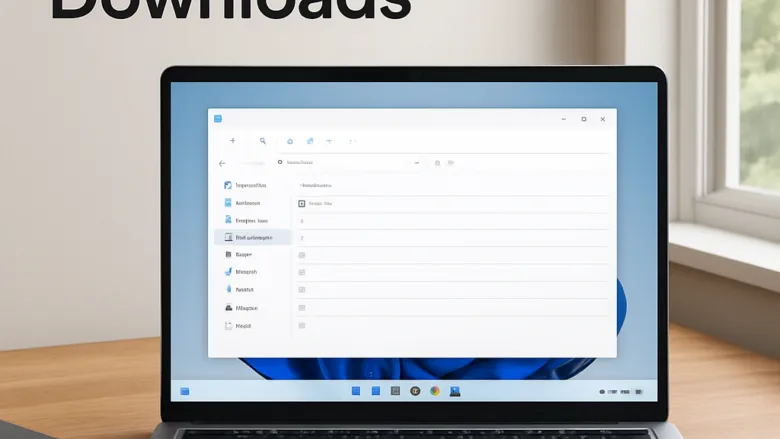
The Downloads folder is the default place Windows saves files, photos and documents you grab from the web. File Explorer (the built-in app for browsing files) opens it in two clicks. Most files you download, including installers, PDFs and images, end up here unless you changed the browser’s save location.
Press the Win+E on your keyboard, or click the folder iconon the taskbar🖥️. File ExplorerFile Explorer📁 opens. In current Windows 11 it usually opens on Home.
Look at the left-hand sidebar and click Downloads. The folder opens and shows its contents.
If you don’t see Downloads in the sidebar, click This PC, then double-click Downloads under the Folders section.
Look through the list for the file you want. Windows groups the files by date, such as Today, Yesterday and Earlier this week, with the newest at the top. If the order looks wrong, switch to the Details view and click the Date modified column header to sort again.
If Downloads is missing from the sidebar, someone may have unpinned it. You can pin it again from This PC by right-clicking the folder and choosing the pin option in the menu.
⚡ Quick Answer
Press Win+E to open File Explorer, then click Downloads in the left sidebar. Your downloaded files appear grouped by date, with newest files at the top. If Downloads isn’t visible, click This PC and double-click Downloads under Folders.
Advertisement
Using the Quick Access Menu to Open Downloads
The Quick access area shows the folders you use most and your recent files. Downloads is pinned there by default, so this is usually the fastest route. Windows 10 and early Windows 11 builds call the top sidebar entry Quick access. In newer Windows 11 versions it is called Home, and Quick access is a section on that page.
Open File Explorer📁 from the folder iconon the taskbar🖥️ or by pressing the Win+E. File Explorer
Find the Quick access section at the top of the left-hand navigation pane. On newer Windows 11 builds, look at the top entries (Home and the pinned folders below it) or at the Quick access folders on the main page.
Click Downloads. The folder opens straight away.
💡TipIf Downloads is not listed, open it once by another route, right-click it, and choose the pin option. It will then stay in the list.
Advertisement
Locating Downloads Through Your Web Browser
If the file isn’t in your standard Downloads folder, your browser may have saved it to a custom location or a secondary folder. Each major browser keeps a download history page. It lists every file you have downloaded and lets you jump to the folder where the file currently sits. If you moved the file after downloading it, the browser may no longer be able to find it.
Finding Downloads in Microsoft Edge
Microsoft Edge, the default browser on Windows, tracks every download and lets you open the containing folder from the browser itself.
Open Microsoft Edge.
Click the three horizontal dots (Settings and more) in the top-right corner of the window to open the menu. micrsoft edge browser more option and settings
Click Downloads in the menu, or press Ctrl+J on your keyboard. A panel opens listing your recent downloads.
Find the file you need and click the folder icon next to it. File Explorer📁 opens at the exact folder where Windows saved the file, with the file selected.
If the file isn’t in the panel, the history may have been cleared. Try the search method further down.
Finding Downloads in Google Chrome
Google Chrome keeps a complete history of downloaded documents, installers and media files.
Open Google Chrome.
Click the three vertical dots in the top-right corner of the window.
Select Downloads from the drop-down menu, or press Ctrl+J on your keyboard. A Downloads page opens in a new tab.
Click the Show in folder link underneath the file you want. File Explorer📁 opens at that file’s location.
If a file name appears crossed out, or the link says the file was moved or deleted, Chrome can’t find it at its original location.
Finding Downloads in Mozilla Firefox
Mozilla Firefox logs your download history and gives you direct access to your downloaded items.
Open Mozilla Firefox.
Click the Library icon (it looks like books on a shelf) or the downward arrow in the top-right toolbar. The arrow only appears after you have downloaded something in the current session or profile.
Click Downloads to view your recent files. To see the full list, choose Show All Downloads. The keyboard shortcut for that window is Ctrl+Shift+Y.
Click the small folder icon next to the file name. File Explorer📁 opens at the file’s location.
Searching for Missing Files Using Windows Search
If you can’t remember which browser you used, or whether you changed the save location, search the whole computer for the file name or type. This works for any file, whatever app saved it.
Open File Explorer📁 and click This PC in the left sidebar, so Windows searches all your drives instead of one folder.
Click into the search box🔍 in the top-right corner of the File Explorer📁 window.
Type the exact name of the file if you know it. If you don’t, type a file extension such as .pdf, .zip or .exe to narrow the results to that file type.
Press Enter and wait for Windows to fill in the results. A search across the whole PC can take a minute or two, and a green progress bar runs across the address bar until it finishes.
Right-click the file and select Open file location. File Explorer📁 opens the folder that holds the file. If the short Windows 11 menu doesn’t show that option, click Show more options first.
📝Good to KnowIf the search finds nothing, check that you are searching This PC and not a single folder, and try a shorter part of the file name. Files on drives that Windows doesn’t index may take longer to appear.
Advertisement
Changing Where Your Browser Saves Future Downloads
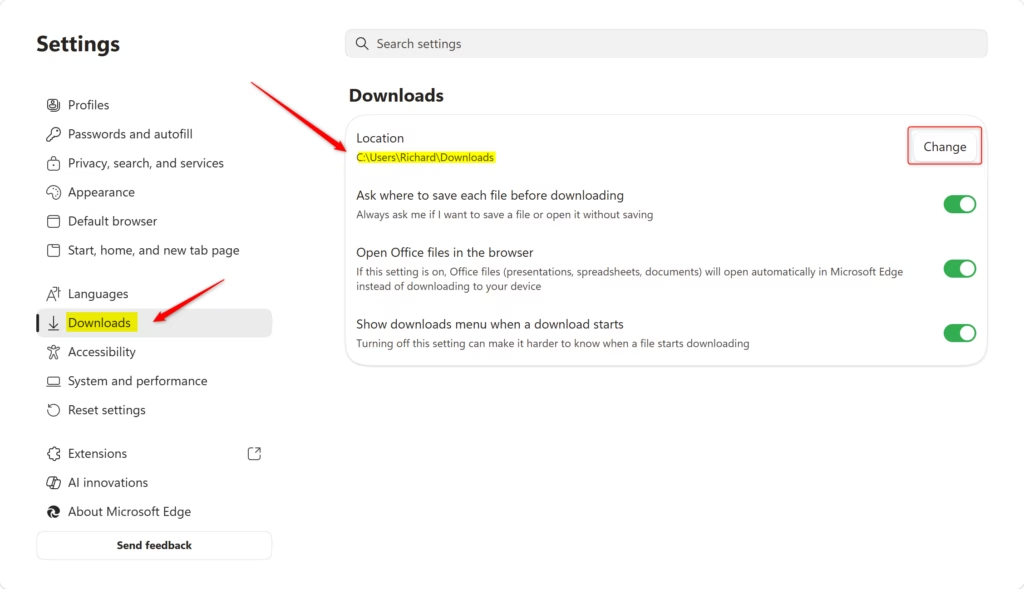
You can keep your default folder from filling up by making your browser ask where to save each file before the download starts. Here is how to do it in Edge.
Open Microsoft Edge.
Click the three horizontal dots in the top-right corner and select Settings.
Click Downloads in the left sidebar menu. If the sidebar is hidden because the window is narrow, widen the window or click the menu icon at the top left of the Settings⚙️ page.
Turn on the switch for the option that asks where to save each file. Edge words this Ask me where to save each file before downloading⬇️, and some versions word it as asking what to do with each download.
From now on, Edge shows a Save As window for every download, so you choose the folder each time. To undo this, return to the same page and turn the switch off. The same page also has a Location setting with a Change button if you would rather pick a different default folder. Chrome and Firefox have equivalent options in their own download settings.
What to do next
Now that you can locate your downloaded files, you can free up disk space by clearing out old installers and temporary documents, or organize your files by moving them into custom folders.
Frequently asked questions
How to get to downloads on computer?
Press Win+E to open File Explorer, the built-in file browser. Click Downloads in the left sidebar. If you don't see it there, click This PC and double-click Downloads under Folders. Your newest files appear at the top of the list.
How to see downloads on laptop?
On a laptop, press Win+E to open File Explorer, or click the folder icon on the taskbar. Then click Downloads in the left sidebar. If Downloads is missing, click This PC and double-click it under Folders. The newest files sit at the top.
Where are my downloads on this computer?
Your downloads are in the Downloads folder, usually under This PC in File Explorer. Open File Explorer with Win+E and click Downloads in the sidebar. Files saved by your web browser go here unless you picked another save location in the browser's settings.
Still have a question?
Answered by AI from this guide. Good questions may be added to this page — please don't include personal details.
📬 Get new Windows tips in your inbox
One email when we publish something worth your time. We send a link to confirm. No spam, unsubscribe anytime.
Richard is a writer at Geek Rewind who turns complex IT tasks into clear, step-by-step guides. He draws on years of hands-on experience in system administration and enterprise IT operations, focusing on Windows, Linux and WordPress: the problems people actually run into, and the fixes that work.
His server and WordPress guides come from systems he runs himself. Richard builds and maintains the platform behind Geek Rewind, from its Ubuntu servers and Nginx configuration to its custom WordPress plugins.
Many new tutorials start with readers' questions, and he's always glad to answer them in the comments.




No comments yet — be the first to share your thoughts!