How to Change Microsoft Teams Download Location

By default, Microsoft Teams saves every file you download from chats and channels to the Downloads folder in your user profile, usually 📁C:\
You change the path in the Teams settings menu. It works with any folder on your PC that your account can write to. If you pick an external drive, keep it connected whenever you download files, or the save will fail.
Change the Microsoft Teams download location by going to Settings, then Files and links, and clicking the Change button under Downloads. Select your desired folder to save files directly to a new location. This setting applies only to the Teams desktop app.
How to Change Teams Download Location
Teams lets you change the download location in the app settings, so files go straight to a folder you choose. In short: open the Microsoft Teams desktop app, click the three dots near your profile picture, select Settings, and go to the Files and links tab to pick a new download path. The full steps are below. Menu labels can differ a little between the classic and new Teams apps, but the path is the same idea in both.
1. Open the Microsoft Teams app. Use the desktop app, not Teams in a browser. Sign in if you’re asked to. You should see your chats, teams and channels.

2. Click the Settings and more (…) icon near your profile picture. A menu opens with options such as Settings.
Changing download locations in a web browser is done through the browser’s own settings, not within Teams.

3. Select Settings from the menu. The Settings window opens, with a list of categories on the left.

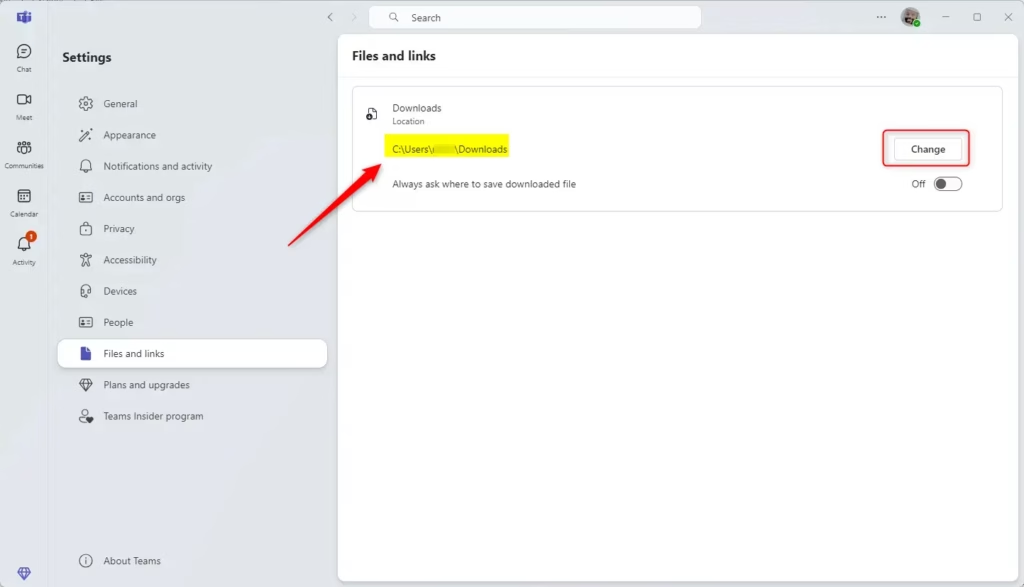
- Click the Files and links tab on the left. The file and download options appear on the right.
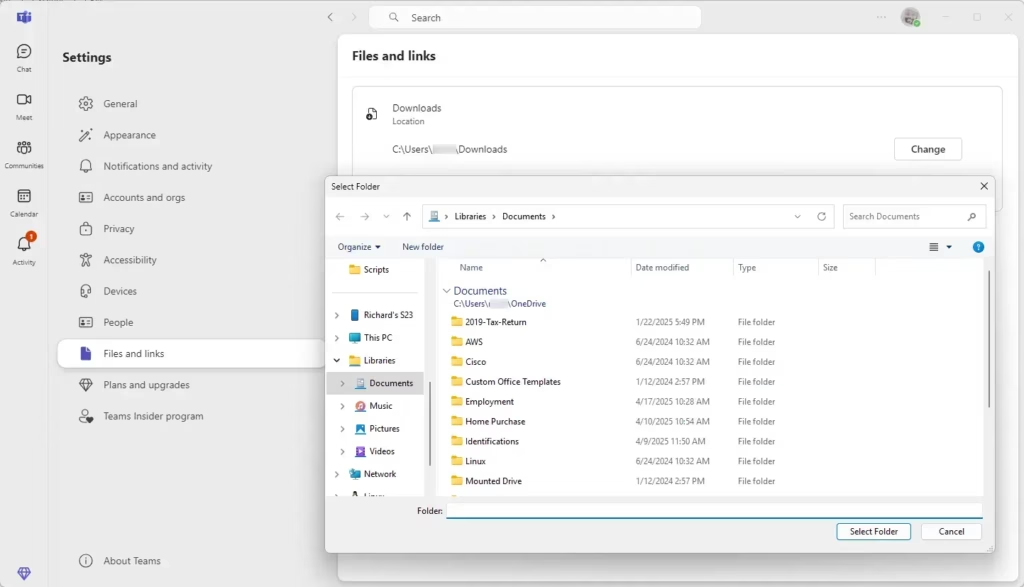
- Under the Downloads section, click the Change button. A folder browser window opens, and it usually shows your current download folder. If you can’t find the option, check that you’re in the desktop app and update Teams, since older builds label this page differently.
- Pick your preferred folder and click Select Folder. The new path should now show in the Downloads section. You can create the folder first if it doesn’t exist yet. To test it, download any file from a chat or channel and check that it lands in the new folder. To undo the change, repeat these steps and pick your original Downloads folder.
Browser vs. Desktop Client Differences
The Teams desktop app and the web version handle downloads separately. Changing the location in one does not affect the other. If you also use Teams in a browser, set that folder in the browser’s download settings.
On macOS, the default download location for Teams files is typically your Downloads folder. To change this for the desktop app, follow the same steps as for Windows.
Latest Update
The Teams desktop app and the web version handle downloads separately. Changing the location in one does not affect the other. For the web version, you must change the download location within your browser’s settings.
Troubleshooting Permission Issues
Permission problems stop you from changing the Teams download location when your Windows account has no write access to the folder you chose, or when security software blocks the app. There are three fixes to try:
- Pick a folder inside your personal user profile, where your account always has write access.
- Run Teams as an administrator.
- Check your antivirus settings and make sure Teams can save files to that folder.
Folders in protected locations, such as system folders or other users’ profiles, are the most common cause. Network drives and folders on a work PC can also be locked by policy. In that case your IT department may need to allow the location.
Syncing with OneDrive and SharePoint
Microsoft Teams stores files in SharePoint or OneDrive. Downloading one creates a local copy on your computer. The original stays in the cloud, so changing your download folder doesn’t move or affect the stored files.
The default download location for the Teams desktop client on Windows is usually C:\Users\\Downloads. For macOS, it’s typically /Users//Downloads.
Comparison Table: Download Behavior
| Platform | Control Method |
|---|---|
| Teams Desktop App | Teams Settings Menu |
| Web Browser | Browser Download Settings |
| Mobile App | System File Manager |
Summary
Changing your Teams download location helps you stay organized. You can send files to a secondary drive or a specific project folder to save space on your main drive. Remember that the desktop app and web browsers manage downloads separately, so set each one on its own. For more official guidance, visit the Microsoft Support website.
What's new
- Teams now supports setting a custom download location directly within the app settings for the desktop client.
- Previous versions required workarounds or relied solely on browser settings for web downloads.
Have a question about this guide?
Answered by AI from this guide. Good questions may be added to this page — please don't include personal details.
Did this guide fix your problem?

About the Author
Richard
Tech Writer, IT Professional
Richard is a writer at Geek Rewind who turns complex IT tasks into clear, step-by-step guides. He draws on years of hands-on experience in system administration and enterprise IT operations, focusing on Windows, Linux and WordPress: the problems people actually run into, and the fixes that work. His server and WordPress guides come from systems he runs himself. Richard builds and maintains the platform behind Geek Rewind, from its Ubuntu servers and Nginx configuration to its custom WordPress plugins. Many new tutorials start with readers' questions, and he's always glad to answer them in the comments.
No comments yet — be the first to share your thoughts!