
- 21 steps
- Needs administrator rights
- Includes a restart or sign-out
Changing the default download location in Microsoft Edge sends downloaded files straight to a folder you choose, such as one on a second drive or an external drive. Your main Downloads folder stays uncluttered, and you don’t have to move files by hand afterward. The setting is the same on every edition of Windows 11, Home and Pro.
The change takes a few seconds in the Edge settings. Edge also has a registry method that applies to every account on the PC, covered further down.
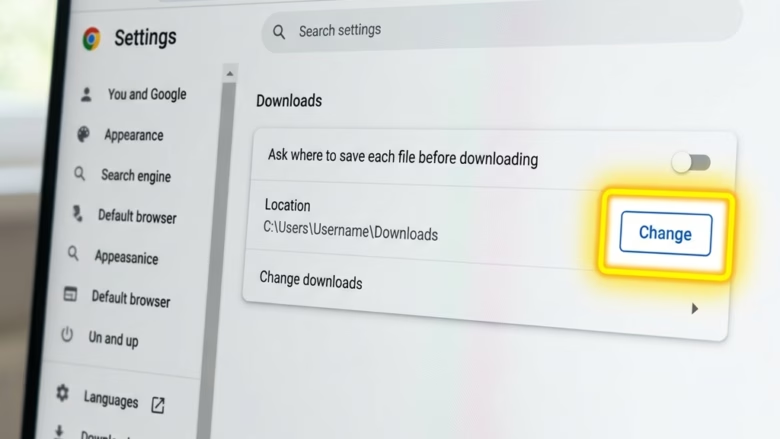
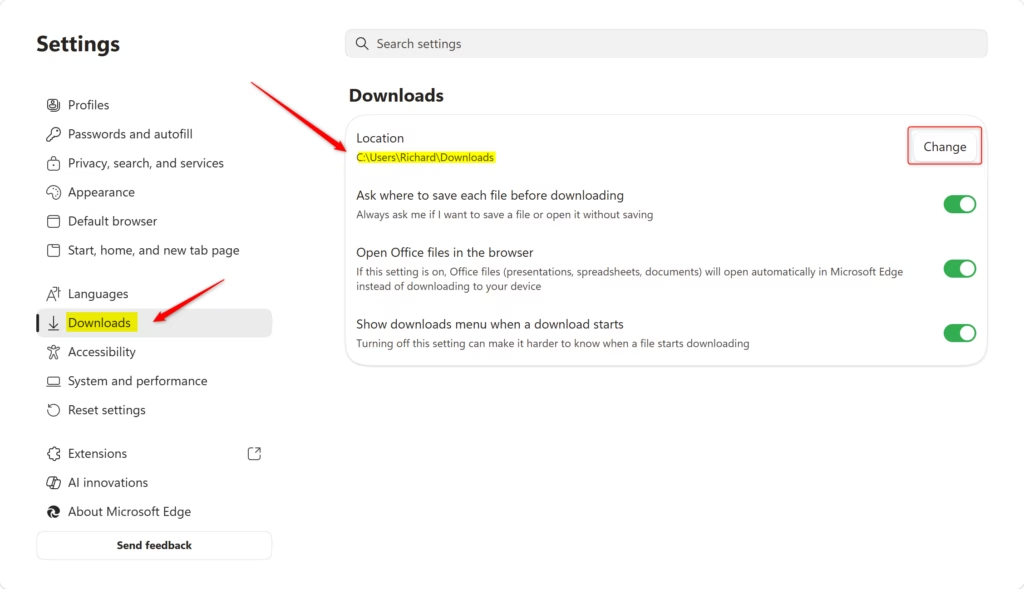
Open Edge settings, click Downloads, and then click Change next to Location to select a new folder. This updates the default save location for all future downloads.
What happens when you are done?
Once you save the change, Edge puts all new downloads in your chosen folder automatically. Files you downloaded earlier stay where they are. You can switch back to the old folder or pick a different one at any time without losing files or breaking other browser settings.
Here is the short version:
- Open Edge, click the Settings and more (three dots) menu, then select Settings.
- Click Downloads on the left sidebar.
- Click the Change button next to Location and pick your new folder.
The full steps follow below.
Option 1Change Default Downloads Folder
Use this method for your own user account. It needs no administrator rights, and it affects only your Edge profile on this PC.
- Open Microsoft Edge.
- Click the Settings and more button (three dots) in the top-right corner and select Settings. A Settings page opens with a list of categories on the left.
- Click Downloads in the left menu. You will see the current download folder listed next to Location.
- Click the Change button next to Location. A folder picker window opens.
- Browse to the folder you want. To make a new one, click Make New Folder in the picker and name it. Then click Select Folder.
- Check the Location line. It should now show your new path.
If the Change button is greyed out, or the page says Edge is managed by your organization, a policy is controlling the folder. This is common on work or school PCs. It can also happen if someone applied the registry method below on this computer. In that case you have to change or remove the policy first.
To undo the change, repeat the same steps and pick your old folder, usually the Downloads folder under your user profile. No restart is needed.

Option 2Change for All Users (Admin Required)
Changing the Edge download location for all users on the computer forces every account to use the same folder for saved files. You need administrator rights and the Registry Editor, which is a database for low-level Windows settings. Setting the value this way acts as a policy, so other people using the PC cannot change it back from Edge’s settings. The method works on both Windows 11 Home and Pro.
Be careful here. A wrong change in the registry can cause problems, so follow the steps exactly. Before you start, make sure the target folder exists, because Edge will not create it for you. For a safe fallback, open Registry Editor and use File Export to save a backup first.
- Close all Edge windows.
- Open Registry Editor by typing
regeditin the search bar and pressing Enter. Click Yes if the User Account Control prompt appears. The Registry Editor window opens with a tree of keys on the left. - Go to
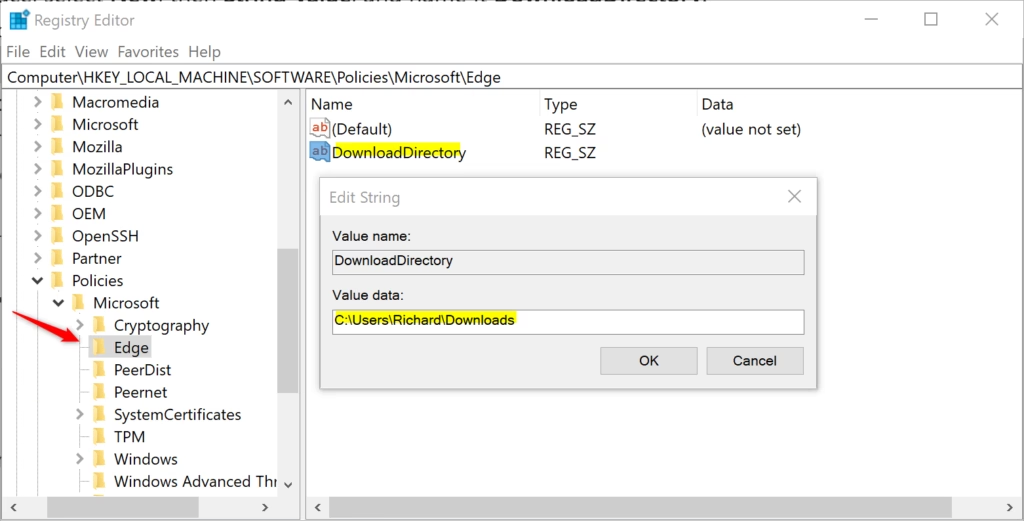
HKEY_LOCAL_MACHINE\SOFTWARE\Policies\Microsoft\Edge. - If the Edge folder (key) is missing, right-click Microsoft, select New, then Key, and name it Edge.
- Click the Edge key so it is selected. In the right pane, right-click an empty area, select New, then String Value, and name it DownloadDirectory.
- Double-click DownloadDirectory and enter your path in the Value data box, such as
"D:\Downloads". Click OK. - Close Registry Editor and open Edge again. Go to Settings Downloads The Location should show your path, and the Change button should be locked.
If the old folder still shows, restart the PC and check again. To undo the policy, return to the same key, right-click DownloadDirectory, select Delete, then restart Edge. Users can then choose their own folder again.
Summary
Changing your download folder is a practical way to manage your storage. Use the browser settings for a quick change on your own account, or the Registry Editor for system-wide control. Either way, the change only affects future downloads. Files you already downloaded stay in their old folder.
Managing Your Downloads
The Downloads icon in Microsoft Edge’s top toolbar manages active downloads. Click it to see current download progress and your download history. You can also open the same list with Ctrl+J. If the icon is not on the toolbar, it appears after you start a download.
Clearing the Microsoft Edge cache, which stores temporary internet files, helps keep the browser running fast. This is separate from download history and from your downloaded files. You can find it under Settings Privacy, search, and services, then Clear browsing data.
Ask where to save each file
If you want to choose a folder each time instead of using one fixed location, turn on a setting in Edge.
- Go to Settings Downloads in Edge.
- Turn on the switch for Ask me where to save each file before downloading.
From now on, Edge opens a Save As window for every file before it starts downloading, and you pick the folder there. Turn the switch off to go back to your default location. This option may be greyed out if a policy manages your browser.
How to clear your download history
To clear your Microsoft Edge download history, follow these steps:
- Click the Downloads icon on the browser toolbar. A small download panel opens.
- Click the three dots in the panel's menu.
- Select Clear all download history.
The list of past downloads is removed. This only clears the list. The files themselves stay in your download folder, so you can still open them from File Explorer.
Can I set different locations for different file types?
Microsoft Edge does not support setting different folders for different file types, such as images or documents. You can only set one default folder at a time. If you want sorting by type, turn on Ask me where to save each file before downloading and choose the folder yourself for each file.
Have a question about this guide?
Answered by AI from this guide. Good questions may be added to this page — please don't include personal details.
Did this guide fix your problem?

About the Author
Richard
Tech Writer, IT Professional
Richard is a writer at Geek Rewind who turns complex IT tasks into clear, step-by-step guides. He draws on years of hands-on experience in system administration and enterprise IT operations, focusing on Windows, Linux and WordPress: the problems people actually run into, and the fixes that work. His server and WordPress guides come from systems he runs himself. Richard builds and maintains the platform behind Geek Rewind, from its Ubuntu servers and Nginx configuration to its custom WordPress plugins. Many new tutorials start with readers' questions, and he's always glad to answer them in the comments.
No comments yet — be the first to share your thoughts!