How to Move Your OneDrive Folder in Windows 11


Moving your OneDrive folder to a new location on your Windows 11 PC frees up space on your main C: drive without losing access to your files. The default setup places your cloud files at 📁C:\
This stops your primary drive from running out of storage when your cloud sync grows too large. The steps are the same on Windows 11 Home and Pro. Before you start, make sure the destination is an internal drive formatted as NTFS, with enough free space for everything you sync. Let OneDrive finish any pending sync first, so you don’t move half-uploaded files.
To move your OneDrive folder in Windows 11, open OneDrive Settings from the cloud icon in the taskbar , go to the Account tab and click Unlink this PC. Then cut the 📁C:\
Moving the OneDrive Folder
The process has three parts. First you unlink your PC from your OneDrive account, then you move the folder in File Explorer , and finally you sign back in and point OneDrive at the new location. Unlinking does not delete anything. Your files stay on the PC and in the cloud.
- Open the OneDrive settings and go to the Account tab.
- Click Unlink this PC to disconnect your account.
- Cut the OneDrive folder in File Explorer and paste it in the new location.
- Sign back in to OneDrive and choose the new folder when asked.

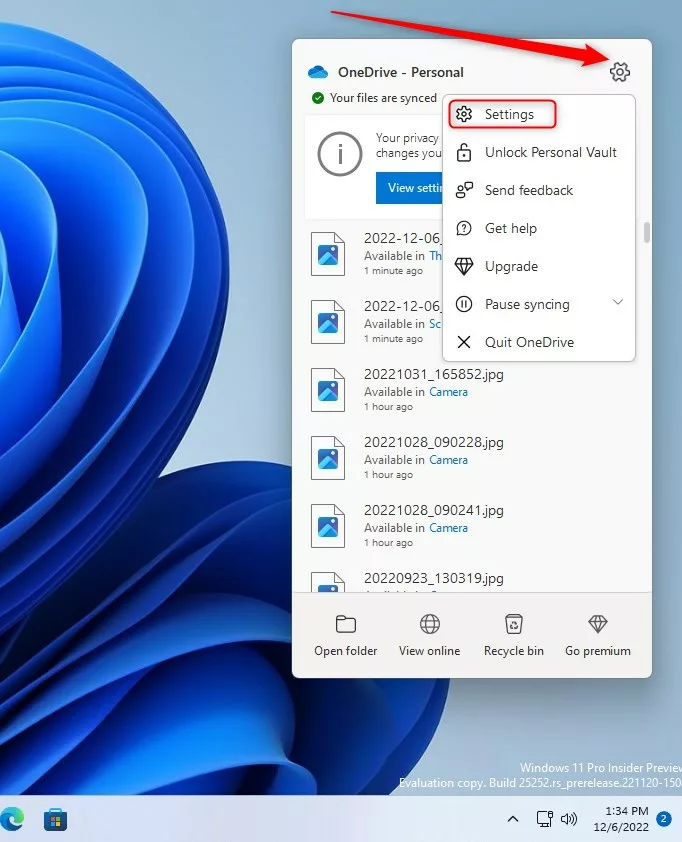
Click the OneDrive cloud icon in the notification area at the right end of the taskbar . If you don’t see it, click the up arrow next to the tray icons first. In the OneDrive window that opens, click the gear icon for Help & Settings, then choose Settings. The OneDrive Settings window should now be open.
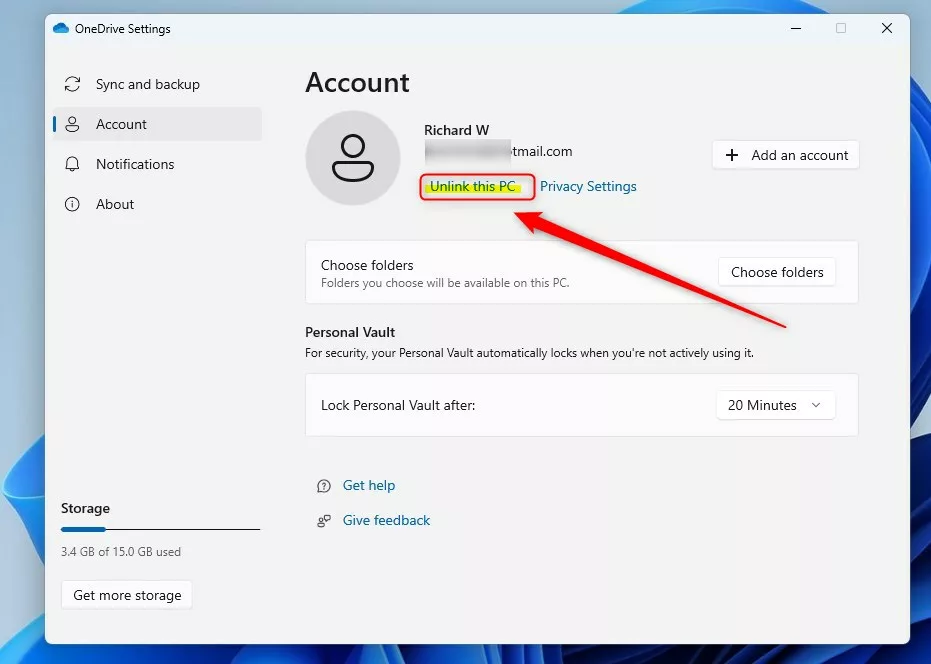
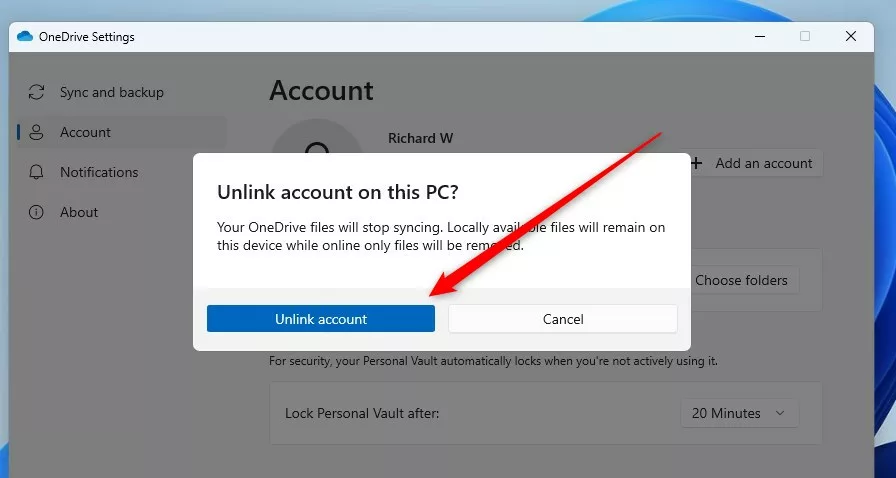
Click the Account tab, then click Unlink this PC. A confirmation prompt should appear. Nothing is unlinked until you confirm it in the next step.
OneDrive stops syncing and a “Welcome to OneDrive” sign-in window appears. Close that window for now. Don’t sign in yet, or OneDrive will set up the default location again.
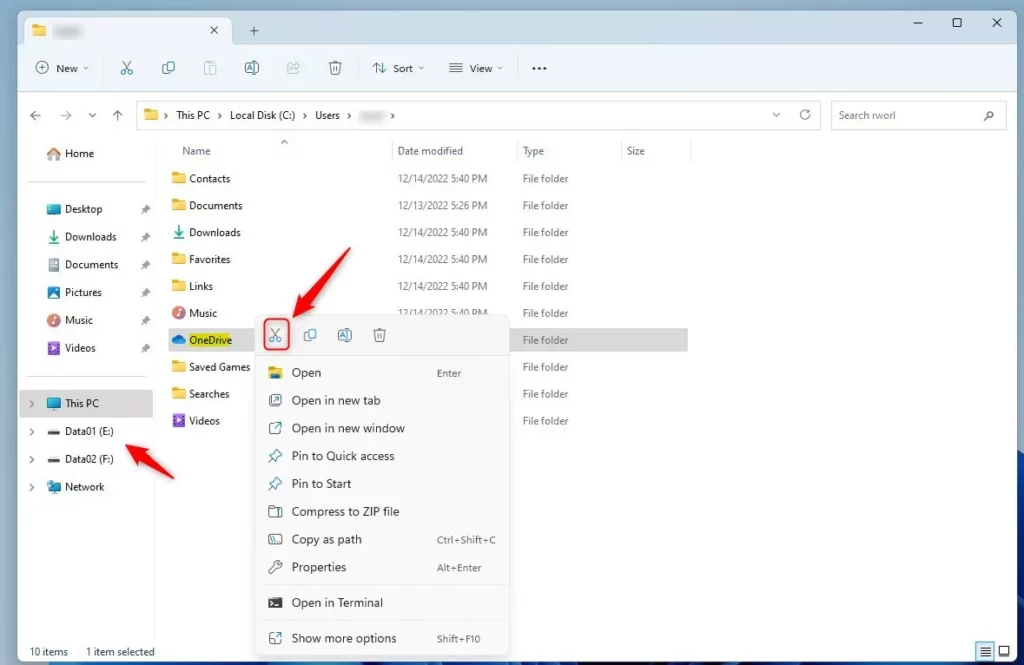
Open File Explorer and find your OneDrive folder, which is usually at C:\Users\username\OneDrive. Right-click the folder and select Cut. If you have a lot of data, the move in the next step will take a while, so plan for that.
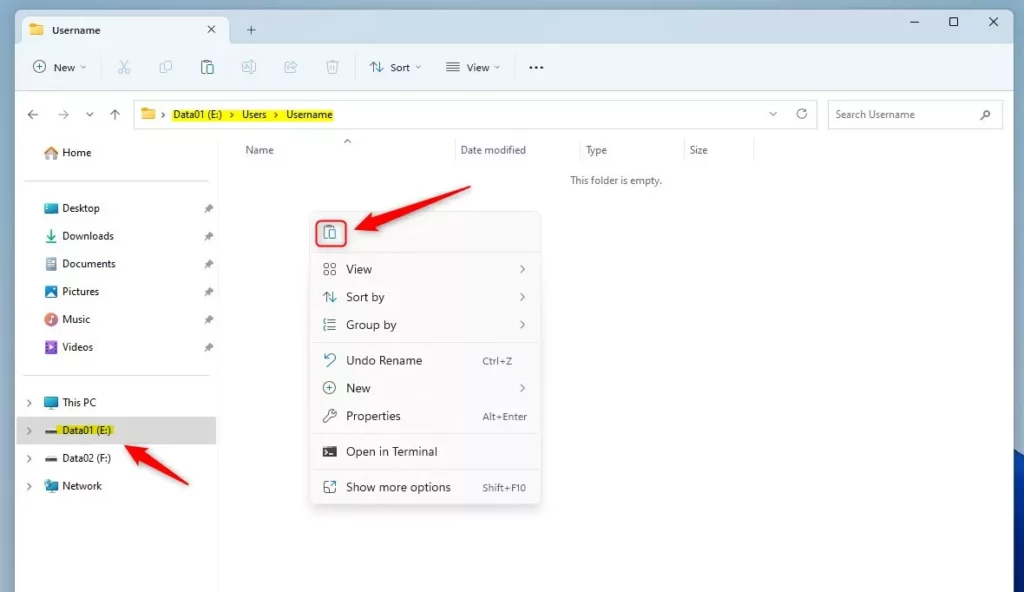
Right-click an empty area and choose Paste. Wait for the copy to finish before you do anything else. Because the folder is moving between drives, Windows copies the files first and then removes them from C:. Afterwards, check that the folder and its files are on the new drive and that the old location on C: is gone.
Relinking Your Folder
You must relink your account to finish the move. Sign back in on the OneDrive setup screen and choose your new storage path. When the configuration prompt appears, click the link to change the folder location rather than accepting the default path, then select your new folder to resume syncing.


Start OneDrive again from the Start menu if the setup window is no longer open, then sign in with your account. When the setup asks where to put your folder, click the Change location link instead of clicking Next. A folder picker should open.

Browse to the folder you pasted on your E: drive, select it, and click Use this folder. The picker closes and you return to the setup screen.

Check that the path shown on the screen is the new one on your E: drive, then click Next. If it still shows the C: path, go back and use Change location again.

Choose which folders you want to sync and click Start syncing. Syncing only some folders also saves disk space on the new drive. You can change this selection later in the OneDrive settings.
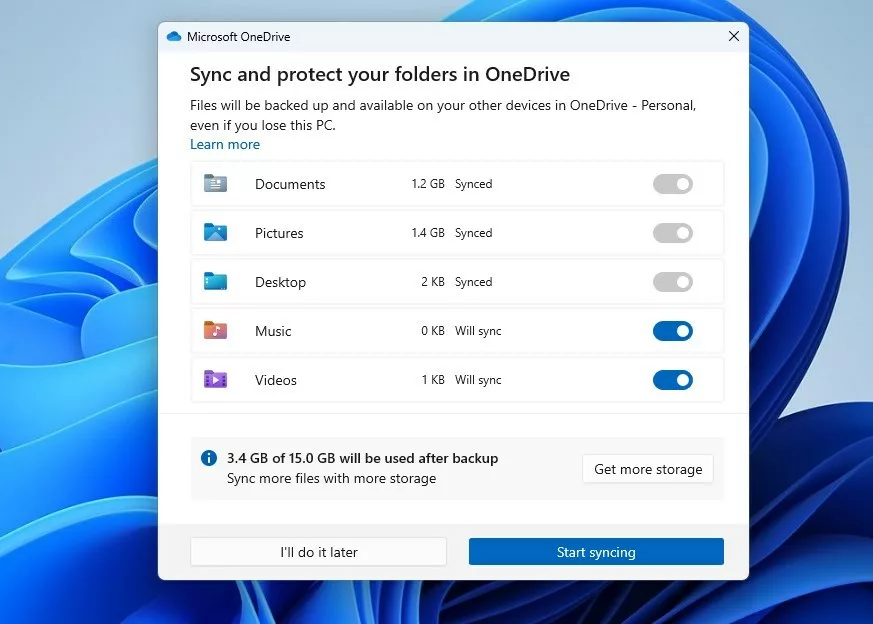
Keep following the on-screen instructions until OneDrive shows it's ready. These are mostly informational pages, and you can click through them.

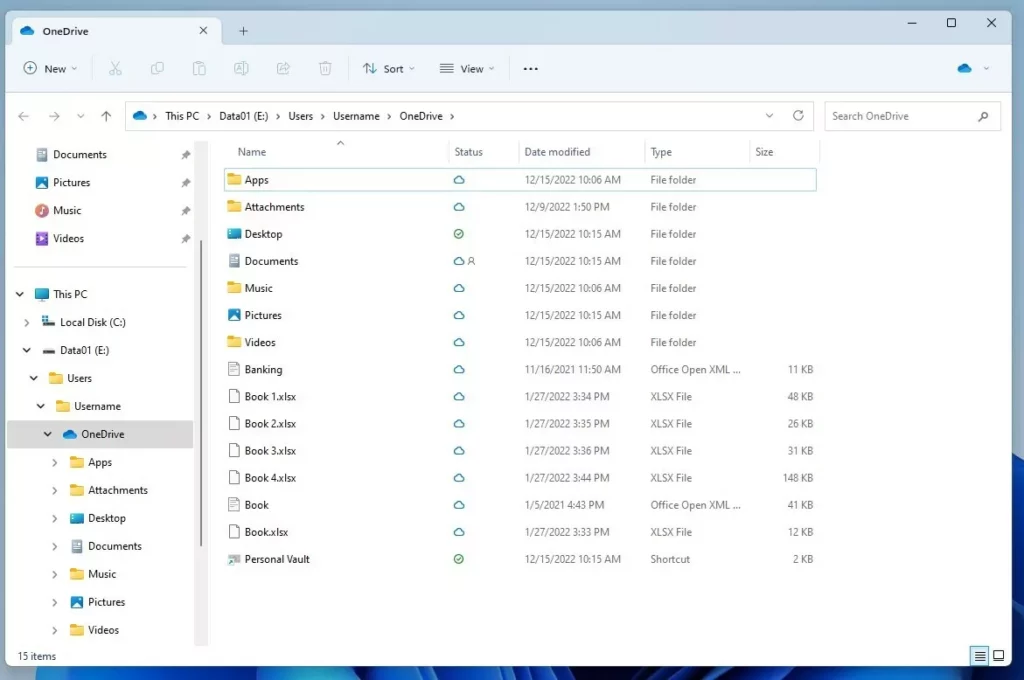
Your files are now being synced from the new location. OneDrive checks the existing files against the cloud, so it may spend a few minutes on that before the sync icon shows up to date. To confirm the move worked, open the OneDrive folder from the File Explorer navigation pane and check that the address bar shows the path on your new drive.
Troubleshooting and Performance
Do you get a "OneDrive folder already exists" error when you try to move your OneDrive folder? The most reliable fix is to make sure the new folder location is completely empty. This error often comes from a leftover folder from an earlier attempt, so open the destination in File Explorer and remove anything that doesn't belong there. Alternatively, choose a different, empty location.
Summary
Unlink your PC from your account, use File Explorer to move the folder, and sign back into OneDrive to connect it. To undo the move later, repeat the same steps and choose a folder on your C: drive as the new location.
Moving your OneDrive folder may require administrator rights if it is located in protected system areas, such as C:\Program Files. If Windows asks for permission or refuses the move, sign in with an administrator account and try again. Keeping the folder under your user profile, as in the default setup, avoids this problem.
Reference: Microsoft.com
Frequently asked questions
How do I move OneDrive to another drive?
Unlink your PC in OneDrive settings, then cut the OneDrive folder and paste it onto the new drive in File Explorer. Sign back in, and when OneDrive asks where to put your files, choose the new folder. Your files stay in the cloud and on the PC, so nothing is deleted. Use an internal drive with enough free space.
How do I rename a OneDrive folder on my Mac?
This guide covers Windows, and the Mac version works differently. To rename the OneDrive folder on a Mac, quit OneDrive from the menu bar, rename the folder in Finder, then reopen OneDrive and sign in again to link it back up. Check that the sync finishes before you make other changes.
How do you close OneDrive on 🪟 Windows 11?
Click the up arrow in the system tray to show hidden icons. Right-click the blue OneDrive cloud icon, then click Quit OneDrive. Syncing stops until you open OneDrive again from the Start menu.
How do I add the OneDrive icon to the taskbar in 🪟 Windows 11?
Open Settings, then go to Personalization and select Taskbar. Expand Other system tray icons, and turn on the switch next to OneDrive. The cloud icon now appears in the system tray beside the clock.
Still have a question?
Answered by AI from this guide. Good questions may be added to this page — please don't include personal details.
Did this guide fix your problem?

About the Author
Richard
Tech Writer, IT Professional
Richard is a writer at Geek Rewind who turns complex IT tasks into clear, step-by-step guides. He draws on years of hands-on experience in system administration and enterprise IT operations, focusing on Windows, Linux and WordPress: the problems people actually run into, and the fixes that work. His server and WordPress guides come from systems he runs himself. Richard builds and maintains the platform behind Geek Rewind, from its Ubuntu servers and Nginx configuration to its custom WordPress plugins. Many new tutorials start with readers' questions, and he's always glad to answer them in the comments.
No comments yet — be the first to share your thoughts!