How to Unlink OneDrive Windows 11: A Complete Guide


Unlinking OneDrive in Windows 11 disconnects your Microsoft account from the cloud storage app so you stop automatically backing up your computer files online. This process takes less than 60 seconds and leaves all your existing files right where they are on your hard drive.
Any changes you make to your files after unlinking stay only on your PC and do not sync to the cloud. You can reconnect your account at any time if you want to turn syncing back on.
Unlink OneDrive by clicking the OneDrive icon, selecting Settings, then Account, and clicking “Unlink this PC”. Confirm the action to disconnect your computer from the cloud service. Your local files will remain on your PC but will stop syncing.
Why unlink OneDrive?
Severing the link stops local directories from mirroring cloud data. This helps conserve bandwidth, bypasses stubborn sync bugs, or prepares the machine for a different storage provider.
What happens when you are done?
Files remain safe in the cloud during account unlinking. Accessing remote data happens via the OneDrive website at onedrive.live.com. Local files stay in their current location, but stop updating or syncing with the online version of those folders.
Steps to unlink your account
To unlink OneDrive Windows 11, open the OneDrive settings from your taskbar , go to the Account tab, and click unlink this PC. This stops your computer from syncing files to the cloud while keeping your existing files safe on your hard drive and online.
- Click the OneDrive cloud icon on your Taskbar .
- Select the gear icon and choose Settings.

Opening the OneDrive folder in File Explorer , clicking the OneDrive button at the top, and selecting the Settings gear provides an alternate route.

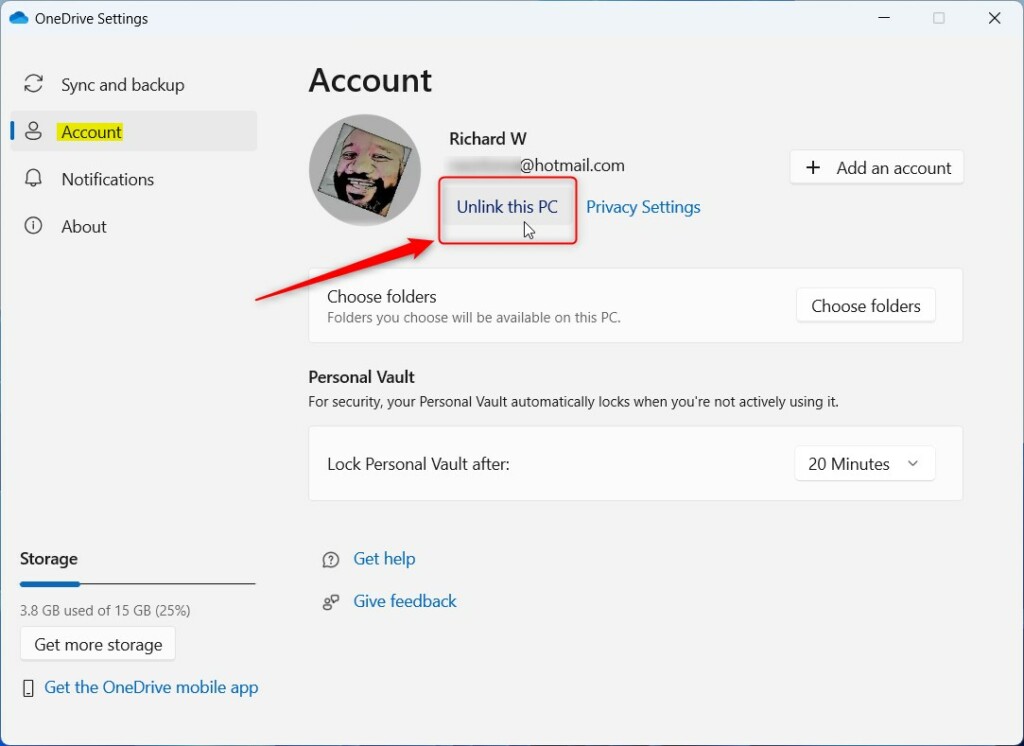
- In the settings window, click Account on the left side.
- Click the Unlink this PC link on the right side.
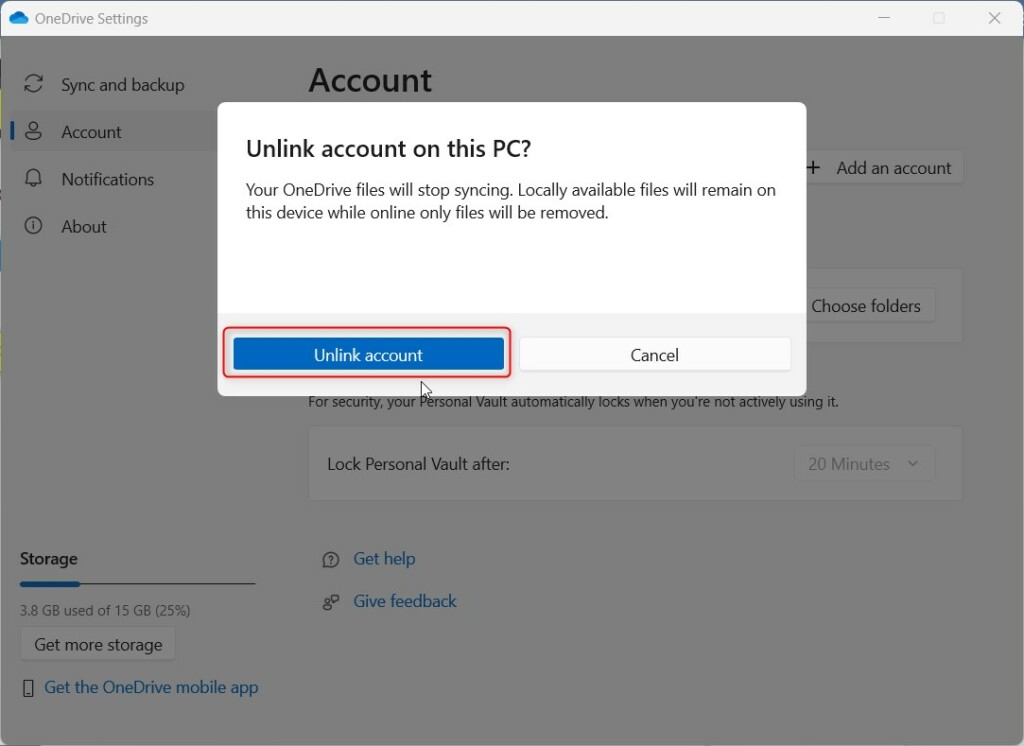
- A new window will appear. Click Unlink account to confirm.
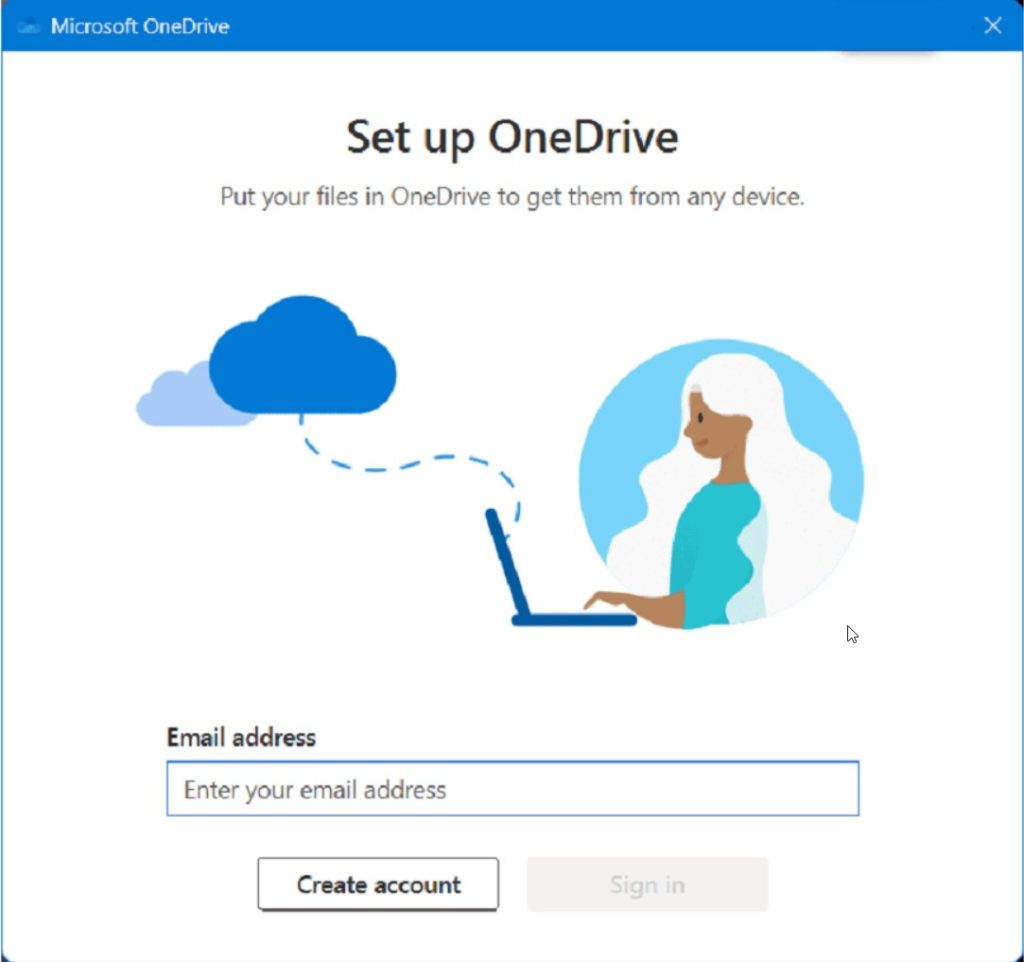
Completing these actions removes the account and disconnects the computer. A setup screen appears next, which requires no attention if the task is finished.
How to stop OneDrive from starting automatically
Keeping the app installed while preventing background launch during PC startup requires following specific steps:
- Press Ctrl + Shift + Esc to open Task Manager.
- Click the Startup apps tab.
- Find Microsoft OneDrive in the list.
- Right-click it and select Disable.
Clearing Sign-in Credentials
Clearing saved credentials resolves persistent login prompts appearing after the disconnect.
- Search for Credential Manager in the Start menu.
- Select Windows Credentials.
- Find any entries starting with OneDrive Cached Credential.
- Click the arrow next to the entry and select Remove.
Uninstalling vs. Unlinking
Unlinking halts synchronization operations only. To remove the software completely, open Settings Apps Installed apps, search for Microsoft OneDrive, and click Uninstall. This purges OneDrive from File Explorer permanently.
Troubleshooting Sync Errors
Addressing sync errors warrants a preliminary app reset. Pressing the Windows key + R on the keyboard, pasting the following command, and hitting Enter executes the reset:
C:\Program Files\Microsoft OneDrive\onedrive.exe /reset
Summary
Unlinking OneDrive terminates file synchronization. Data stays protected in the cloud, and local files remain intact on the PC. Re-linking the account occurs at any time by signing back into the application. Additional troubleshooting details reside on the Microsoft support page.
Will unlinking OneDrive delete my files from the cloud?
Account unlinking leaves cloud files entirely intact. Data resides safely on Microsoft servers. Logging into the OneDrive website restores file access at any moment. Disconnecting breaks the bridge between the local machine and cloud storage without deleting anything.
What happens to my local files after I unlink my account?
Local directories remain untouched once the connection drops. Existing files stay put on the hard drive, but future edits stay local rather than pushing to the cloud. Subsequent edits bypass cloud synchronization entirely because the OneDrive app relinquishes management over those folders.
Was this guide helpful?

About the Author
Richard
Tech Writer, IT Professional
Richard, a writer for Geek Rewind, is a tech enthusiast who loves breaking down complex IT topics into simple, easy-to-understand ideas. With years of hands-on experience in system administration and enterprise IT operations, he’s developed a knack for offering practical tips and solutions. Richard aims to make technology more accessible and actionable. He's deeply committed to the Geek Rewind community, always ready to answer questions and engage in discussions.



No comments yet — be the first to share your thoughts!